> ## Documentation Index
> Fetch the complete documentation index at: https://docs.testdino.com/llms.txt
> Use this file to discover all available pages before exploring further.
# Get Started with TestDino
> Set up TestDino and upload your first Playwright test run in five minutes, from API key to verified results.
export const HowToSchema = ({name, description, steps = []}) => {
const schema = {
"@context": "https://schema.org",
"@type": "HowTo",
name,
...description ? {
description
} : {},
step: steps.map(({name: stepName, text}, i) => ({
"@type": "HowToStep",
position: i + 1,
name: stepName,
text
}))
};
return ;
};
. Never hardcode the key in source or CI config." },
{ name: "Install the TestDino CLI", text: "Install the Node.js CLI with npm install tdpw, or the Python CLI with pip install pytest-playwright-json pytest-html testdino." },
{ name: "Configure Playwright reporters", text: "Add the HTML and JSON reporters to playwright.config.js. List the HTML reporter before the JSON reporter, because Playwright's HTML reporter clears its output directory on each run." },
{ name: "Run tests and upload", text: "Run your tests with npx playwright test, then upload results with npx tdpw upload ./playwright-report --token=\"$TESTDINO_TOKEN\" --upload-html." },
{ name: "Verify in TestDino", text: "Open Test Runs in your TestDino project. Your run appears at the top of the list with pass/fail counts, duration, and a link into the full report with traces and screenshots." },
{ name: "Integrate with your CI pipeline", text: "Add TestDino to your CI workflow to automate uploads. The CI Setup Guide covers GitHub Actions, GitLab CI, Azure DevOps, CircleCI, TeamCity, and more." },
{ name: "Connect your tools", text: "Connect Slack for failure alerts, Jira or Linear for auto-created tickets, and GitHub for PR comments and status checks." },
]}
/>
TestDino collects Playwright results, logs, errors, traces, videos, and screenshots, then aggregates them into analysis for faster debugging. Your team reads these insights from dashboards, Slack notifications, MCP, and PR comments.
Go from a fresh account to your first uploaded test run in about five minutes. Use the AI agent prompt below to let an assistant handle the setup, or follow the manual steps.
## Prerequisites
* A TestDino account (sign up if you haven't)
* A Playwright project with tests (or clone the TestDino Example Repository to get started)
Uploaded data is encrypted in transit and at rest. TestDino is SOC 2 Type 2 and ISO 27001 certified: see [Security & Compliance](/data-privacy/security-compliance).
## Set up with an AI agent
Copy the prompt below into Cursor, Claude Code, or another AI coding assistant. It carries the verified steps and guardrails for uploading your first run, so the agent configures the reporters and runs the upload for you.
# Set up TestDino Playwright reporting
**Purpose:** Correct instructions for uploading Playwright test results to TestDino using the `tdpw` CLI.
## Prerequisites
* TestDino API key from [https://app.testdino.com](https://app.testdino.com) (Project Settings → API Keys)
* Store the key in environment variable `TESTDINO_TOKEN`. Never hardcode it.
## 1. Install
```bash theme={null}
npm install tdpw
```
## 2. Configure Playwright reporters
Add to `playwright.config.js` (HTML reporter MUST be listed before JSON):
```javascript theme={null}
reporter: [
['html', { outputDir: './playwright-report' }],
['json', { outputFile: './playwright-report/report.json' }],
]
```
## 3. Run tests and upload
```bash theme={null}
npx playwright test
npx tdpw upload ./playwright-report --token="$TESTDINO_TOKEN" --upload-html
```
## Complete `tdpw upload` flag reference
| Flag | Description | Default |
| ----------------------- | --------------------------------------------------- | -------- |
| `` | Directory containing Playwright reports | Required |
| `-t, --token ` | TestDino API token | Required |
| `--environment ` | Target environment tag (staging, production, qa) | unknown |
| `--tag ` | Comma-separated run tags for categorization (max 5) | None |
| `--upload-images` | Upload image attachments | false |
| `--upload-videos` | Upload video attachments | false |
| `--upload-html` | Upload HTML reports | false |
| `--upload-traces` | Upload trace files | false |
| `--upload-files` | Upload file attachments (.md, .pdf, .txt, .log) | false |
| `--upload-full-json` | Upload all attachments | false |
| `--json` | Output results as JSON to stdout (for CI/CD) | false |
| `-v, --verbose` | Enable verbose logging | false |
## Other commands
* `npx tdpw cache --token="$TESTDINO_TOKEN"`: cache test metadata for intelligent reruns
* `npx playwright test $(npx tdpw last-failed --token="$TESTDINO_TOKEN")`: rerun only failed tests
## Environment variables
* `TESTDINO_TOKEN`: API token
* `TESTDINO_TARGET_ENV`: default environment tag
* `TESTDINO_RUN_TAGS`: default comma-separated run tags
## ALWAYS
* Store API key in `TESTDINO_TOKEN` environment variable
* List HTML reporter before JSON reporter in Playwright config
* Use `--upload-html` to include screenshots, traces, and videos
* Use `if: always()` in CI so uploads happen even when tests fail
## NEVER
* Hardcode API keys in code or workflow files
* Skip the JSON reporter. It is required for TestDino to parse results.
* Use `@testdino/playwright` or `tdpw test`. These are Experimental streaming features, not stable.
Full docs: [https://docs.testdino.com/llms-full.txt](https://docs.testdino.com/llms-full.txt)
For the full agent workflow, including MCP and starter prompts, see [AI Onboarding](/ai-onboarding).
## Set Up Your First Project
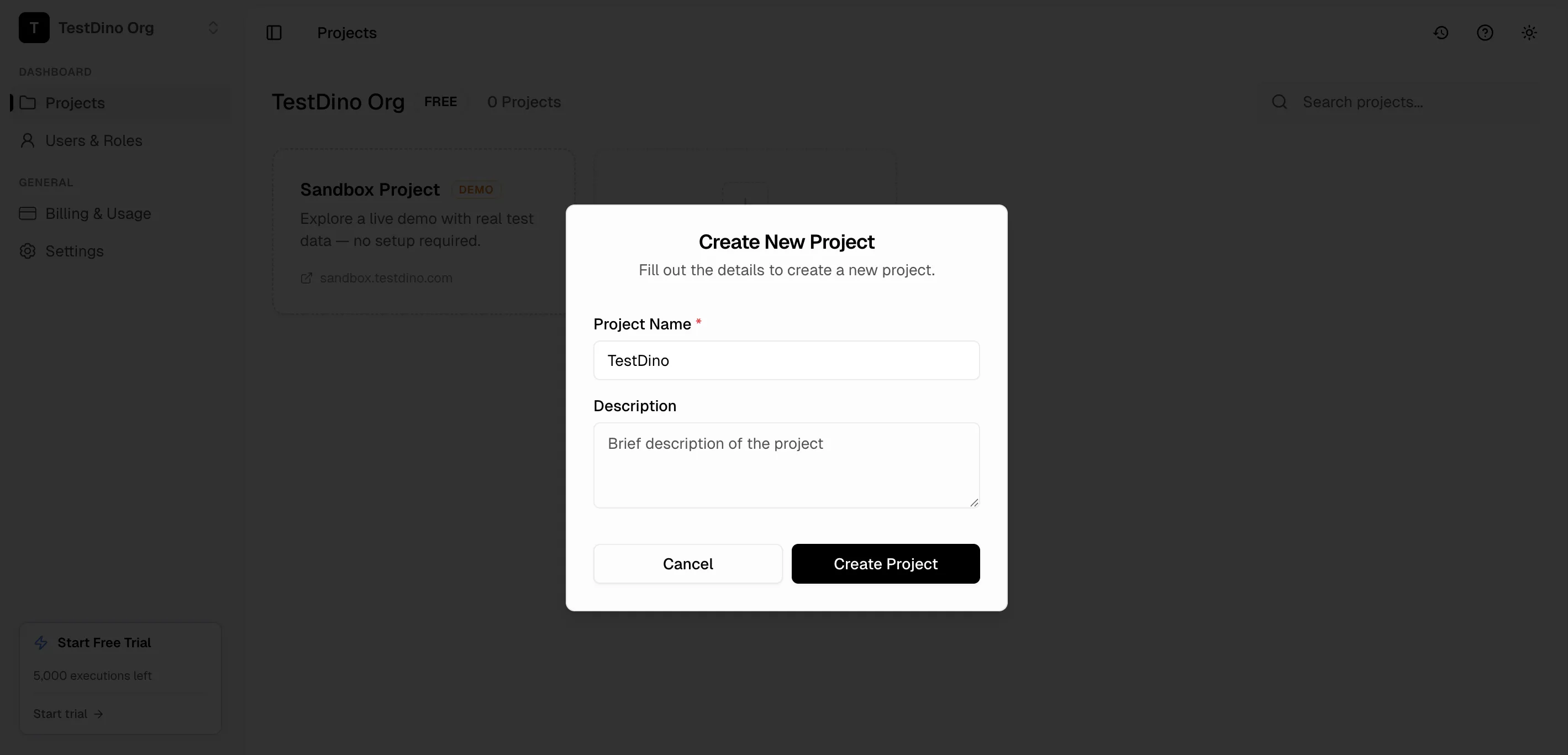
After signup and onboarding, click **New Project** to create your first project.
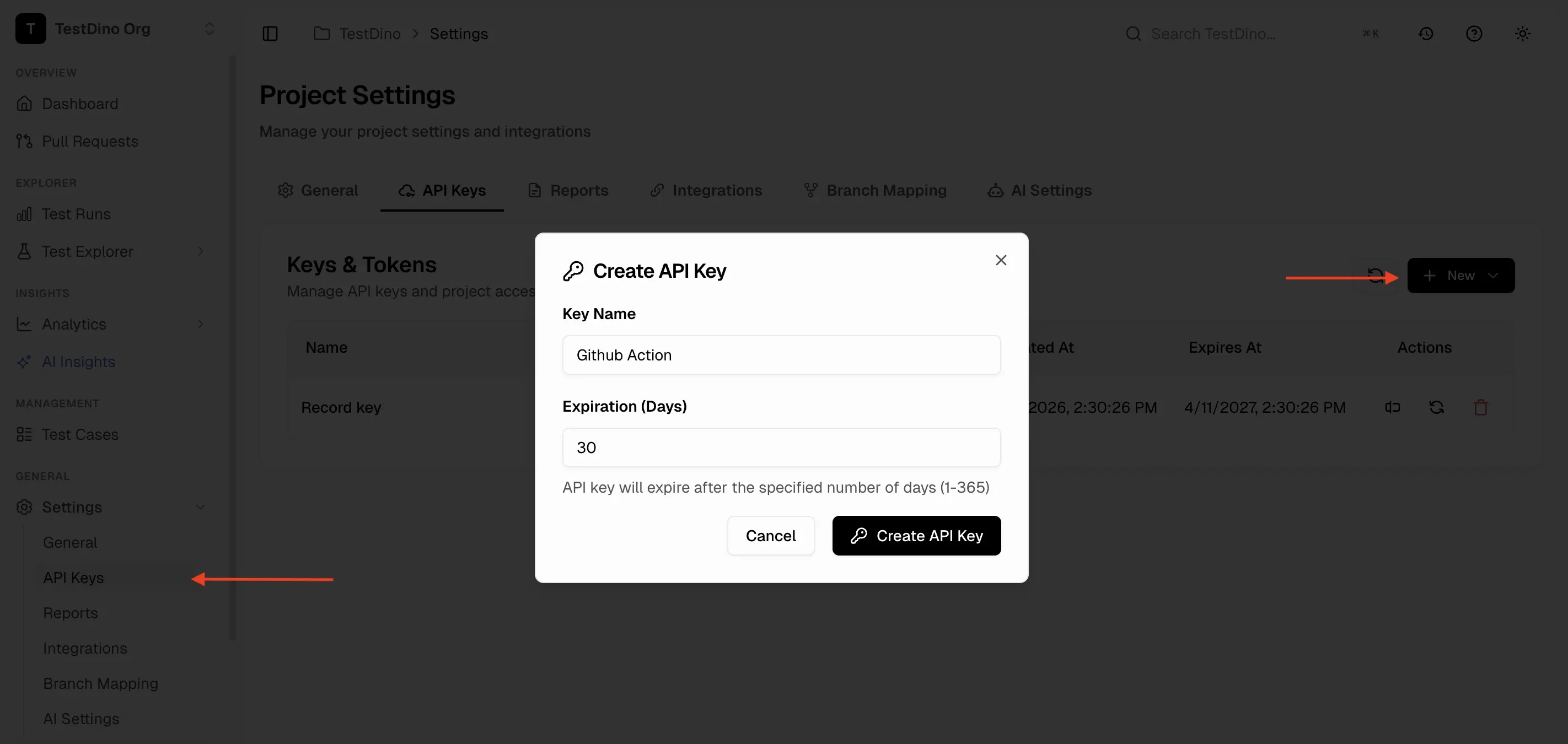
 Go to **Project Settings → API Keys** and generate a new key. Copy and save it securely.
 Store the key in the `TESTDINO_TOKEN` environment variable so the CLI can read it. Every command below uses this variable.
```bash theme={null}
export TESTDINO_TOKEN=
```
**Note**
Never hardcode the key in source or CI config. In CI, store it as a secret and reference it as an environment variable.
```bash theme={null}
npm install tdpw
```
View TestDino npm package for [tdpw ↗](https://www.npmjs.com/package/tdpw)
```bash theme={null}
pip install pytest-playwright-json pytest-html testdino
```
Add JSON and HTML reporters to your Playwright config:
```javascript playwright.config.js theme={null}
reporter: [
['html', { outputDir: './playwright-report' }],
['json', { outputFile: './playwright-report/report.json' }],
]
```
**Note**
The HTML reporter **must** be listed before the JSON reporter. Playwright's HTML reporter clears its output directory on each run, so placing it first ensures `report.json` is not deleted.
Pass reporter flags when running pytest:
```bash theme={null}
pytest \
--playwright-json=test-results/report.json \
--html=test-results/index.html \
--self-contained-html
```
Required packages: `pytest-playwright-json` and `pytest-html`.
```bash theme={null}
# Run your tests
npx playwright test
# Upload results to TestDino
npx tdpw upload ./playwright-report --token="$TESTDINO_TOKEN" --upload-html
```
```bash theme={null}
# Run your tests
pytest \
--playwright-json=test-results/report.json \
--html=test-results/index.html \
--self-contained-html
# Upload results to TestDino
testdino upload ./test-results --token="$TESTDINO_TOKEN" --upload-full-json
```
**Note**
Export your API key as the `TESTDINO_TOKEN` environment variable. Never hardcode it in source or CI config.
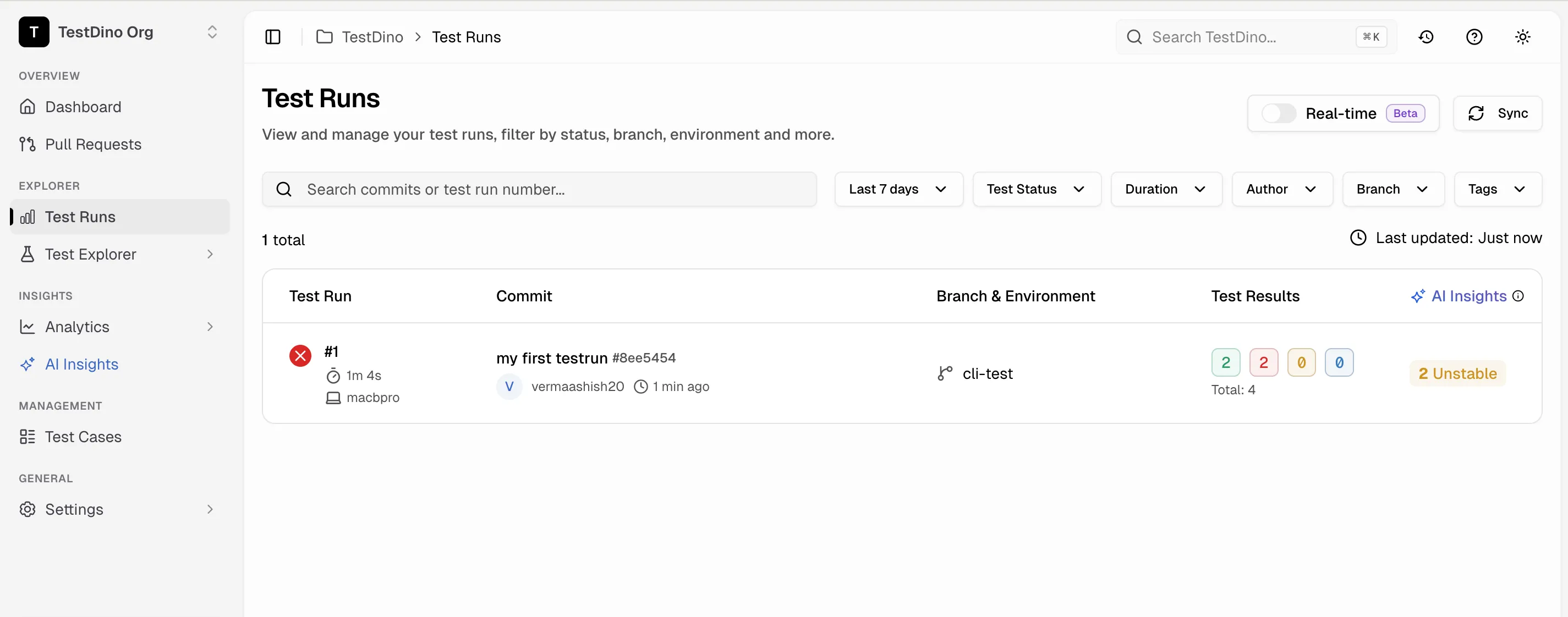
Open **Test Runs** in your TestDino project. You should see your run at the top of the list with its pass/fail counts, duration, and a link into the full report with traces and screenshots. If it appears, your setup is working.
Store the key in the `TESTDINO_TOKEN` environment variable so the CLI can read it. Every command below uses this variable.
```bash theme={null}
export TESTDINO_TOKEN=
```
**Note**
Never hardcode the key in source or CI config. In CI, store it as a secret and reference it as an environment variable.
```bash theme={null}
npm install tdpw
```
View TestDino npm package for [tdpw ↗](https://www.npmjs.com/package/tdpw)
```bash theme={null}
pip install pytest-playwright-json pytest-html testdino
```
Add JSON and HTML reporters to your Playwright config:
```javascript playwright.config.js theme={null}
reporter: [
['html', { outputDir: './playwright-report' }],
['json', { outputFile: './playwright-report/report.json' }],
]
```
**Note**
The HTML reporter **must** be listed before the JSON reporter. Playwright's HTML reporter clears its output directory on each run, so placing it first ensures `report.json` is not deleted.
Pass reporter flags when running pytest:
```bash theme={null}
pytest \
--playwright-json=test-results/report.json \
--html=test-results/index.html \
--self-contained-html
```
Required packages: `pytest-playwright-json` and `pytest-html`.
```bash theme={null}
# Run your tests
npx playwright test
# Upload results to TestDino
npx tdpw upload ./playwright-report --token="$TESTDINO_TOKEN" --upload-html
```
```bash theme={null}
# Run your tests
pytest \
--playwright-json=test-results/report.json \
--html=test-results/index.html \
--self-contained-html
# Upload results to TestDino
testdino upload ./test-results --token="$TESTDINO_TOKEN" --upload-full-json
```
**Note**
Export your API key as the `TESTDINO_TOKEN` environment variable. Never hardcode it in source or CI config.
Open **Test Runs** in your TestDino project. You should see your run at the top of the list with its pass/fail counts, duration, and a link into the full report with traces and screenshots. If it appears, your setup is working.
 **No run showing up?** The most common cause is reporter order. The HTML reporter must be listed **before** the JSON reporter in `playwright.config.js`, or `report.json` gets cleared before upload. See [Quick Setup troubleshooting](/faqs) if it persists.
Automate test uploads by adding TestDino to your CI workflow.
Follow the [CI Setup Guide](/guides/ci-setup-overview) to configure your provider (GitHub Actions, GitLab CI, Azure DevOps, CircleCI, TeamCity, and more).
Optionally, set up [Branch Mapping](/platform/organizations/settings) to organize test runs by environment.
Connect your communication and project management tools to route test results where your team works:
* [Slack](/integrations/slack-playwright-test-alerts): get notified on test failures
* [Jira](/integrations/jira-playwright-test-failures): auto-create tickets from failures
* [GitHub](/integrations/ci-cd/github): PR comments and status checks
* [All Integrations](/integrations/overview): Linear, Asana, Monday.com, and more
## Next Steps
Access test results and fix issues directly with AI agents
Invite and manage team members in your organization
**No run showing up?** The most common cause is reporter order. The HTML reporter must be listed **before** the JSON reporter in `playwright.config.js`, or `report.json` gets cleared before upload. See [Quick Setup troubleshooting](/faqs) if it persists.
Automate test uploads by adding TestDino to your CI workflow.
Follow the [CI Setup Guide](/guides/ci-setup-overview) to configure your provider (GitHub Actions, GitLab CI, Azure DevOps, CircleCI, TeamCity, and more).
Optionally, set up [Branch Mapping](/platform/organizations/settings) to organize test runs by environment.
Connect your communication and project management tools to route test results where your team works:
* [Slack](/integrations/slack-playwright-test-alerts): get notified on test failures
* [Jira](/integrations/jira-playwright-test-failures): auto-create tickets from failures
* [GitHub](/integrations/ci-cd/github): PR comments and status checks
* [All Integrations](/integrations/overview): Linear, Asana, Monday.com, and more
## Next Steps
Access test results and fix issues directly with AI agents
Invite and manage team members in your organization