> ## Documentation Index
> Fetch the complete documentation index at: https://docs.testdino.com/llms.txt
> Use this file to discover all available pages before exploring further.
# Automated Playwright Reports in TestDino
> Schedule recurring PDF reports of test execution and failure trends.
export const VideoSchema = ({name, description, thumbnailUrl, uploadDate, duration, contentUrl, embedUrl}) => {
const schema = {
"@context": "https://schema.org",
"@type": "VideoObject",
name,
description,
thumbnailUrl,
uploadDate,
...duration ? {
duration
} : {},
...contentUrl ? {
contentUrl
} : {},
...embedUrl ? {
embedUrl
} : {},
publisher: {
"@type": "Organization",
name: "TestDino",
logo: {
"@type": "ImageObject",
url: "https://docs.testdino.com/logo/light.svg"
}
}
};
return ;
};
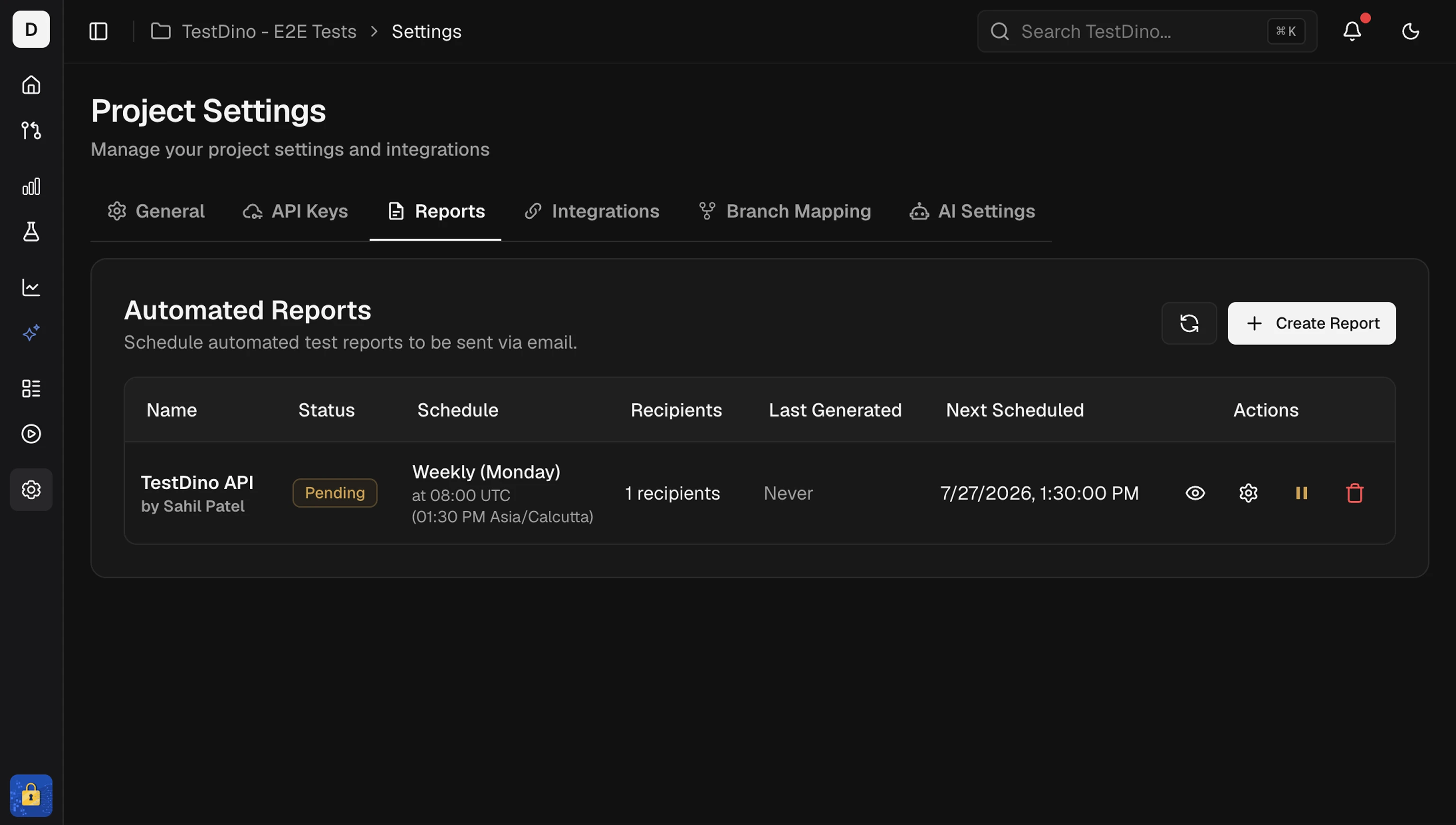
Automated Reports deliver PDF summaries of test execution data to specified recipients on a recurring schedule. Configure reports per project from **Project Settings > Automated Reports**.
## Quick Reference
| Setting | Default | Options |
| :-------------- | :------ | :------------------------------- |
| Frequency | Weekly | Daily, Weekly, Monthly |
| Time (UTC) | 08:00 | 00:00 to 23:00 |
| Day of Week | Monday | Sunday to Saturday (Weekly only) |
| Lookback Period | 7 days | 1 to 30 days |
| Recipients | None | To, CC, BCC per address |
## Report Contents
Each generated PDF includes the following sections.
[View sample report (PDF)](https://tdstorageus.blob.core.windows.net/public/docs/ai-and-automation/automated-playwright-reports/test-report-preview.pdf)
| Section | Description |
| :----------------- | :----------------------------------------------------- |
| Executive Summary | Pass rates, failure trends, and test result breakdowns |
| Test Case Analysis | Slowest, most-failing, and flaky tests |
| Branch Statistics | Performance grouped by branch and contributor |
| Trend Graphs | Visual charts of test health over the lookback period |
## Set Up a Report
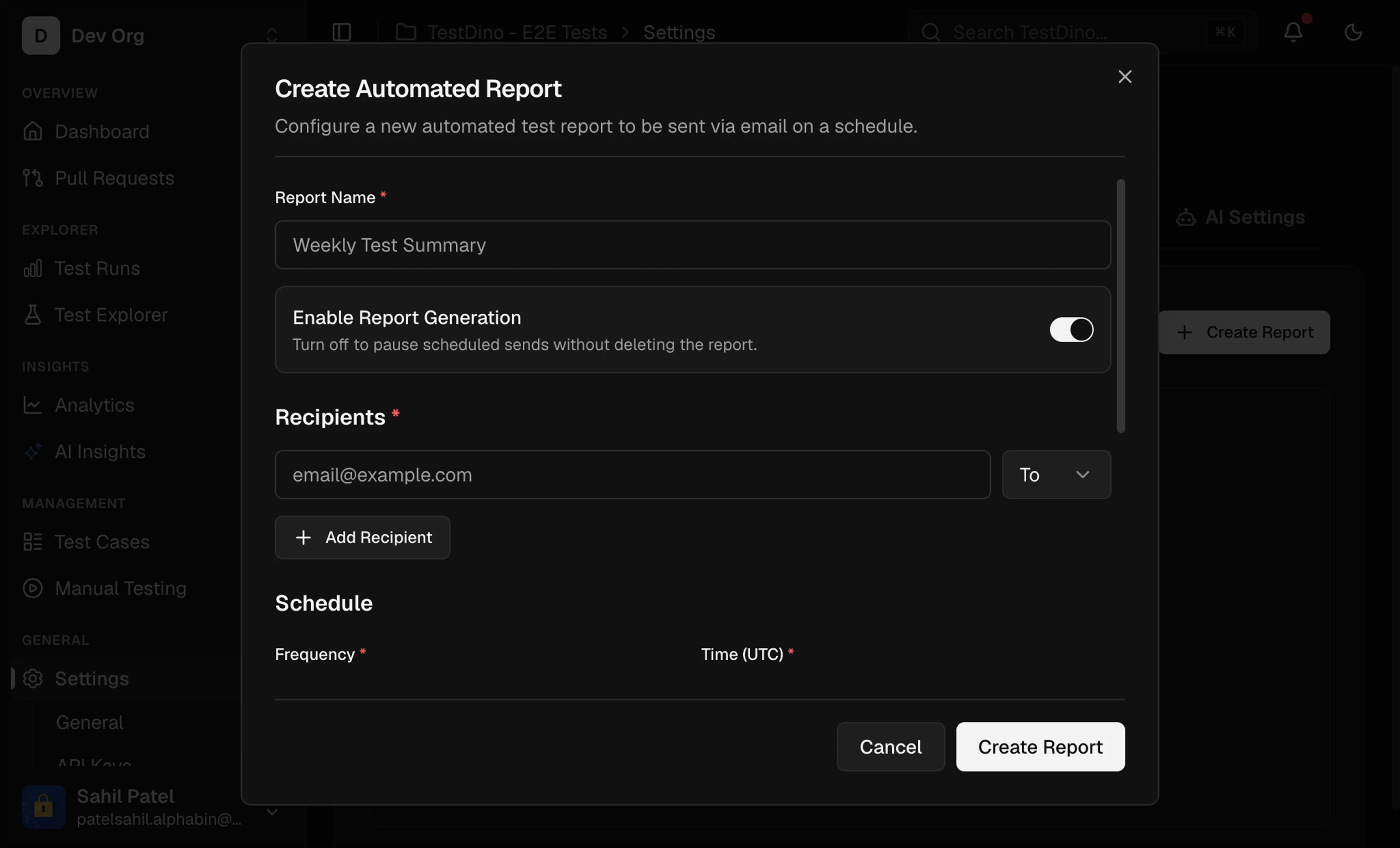
Go to **Project Settings** and scroll to **Automated Reports**. Click **Create Automated Report**.
Enter a descriptive name. This appears in the email subject line and PDF header.
Enter one or more email addresses. Use the type selector to assign each recipient as **To**, **CC**, or **BCC**.
Click the add button or press **Enter** to add each address. Remove a recipient with the **X** button next to their entry.
Select the report frequency, time (UTC), and lookback period.
| Setting | Detail |
| :----------------- | :--------------------------------------------------------------- |
| Frequency | Daily, Weekly, or Monthly |
| Time (UTC) | Hour the report generates (local timezone shown in the dropdown) |
| Day of Week | Visible only for Weekly frequency |
| Report Time Period | Number of days to include (1 to 30) |
Narrow the report scope by adding tag or environment filters.
* **Tags**: Type a tag name and click **Add** or press **Enter**. Multiple tags are supported.
* **Environment**: Select from environments defined in your [branch mapping](/platform/project-settings#branch-mapping).
Click **Create**. The report runs on its next scheduled time.
## Manage Reports
### Preview
Click **Preview** to download a sample PDF before the first scheduled send. The PDF uses a timestamped filename.
### Edit
Click **Edit** on any report to update recipients, schedule, filters, or the lookback period. All fields are pre-populated with the current configuration.
### Pause and Resume
Use **Pause** to temporarily stop a report from generating. Click **Resume** to re-enable it. Paused reports retain their configuration.
### Delete
Click **Delete** to permanently remove a report configuration. This action cannot be undone.
## Schedule Behavior
* All schedule times use UTC. The dropdown displays the equivalent local time in parentheses.
* The lookback period defines how many days of data the report covers. A 7-day lookback on a weekly report covers the previous full week.
* Reports generate at the configured hour and are delivered shortly after.
**Warning**
Values outside the 1 to 30 day range for the lookback period are automatically clamped to the nearest valid value.
Configure project identity, API keys, integrations, and branch mapping.
Explore interactive test execution analytics in the platform.