> ## Documentation Index
> Fetch the complete documentation index at: https://docs.testdino.com/llms.txt
> Use this file to discover all available pages before exploring further.
# Playwright AWS CodeBuild Setup
> Run Playwright in AWS CodeBuild and upload results to TestDino, with sharded build phases.
**What you'll learn**
* How to upload Playwright results from Amazon CodeBuild to TestDino
* How to configure sharded test runs with merged reporting
* How to set up the TESTDINO\_TOKEN as a CodeBuild environment variable
Set up an AWS CodeBuild project to upload Playwright test results to TestDino and view aggregated analytics, failure analysis, and flaky test detection on your dashboard.
This guide covers a basic buildspec, sharded buildspec for parallel test execution across multiple shard passes, and merged reporting.
## Prerequisites
Before setting up, ensure you have:
* A TestDino account with a project created
* A TestDino API key ([Generate API Keys](/guides/generate-api-keys))
* An AWS account with CodeBuild access
* A Playwright test project (or clone the TestDino Example Repository to get started)
* Playwright configured with JSON and HTML reporters in `playwright.config.js`:
```javascript playwright.config.js theme={null}
// ...existing config
reporter: [
['html', { outputDir: './playwright-report' }], // Optional
['json', { outputFile: './playwright-report/report.json' }], // ✅ Required
]
```
## Set Up Your API Key
Store your TestDino API key as a CodeBuild environment variable so it is available to your build without exposing it in buildspec files.
1. Open your AWS CodeBuild project
2. Choose **Edit**
3. Open the **Environment** section
4. Add an environment variable named `TESTDINO_TOKEN`
5. Paste your TestDino API key as the value
6. Save the project
**Warning**
Never commit your API key directly in buildspec files. Always use CodeBuild environment variables. For additional security, store the key in AWS Systems Manager Parameter Store or AWS Secrets Manager and reference it in your environment configuration.
## Basic Buildspec Config
For a simple setup without sharding, add the upload step after your Playwright tests.
```yaml buildspec.yml theme={null}
version: 0.2
phases:
install:
runtime-versions:
nodejs: 20
commands:
- npm ci
- npx playwright install --with-deps
build:
commands:
- npx playwright test
post_build:
commands:
- npx tdpw upload ./playwright-report --token="$TESTDINO_TOKEN"
artifacts:
files:
- playwright-report/**/*
- test-results/**/*
discard-paths: no
```
**Tip**
The `post_build` phase runs even if the `build` phase fails, ensuring test results are uploaded regardless of test outcomes. The `artifacts` block saves reports for review in S3.
## Upload Options
| Flag | Description | Default |
| :---------------------- | :-------------------------------------------------- | :------ |
| `--environment ` | Target environment tag (staging, production, qa) | unknown |
| `--tag ` | Comma-separated run tags for categorization (max 5) | None |
| `--upload-images` | Upload image attachments | false |
| `--upload-videos` | Upload video attachments | false |
| `--upload-html` | Upload HTML reports | false |
| `--upload-traces` | Upload trace files | false |
| `--upload-files` | Upload file attachments (.md, .pdf, .txt, .log) | false |
| `--upload-full-json` | Upload all attachments | false |
| `--json` | Output results as JSON to stdout (for CI/CD) | false |
| `-v, --verbose` | Enable verbose logging | false |
## Sharded Test Runs
For larger test suites, CodeBuild runs Playwright across multiple shard passes within a single build. Each shard produces a blob report that gets merged before uploading to TestDino.
### How it works
1. CodeBuild runs 4 Playwright shard passes sequentially in a single build
2. Each shard's blob report is copied to a dedicated directory
3. All blob reports are flattened and merged into a single `report.json`
4. The merged report is uploaded to TestDino
5. The build fails only if both tests and the merge/upload fail
### Full sharded config
```yaml buildspec.yml theme={null}
version: 0.2
phases:
install:
runtime-versions:
nodejs: 20
commands:
- npm ci
- npx playwright install --with-deps
build:
commands:
- rm -rf all-blob-reports playwright-report blob-report
- |
TEST_EXIT_CODE=0
MERGE_AND_UPLOAD_EXIT_CODE=0
for SHARD in 1 2 3 4; do
mkdir -p "all-blob-reports/shard-$SHARD"
npx playwright test --shard=$SHARD/4 || TEST_EXIT_CODE=1
if [ -d blob-report ]; then
cp -R blob-report/. "all-blob-reports/shard-$SHARD/"
fi
rm -rf blob-report
done
mkdir -p playwright-report all-blob-reports-flat
find all-blob-reports -type f -exec cp {} all-blob-reports-flat/ \;
if find all-blob-reports-flat -type f | grep -q .; then
npx playwright merge-reports --reporter=json ./all-blob-reports-flat > playwright-report/report.json || MERGE_AND_UPLOAD_EXIT_CODE=1
else
echo "No blob report files were found to merge."
MERGE_AND_UPLOAD_EXIT_CODE=1
fi
if [ -f playwright-report/report.json ]; then
npx tdpw upload ./playwright-report --token="$TESTDINO_TOKEN" || MERGE_AND_UPLOAD_EXIT_CODE=1
else
echo "Skipping TestDino upload because the merged report was not created."
MERGE_AND_UPLOAD_EXIT_CODE=1
fi
test $TEST_EXIT_CODE -eq 0 && test $MERGE_AND_UPLOAD_EXIT_CODE -eq 0
artifacts:
files:
- playwright-report/**/*
- test-results/**/*
discard-paths: no
```
### Key details
| Config Block | What It Does |
| :----------------------------------------------------- | :-------------------------------------------------------------- |
| `runtime-versions: nodejs: 20` | Uses Node.js 20 managed runtime |
| `for SHARD in 1 2 3 4` | Runs 4 shard passes sequentially within a single build |
| `--shard=$SHARD/4` | Passes the shard value directly to Playwright |
| `cp -R blob-report/. "all-blob-reports/shard-$SHARD/"` | Copies each shard's blob report to a dedicated directory |
| `find ... -exec cp` | Flattens all blob files into a single directory for merging |
| `merge-reports --reporter=json` | Merges blob reports into a single `report.json` |
| `TEST_EXIT_CODE` / `MERGE_AND_UPLOAD_EXIT_CODE` | Tracks failures independently so upload runs even if tests fail |
| `artifacts` | Saves Playwright reports and test results to S3 |
### Pipeline execution
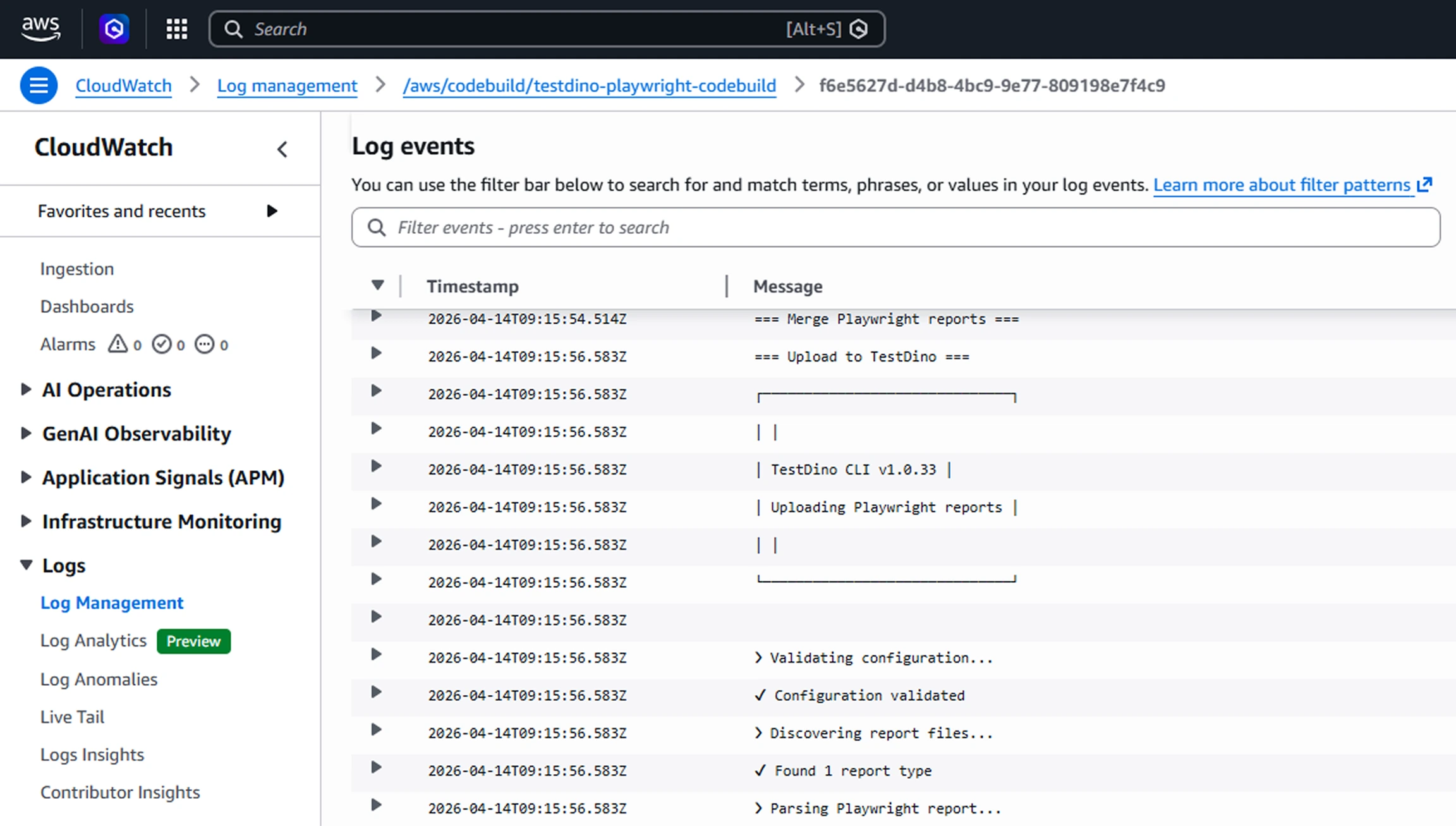
After the pipeline runs, CodeBuild logs show the TestDino CLI output in CloudWatch under `/aws/codebuild/`.
 ### Results in TestDino
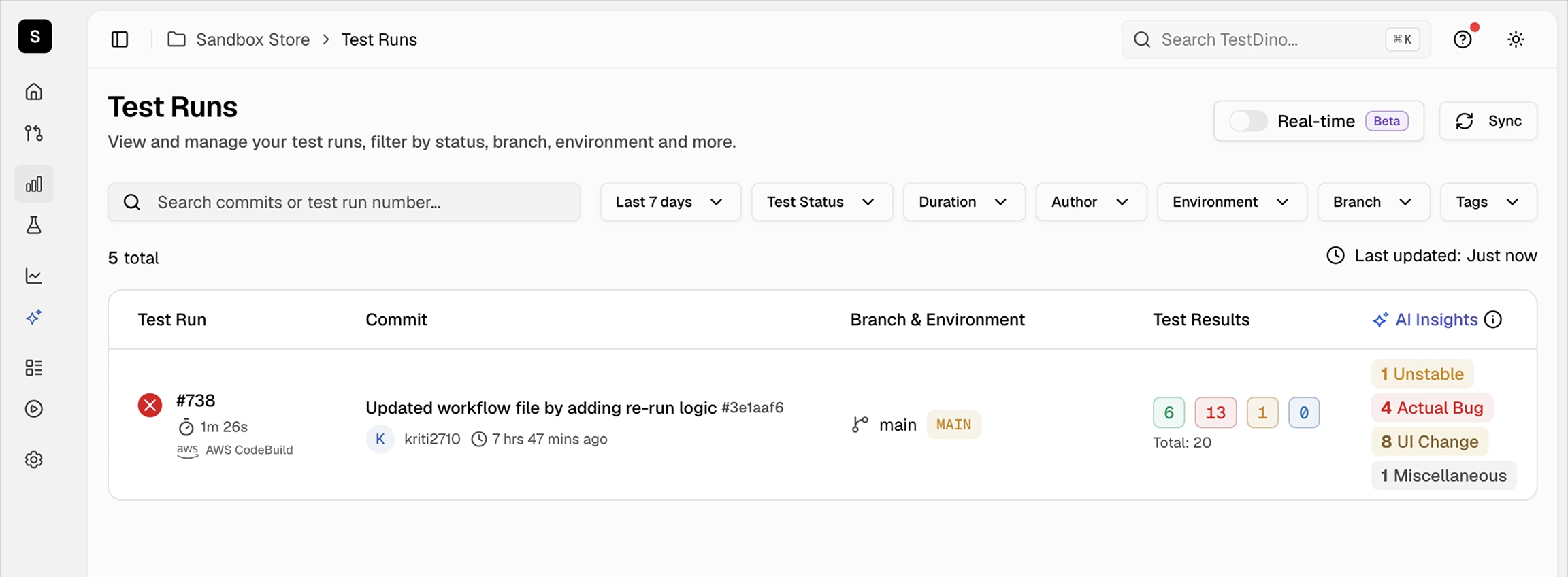
Once uploaded, the test run appears in your TestDino dashboard with full failure details, flaky detection, and trend data.
### Results in TestDino
Once uploaded, the test run appears in your TestDino dashboard with full failure details, flaky detection, and trend data.
 ## Rerun Failed Tests
Cache test metadata to enable selective reruns:
```yaml buildspec.yml theme={null}
post_build:
commands:
- npx tdpw cache --token="$TESTDINO_TOKEN"
- npx tdpw upload ./playwright-report --token="$TESTDINO_TOKEN"
```
Rerun only failed tests on the next build:
```yaml buildspec.yml theme={null}
build:
commands:
- |
FAILED=$(npx tdpw last-failed --token="$TESTDINO_TOKEN")
if [ -n "$FAILED" ]; then
npx playwright test $FAILED
else
echo "No failed tests found."
fi
```
For advanced rerun strategies, caching patterns, and CI optimization techniques, see [CI Optimization](/guides/playwright-ci-optimization).
## Troubleshooting
Move the upload command to the `post_build` phase, which runs regardless of the `build` phase exit code. For the sharded buildspec, the script tracks exit codes independently so upload always runs.
Verify your `playwright.config.js` includes both HTML and JSON reporters with HTML listed first. For sharded runs, ensure each shard's `blob-report` directory exists before copying. Check that the `find` command locates files in `all-blob-reports-flat/`.
Confirm the environment variable is set in your CodeBuild project under **Environment → Environment variables**. If using Parameter Store or Secrets Manager, verify the IAM role has read access to the secret.
Ensure each shard pass produces a `blob-report` directory. Check that your Playwright config includes `['blob']` in the reporter list or that the default blob output is not overridden. Verify the `cp -R` command copies files before `rm -rf blob-report` clears them.
## Next Steps
Reduce CI time with smart reruns
Map branches to environments for organized test runs
Connect Slack, Jira, Linear, Asana, and more
Access test results and fix issues with AI agents
## Rerun Failed Tests
Cache test metadata to enable selective reruns:
```yaml buildspec.yml theme={null}
post_build:
commands:
- npx tdpw cache --token="$TESTDINO_TOKEN"
- npx tdpw upload ./playwright-report --token="$TESTDINO_TOKEN"
```
Rerun only failed tests on the next build:
```yaml buildspec.yml theme={null}
build:
commands:
- |
FAILED=$(npx tdpw last-failed --token="$TESTDINO_TOKEN")
if [ -n "$FAILED" ]; then
npx playwright test $FAILED
else
echo "No failed tests found."
fi
```
For advanced rerun strategies, caching patterns, and CI optimization techniques, see [CI Optimization](/guides/playwright-ci-optimization).
## Troubleshooting
Move the upload command to the `post_build` phase, which runs regardless of the `build` phase exit code. For the sharded buildspec, the script tracks exit codes independently so upload always runs.
Verify your `playwright.config.js` includes both HTML and JSON reporters with HTML listed first. For sharded runs, ensure each shard's `blob-report` directory exists before copying. Check that the `find` command locates files in `all-blob-reports-flat/`.
Confirm the environment variable is set in your CodeBuild project under **Environment → Environment variables**. If using Parameter Store or Secrets Manager, verify the IAM role has read access to the secret.
Ensure each shard pass produces a `blob-report` directory. Check that your Playwright config includes `['blob']` in the reporter list or that the default blob output is not overridden. Verify the `cp -R` command copies files before `rm -rf blob-report` clears them.
## Next Steps
Reduce CI time with smart reruns
Map branches to environments for organized test runs
Connect Slack, Jira, Linear, Asana, and more
Access test results and fix issues with AI agents