> ## Documentation Index
> Fetch the complete documentation index at: https://docs.testdino.com/llms.txt
> Use this file to discover all available pages before exploring further.
# Playwright Real-Time Reporting
> Stream Playwright results live to TestDino over WebSocket.
**What you'll learn**
* How to install and configure the streaming reporter
* How live progress appears on the Test Runs page
* How sharded runs stream and merge in real time
Real-time streaming delivers Playwright test results to the TestDino dashboard as each test completes. A WebSocket connection pushes live progress, pass/fail counts, and per-worker activity directly to the Test Runs page.
**Warning**
Real-time streaming is in **Experimental**. Data loss may occur under certain conditions. Use the stable [`tdpw upload`](/cli/testdino-playwright-nodejs) CLI for production pipelines.
## Quick Reference
| Topic | Link |
| :---------------------------------------------- | :-------------------------------- |
| [Enable streaming](#enable-real-time-streaming) | Toggle on the Test Runs page |
| [Setup](#setup) | Install reporter and stream tests |
| [WebSocket status](#websocket-status) | Connection indicator and states |
| [Multi-tab support](#multi-tab-support) | BroadcastChannel coordination |
| [Limitations](#known-limitations) | Experimental caveats |
| [FAQ](#faq) | Common questions |
## Enable Real-Time Streaming
A toggle switch on the Test Runs page header controls the streaming mode. Flip it to enable live updates.
| Setting | Detail |
| :----------------- | :---------------------------------------------- |
| Default state | OFF |
| Persistence | Saved to localStorage, persists across sessions |
| Experimental badge | Displays next to the toggle when enabled |
When streaming is enabled:
* The **Active Test Runs** section renders at the top of the Test Runs page, showing runs currently executing.
* A **WebSocket status badge** indicates connection state.
* The onboarding setup guide switches to the **Real-time** tab.
## Setup
Install the `@testdino/playwright` reporter and run tests with streaming enabled.
```bash theme={null}
npm install @testdino/playwright
```
View TestDino npm package for [@testdino/playwright ↗](https://www.npmjs.com/package/@testdino/playwright)
```bash theme={null}
npx tdpw test -t "your-api-token"
```
The `tdpw test` command wraps `npx playwright test`, opens a WebSocket connection, and streams each result to TestDino. All Playwright CLI options pass through.
Open the [Test Runs](/platform/playwright-test-runs) page. Active runs appear at the top with a live progress bar, pass/fail/skip counts, and per-worker detail.
## WebSocket Status
When real-time streaming is enabled, a status badge appears on the Test Runs page indicating the connection state.
| Status | Meaning |
| :--------------- | :--------------------------------------------------------- |
| **Connecting** | Establishing WebSocket connection to TestDino |
| **Online** | Connected and receiving live updates |
| **Offline** | Connection lost; updates are paused |
| **Disconnected** | WebSocket closed; toggle streaming off and on to reconnect |
The badge is hidden when streaming is disabled.
## Active Test Runs
With streaming enabled, the Test Runs page displays a collapsible **Active Test Runs** section. Each active run shows a progress bar, live result counts, commit, branch, and CI source.
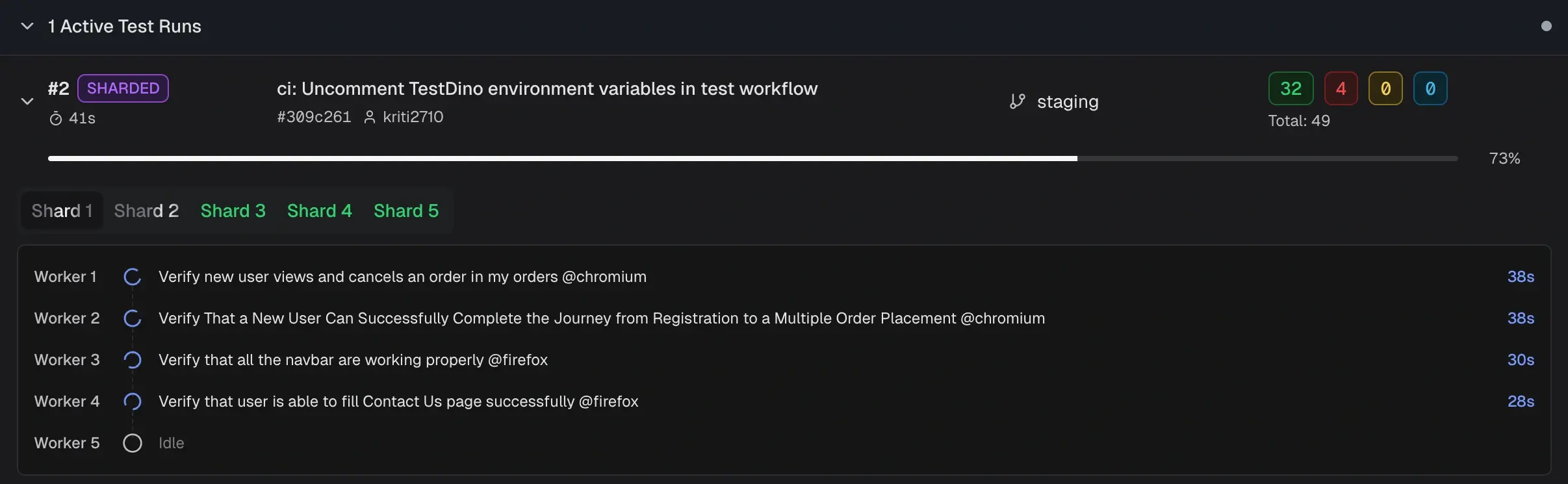 For sharded runs, the run is labeled **SHARDED** with tabs for each shard. Select a tab to view its workers and currently executing tests.
## Multi-Tab Support
Only one browser tab opens a WebSocket connection to TestDino. This tab acts as the **primary tab**. Additional tabs receive updates through the browser's [BroadcastChannel API](https://developer.mozilla.org/en-US/docs/Web/API/BroadcastChannel).
* If you close the primary tab, another open tab promotes itself and opens a new WebSocket.
* All tabs display the same live data regardless of which tab holds the connection.
## Known Limitations
| Limitation | Detail |
| :------------------ | :------------------------------------------------------------------------------------ |
| Experimental status | Some edge cases in connection recovery are still being refined |
| Browser support | Requires a browser that supports WebSocket and BroadcastChannel (all modern browsers) |
| Single project | Each WebSocket connection is scoped to one project at a time |
| LocalStorage | Streaming preference is per-browser, not synced across devices |
## FAQ
No. Toggling streaming off does not affect historical data. All previously recorded runs, test cases, and analytics remain intact. The toggle only changes how new results are delivered to the dashboard.
The reporter continues sending results. When the dashboard reconnects, it catches up to the current state. No test data is lost on the server side.
## Related
CLI reference, test runs, and CI integration.
Full CLI reference and configuration options
View and filter completed and active test runs
Configure GitHub Actions for automated test runs
Set up TestDino and run your first tests
For sharded runs, the run is labeled **SHARDED** with tabs for each shard. Select a tab to view its workers and currently executing tests.
## Multi-Tab Support
Only one browser tab opens a WebSocket connection to TestDino. This tab acts as the **primary tab**. Additional tabs receive updates through the browser's [BroadcastChannel API](https://developer.mozilla.org/en-US/docs/Web/API/BroadcastChannel).
* If you close the primary tab, another open tab promotes itself and opens a new WebSocket.
* All tabs display the same live data regardless of which tab holds the connection.
## Known Limitations
| Limitation | Detail |
| :------------------ | :------------------------------------------------------------------------------------ |
| Experimental status | Some edge cases in connection recovery are still being refined |
| Browser support | Requires a browser that supports WebSocket and BroadcastChannel (all modern browsers) |
| Single project | Each WebSocket connection is scoped to one project at a time |
| LocalStorage | Streaming preference is per-browser, not synced across devices |
## FAQ
No. Toggling streaming off does not affect historical data. All previously recorded runs, test cases, and analytics remain intact. The toggle only changes how new results are delivered to the dashboard.
The reporter continues sending results. When the dashboard reconnects, it catches up to the current state. No test data is lost on the server side.
## Related
CLI reference, test runs, and CI integration.
Full CLI reference and configuration options
View and filter completed and active test runs
Configure GitHub Actions for automated test runs
Set up TestDino and run your first tests