> ## Documentation Index
> Fetch the complete documentation index at: https://docs.testdino.com/llms.txt
> Use this file to discover all available pages before exploring further.
# Playwright Test Health Status Badges
> Embed live test health badges in GitHub or GitLab READMEs.
**What you'll learn**
* What badge types are available (health, flaky, test count)
* How to embed badges in GitHub and GitLab READMEs
* How badge colors map to test health thresholds
Status Badges are live SVG images that display test health, flakiness, and test counts from the latest completed test run. Embed them in GitHub or GitLab READMEs, or add them as GitLab project badges.
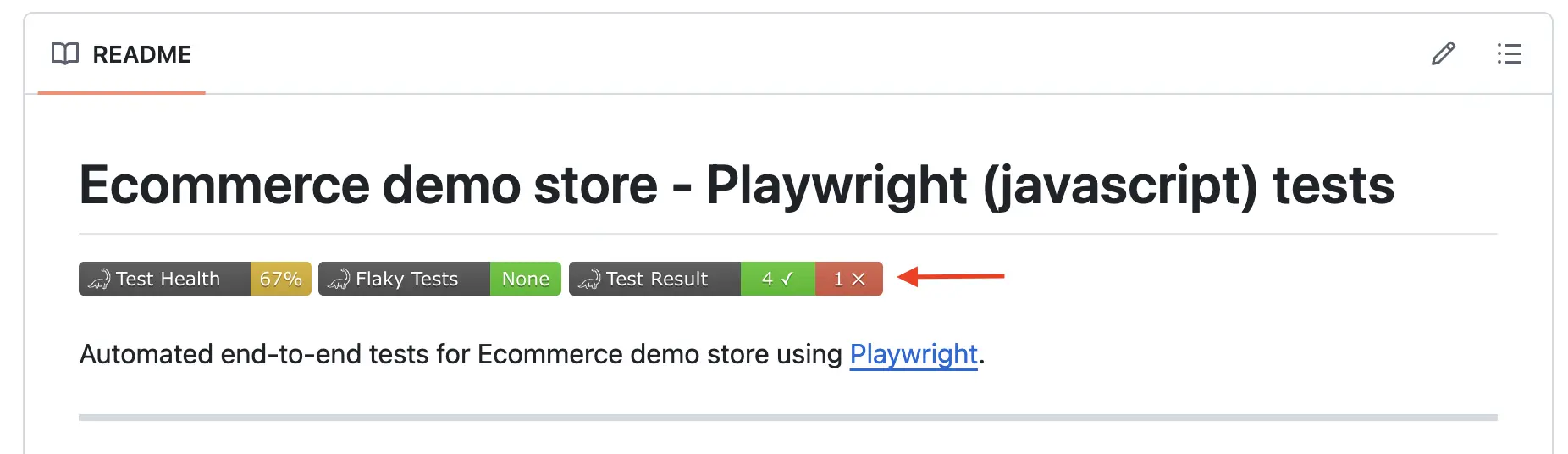 ## Badge Types
| Badge | What it shows | Data source |
| :-------------- | :------------------------- | :-------------------------------------------- |
| **Test Health** | Pass rate percentage | Passed / total from the latest completed run |
| **Flaky** | Flaky test count or "None" | Flaky count from the latest completed run |
| **Tests** | Passed and failed counts | Passed + failed from the latest completed run |
## Color Scale
### Test Health
| Pass rate | Color |
| :----------- | :----------- |
| 90% or above | Bright green |
| 75 - 89% | Light green |
| 60 - 74% | Yellow |
| 40 - 59% | Orange |
| Below 40% | Red |
### Flaky
| Flaky count | Color |
| :--------------- | :----- |
| 0 (shows "None") | Green |
| 1 - 3 | Yellow |
| 4 - 10 | Orange |
| Above 10 | Red |
## Prerequisites
* A TestDino project with at least one completed test run
* A GitHub or GitLab repository where you can edit the README
* Admin or Editor role on the TestDino project
## Get Badge URLs
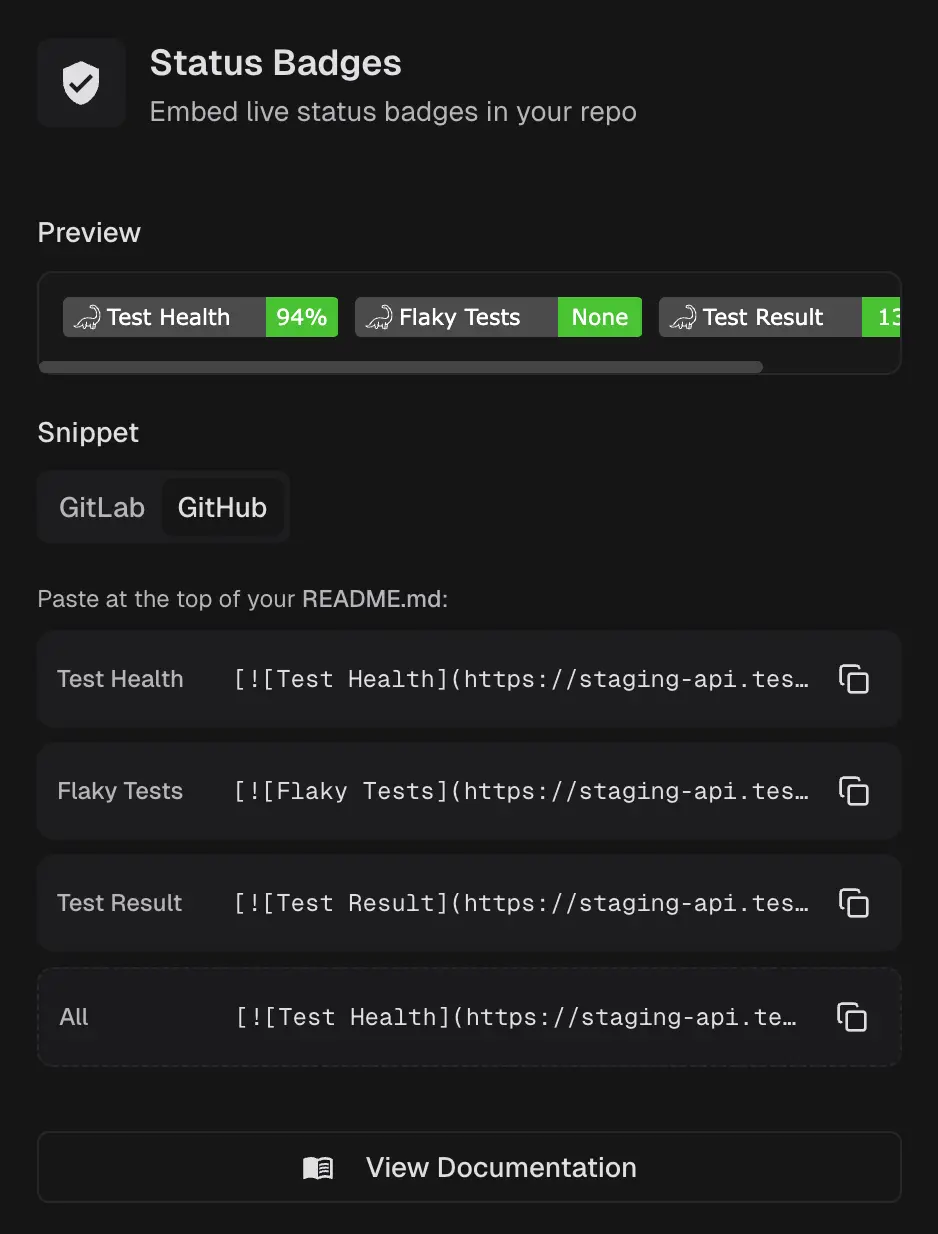
Go to **Project Settings → Integrations → TestDino Add-ons → Status Badges**.
The Preview section displays all three badges with live values from the latest run.
Switch between **GitLab** and **GitHub** tabs to get the correct snippet format.
## Badge Types
| Badge | What it shows | Data source |
| :-------------- | :------------------------- | :-------------------------------------------- |
| **Test Health** | Pass rate percentage | Passed / total from the latest completed run |
| **Flaky** | Flaky test count or "None" | Flaky count from the latest completed run |
| **Tests** | Passed and failed counts | Passed + failed from the latest completed run |
## Color Scale
### Test Health
| Pass rate | Color |
| :----------- | :----------- |
| 90% or above | Bright green |
| 75 - 89% | Light green |
| 60 - 74% | Yellow |
| 40 - 59% | Orange |
| Below 40% | Red |
### Flaky
| Flaky count | Color |
| :--------------- | :----- |
| 0 (shows "None") | Green |
| 1 - 3 | Yellow |
| 4 - 10 | Orange |
| Above 10 | Red |
## Prerequisites
* A TestDino project with at least one completed test run
* A GitHub or GitLab repository where you can edit the README
* Admin or Editor role on the TestDino project
## Get Badge URLs
Go to **Project Settings → Integrations → TestDino Add-ons → Status Badges**.
The Preview section displays all three badges with live values from the latest run.
Switch between **GitLab** and **GitHub** tabs to get the correct snippet format.
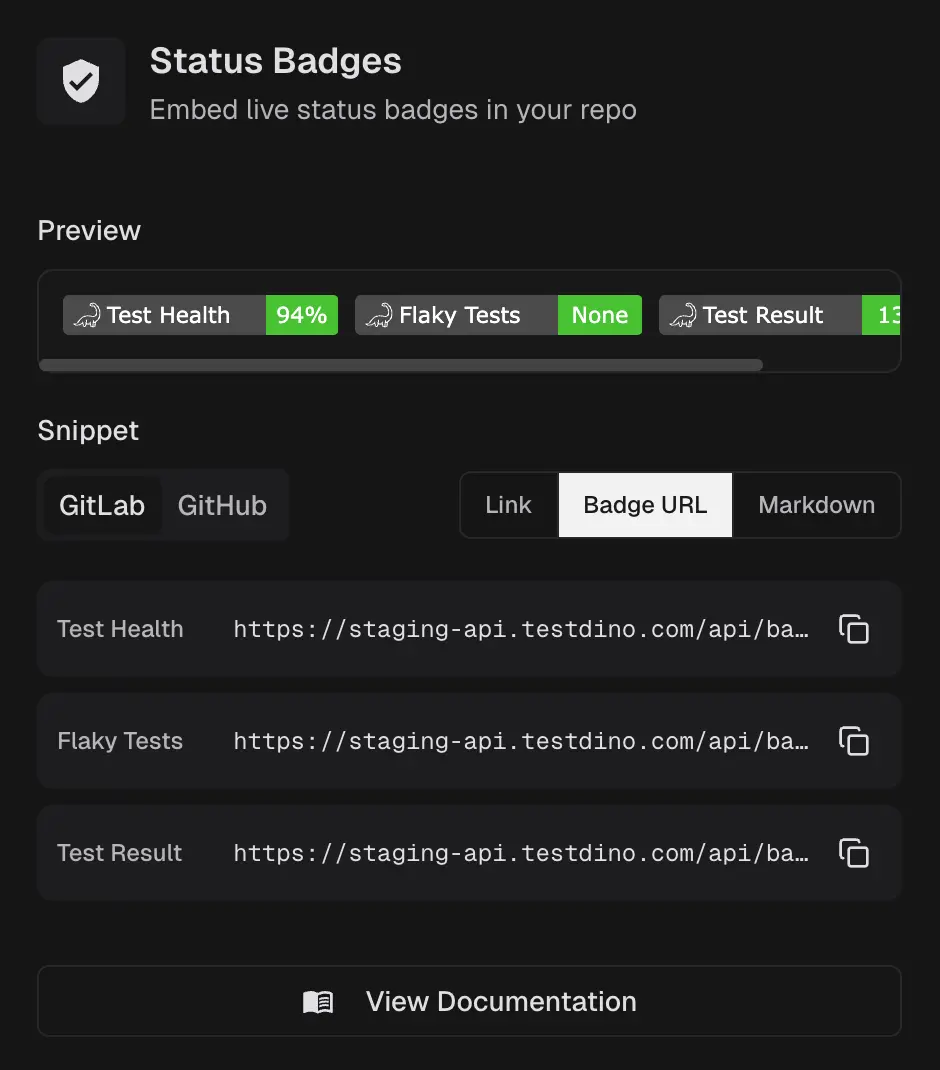 Select the format you need:
| Format | Use case |
| :------------ | :------------------------------------ |
| **Link** | Project URL for the badge link target |
| **Badge URL** | Raw SVG URL for the badge image |
| **Markdown** | Ready-to-paste markdown for READMEs |
Click the copy icon on any row. The icon changes to a checkmark for 2 seconds to confirm.
## Add to GitHub
Copy the markdown snippets from the **GitHub** tab and paste them into your repository `README.md`.
The GitHub tab provides individual markdown rows for each badge and an **All** row that combines all three badges into a single line.
```markdown theme={null}
[](https://app.testdino.com/project/your-project)
[](https://app.testdino.com/project/your-project)
[](https://app.testdino.com/project/your-project)
```
**Note**
Replace the example URLs above with the actual URLs from your Status Badges panel.
## Add to GitLab
GitLab supports badges in two locations: the README and the project badge settings.
### README
Copy the markdown snippets from the **GitLab** tab and paste them into your `README.md`. Each row provides the Link URL and Badge image URL separately.
### Project Badge
From the **GitLab** tab, copy the **Link** and **Badge URL** for each badge.
Go to your GitLab repository **Settings → General → Badges → Add badge**.
Paste the **Link** value into "Link URL" and the **Badge URL** value into "Badge image URL". Save.
Project badges appear in the sidebar on the GitLab repository page.
## Badge Updates
Badges reflect the latest completed test run. After a new run completes:
| Location | Update time |
| :-------------------- | :----------------------- |
| Status Badges preview | Immediate on page reload |
| GitHub / GitLab | Within 20 seconds |
## Related
Configure project integrations and add-ons
Enforce quality gates on pull requests
Select the format you need:
| Format | Use case |
| :------------ | :------------------------------------ |
| **Link** | Project URL for the badge link target |
| **Badge URL** | Raw SVG URL for the badge image |
| **Markdown** | Ready-to-paste markdown for READMEs |
Click the copy icon on any row. The icon changes to a checkmark for 2 seconds to confirm.
## Add to GitHub
Copy the markdown snippets from the **GitHub** tab and paste them into your repository `README.md`.
The GitHub tab provides individual markdown rows for each badge and an **All** row that combines all three badges into a single line.
```markdown theme={null}
[](https://app.testdino.com/project/your-project)
[](https://app.testdino.com/project/your-project)
[](https://app.testdino.com/project/your-project)
```
**Note**
Replace the example URLs above with the actual URLs from your Status Badges panel.
## Add to GitLab
GitLab supports badges in two locations: the README and the project badge settings.
### README
Copy the markdown snippets from the **GitLab** tab and paste them into your `README.md`. Each row provides the Link URL and Badge image URL separately.
### Project Badge
From the **GitLab** tab, copy the **Link** and **Badge URL** for each badge.
Go to your GitLab repository **Settings → General → Badges → Add badge**.
Paste the **Link** value into "Link URL" and the **Badge URL** value into "Badge image URL". Save.
Project badges appear in the sidebar on the GitLab repository page.
## Badge Updates
Badges reflect the latest completed test run. After a new run completes:
| Location | Update time |
| :-------------------- | :----------------------- |
| Status Badges preview | Immediate on page reload |
| GitHub / GitLab | Within 20 seconds |
## Related
Configure project integrations and add-ons
Enforce quality gates on pull requests