> ## Documentation Index
> Fetch the complete documentation index at: https://docs.testdino.com/llms.txt
> Use this file to discover all available pages before exploring further.
# GitHub Integration
> Connect the TestDino GitHub App for PR comments, CI checks, and pull request sync.
export const VideoSchema = ({name, description, thumbnailUrl, uploadDate, duration, contentUrl, embedUrl}) => {
const schema = {
"@context": "https://schema.org",
"@type": "VideoObject",
name,
description,
thumbnailUrl,
uploadDate,
...duration ? {
duration
} : {},
...contentUrl ? {
contentUrl
} : {},
...embedUrl ? {
embedUrl
} : {},
publisher: {
"@type": "Organization",
name: "TestDino",
logo: {
"@type": "ImageObject",
url: "https://docs.testdino.com/logo/light.svg"
}
}
};
return ;
};
**What you'll learn**
* How to install and connect the TestDino GitHub App
* How to configure PR comments and commit summaries
* How to set up CI checks with quality gates
* How the Pull Requests dashboard syncs with GitHub
The [GitHub integration](https://github.com/apps/testdino-playwright-reporter) installs as a GitHub App on your organization. Once connected, it works in both directions: posting test results to GitHub and syncing PR data back into TestDino. No extra CI steps required.
## What the GitHub Integration Does
| Feature | What It Does | Where It Appears |
| :--------------------- | :----------------------------------------------------------------------------------------------------------------------------------- | :------------------------------------------------------------------- |
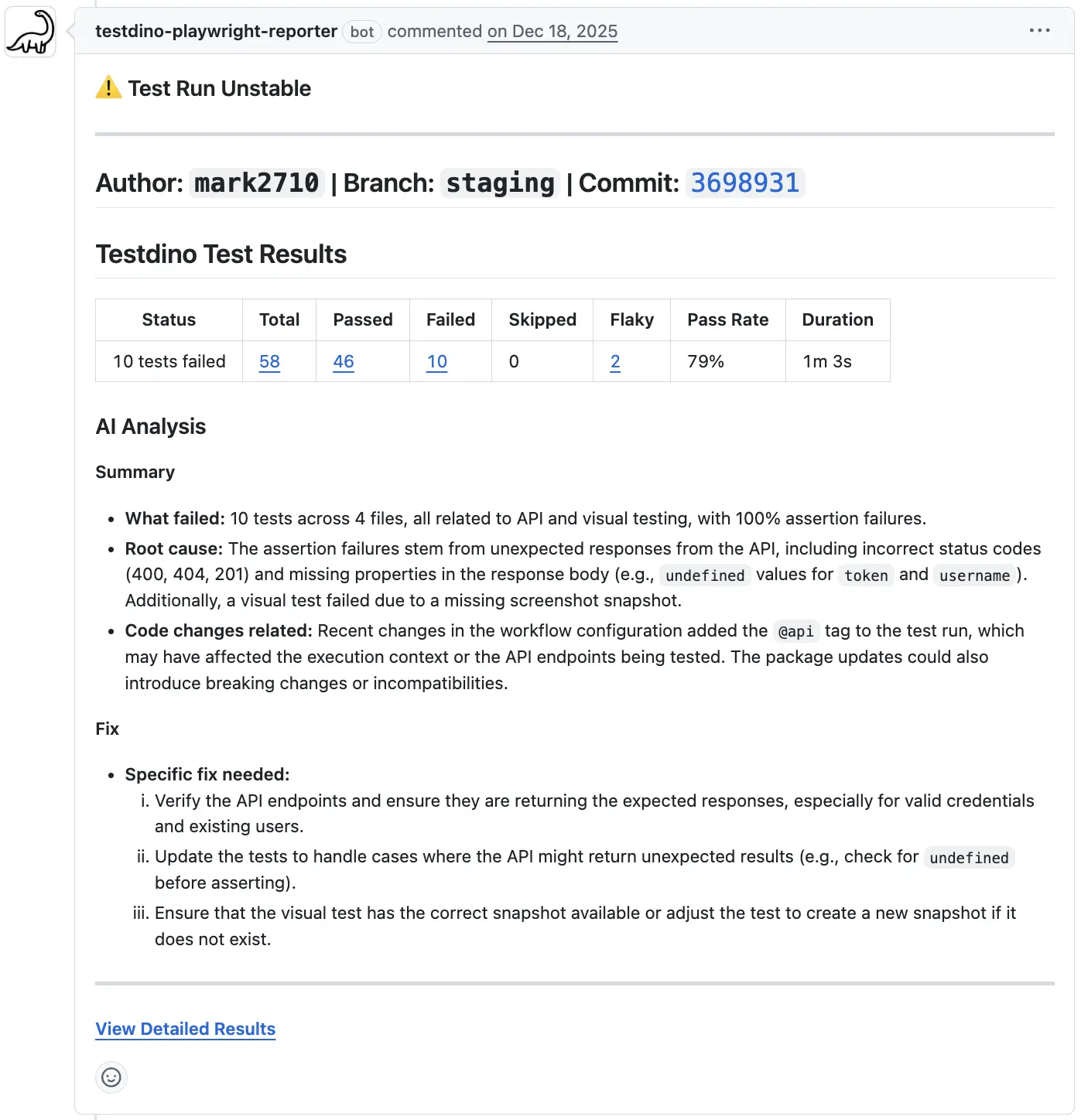
| PR Comments | Posts AI-generated summary with pass/fail counts, failure analysis grouped by file, and a link to the full report | GitHub pull request conversation tab |
| Commit Comments | Posts the same AI summary attached to the specific commit | GitHub commit detail page |
| CI Checks | Posts pass/fail status based on your quality gate settings (pass rate, mandatory tags, flaky handling) | GitHub PR status checks section |
| Pull Request Dashboard | Syncs PR metadata (author, reviewers, status, branches) and displays test run KPIs, pass rate trends, and AI failure insights per PR | TestDino → [Pull Requests](/platform/pull-requests/summary) |
| Timeline | Syncs commits, test runs, and code review events into a chronological feed per PR | TestDino → [PR Timeline](/platform/pull-requests/timeline) |
| Files Changed | Syncs file diffs, additions, deletions, and code-level comments with resolved/unresolved status | TestDino → [PR Files Changed](/platform/pull-requests/files-changed) |
## Prerequisites
* A TestDino account with a project created ([Getting Started](/getting-started))
* An API key generated for your project ([Generate API Keys](/guides/generate-api-keys))
* The Playwright CLI configured and uploading results ([CLI Overview](/cli/overview))
* GitHub organization or account admin access (required to install the GitHub App)
**Tip**
The GitHub integration works on all TestDino plans. CI Checks (quality gates with merge blocking) require a paid plan.
## Connect TestDino with GitHub
Connection is a two-step process: install the GitHub App (grants repo access in GitHub), then select which repository to connect in TestDino.
### 1. Install the TestDino GitHub App
You can start from either location:
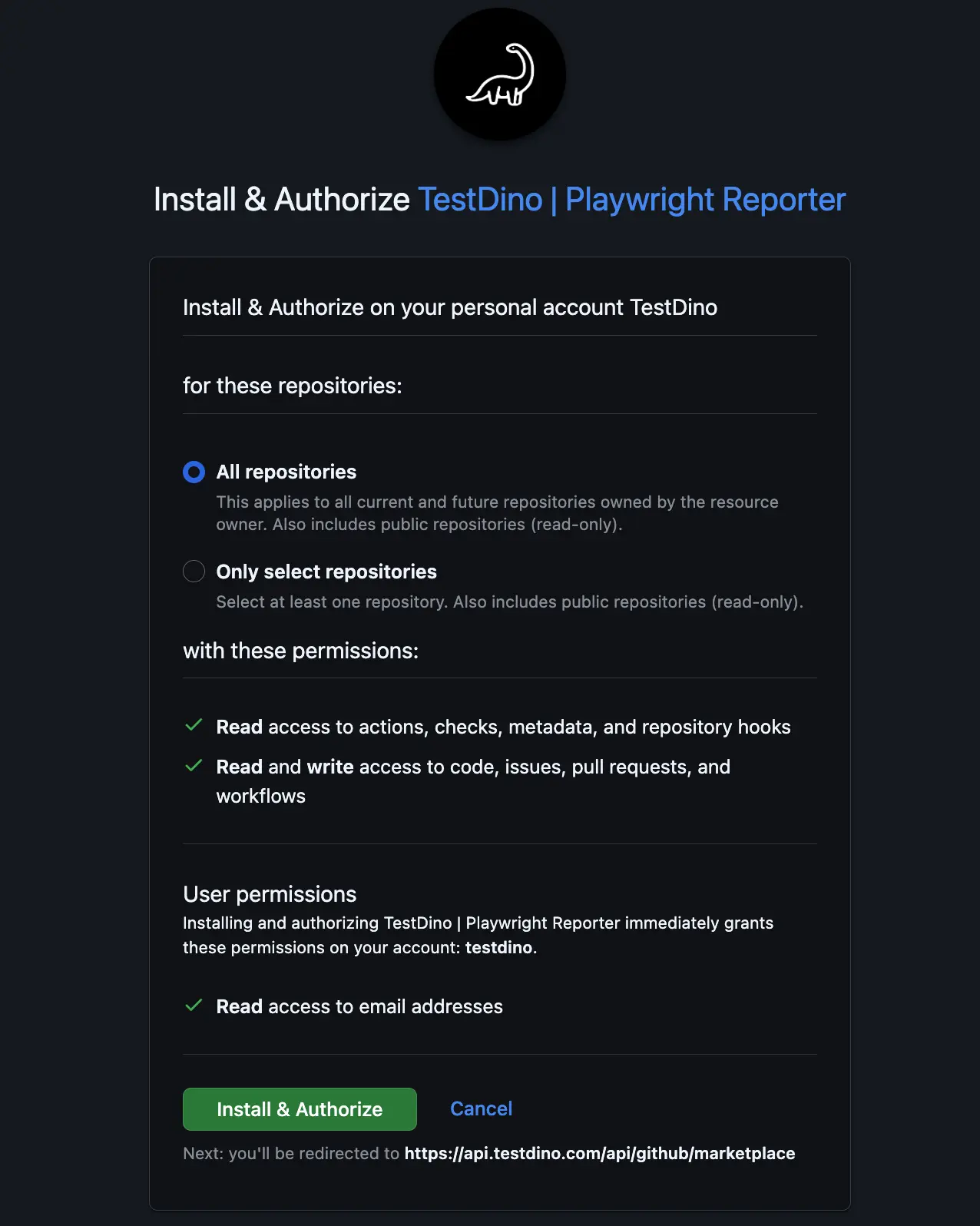
* **From GitHub**: Open the [TestDino | Playwright Reporter](https://github.com/apps/testdino-playwright-reporter) marketplace listing and click **Install & Authorize**
* **From TestDino**: Go to **Settings → Integrations → GitHub** and click **Connect**. This opens the same GitHub installation flow.
Select your GitHub organization, then choose which repositories the TestDino app can access:
* **All repositories**: grants access to every current and future repo in the organization
* **Only select repositories**: grants access to specific repos you pick from the list
The app requests these permissions:
| Scope | Access | Used For |
| :--------------------------- | :----------- | :-------------------------------------------------------------------------------- |
| Actions | Read | Detecting Playwright CI runs and attaching results to commits |
| Checks | Read & Write | Posting pass/fail CI status checks on PRs and commits |
| Metadata | Read | Reading repo, branch, and organization info |
| Code, Issues, PRs, Workflows | Read & Write | Syncing PR metadata, file diffs, code review comments, and posting test summaries |
**Note**
This step only grants the app access in GitHub. It does not connect a repo to a TestDino project yet. You can change repo access anytime from **GitHub → Settings → Applications → TestDino**.
### 2. Connect a repository to your TestDino project
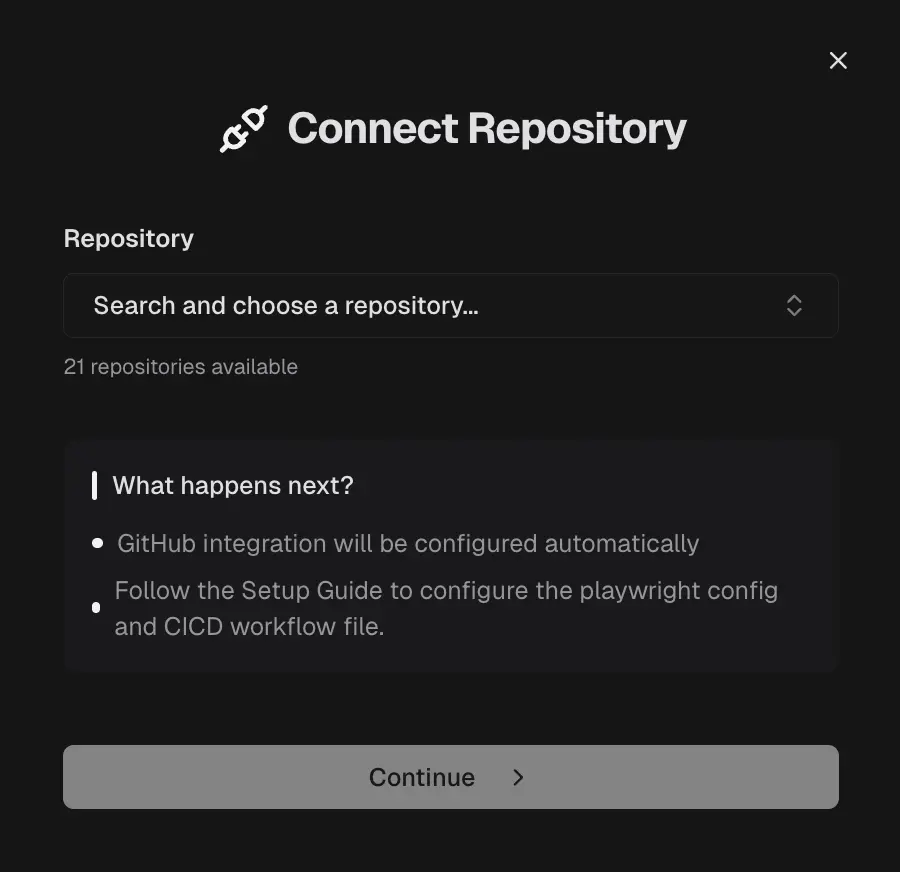
After you approve the app in GitHub, the browser redirects back to TestDino. You land on the repository selection screen inside your TestDino project.
Pick the repository you want to link to this project. Only repos you granted access to in the previous step appear in the list.
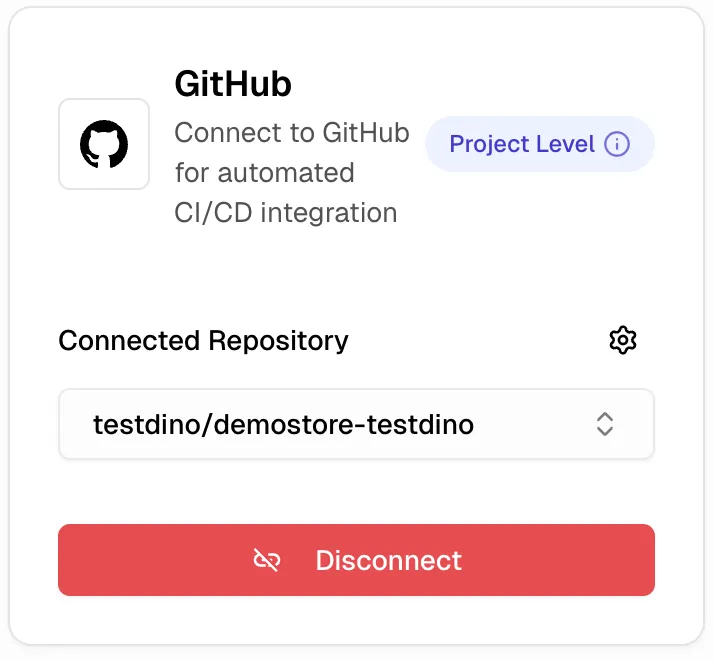
After selecting a repo, the GitHub card in **Settings → Integrations** shows the connected repository name and organization.
TestDino starts syncing PR metadata and attaching test runs to commits from this point forward.
***
After a successful connection, the integration unlocks PR comments, commit summaries, CI checks with quality gates, and a Pull Requests dashboard inside TestDino. Let's configure each of these below.
## Configure PR Comments
When a Playwright run finishes, TestDino can post an AI-generated test summary directly to the pull request or commit in GitHub. To control where and when these comments appear, you configure them through **GitHub Settings** in TestDino.
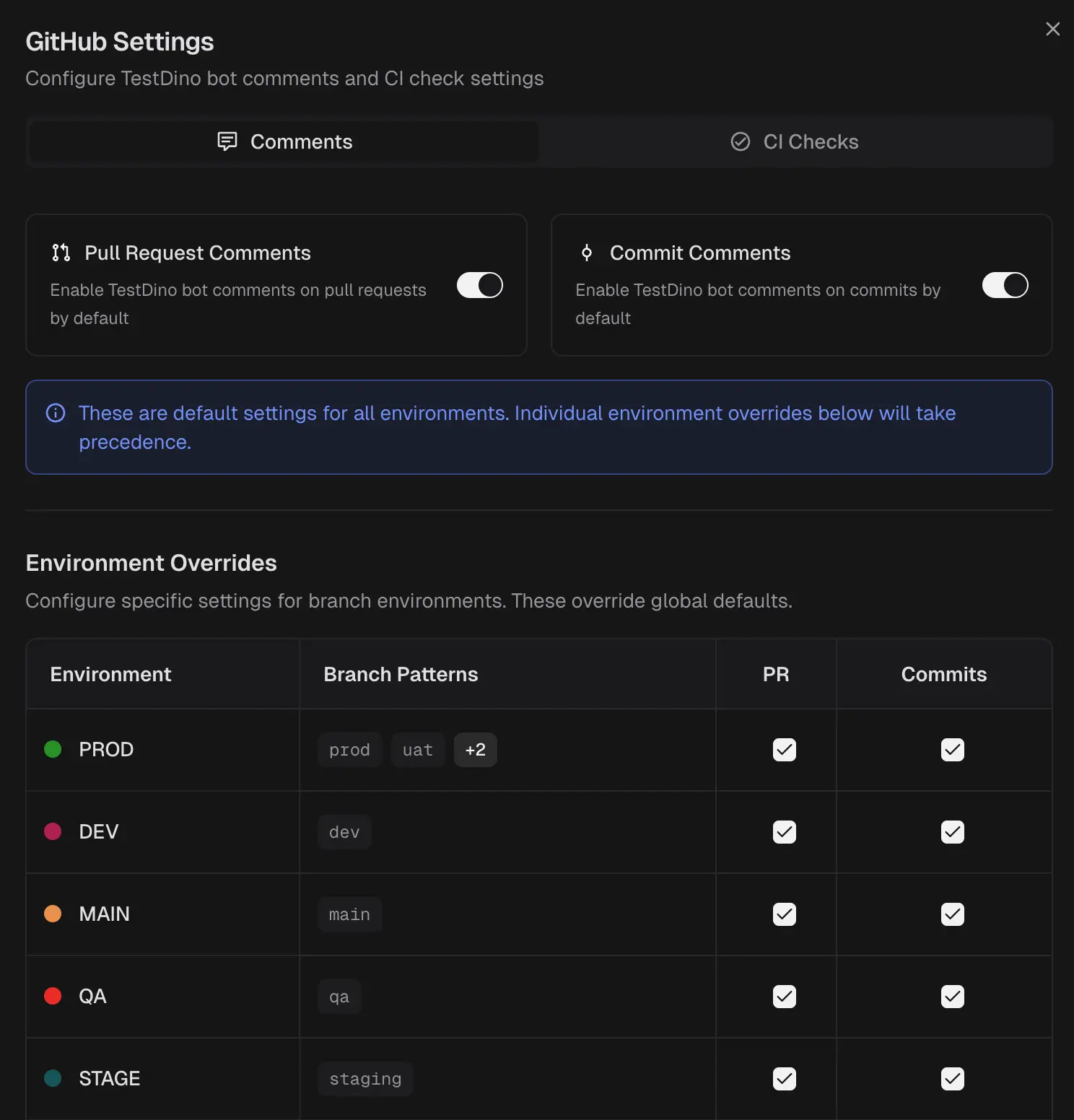
Open **Settings → Integrations → GitHub** and click the ⚙️ icon on the GitHub card. This opens the **GitHub Settings** panel with two tabs: **Comments** and **CI Checks**.
### Default comment toggles
At the top of the **Comments** tab, two toggles control the global defaults:
* **Pull Request Comments**: posts a test summary to every PR on a mapped branch
* **Commit Comments**: posts a test summary to every commit on a mapped branch
These defaults apply to all environments unless overridden below.
### Environment overrides
Below the defaults, the **Environment Overrides** table lists each environment you have configured in your project (e.g., PROD, DEV, MAIN, QA, STAGE). Each row shows:
| Column | What It Controls |
| :-------------- | :-------------------------------------------------------------------------------------- |
| Environment | The environment name (configured in [Environment Mapping](/guides/environment-mapping)) |
| Branch Patterns | Which branches map to this environment (e.g., `main`, `dev`, `staging`) |
| PR | Toggle PR comments on or off for this specific environment |
| Commits | Toggle commit comments on or off for this specific environment |
Environment-level toggles override the global defaults. For example, you can enable PR comments globally but disable them for the DEV environment.
**Tip**
Environment overrides are optional. If the global toggles are on and no overrides are configured, TestDino posts comments on every PR and commit. Use overrides when you want different behavior per environment. For example: post both PR and commit summaries on PROD branches, but only PR summaries on DEV branches.
### Single PR comment
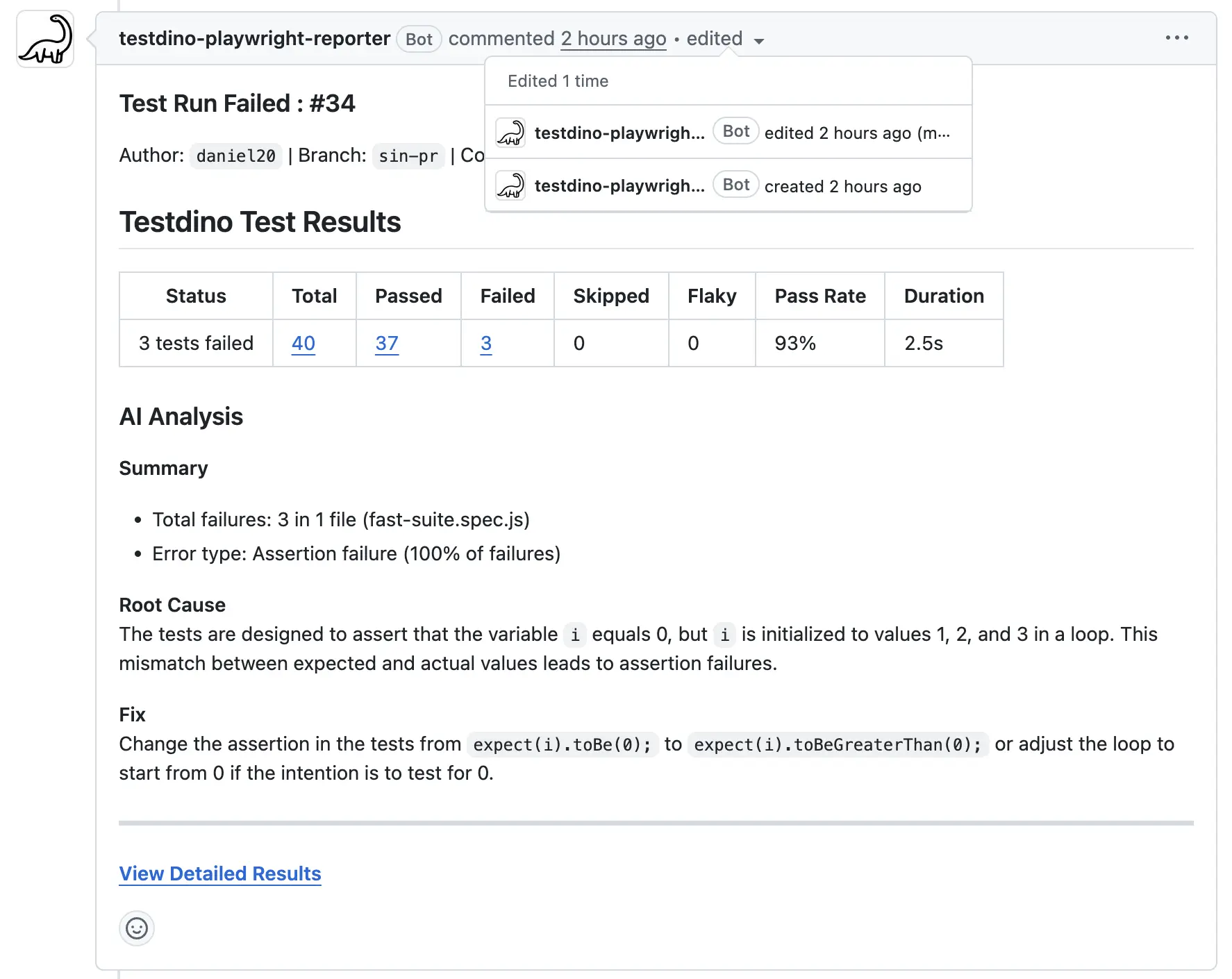
Updates one comment per pull request instead of stacking a new comment for every test run. Each new run rewrites the same comment with the latest summary, keeping the PR conversation focused on code review.
To enable, open the **Comments** tab, confirm **Pull Request Comments** is on, toggle **Single PR Comment**, and click **Save Settings**.
| Behavior | Detail |
| :---------- | :---------------------------------------------------------------------------------------------------------- |
| Requires | **Pull Request Comments** must be enabled — this is a modifier, not a standalone setting |
| Scope | Applies to every PR in the project for runs that happen after enabling |
| Retroactive | No — historical comments are not merged |
| History | Previous summaries are preserved in GitHub's native comment edit log (click the "edited" indicator to view) |
| Per PR | One comment per pull request — reopening or retargeting the PR does not create a new one |
**Notifications differ for edits**
Editing a comment does not trigger the same GitHub notifications as posting a new one. If your team subscribes to per-run comment events in PR threads, keep this off.
## Configure CI Checks
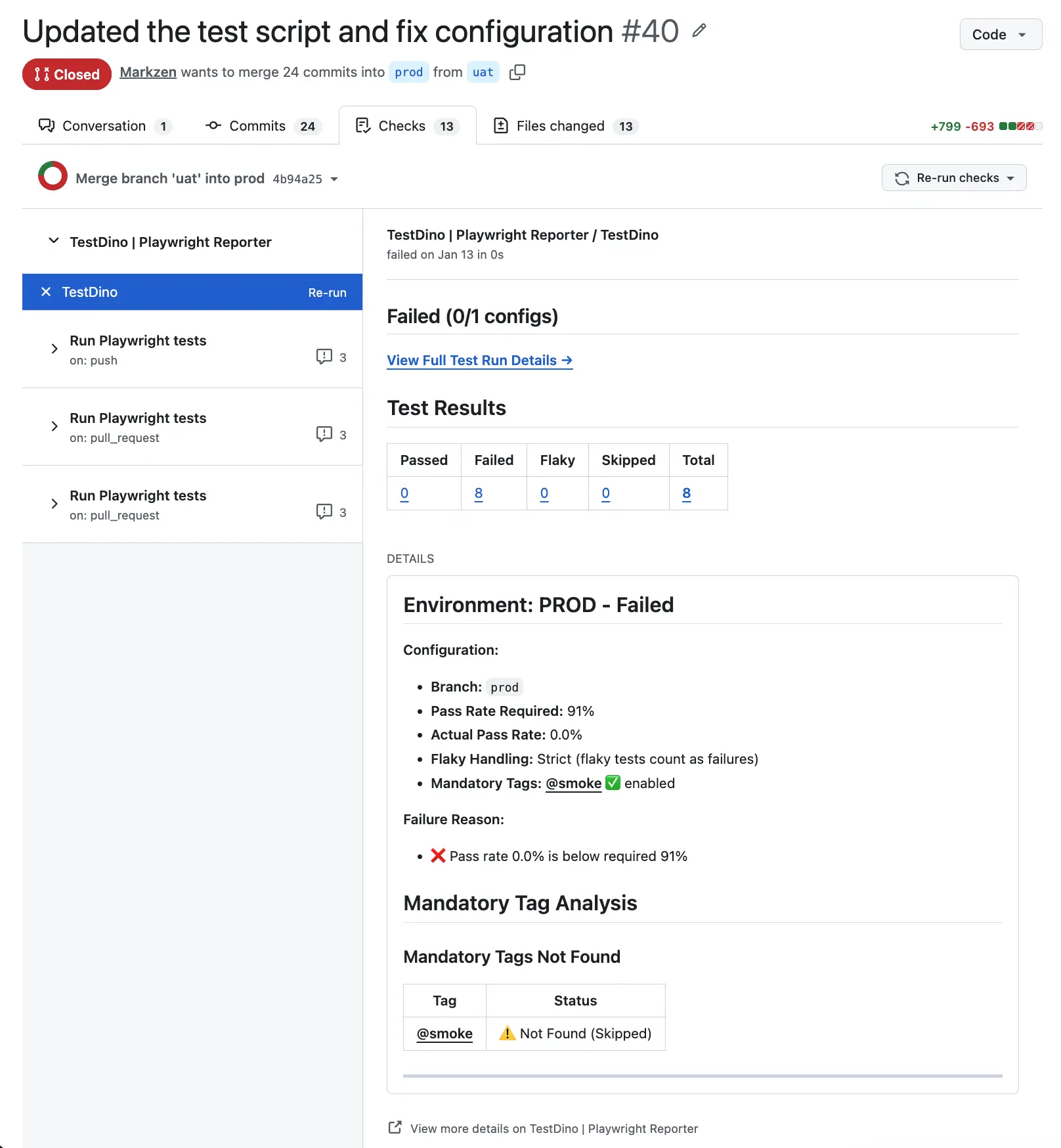
CI checks post a pass or fail status to GitHub based on your quality gate rules. If a required check fails, GitHub blocks the merge.
| Setting | Default | What It Controls |
| :-------------------- | :------ | :----------------------------------------------------------------------- |
| Pass Rate | 90% | Minimum percentage of tests that must pass |
| Mandatory Tags | None | Tags (e.g., `@critical`) where any failure fails the entire check |
| Flaky Handling | Neutral | Whether flaky tests count as failures (Strict) or are excluded (Neutral) |
| Environment Overrides | None | Per-environment rules that override the defaults |
To enable: open the **CI Checks** tab in GitHub settings (⚙️ icon on the GitHub card), toggle **Enable GitHub Checks**, and configure your thresholds.
**Info**
For the full CI checks setup including environment overrides, making checks required in GitHub rulesets, troubleshooting, and common scenarios, see [GitHub Status Checks](/guides/github-status-checks).
## Pull Requests in TestDino
Once connected, TestDino syncs your GitHub pull requests into a dedicated [Pull Requests](/platform/pull-requests/summary) view. Each PR shows:
| Tab | What It Shows |
| :----------------------------------------------------- | :------------------------------------------------------------------------------------------------------------------------------- |
| [Overview](/platform/pull-requests/overview) | PR status, test run KPIs (pass rate, duration, files changed), latest run with AI failure insights, and test results trend graph |
| [Timeline](/platform/pull-requests/timeline) | Chronological feed of commits, test runs, and code review events synced from GitHub |
| [Files Changed](/platform/pull-requests/files-changed) | File diffs with additions, deletions, and code-level comments with resolved/unresolved status |
**Tip**
The Pull Requests view updates automatically as new commits and test runs arrive. No manual refresh needed.
## Troubleshooting
* Verify the global comment toggles are enabled in **Settings → Integrations → GitHub → ⚙️ → Comments**
* Confirm the branch that triggered the run is mapped to an environment (if using overrides)
* Check that the CLI is uploading with the correct project API key
* Ensure **Enable GitHub Checks** is toggled on in the CI Checks tab
* Verify the commit SHA is present in the test run metadata (the CLI sends this automatically)
* Confirm the repository connected in TestDino matches the repo where the PR was opened
* Check that the GitHub App is still installed on the organization (**GitHub → Settings → Applications**)
* Verify the correct repository is connected in **Settings → Integrations → GitHub**
* Ensure tests have run on the PR branch at least once after connecting
* The GitHub App may not have access to that repo. Update repo access from **GitHub → Settings → Applications → TestDino**
* After changing access, return to TestDino and refresh the repository list
Configure quality gates, mandatory tags, and environment overrides
Map branches to environments for targeted reporting
View all PRs with test run results, trends, and AI insights
Add test status badges to your GitHub README
 After selecting a repo, the GitHub card in **Settings → Integrations** shows the connected repository name and organization.
 TestDino starts syncing PR metadata and attaching test runs to commits from this point forward.
***
After a successful connection, the integration unlocks PR comments, commit summaries, CI checks with quality gates, and a Pull Requests dashboard inside TestDino. Let's configure each of these below.
## Configure PR Comments
TestDino starts syncing PR metadata and attaching test runs to commits from this point forward.
***
After a successful connection, the integration unlocks PR comments, commit summaries, CI checks with quality gates, and a Pull Requests dashboard inside TestDino. Let's configure each of these below.
## Configure PR Comments
 When a Playwright run finishes, TestDino can post an AI-generated test summary directly to the pull request or commit in GitHub. To control where and when these comments appear, you configure them through **GitHub Settings** in TestDino.
Open **Settings → Integrations → GitHub** and click the ⚙️ icon on the GitHub card. This opens the **GitHub Settings** panel with two tabs: **Comments** and **CI Checks**.
### Default comment toggles
At the top of the **Comments** tab, two toggles control the global defaults:
* **Pull Request Comments**: posts a test summary to every PR on a mapped branch
* **Commit Comments**: posts a test summary to every commit on a mapped branch
These defaults apply to all environments unless overridden below.
### Environment overrides
Below the defaults, the **Environment Overrides** table lists each environment you have configured in your project (e.g., PROD, DEV, MAIN, QA, STAGE). Each row shows:
| Column | What It Controls |
| :-------------- | :-------------------------------------------------------------------------------------- |
| Environment | The environment name (configured in [Environment Mapping](/guides/environment-mapping)) |
| Branch Patterns | Which branches map to this environment (e.g., `main`, `dev`, `staging`) |
| PR | Toggle PR comments on or off for this specific environment |
| Commits | Toggle commit comments on or off for this specific environment |
Environment-level toggles override the global defaults. For example, you can enable PR comments globally but disable them for the DEV environment.
When a Playwright run finishes, TestDino can post an AI-generated test summary directly to the pull request or commit in GitHub. To control where and when these comments appear, you configure them through **GitHub Settings** in TestDino.
Open **Settings → Integrations → GitHub** and click the ⚙️ icon on the GitHub card. This opens the **GitHub Settings** panel with two tabs: **Comments** and **CI Checks**.
### Default comment toggles
At the top of the **Comments** tab, two toggles control the global defaults:
* **Pull Request Comments**: posts a test summary to every PR on a mapped branch
* **Commit Comments**: posts a test summary to every commit on a mapped branch
These defaults apply to all environments unless overridden below.
### Environment overrides
Below the defaults, the **Environment Overrides** table lists each environment you have configured in your project (e.g., PROD, DEV, MAIN, QA, STAGE). Each row shows:
| Column | What It Controls |
| :-------------- | :-------------------------------------------------------------------------------------- |
| Environment | The environment name (configured in [Environment Mapping](/guides/environment-mapping)) |
| Branch Patterns | Which branches map to this environment (e.g., `main`, `dev`, `staging`) |
| PR | Toggle PR comments on or off for this specific environment |
| Commits | Toggle commit comments on or off for this specific environment |
Environment-level toggles override the global defaults. For example, you can enable PR comments globally but disable them for the DEV environment.
 Updates one comment per pull request instead of stacking a new comment for every test run. Each new run rewrites the same comment with the latest summary, keeping the PR conversation focused on code review.
To enable, open the **Comments** tab, confirm **Pull Request Comments** is on, toggle **Single PR Comment**, and click **Save Settings**.
| Behavior | Detail |
| :---------- | :---------------------------------------------------------------------------------------------------------- |
| Requires | **Pull Request Comments** must be enabled — this is a modifier, not a standalone setting |
| Scope | Applies to every PR in the project for runs that happen after enabling |
| Retroactive | No — historical comments are not merged |
| History | Previous summaries are preserved in GitHub's native comment edit log (click the "edited" indicator to view) |
| Per PR | One comment per pull request — reopening or retargeting the PR does not create a new one |
Updates one comment per pull request instead of stacking a new comment for every test run. Each new run rewrites the same comment with the latest summary, keeping the PR conversation focused on code review.
To enable, open the **Comments** tab, confirm **Pull Request Comments** is on, toggle **Single PR Comment**, and click **Save Settings**.
| Behavior | Detail |
| :---------- | :---------------------------------------------------------------------------------------------------------- |
| Requires | **Pull Request Comments** must be enabled — this is a modifier, not a standalone setting |
| Scope | Applies to every PR in the project for runs that happen after enabling |
| Retroactive | No — historical comments are not merged |
| History | Previous summaries are preserved in GitHub's native comment edit log (click the "edited" indicator to view) |
| Per PR | One comment per pull request — reopening or retargeting the PR does not create a new one |
 CI checks post a pass or fail status to GitHub based on your quality gate rules. If a required check fails, GitHub blocks the merge.
| Setting | Default | What It Controls |
| :-------------------- | :------ | :----------------------------------------------------------------------- |
| Pass Rate | 90% | Minimum percentage of tests that must pass |
| Mandatory Tags | None | Tags (e.g., `@critical`) where any failure fails the entire check |
| Flaky Handling | Neutral | Whether flaky tests count as failures (Strict) or are excluded (Neutral) |
| Environment Overrides | None | Per-environment rules that override the defaults |
To enable: open the **CI Checks** tab in GitHub settings (⚙️ icon on the GitHub card), toggle **Enable GitHub Checks**, and configure your thresholds.
CI checks post a pass or fail status to GitHub based on your quality gate rules. If a required check fails, GitHub blocks the merge.
| Setting | Default | What It Controls |
| :-------------------- | :------ | :----------------------------------------------------------------------- |
| Pass Rate | 90% | Minimum percentage of tests that must pass |
| Mandatory Tags | None | Tags (e.g., `@critical`) where any failure fails the entire check |
| Flaky Handling | Neutral | Whether flaky tests count as failures (Strict) or are excluded (Neutral) |
| Environment Overrides | None | Per-environment rules that override the defaults |
To enable: open the **CI Checks** tab in GitHub settings (⚙️ icon on the GitHub card), toggle **Enable GitHub Checks**, and configure your thresholds.