> ## Documentation Index
> Fetch the complete documentation index at: https://docs.testdino.com/llms.txt
> Use this file to discover all available pages before exploring further.
# OpenClaw Integration
> Wire TestDino into OpenClaw and ask TestDino about Playwright failures directly from any OpenClaw supported chat app.
**What you'll learn**
* What is OpenClaw?
* How to set up TestDino in OpenClaw?
* Where you can use TestDino through OpenClaw?
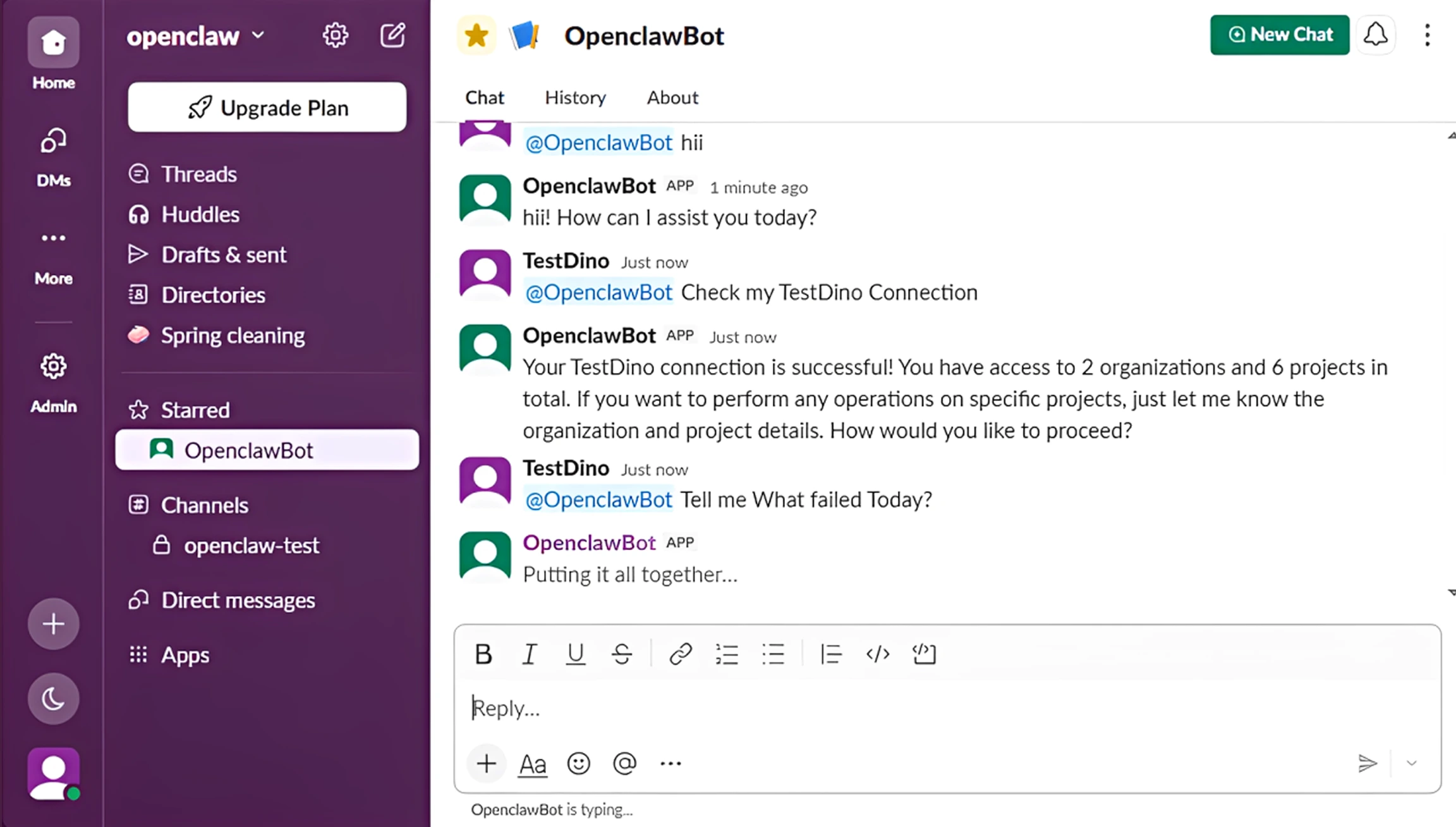
Integrate TestDino into your OpenClaw setup to bring Playwright test insights directly into your team chat workflow. Connect TestDino with any OpenClaw supported chat app and ask about failed tests, flaky executions, CI summaries, and recent alerts without opening the dashboard. Teams can investigate failures, review execution status, and stay updated on test health directly from chat.
OpenClaw is a third party platform maintained by [openclaw.ai](https://openclaw.ai). This guide covers only the TestDino integration and setup.
 ## Quick Reference
| Section | What it covers |
| :---------------------------------------------------------- | :--------------------------------------------- |
| [Prerequisites](#prerequisites) | TestDino account, configured OpenClaw setup |
| [Set up TestDino in OpenClaw](#set-up-testdino-in-openclaw) | Install skill, binary, PAT, and config |
| [Connect a Chat Platform](#connect-a-chat-platform) | Slack, Telegram, Discord, WhatsApp, and others |
| [Send a test message](#send-a-test-message) | Confirm the bot answers a real query |
| [Troubleshooting](#troubleshooting) | Common failures and fixes |
| [Command reference](#command-reference) | Commands you'll rerun often |
## Prerequisites
* **TestDino account** with at least one project. Sign up at [app.testdino.com](https://app.testdino.com).
* **OpenClaw setup** already installed and running. See the [OpenClaw docs](https://docs.openclaw.ai) if not.
## Set up TestDino in OpenClaw
The TestDino skill bundles the prompts and tool routing that connect OpenClaw to your TestDino workspace. It runs on top of the [Local MCP Server](/mcp/local).
Install the CLI globally with npm and confirm the version:
```bash theme={null}
npm install -g openclaw
openclaw --version
```
If your version is older than `2026.5.26`, upgrade:
```bash theme={null}
npm install -g openclaw@latest
```
The token (prefixed `tpu_`) authorizes OpenClaw to read your TestDino project data.
1. Sign in to [app.testdino.com](https://app.testdino.com)
2. Open your profile menu and go to **User settings → Personal access tokens**
3. Click **Generate new token**, set a name (for example, `openclaw-bot`) and an expiration
4. Grant read access to the projects you want to query from chat
5. Copy the `tpu_...` token. It is shown once and cannot be retrieved later.
Store the token in a password manager. Never commit it to Git. Use separate tokens for separate contexts (chat bot, CI, scripts). Revoke tokens you no longer use.
Full token instructions are on the [Local MCP Server page](/mcp/local#quick-start).
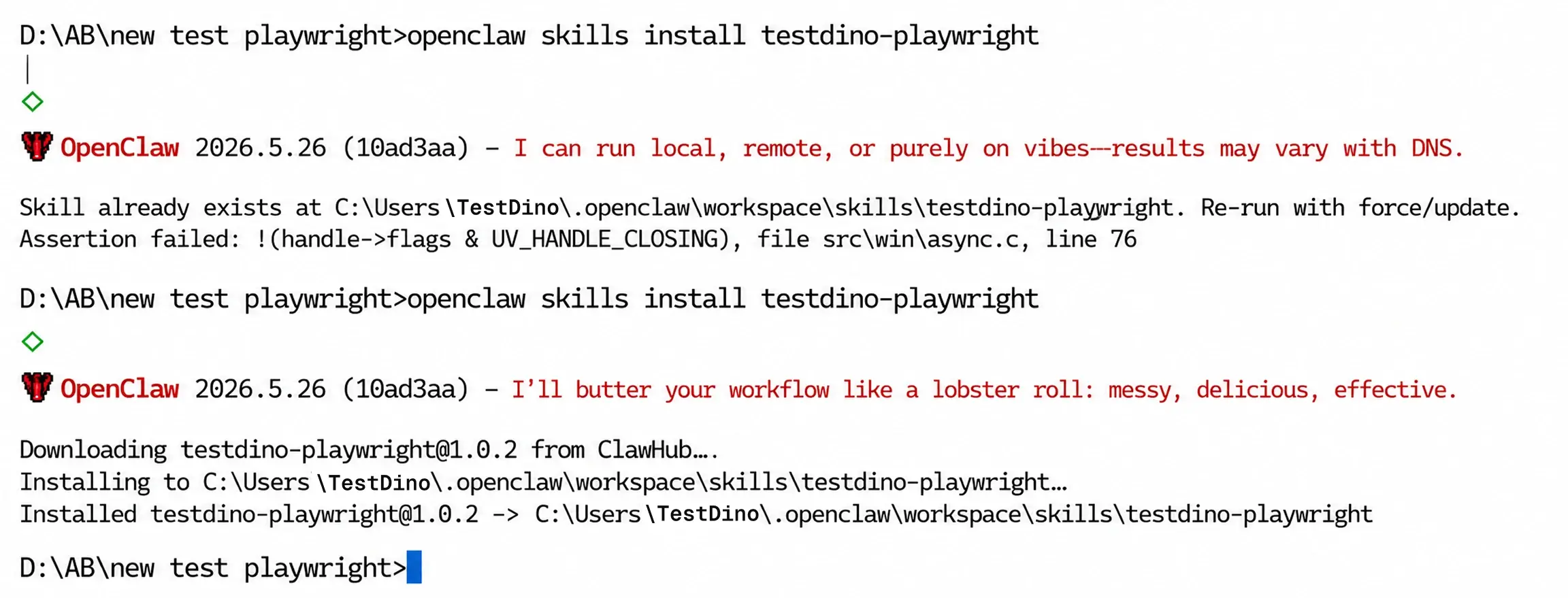
The skill is published on ClawHub as [`testdino-playwright`](https://clawhub.ai/testdino-inc/testdino-playwright):
```bash theme={null}
openclaw skills install testdino-playwright
openclaw skills list
```
## Quick Reference
| Section | What it covers |
| :---------------------------------------------------------- | :--------------------------------------------- |
| [Prerequisites](#prerequisites) | TestDino account, configured OpenClaw setup |
| [Set up TestDino in OpenClaw](#set-up-testdino-in-openclaw) | Install skill, binary, PAT, and config |
| [Connect a Chat Platform](#connect-a-chat-platform) | Slack, Telegram, Discord, WhatsApp, and others |
| [Send a test message](#send-a-test-message) | Confirm the bot answers a real query |
| [Troubleshooting](#troubleshooting) | Common failures and fixes |
| [Command reference](#command-reference) | Commands you'll rerun often |
## Prerequisites
* **TestDino account** with at least one project. Sign up at [app.testdino.com](https://app.testdino.com).
* **OpenClaw setup** already installed and running. See the [OpenClaw docs](https://docs.openclaw.ai) if not.
## Set up TestDino in OpenClaw
The TestDino skill bundles the prompts and tool routing that connect OpenClaw to your TestDino workspace. It runs on top of the [Local MCP Server](/mcp/local).
Install the CLI globally with npm and confirm the version:
```bash theme={null}
npm install -g openclaw
openclaw --version
```
If your version is older than `2026.5.26`, upgrade:
```bash theme={null}
npm install -g openclaw@latest
```
The token (prefixed `tpu_`) authorizes OpenClaw to read your TestDino project data.
1. Sign in to [app.testdino.com](https://app.testdino.com)
2. Open your profile menu and go to **User settings → Personal access tokens**
3. Click **Generate new token**, set a name (for example, `openclaw-bot`) and an expiration
4. Grant read access to the projects you want to query from chat
5. Copy the `tpu_...` token. It is shown once and cannot be retrieved later.
Store the token in a password manager. Never commit it to Git. Use separate tokens for separate contexts (chat bot, CI, scripts). Revoke tokens you no longer use.
Full token instructions are on the [Local MCP Server page](/mcp/local#quick-start).
The skill is published on ClawHub as [`testdino-playwright`](https://clawhub.ai/testdino-inc/testdino-playwright):
```bash theme={null}
openclaw skills install testdino-playwright
openclaw skills list
```
 Install the MCP server globally so OpenClaw can call it as a plain command:
```bash theme={null}
npm install -g testdino-mcp
```
Confirm it's on your `PATH`:
```bash theme={null}
where testdino-mcp # Windows
which testdino-mcp # macOS / Linux
```
OpenClaw does not auto-generate this file. Create it by hand.
| OS | Path |
| :------------ | :--------------------------------------- |
| Windows | `C:\Users\\.mcporter\mcporter.json` |
| macOS / Linux | `~/.mcporter/mcporter.json` |
```json mcporter.json theme={null}
{
"mcpServers": {
"testdino": {
"command": "testdino-mcp",
"env": {
"TESTDINO_PAT": "tpu_your_token_here"
}
}
},
"imports": []
}
```
Run the health check directly through mcporter:
```bash theme={null}
mcporter call testdino.health
```
A successful run returns JSON with your TestDino account, organizations, and projects.
Do not move past this step until `testdino.health` returns project data. If mcporter cannot talk to TestDino, the bot will not either.
Start the gateway and open the dashboard:
```bash theme={null}
openclaw gateway start
openclaw dashboard
```
In the browser:
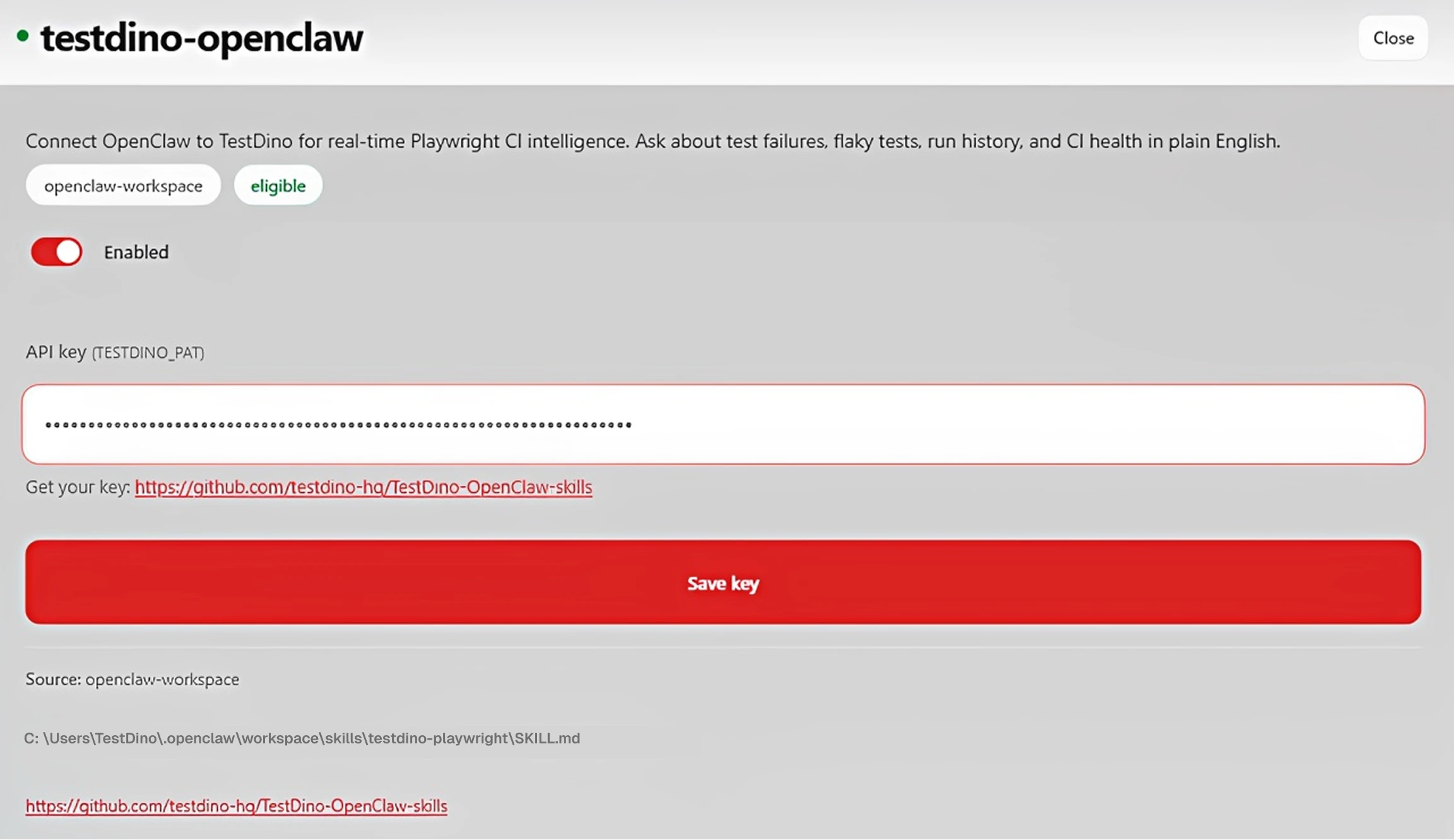
1. Go to **Skills → TestDino**
2. Paste your PAT into the **API key** field
3. Click **Save key**
The status badge flips from `blocked` to `eligible`.
Install the MCP server globally so OpenClaw can call it as a plain command:
```bash theme={null}
npm install -g testdino-mcp
```
Confirm it's on your `PATH`:
```bash theme={null}
where testdino-mcp # Windows
which testdino-mcp # macOS / Linux
```
OpenClaw does not auto-generate this file. Create it by hand.
| OS | Path |
| :------------ | :--------------------------------------- |
| Windows | `C:\Users\\.mcporter\mcporter.json` |
| macOS / Linux | `~/.mcporter/mcporter.json` |
```json mcporter.json theme={null}
{
"mcpServers": {
"testdino": {
"command": "testdino-mcp",
"env": {
"TESTDINO_PAT": "tpu_your_token_here"
}
}
},
"imports": []
}
```
Run the health check directly through mcporter:
```bash theme={null}
mcporter call testdino.health
```
A successful run returns JSON with your TestDino account, organizations, and projects.
Do not move past this step until `testdino.health` returns project data. If mcporter cannot talk to TestDino, the bot will not either.
Start the gateway and open the dashboard:
```bash theme={null}
openclaw gateway start
openclaw dashboard
```
In the browser:
1. Go to **Skills → TestDino**
2. Paste your PAT into the **API key** field
3. Click **Save key**
The status badge flips from `blocked` to `eligible`.
 Or set it from the CLI:
```bash theme={null}
openclaw config set skills.entries.testdino-playwright.apiKey "tpu_your_token_here"
```
Verify the skill is fully wired:
```bash theme={null}
openclaw skills info testdino-playwright
```
## Connect a Chat Platform
OpenClaw works across multiple chat platforms, and the TestDino setup remains the same for all of them. Choose the platform where you want the TestDino bot to run and follow the corresponding OpenClaw channel setup guide.
### Supported channels
| Channel | OpenClaw setup guide |
| :--------------------------------------------------- | :------------------------------------------------------------------------------- |
| Slack | [docs.openclaw.ai/channels/slack](https://docs.openclaw.ai/channels/slack) |
| Telegram | [docs.openclaw.ai/channels/telegram](https://docs.openclaw.ai/channels/telegram) |
| Discord | [docs.openclaw.ai/channels/discord](https://docs.openclaw.ai/channels/discord) |
| WhatsApp | [docs.openclaw.ai/channels/whatsapp](https://docs.openclaw.ai/channels/whatsapp) |
| Microsoft Teams, Google Chat, Signal, Matrix, others | [docs.openclaw.ai/channels](https://docs.openclaw.ai/channels) |
Run `openclaw channels --help` to see the full list available in your installed version.
## Send a test message
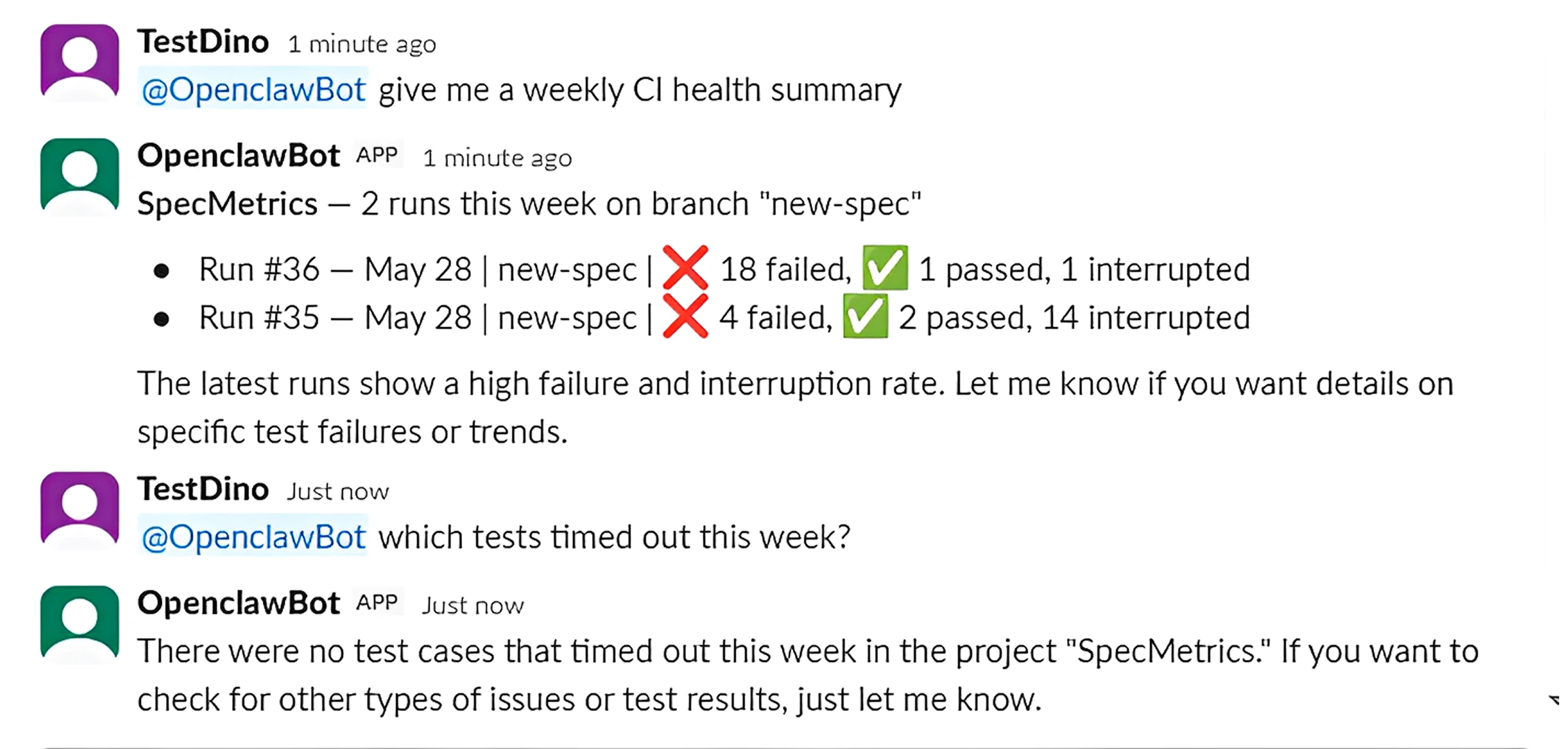
In the chat, replace `@YourBot` with the bot's handle:
```text theme={null}
@YourBot check my testdino connection
```
The bot replies with your TestDino account info, organizations, and projects.
Then try real queries:
```text theme={null}
@YourBot what failed in CI today?
@YourBot is the login test flaky or a real bug?
@YourBot show me failures on the release branch
@YourBot give me a weekly CI health summary
@YourBot list manual test cases for the SpecMetrics project
@YourBot which tests timed out this week?
```
Or set it from the CLI:
```bash theme={null}
openclaw config set skills.entries.testdino-playwright.apiKey "tpu_your_token_here"
```
Verify the skill is fully wired:
```bash theme={null}
openclaw skills info testdino-playwright
```
## Connect a Chat Platform
OpenClaw works across multiple chat platforms, and the TestDino setup remains the same for all of them. Choose the platform where you want the TestDino bot to run and follow the corresponding OpenClaw channel setup guide.
### Supported channels
| Channel | OpenClaw setup guide |
| :--------------------------------------------------- | :------------------------------------------------------------------------------- |
| Slack | [docs.openclaw.ai/channels/slack](https://docs.openclaw.ai/channels/slack) |
| Telegram | [docs.openclaw.ai/channels/telegram](https://docs.openclaw.ai/channels/telegram) |
| Discord | [docs.openclaw.ai/channels/discord](https://docs.openclaw.ai/channels/discord) |
| WhatsApp | [docs.openclaw.ai/channels/whatsapp](https://docs.openclaw.ai/channels/whatsapp) |
| Microsoft Teams, Google Chat, Signal, Matrix, others | [docs.openclaw.ai/channels](https://docs.openclaw.ai/channels) |
Run `openclaw channels --help` to see the full list available in your installed version.
## Send a test message
In the chat, replace `@YourBot` with the bot's handle:
```text theme={null}
@YourBot check my testdino connection
```
The bot replies with your TestDino account info, organizations, and projects.
Then try real queries:
```text theme={null}
@YourBot what failed in CI today?
@YourBot is the login test flaky or a real bug?
@YourBot show me failures on the release branch
@YourBot give me a weekly CI health summary
@YourBot list manual test cases for the SpecMetrics project
@YourBot which tests timed out this week?
```
 ## Troubleshooting
Tail the OpenClaw logs while you send a test message:
```bash theme={null}
openclaw logs --follow
```
| Log signature | Diagnosis | Fix |
| :----------------------------------------------------- | :------------------------------------------------------ | :------------------------------------------------------------------- |
| `channel resolve failed; missing_scope` | Missing platform scope | Add the scope on the platform side, reinstall the app to grant it |
| `socket mode connected` / `webhook ready` but no event | Platform is not delivering events | Confirm event or webhook subscriptions are saved. Re-invite the bot. |
| `stalled session ... authorization-policy:NNNms` | execApprovals waiting for approval | `openclaw config set channels..execApprovals.enabled false` |
| Nothing at all | Bot not in chat, allowlist mismatch, or wrong workspace | Check chat membership and allowlist. Reinstall if needed. |
`mcporter.json` is missing or in the wrong location. Recreate it at the path shown in [Step 5](#set-up-testdino-in-openclaw) and run the verify step again.
Either the `testdino-mcp` binary is not installed or the PAT is invalid.
```bash theme={null}
where testdino-mcp # confirm binary exists
mcporter call testdino.health # confirm PAT works
```
If `where` returns "not found", reinstall with `npm install -g testdino-mcp` and confirm your global npm bin is on `PATH`.
Run `openclaw skills info testdino-playwright`. Resolve whichever requirement is failing:
* `bin:testdino-mcp` failed → run `npm install -g testdino-mcp`
* `env:TESTDINO_PAT` failed → save your PAT in the dashboard or via `openclaw config set` (see Step 7)
Run the diagnostic commands. They print the exact failure (port in use, plugin error, schema error):
```bash theme={null}
openclaw doctor
openclaw config validate
```
New OpenClaw versions sometimes tighten the config schema. Try the auto-repair first:
```bash theme={null}
openclaw doctor --fix
openclaw config validate
```
If `doctor --fix` cannot repair a specific field, open `~/.openclaw/openclaw.json` and align it with the schema shape the error message points to.
## Command reference
Commands you'll rerun often:
```bash theme={null}
openclaw status # Quick health check
openclaw doctor # Diagnose problems (--fix to auto-repair)
openclaw logs --follow # Tail live logs (best debugging tool)
openclaw skills info testdino-playwright # Check skill requirements
openclaw skills list # See all installed skills
openclaw channels # Manage connected messaging channels
openclaw plugins list # See installed channel plugins
openclaw gateway restart # Pick up config changes
openclaw dashboard # Open the web UI
mcporter call testdino.health # Smoke-test the TestDino MCP layer
```
Install testdino-mcp for Claude Code, Cursor, and Claude Desktop
What the MCP server does and which tools it exposes
Full parameters and input schemas for every MCP tool
Trigger workflows on test runs and query TestDino data
## Troubleshooting
Tail the OpenClaw logs while you send a test message:
```bash theme={null}
openclaw logs --follow
```
| Log signature | Diagnosis | Fix |
| :----------------------------------------------------- | :------------------------------------------------------ | :------------------------------------------------------------------- |
| `channel resolve failed; missing_scope` | Missing platform scope | Add the scope on the platform side, reinstall the app to grant it |
| `socket mode connected` / `webhook ready` but no event | Platform is not delivering events | Confirm event or webhook subscriptions are saved. Re-invite the bot. |
| `stalled session ... authorization-policy:NNNms` | execApprovals waiting for approval | `openclaw config set channels..execApprovals.enabled false` |
| Nothing at all | Bot not in chat, allowlist mismatch, or wrong workspace | Check chat membership and allowlist. Reinstall if needed. |
`mcporter.json` is missing or in the wrong location. Recreate it at the path shown in [Step 5](#set-up-testdino-in-openclaw) and run the verify step again.
Either the `testdino-mcp` binary is not installed or the PAT is invalid.
```bash theme={null}
where testdino-mcp # confirm binary exists
mcporter call testdino.health # confirm PAT works
```
If `where` returns "not found", reinstall with `npm install -g testdino-mcp` and confirm your global npm bin is on `PATH`.
Run `openclaw skills info testdino-playwright`. Resolve whichever requirement is failing:
* `bin:testdino-mcp` failed → run `npm install -g testdino-mcp`
* `env:TESTDINO_PAT` failed → save your PAT in the dashboard or via `openclaw config set` (see Step 7)
Run the diagnostic commands. They print the exact failure (port in use, plugin error, schema error):
```bash theme={null}
openclaw doctor
openclaw config validate
```
New OpenClaw versions sometimes tighten the config schema. Try the auto-repair first:
```bash theme={null}
openclaw doctor --fix
openclaw config validate
```
If `doctor --fix` cannot repair a specific field, open `~/.openclaw/openclaw.json` and align it with the schema shape the error message points to.
## Command reference
Commands you'll rerun often:
```bash theme={null}
openclaw status # Quick health check
openclaw doctor # Diagnose problems (--fix to auto-repair)
openclaw logs --follow # Tail live logs (best debugging tool)
openclaw skills info testdino-playwright # Check skill requirements
openclaw skills list # See all installed skills
openclaw channels # Manage connected messaging channels
openclaw plugins list # See installed channel plugins
openclaw gateway restart # Pick up config changes
openclaw dashboard # Open the web UI
mcporter call testdino.health # Smoke-test the TestDino MCP layer
```
Install testdino-mcp for Claude Code, Cursor, and Claude Desktop
What the MCP server does and which tools it exposes
Full parameters and input schemas for every MCP tool
Trigger workflows on test runs and query TestDino data