> ## Documentation Index
> Fetch the complete documentation index at: https://docs.testdino.com/llms.txt
> Use this file to discover all available pages before exploring further.
# Asana Integration
> Create Asana tasks from failed or flaky Playwright tests in TestDino.
export const VideoSchema = ({name, description, thumbnailUrl, uploadDate, duration, contentUrl, embedUrl}) => {
const schema = {
"@context": "https://schema.org",
"@type": "VideoObject",
name,
description,
thumbnailUrl,
uploadDate,
...duration ? {
duration
} : {},
...contentUrl ? {
contentUrl
} : {},
...embedUrl ? {
embedUrl
} : {},
publisher: {
"@type": "Organization",
name: "TestDino",
logo: {
"@type": "ImageObject",
url: "https://docs.testdino.com/logo/light.svg"
}
}
};
return ;
};
**What you'll learn**
* How to connect your Asana account to a TestDino project
* How to create prefilled tasks from failed or flaky tests
* How to manage the integration (sync, disconnect, change defaults)
The Asana integration creates prefilled tasks in Asana directly from failed or flaky tests in TestDino. Each task includes the test name, error details, failure history, test steps, console output, screenshots, and links to the TestDino run and Git commit.
This is a **user-level** integration. Each team member connects their own Asana account and creates tasks under their own identity.
**Warning**
Available on TestDino **Team** and **Enterprise** plans.
## Prerequisites
* A TestDino project with test runs uploaded ([Getting Started](/getting-started))
* An Asana account with permission to create tasks
* An Asana workspace and project to file tasks into
## Connect Asana to TestDino
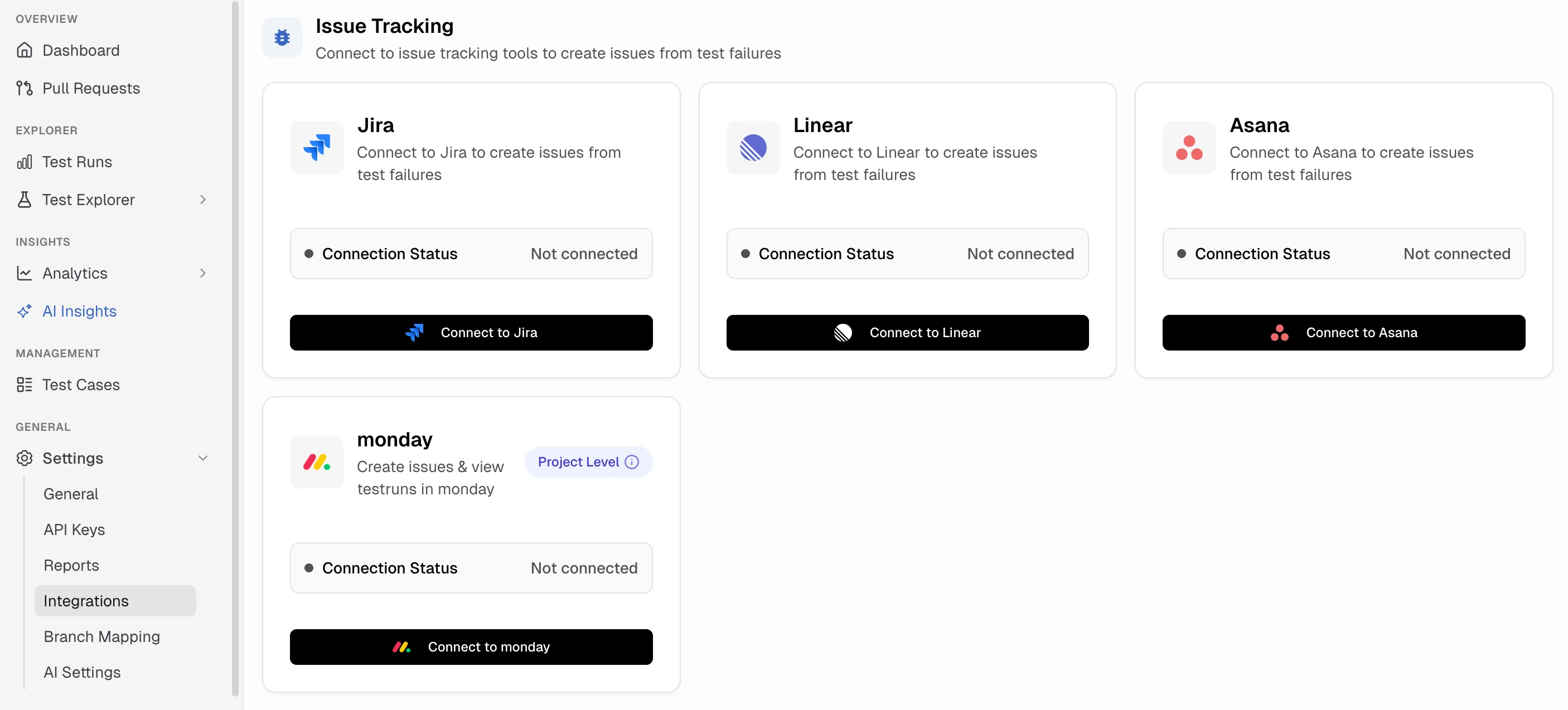
### 1. Open the Integrations page
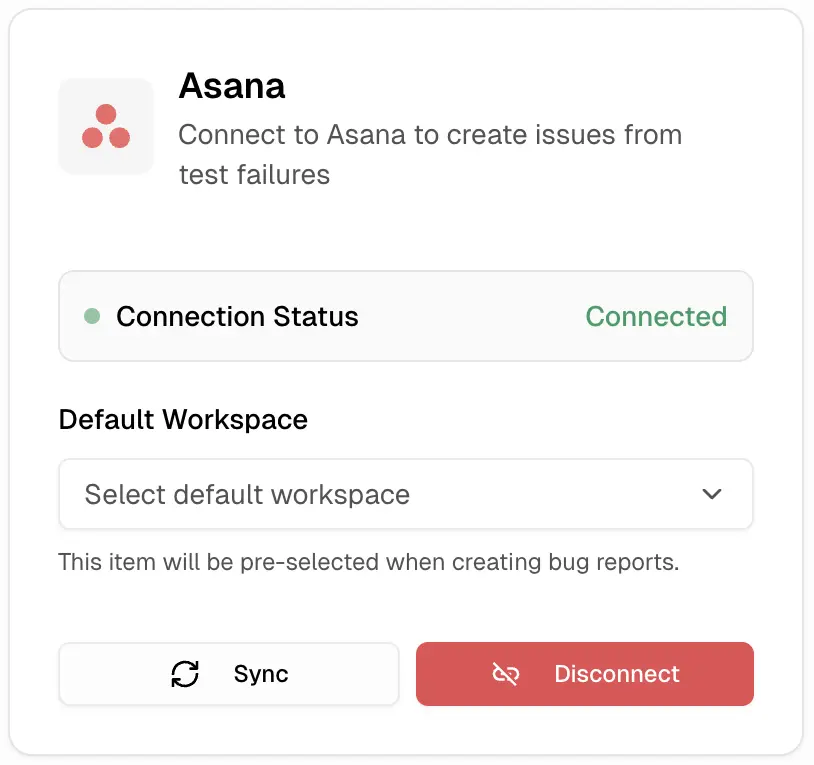
Go to **Settings → Integrations** in your TestDino project. Find the **Asana** card and click **Connect**.
### 2. Authorize your Asana account
TestDino redirects you to Asana to authorize access. Sign in and approve the request. TestDino requests permission to read workspaces, projects, and create tasks.
### 3. Configure defaults
After authorization, select the default **Workspace** where tasks will be created. You can select a specific project each time you create a task.
**Note**
The default workspace is a convenience setting. You can change to different workspace without disconnecting integration.
## Create an Asana Task
Create Asana tasks directly from failed or flaky test cases. Each task includes test metadata, so your team has full context without opening separate reports.
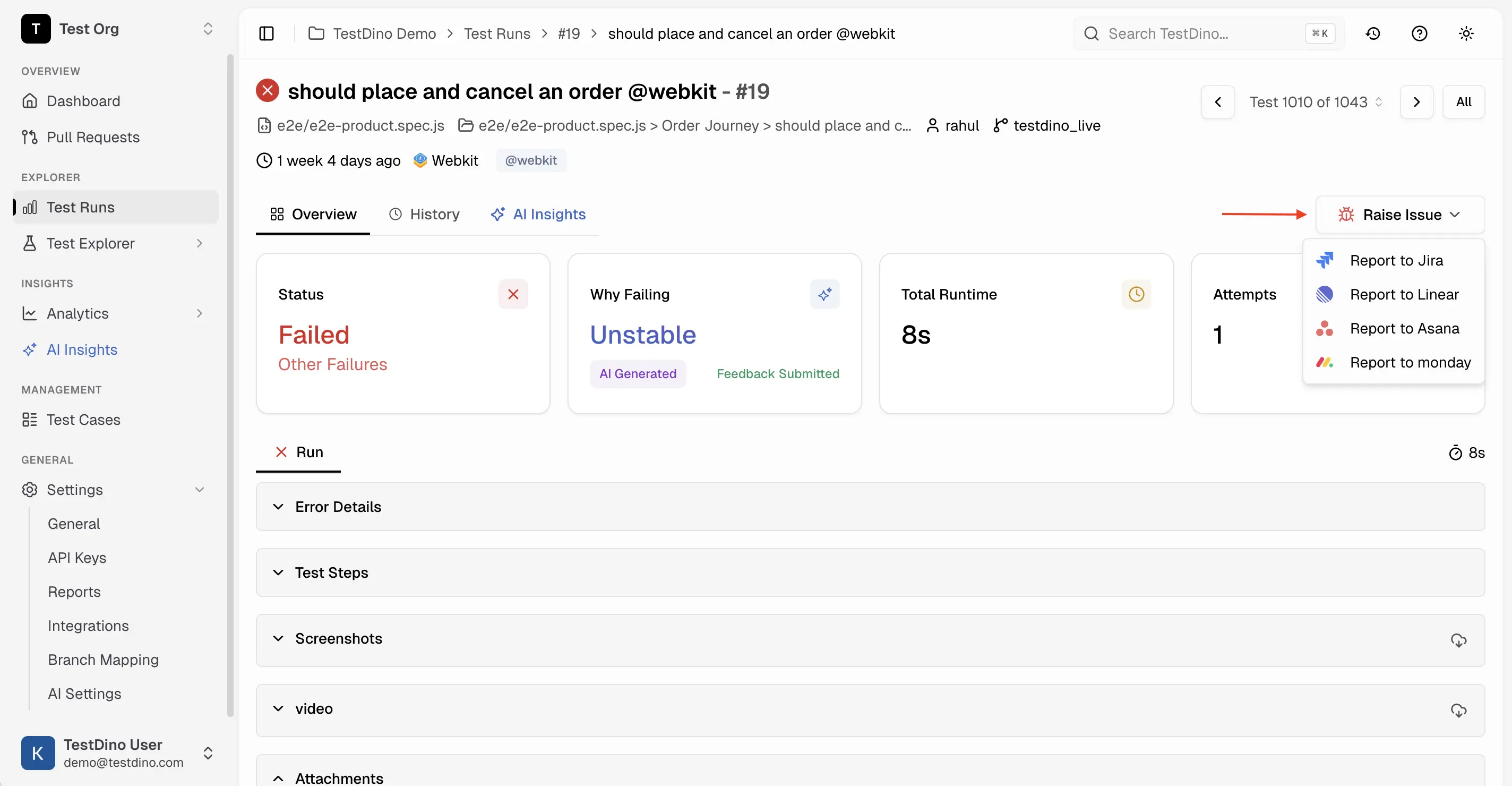
Navigate to a **Test Run** in TestDino.
Choose a failed or flaky **test case** from the run.
Click **Raise Issue** and select **Asana**.
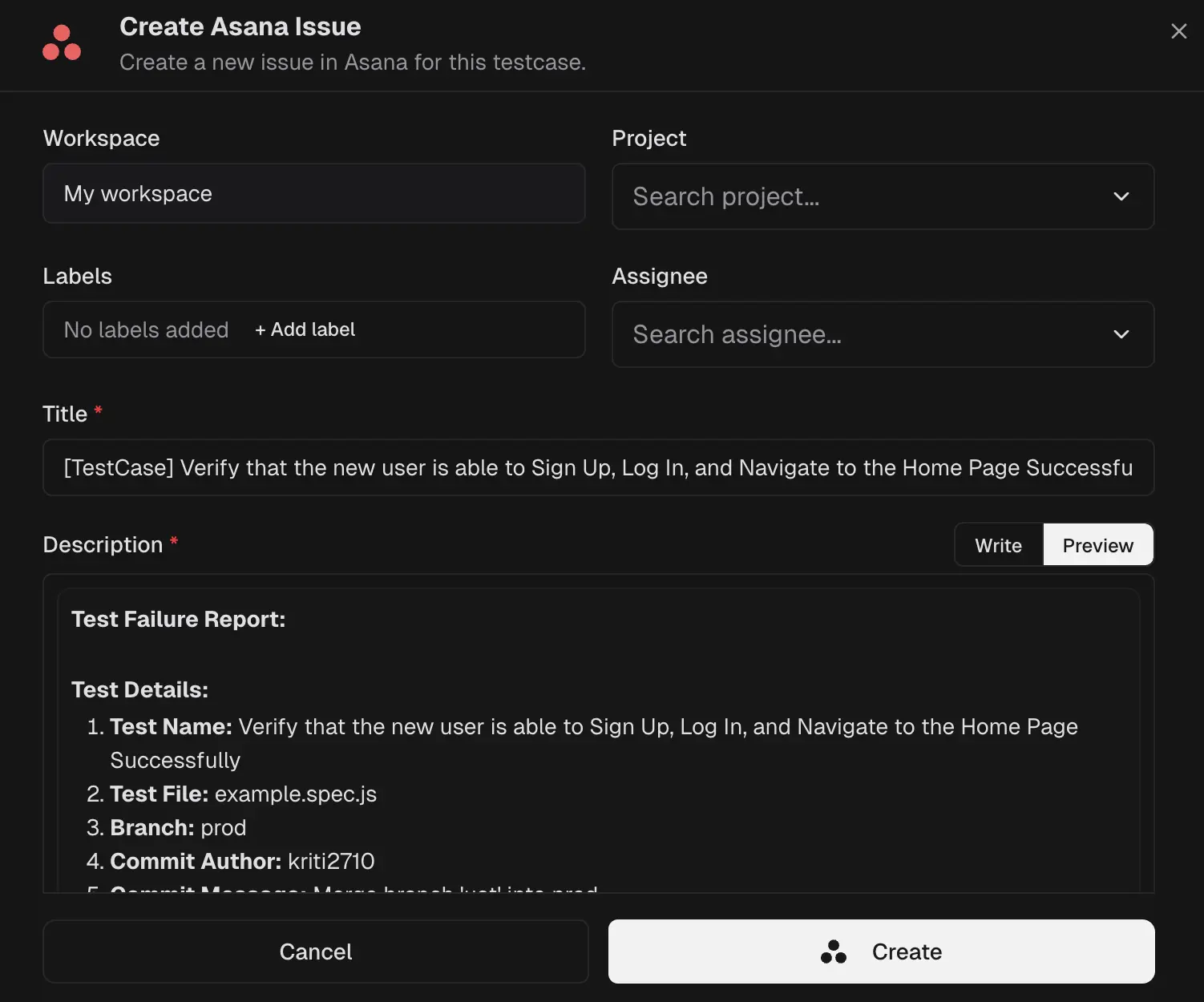
Select the **Workspace** and **Project**. Add **Labels** and an **Assignee** if needed. Review the **Title** and **Description** (auto-generated from failure data). Click **Create** to file the task in Asana.
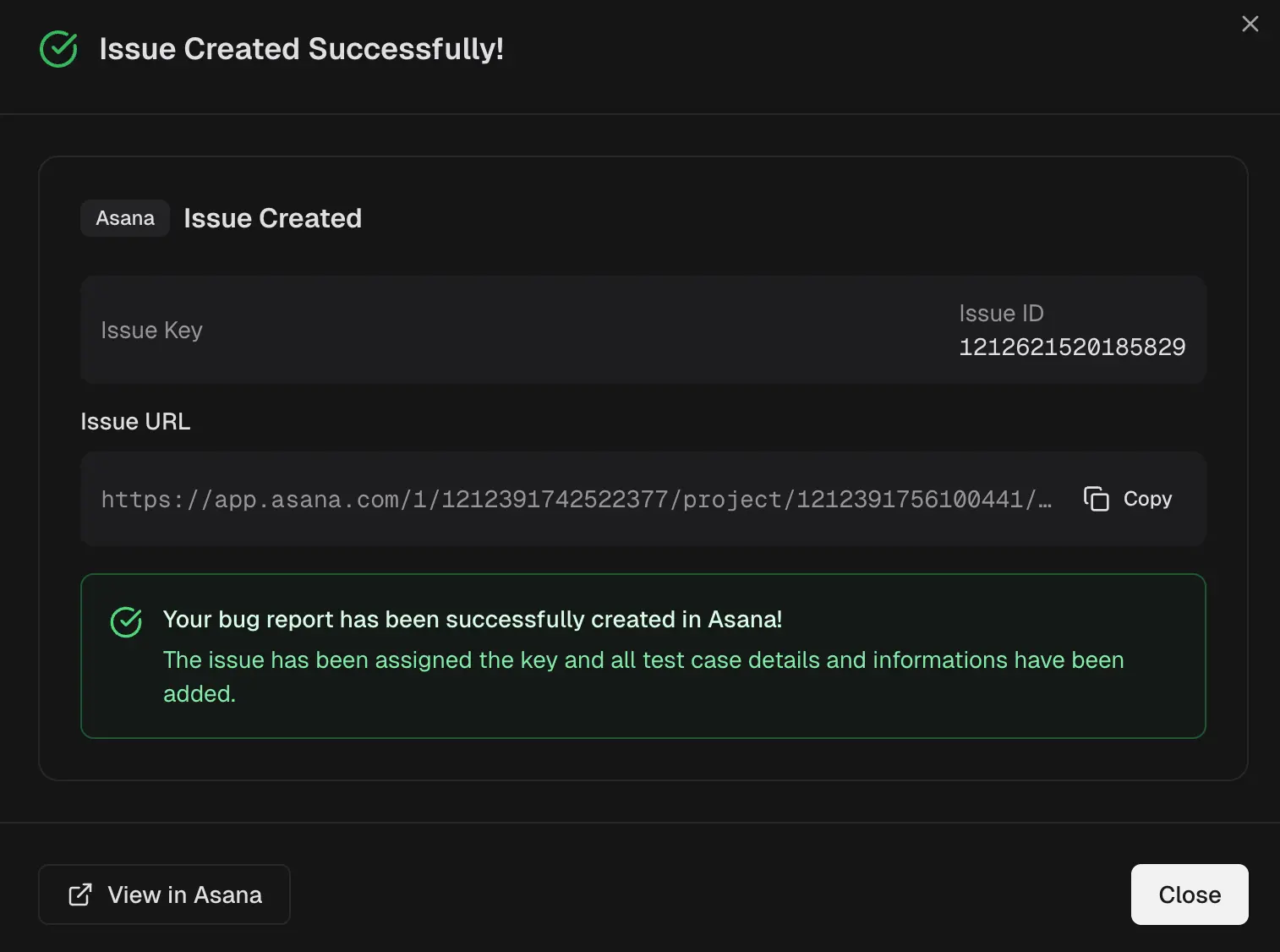
TestDino shows a confirmation with the Asana task key, ID, and a copyable URL. Click **View in Asana** to open the task and continue triage.
## What TestDino Pre-fills
Every task is created with structured context so the developer receiving it has everything needed to investigate.
| Section | Field | Pre-filled Content |
| :--------------- | :------------------ | :----------------------------------------------------------------------------------------------------------- |
| **Asana Fields** | Workspace | Default from Settings is preselected |
| | Project | User-selectable Asana project |
| | Labels | Optional user-added labels |
| | Assignee | Optional user-selected assignee |
| | Title | `[TestCase] - ` |
| **Description** | Test Details | Test name, file, branch, commit author/message, environment, run ID, execution date, total runtime, attempts |
| | Failure Information | Error type, error message, test history (failure pattern) |
| | Test Steps | Failing attempt and step with duration and error |
| | Context | Console output, links (TestDino run, GitHub commit) |
| | Evidence | Test case screenshots and attachments |
## Troubleshooting
* Click **Sync** on the Asana card in **Settings → Integrations** to refresh workspaces and projects from Asana
* Verify your Asana account has access to the workspace and project you expect to see
* TestDino automatically refreshes OAuth tokens when supported by the provider. If you still see authorization errors, click **Disconnect** on the Asana card, then reconnect and re-authorize
* Ensure your Asana account has permission to create tasks in the target project
* The button appears on failed or flaky test cases inside a test run detail view. Open a test run and click into a specific failed test
* Verify the Asana integration is connected for your account in **Settings → Integrations**
* Asana task descriptions are generated from the test failure data. If fields appear empty, ensure the test run has complete metadata (branch, commit, environment)
* Run **Sync** to pull the latest workspace configuration from Asana
 ### 2. Authorize your Asana account
TestDino redirects you to Asana to authorize access. Sign in and approve the request. TestDino requests permission to read workspaces, projects, and create tasks.
### 3. Configure defaults
After authorization, select the default **Workspace** where tasks will be created. You can select a specific project each time you create a task.
### 2. Authorize your Asana account
TestDino redirects you to Asana to authorize access. Sign in and approve the request. TestDino requests permission to read workspaces, projects, and create tasks.
### 3. Configure defaults
After authorization, select the default **Workspace** where tasks will be created. You can select a specific project each time you create a task.