> ## Documentation Index
> Fetch the complete documentation index at: https://docs.testdino.com/llms.txt
> Use this file to discover all available pages before exploring further.
# monday.com Integration
> Create monday items and view test run data in monday dashboards from TestDino.
export const VideoSchema = ({name, description, thumbnailUrl, uploadDate, duration, contentUrl, embedUrl}) => {
const schema = {
"@context": "https://schema.org",
"@type": "VideoObject",
name,
description,
thumbnailUrl,
uploadDate,
...duration ? {
duration
} : {},
...contentUrl ? {
contentUrl
} : {},
...embedUrl ? {
embedUrl
} : {},
publisher: {
"@type": "Organization",
name: "TestDino",
logo: {
"@type": "ImageObject",
url: "https://docs.testdino.com/logo/light.svg"
}
}
};
return ;
};
**What you'll learn**
* How to connect monday to a TestDino project
* How to create prefilled items from failed or flaky tests
* How to set up the TestDino widget on monday dashboards
monday is a work management platform for planning, tracking, and collaboration. The TestDino integration connects test execution data with your monday workflows.
**Warning**
Available on TestDino **Team** and **Enterprise** plans.
## Quick Reference
| Task | Action | Link |
| :-------------- | :------------------------------- | :------------------------------------------------------ |
| Install app | monday Marketplace | [Install](#connect-monday-to-testdino) |
| Connect project | Settings → Integrations → monday | [Setup](#connect-monday-to-testdino) |
| Create issue | Raise Issue → monday | [Create issue](#create-a-monday-bug-report-in-testdino) |
| Add widget | monday dashboard → Add Widget | [Widget setup](#testdino-widget-for-monday) |
| View issue data | Check pre-filled content | [What TestDino pre-fills](#what-testdino-pre-fills) |
## Prerequisites
* A TestDino project with test runs uploaded ([Getting Started](/getting-started))
* A monday account with workspace access and board creation/edit permissions
## Connect monday to TestDino
Install the TestDino app in your monday workspace from the monday Marketplace.
TestDino on monday Marketplace ↗
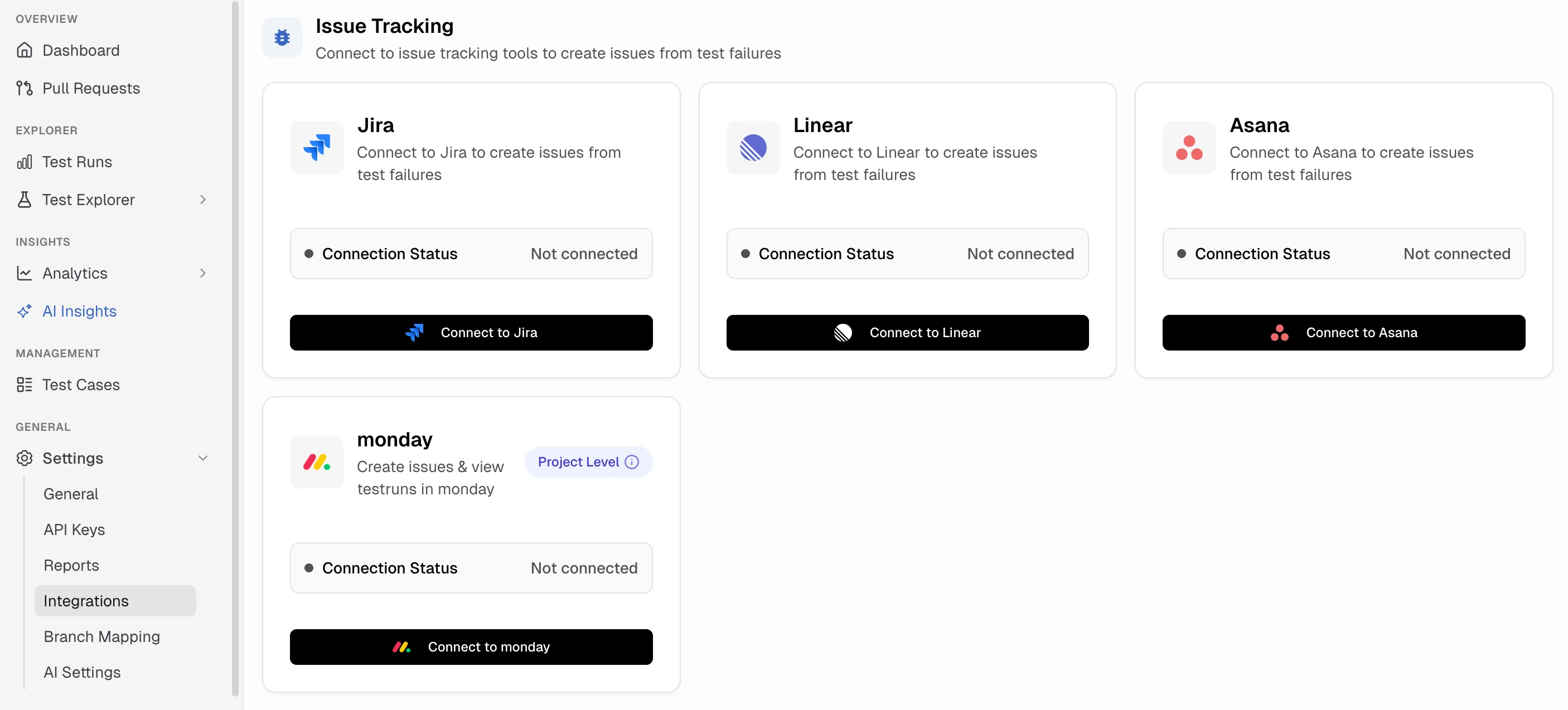
Go to **Settings → Integrations** in your TestDino project. Find the **monday** card and click **Connect to monday**.
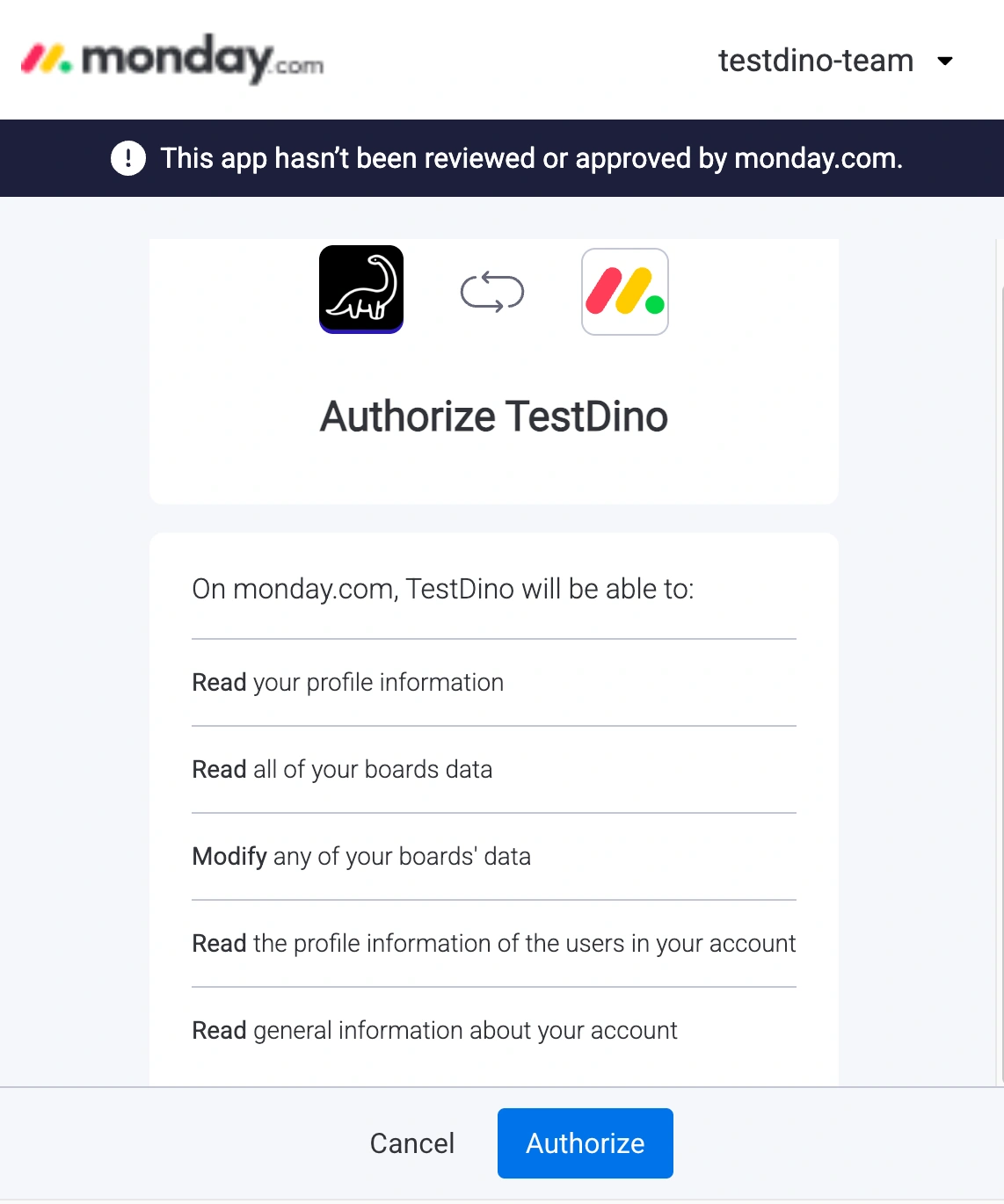
TestDino redirects you to monday to authorize access. Sign in and approve the request. TestDino requests permission to read workspaces, boards, and create items.
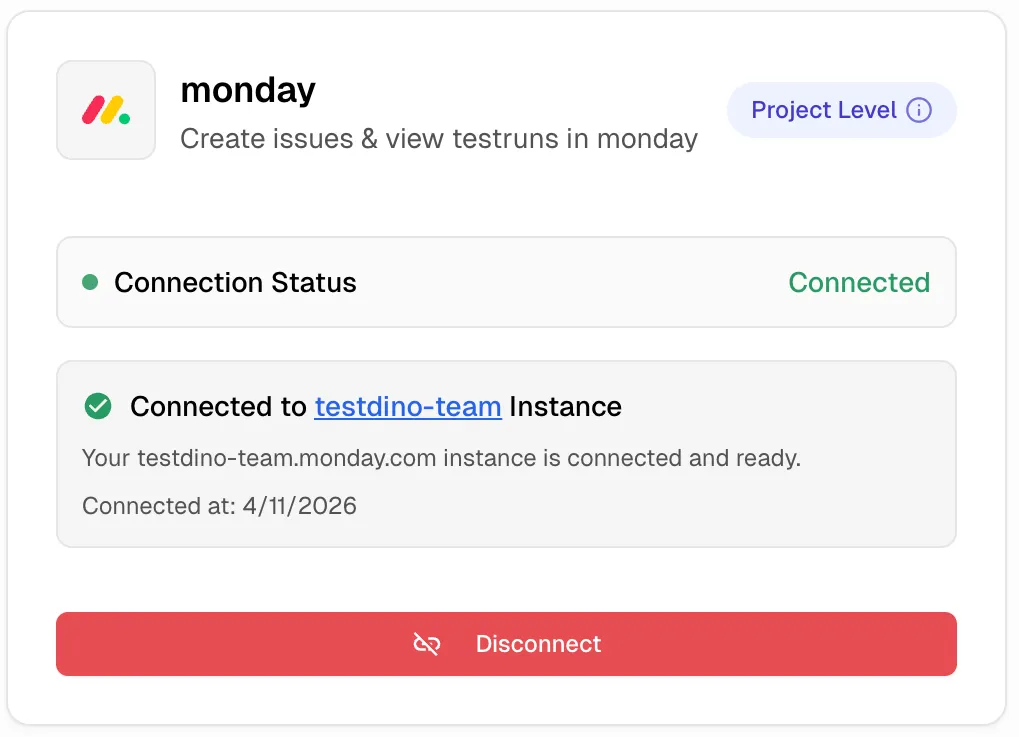
After authorization, the monday card in **Settings → Integrations** shows a connected status. You can now create issues from failed tests and set up the TestDino widget in monday dashboards.
## What you can do
| Feature | Description |
| :--------------- | :---------------------------------------------------------------------- |
| Raise Issues | Create issues from failed/flaky tests with full context to monday board |
| Dashboard Widget | View the latest test runs status inside monday dashboard |
## Create a monday bug report in TestDino
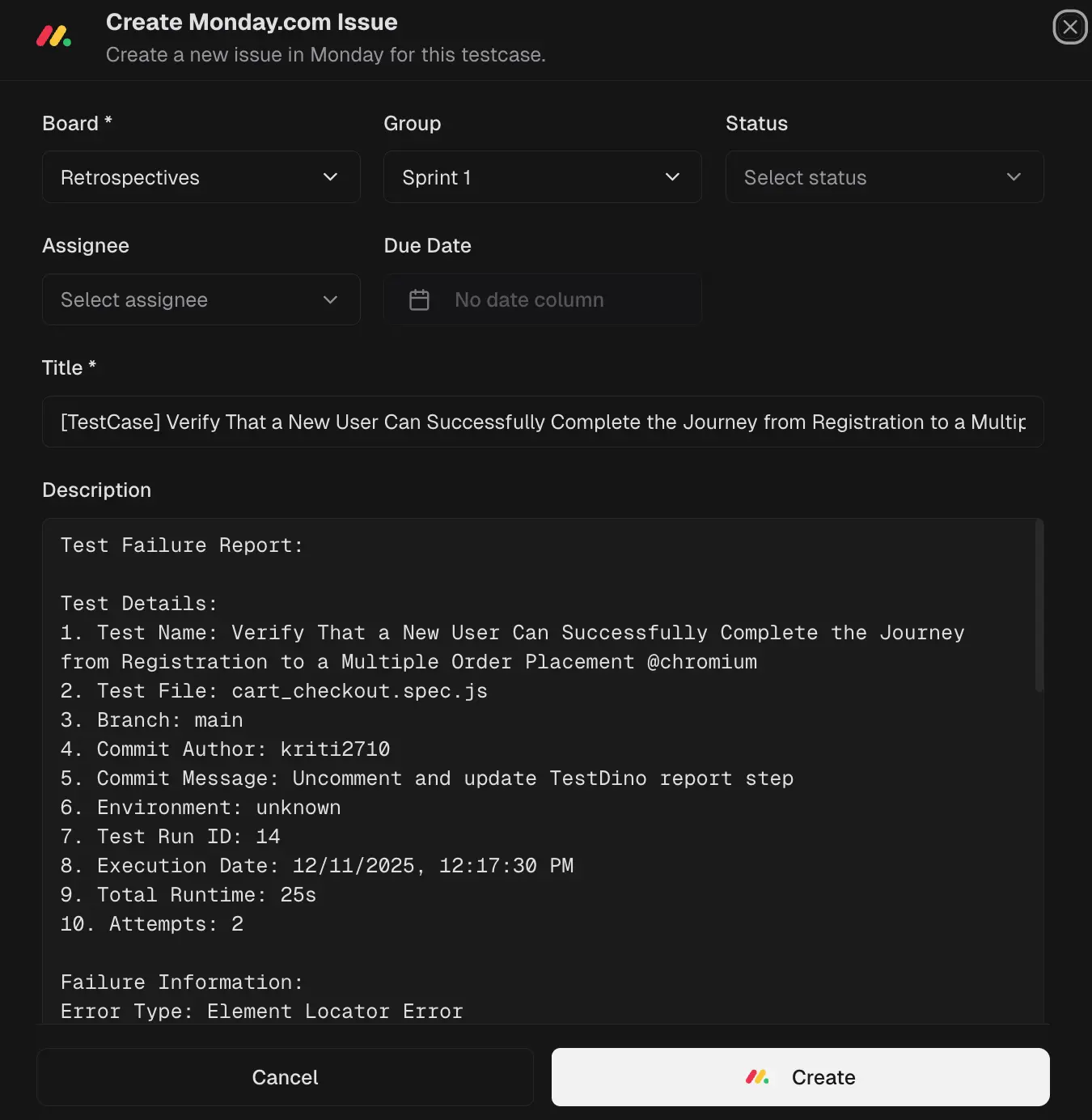
Create monday items directly from failed or flaky test cases. Each item includes test metadata, so your team has full context without opening separate reports.
**Note**
Learn more about viewing test failures in [Test Runs Overview](/platform/playwright-test-runs) and [Test Cases Overview](/platform/playwright-test-cases).
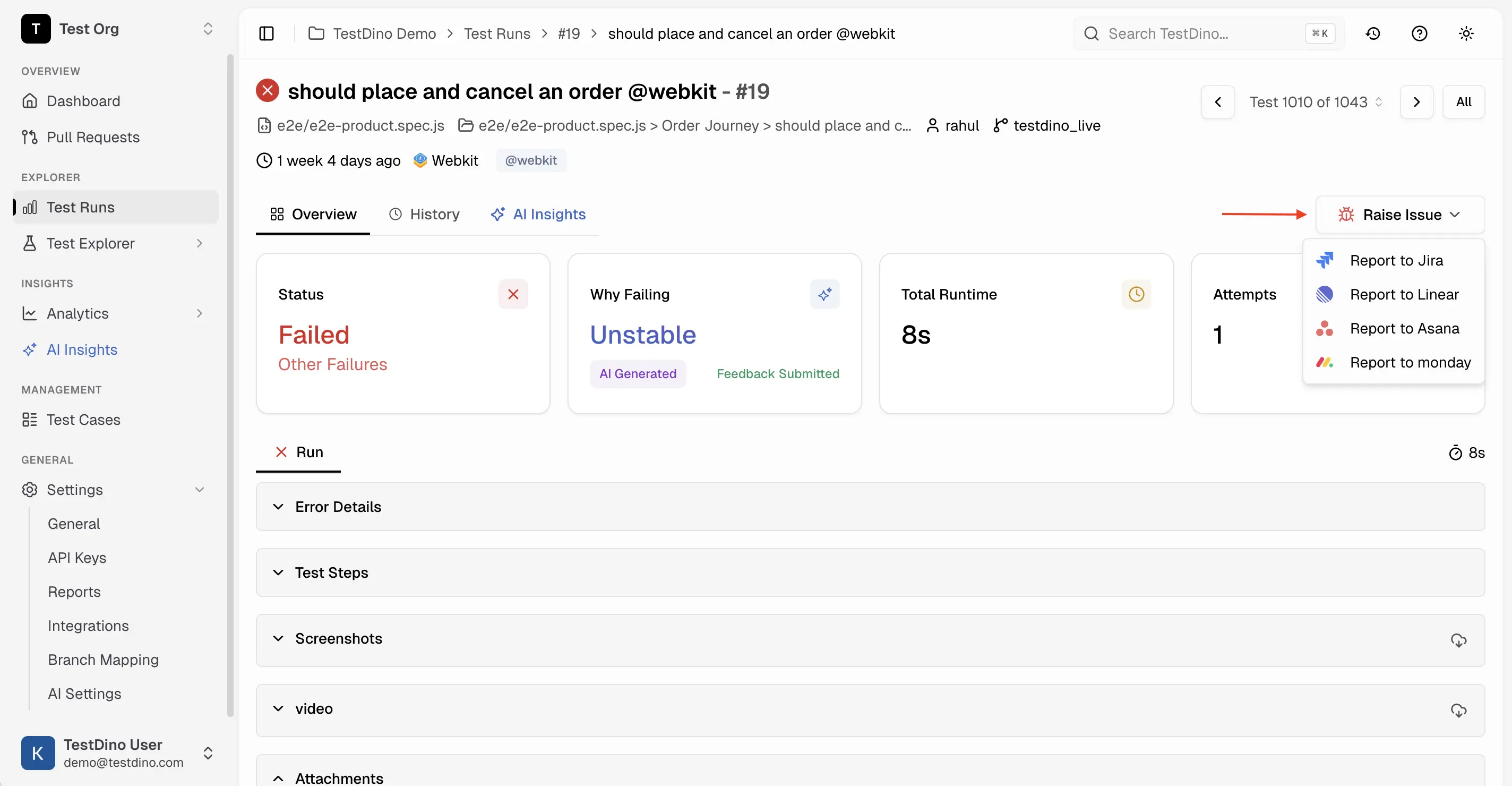
Navigate to a **Test Run** in TestDino.
Choose a failed or flaky **test case** from the run.
Click **Raise Issue** and select **monday**.
Choose the **Workspace** and **Board**. Review the pre-filled content and click **Create** to file the item in monday.
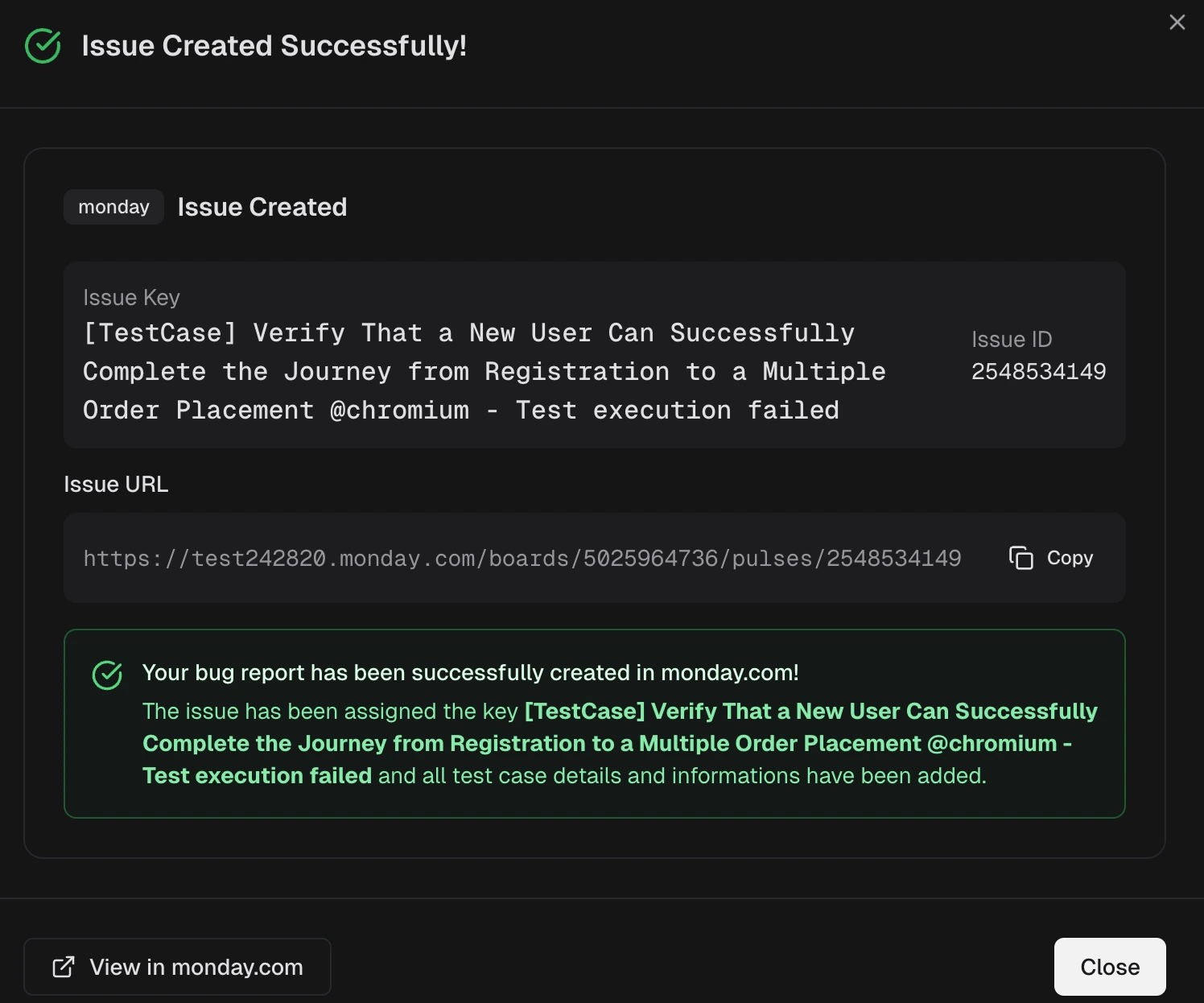
TestDino shows a confirmation with the monday Item ID and a direct URL. Click **View in monday** to open the item.
### Supported Scenarios
* Create issues for failed tests
* Create issues for flaky tests
* Create multiple issues from a single test run
* Link issues back to TestDino test runs and test cases
### Issue Data Mapping
When an issue is created, TestDino automatically maps test information to monday fields:
| TestDino Data | monday Field |
| :----------------------------- | :----------- |
| Test Name | Item Name |
| Test Status (Failed / Flaky) | Status |
| Test Run ID | Text / Link |
| Failure Reason / Error | Long Text |
| Environment | Label / Text |
| Branch | Label / Text |
| Execution Timestamp | Date |
| Screenshots and Custom uploads | Images |
**Note**
Field mapping depends on board configuration and permissions.
## What TestDino pre-fills
TestDino automatically adds rich test context to each monday item.
| Section | Field | Pre-filled content |
| :---------------- | :------------------ | :------------------------------------------------------------------------------------------------ |
| **monday fields** | Workspace | Default from Settings is preselected |
| | Board | User-selectable monday board |
| | Group | Optional board group for the item |
| | Status | Item status column (e.g., Bug, To Fix) |
| | Priority | Priority column value |
| | Assignee | Optional person column assignment |
| | Item Name | \[TestCase] \ - \ |
| **Description** | Test Details | File, Branch, Commit Author/Message, Environment, Run ID, Execution Date, Total Runtime, Attempts |
| | Failure Information | Error Type, Error Message, Test History (failure pattern) |
| | Test Steps | Failing attempt and step with duration and error |
| | Context | Console Output, Links (TestDino Run, GitHub Commit) |
| | Evidence | Test Case Screenshots, Attachments |
| **Review** | Write | Verify formatting before submitting |
| | Screenshots | Thumbnails with the option to attach more |
## TestDino Widget for monday
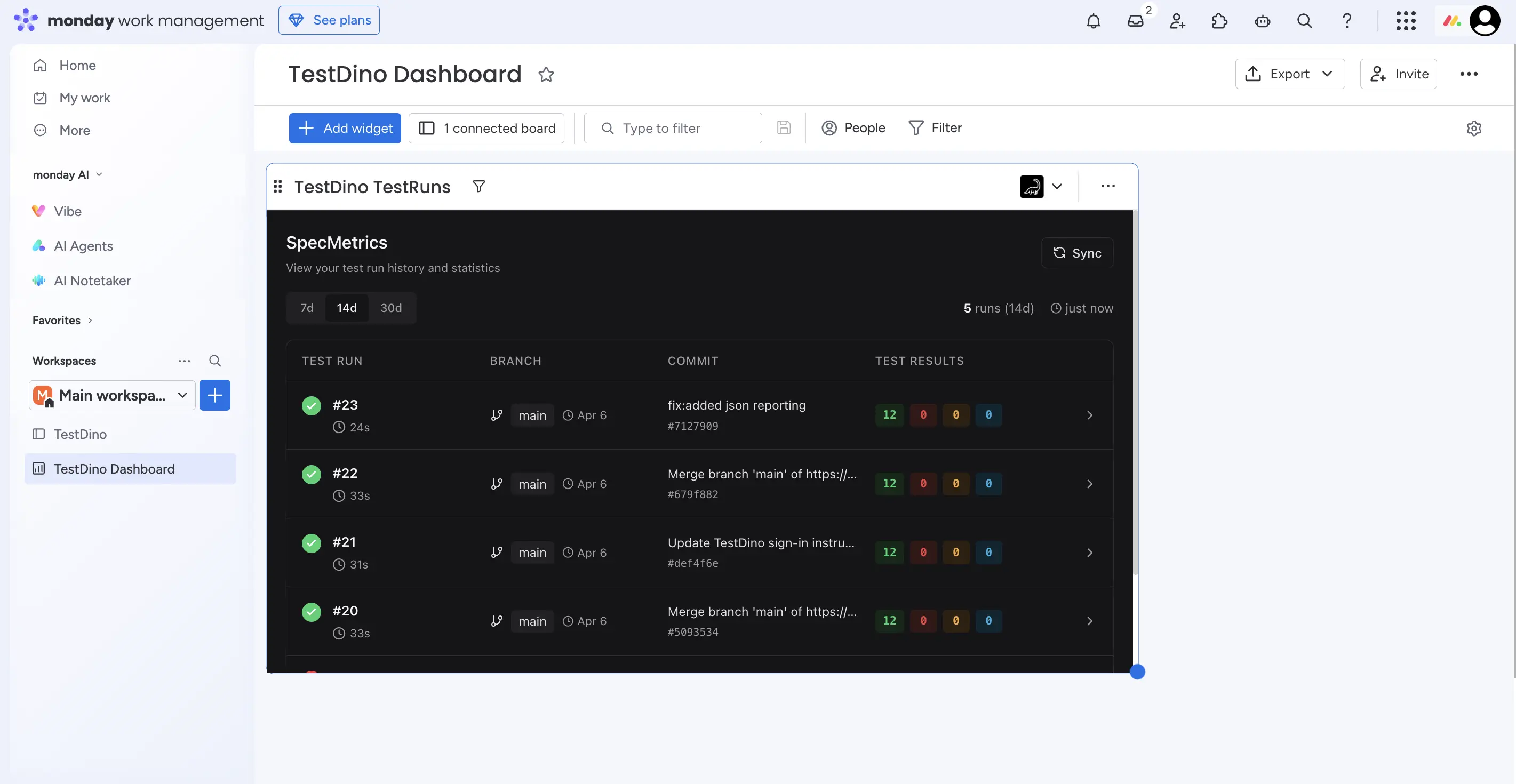
Display test run data directly within monday dashboards. Track test health alongside delivery work.
### What the Widget Shows
Each test run card displays:
| Field | Description |
| :------------------- | :------------------------------ |
| Test Run ID | Run identifier (e.g., #14, #13) |
| Status Summary | Passed / Failed / Flaky counts |
| Duration | Total execution time |
| Environment | Environment where tests ran |
| Branch | Git branch name |
| Completion Timestamp | When the run is completed |
### Setup
Install the TestDino app from the monday Marketplace if not already installed.
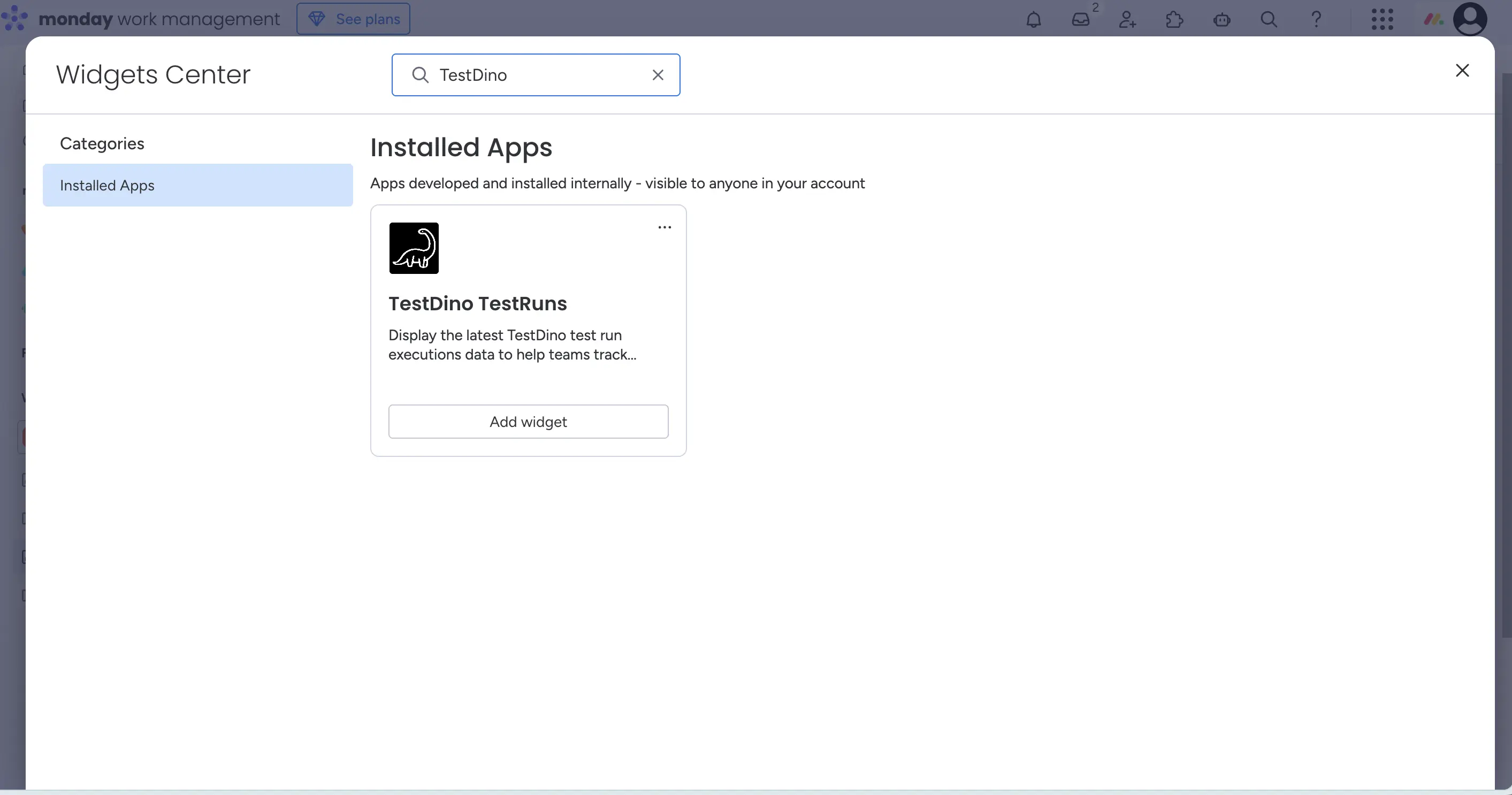
* Open a monday dashboard and click the **Add Widget** button at the top left corner
* Go to **Apps** → search for **TestDino**
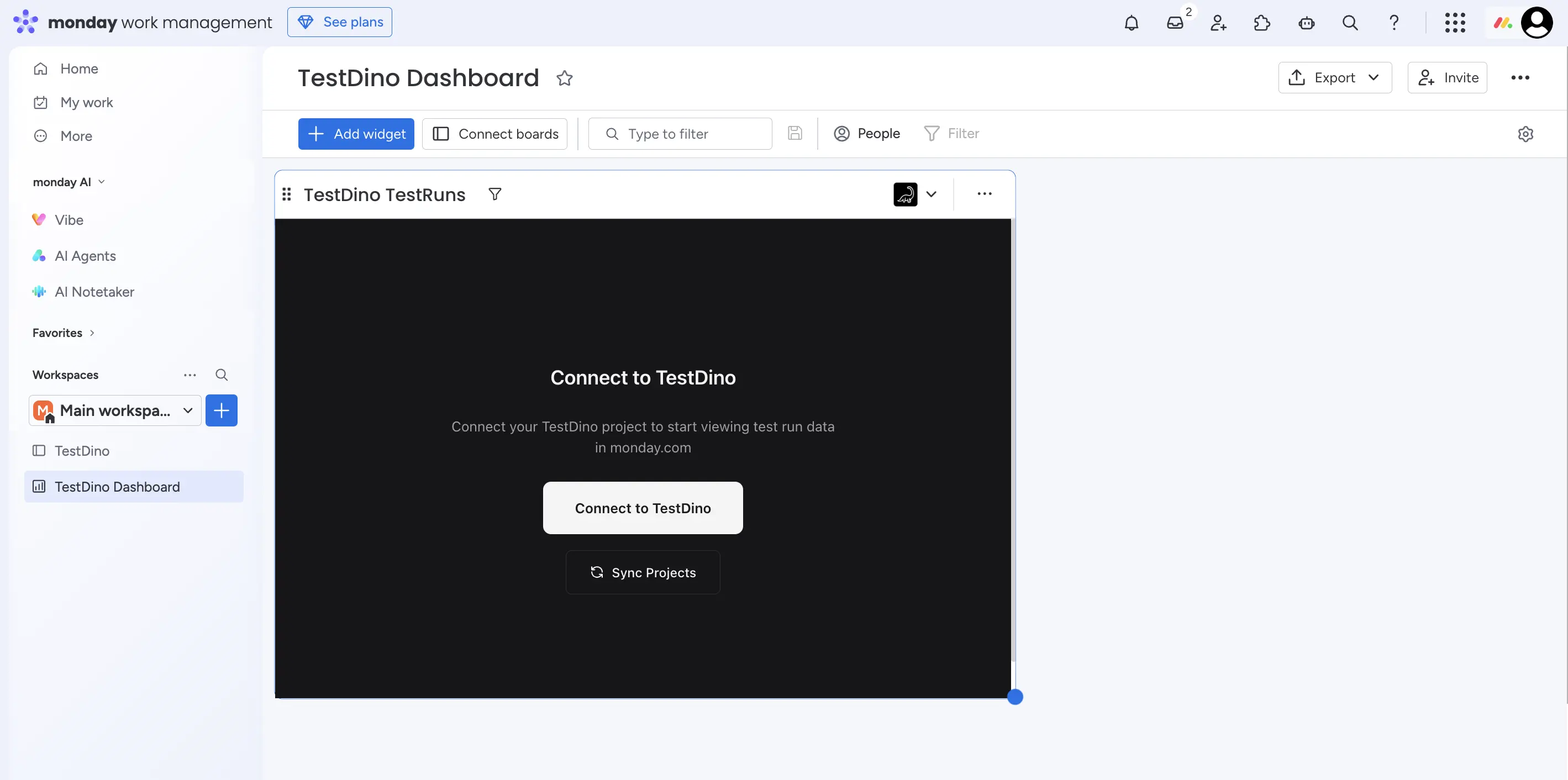
* Select **TestDino TestRuns** widget to add it to your dashboard
There are two ways to connect the widget to a TestDino project:
**a. From the widget itself :** If the app is installed in your monday workspace but not yet connected to a TestDino project, the widget displays a **Connect to TestDino** prompt. Click it to link the widget to your project.
**b. From TestDino Settings :** Go to **Settings → Integrations** in your TestDino project and connect via the monday integration card. See [Connect monday to TestDino](#connect-monday-to-testdino) above for the full steps.
**Note**
A single widget supports multiple TestDino projects — ideal for orgs sharing one monday workspace across teams.
The widget automatically fetches the latest test runs. Use the **Sync** button to refresh manually.
## Troubleshooting
* Click **Sync** on the monday card in **Settings → Integrations** to refresh boards and groups
* Verify your monday account has access to the workspace and board you expect to see
* Ensure the widget is connected to the correct TestDino project via the **Connect to TestDino** button
* Verify test runs exist in the TestDino project. Click the refresh button on the widget to fetch latest data
* Ensure you have workspace admin or board edit permissions in monday
* Try disconnecting and reconnecting from **Settings → Integrations → monday**
* Field mapping depends on your monday board configuration. Ensure the board has the expected columns (Status, Priority, Date, etc.)
* Verify the test run has complete metadata (branch, commit, environment)
 ### What the Widget Shows
Each test run card displays:
| Field | Description |
| :------------------- | :------------------------------ |
| Test Run ID | Run identifier (e.g., #14, #13) |
| Status Summary | Passed / Failed / Flaky counts |
| Duration | Total execution time |
| Environment | Environment where tests ran |
| Branch | Git branch name |
| Completion Timestamp | When the run is completed |
### Setup
### What the Widget Shows
Each test run card displays:
| Field | Description |
| :------------------- | :------------------------------ |
| Test Run ID | Run identifier (e.g., #14, #13) |
| Status Summary | Passed / Failed / Flaky counts |
| Duration | Total execution time |
| Environment | Environment where tests ran |
| Branch | Git branch name |
| Completion Timestamp | When the run is completed |
### Setup
 **b. From TestDino Settings :** Go to **Settings → Integrations** in your TestDino project and connect via the monday integration card. See [Connect monday to TestDino](#connect-monday-to-testdino) above for the full steps.