> ## Documentation Index
> Fetch the complete documentation index at: https://docs.testdino.com/llms.txt
> Use this file to discover all available pages before exploring further.
# Slack Playwright Test Alerts
> Send test run summaries, annotation-based failure alerts, and tag-based notifications to Slack.
export const VideoSchema = ({name, description, thumbnailUrl, uploadDate, duration, contentUrl, embedUrl}) => {
const schema = {
"@context": "https://schema.org",
"@type": "VideoObject",
name,
description,
thumbnailUrl,
uploadDate,
...duration ? {
duration
} : {},
...contentUrl ? {
contentUrl
} : {},
...embedUrl ? {
embedUrl
} : {},
publisher: {
"@type": "Organization",
name: "TestDino",
logo: {
"@type": "ImageObject",
url: "https://docs.testdino.com/logo/light.svg"
}
}
};
return ;
};
**What you'll learn**
* How to connect the TestDino Slack App via OAuth
* How to configure run summaries with environment-based channel routing
* How to set up annotation-based alerts for specific test failures
* How to route alerts by Playwright tag with per-rule environments, triggers, and filters
## How does it work?
**Warning**
The Slack App integration is available on the TestDino **Pro**, **Team**, and **Enterprise** plans.
* Sends **run summaries** (status, counts, duration, environment/branch, author, commit).
* Routes notifications **by environment** to specific channels; unmatched events fall back to a default channel.
* Sends **annotation-based alerts** when tests with `testdino:notify-slack` fail, routed to specific channels or users.
* Sends **tag-based notifications** when a run contains tests carrying configured Playwright tags, with per-rule environments, triggers, and filters.
* Supports test posts for verification and quick reconfiguration.
## Installation & Setup
### 1. Connect Slack
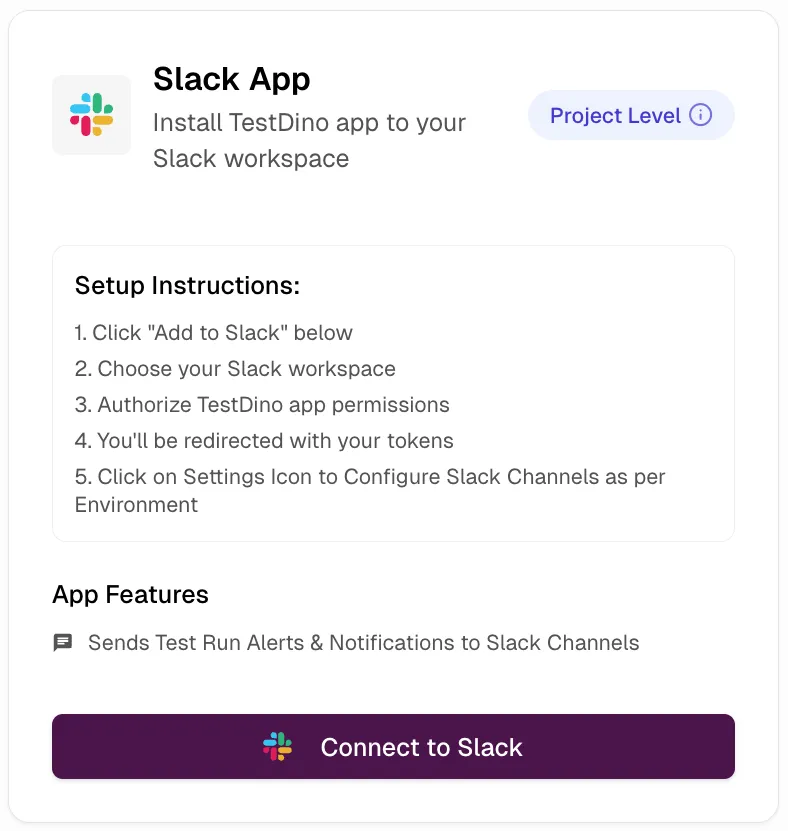
In **Project → Integrations → Slack App**, click **Connect to Slack** and complete the OAuth flow.
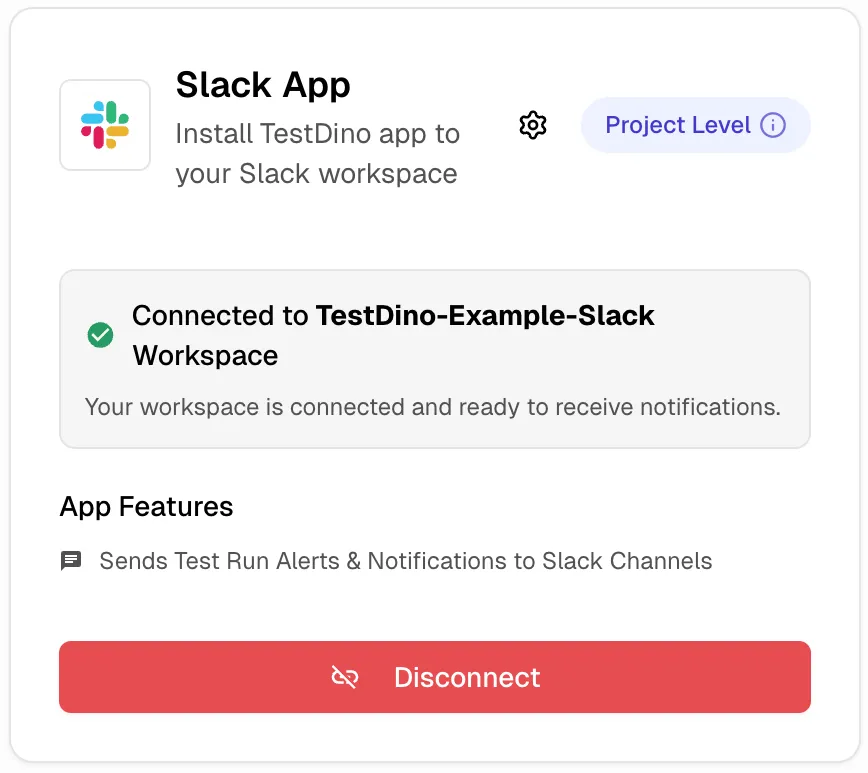
After connecting, the Slack App card shows the connected status with your workspace name.
**Tip**
Alternatively, find and install TestDino from the Slack App Marketplace.
### 2. Configure channel routing
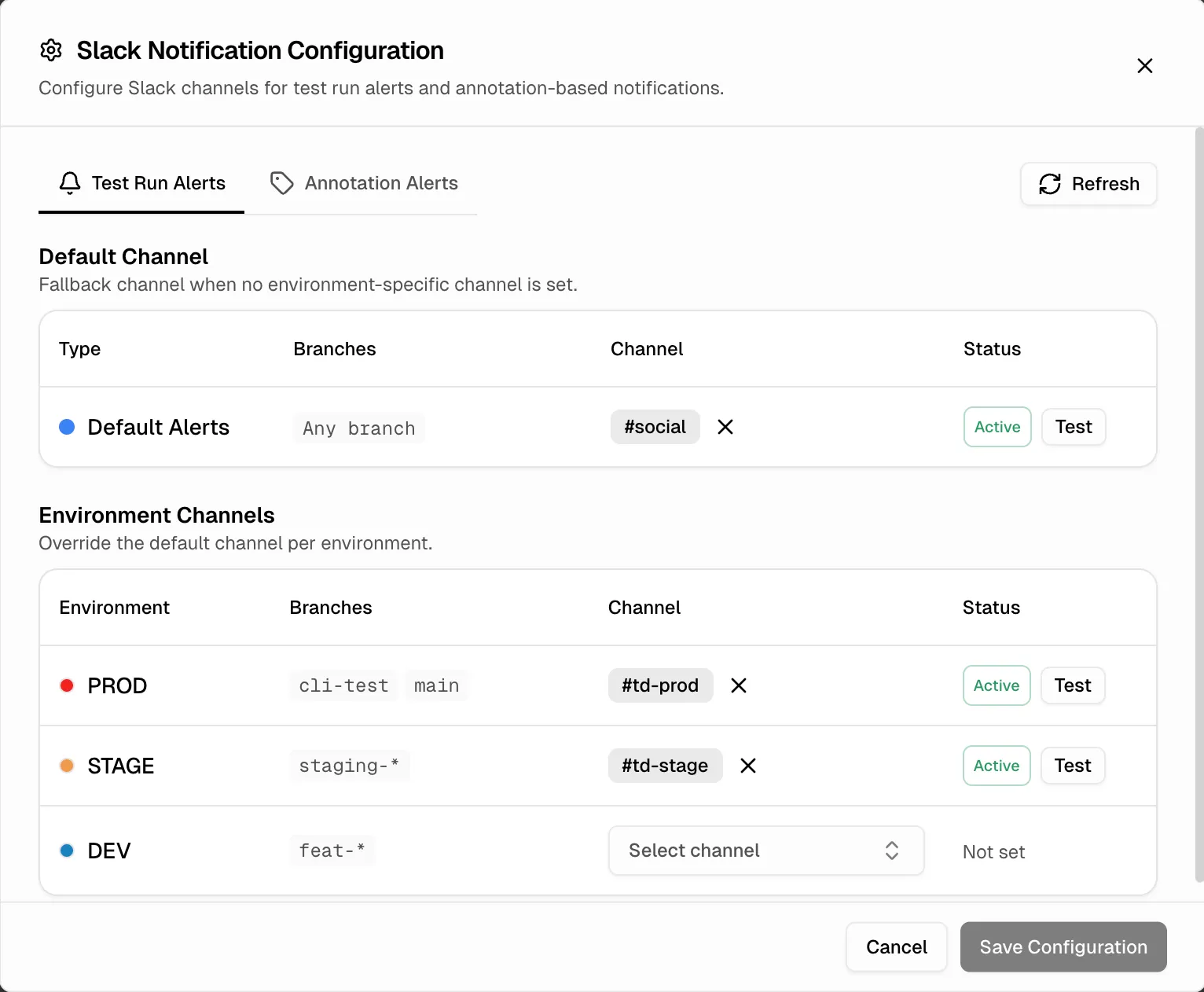
After connecting, click the ⚙️ icon on the Slack App card to open the **Slack Notification Configuration** dialog. The **Test Run Alerts** tab has two sections:
**Default Channel**: Set a fallback channel that receives all test run alerts. Any run that doesn't match an environment-specific channel is routed here.
**Environment Channels**: Assign specific Slack channels to your project environments (e.g., PROD → `#td-prod`, STAGE → `#td-stage`). Runs on mapped environments route to their designated channel instead of the default.
### 3. Save and test
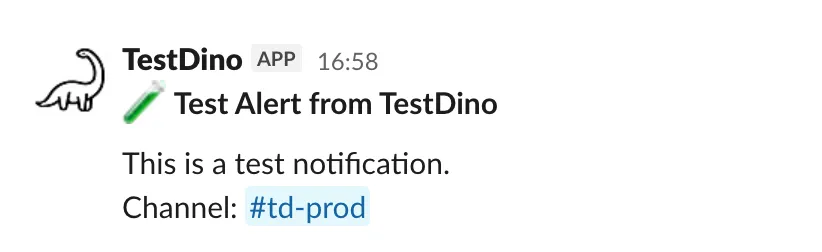
Click **Save Configuration** to apply your settings. Use the **Test** button next to any channel to send a sample message and verify it lands in the correct channel.
**Who can edit**
Editing the Slack Notification Configuration requires the **Organization Admin** or **Owner** role. This applies to all three tabs (Test Run Alerts, Annotation Alerts, and Tags Notification). Members and viewers see the configuration in **read-only** mode. They can still use **Test** to send a sample message, but **Save**, **Add**, **Edit**, and **Delete** are disabled.
## Configuration Scenarios
The integration supports both default and environment-based channel configurations, giving you control over how alerts are delivered.
### 1. Default Channel Only
All test run alerts, regardless of the branch or environment, are sent to a single default channel. This is useful for centralizing all notifications.
### 2. Default + Environment-Specific Channels
Alerts for mapped environments (e.g., PROD Alerts) are sent to their designated channel (e.g., #prod-alerts).
All alerts from unmapped branches or environments automatically fall back to the default channel (e.g., #daily-updates).
## Why this helps
* **Reduce notification noise** by routing alerts to environment-specific channels so teams see only relevant updates.
* **Improve incident response** by sending critical failure alerts directly to the responsible team's channel.
* **Enable faster triage** with real-time summaries that link directly to detailed test evidence.
## Annotation-Based Alerts
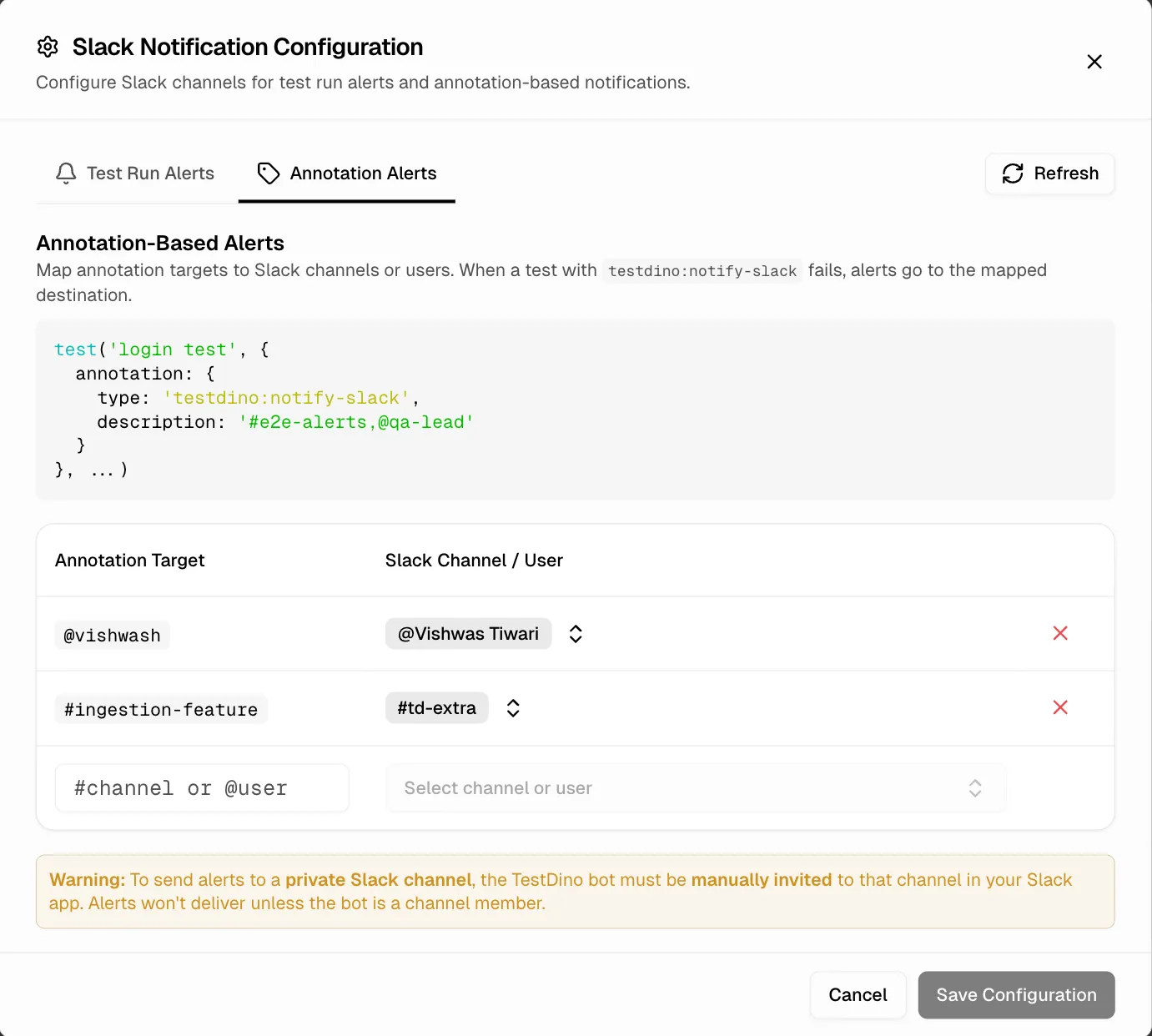
Beyond run-level alerts, the Slack App can notify specific channels or users when individual tests fail. This is driven by the `testdino:notify-slack` annotation in your Playwright test code.
For example, if a test has `testdino:notify-slack` set to `@ashish`, and that test fails, TestDino sends a Slack message directly to Ashish. This is different from test run alerts, which fire on every run completion regardless of which tests failed.
### How to set it up
1. Add a `testdino:notify-slack` annotation to your test with a channel (`#e2e-alerts`) or user (`@ashish`) as the target.
2. In the **Slack Notification Configuration** dialog, switch to the **Annotation Alerts** tab.
3. Map each annotation target to a Slack channel or user from your workspace.
4. Save the configuration.
See the [Annotations guide](/guides/playwright-test-annotations) for full setup instructions, code examples, and all supported annotation types.
**Note**
Annotation-Slack mappings are stored at the integration level. If you disconnect the Slack App, all mappings are deleted and need to be set up again after reconnecting.
## Tag-Based Notifications
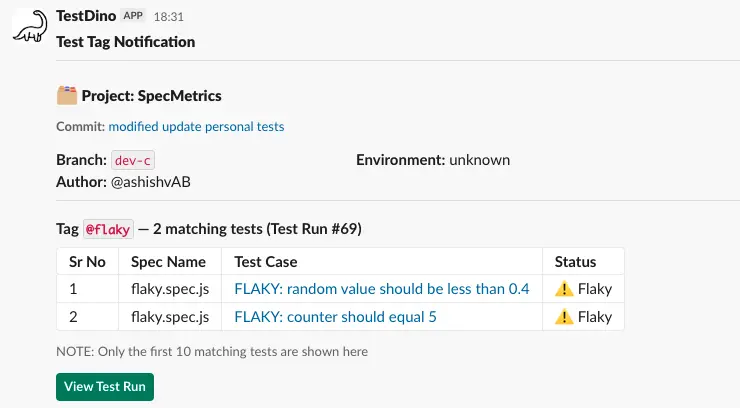
Tag-based notifications route Slack alerts by Playwright [tag](https://playwright.dev/docs/test-annotations#tag-tests). A rule watches one or more tags, such as `@smoke` or `@critical`, and posts a Slack message when a completed run contains matching tests. Each rule controls when it fires (**Trigger On**), which tests the message lists (**Tests**), and which environments it watches, so `@critical` failures from **Production** go to an incident channel while `@smoke` results from **Staging** go to a QA channel.
### How to set it up
1. Tag your Playwright tests. Tags must include the leading `@`.
```ts checkout.spec.ts theme={null}
import { test } from '@playwright/test';
test('completes checkout with valid card', { tag: ['@smoke', '@payment'] }, async ({ page }) => {
// ...
});
```
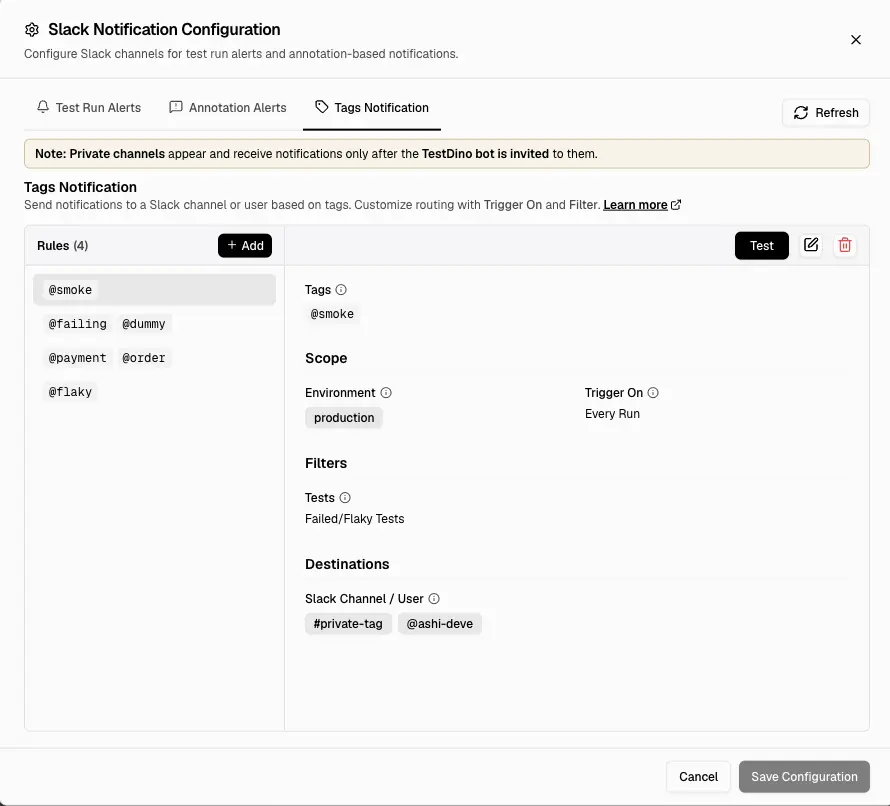
2. In the **Slack Notification Configuration** dialog, switch to the **Tags Notification** tab.
3. Use the left **Rules** pane to manage your notification rules:
* Click **Add** to create a new rule.
* Select an existing rule to view or edit its configuration.
* Each rule can watch different tags, environments, filters, and destinations.
4. Configure the selected rule in the right details pane:
* **Tags**: one or more tags to watch. A test matches if it carries *any* of them.
* **Scope → Environment**: choose where this rule applies.
* **Scope → Trigger On**: choose when the rule fires.
* **Filters → Tests**: choose which type of tests to include in the message: all tests, failed, flaky, or failed/flaky.
* **Destinations → Slack Channel / User**: choose one or more Slack destinations.
5. Save the configuration. Use the **Test** button on a rule to send a sample message to its destinations.
### Rule configuration
The **Tags Notification** tab has two panes. The left **Rules** pane lists every rule for the project; select one to inspect it, or click **Add** to create a new one. The right pane configures the selected rule with these controls:
| Control | Options | What it does |
| ------------------------ | ------------------------------------------------------------------------ | ------------------------------------------------------------------------------------------------------------------------------------ |
| **Tags** | One or more `@`-prefixed tags | The Playwright tags this rule watches. A test matches if it carries any of them. |
| **Environment** | **Any environment**, or one or more mapped environments | Which branch environments the rule watches. **Any** fires for any run; a specific environment fires only when the run belongs to it. |
| **Trigger On** | **Every Run**, **Failed Run** | Whether the rule fires for every completed run, or only when the run has failures. |
| **Tests** | **All Tests**, **Failed/Flaky Tests**, **Failed Tests**, **Flaky Tests** | Which tagged tests the message lists: all of them, only failed or flaky, only failed, or only flaky. |
| **Slack Channel / User** | Up to 10 destinations | The Slack channels or users that receive the notification. |
Environments come from the [Branch Environment Mapping](/guides/environment-mapping) feature, which maps Git branches to environments such as Production, Staging, and Dev. Scope a rule to an environment when the same tag should notify different people depending on where it runs:
* `@critical` + **Production** → `#incident-response`.
* `@smoke` + **Staging** → `#qa-review`.
* `@flaky` + **Any environment** → `#test-stability`.
**Environment matching**
Environment scope is based on the run's branch environment mapping. If a rule is limited to **Production**, runs from branches mapped to **Staging** or **Dev** will not trigger that rule.
### Potential Combinations
**Trigger On** and **Tests** combine into 8 behaviors. The table reads for a rule watching `@smoke`: **Trigger On** decides which runs post, **Tests** decides which tagged tests the message lists.
| Trigger On | Tests | Behavior |
| -------------- | ---------------------- | ---------------------------------------------------------------------------------- |
| **Every Run** | **All Tests** | Posts on every run with `@smoke` tests, listing all of them. |
| **Every Run** | **Failed/Flaky Tests** | Posts on every run with `@smoke` tests, listing only failed or flaky ones. |
| **Every Run** | **Failed Tests** | Posts on every run with `@smoke` tests, listing only failed ones. |
| **Every Run** | **Flaky Tests** | Posts on every run with `@smoke` tests, listing only flaky ones. |
| **Failed Run** | **All Tests** | Posts only when the run has failures, listing all `@smoke` tests. |
| **Failed Run** | **Failed/Flaky Tests** | Posts only when the run has failures, listing only failed or flaky `@smoke` tests. |
| **Failed Run** | **Failed Tests** | Posts only when the run has failures, listing only failed `@smoke` tests. |
| **Failed Run** | **Flaky Tests** | Posts only when the run has failures, listing only flaky `@smoke` tests. |
Tag rules fire on run completion only when the run contains tests carrying the rule's tags and the run matches the rule's environment scope. A run with no matching tagged tests sends nothing.
### Format & Limits
**Tag format.** When adding a tag in a rule:
* It must **start with `@`** (e.g. `@smoke`).
* There must be **no space right after the `@`** (`@ smoke` is rejected).
* It **cannot contain a backslash** (`\`).
* Any other character is allowed, matching Playwright (e.g. `@#hdi`, `@[]hie`).
Tags must match your Playwright test tags exactly, including the leading `@`.
**Limits per rule:**
* Up to **20 tags**.
* Up to **10 channels/users**.
* Each message lists the **first 10 matching tests**; the total matched count still shows in the header.
**Warning**
For a private channel, invite the TestDino bot to the channel first. Private channels won't appear in the list or receive notifications until the bot is a member.
## How it's Different from Slack Webhook
The Slack App provides three types of alerts:
* **Test Run Alerts** send environment-aware run summaries when any run completes.
* **Annotation-Based Alerts** notify specific channels or users when individual annotated tests fail.
* **Tag-Based Notifications** route alerts by Playwright tag, with per-rule environments, triggers, and filters.
The [Slack Webhook](/integrations/slack/webhook) sends all notifications to a single channel. It does not support environment routing, annotation-based alerts, or tag-based notifications.
## Troubleshooting
* Verify the Slack App is connected in **Settings → Integrations → Slack**
* Ensure at least one default channel is configured in the Slack Channel Configuration
* Use the **Test** button in the Slack settings to send a sample message and verify it lands in the correct channel
* Confirm a test run has completed after connecting (messages are sent on run completion)
* Private channels require the TestDino app to be added to the channel first. To add it:
1. Open the private channel in Slack
2. Click the **channel name** at the top to open channel details
3. Go to the **Integrations** tab → click **Add an App**
4. Search for **TestDino**. If you have already completed the OAuth connection, it appears under **In Your Workspace**. If not, it shows results from the Slack Marketplace. Complete the OAuth connection in TestDino first before adding the app to private channels.
* After adding TestDino to the channel, click the **Refresh** button in the TestDino Slack settings to fetch the updated channel list
* TestDino fetches all channels from your Slack workspace history. Deleted channels are excluded.
* Check the **Environment Alert Channel Mapping** in Slack settings. Runs on mapped environments route to their specific channel
* Unmapped environments fall back to the default channel
* Use the **Test** button to verify which channel receives messages for a given configuration
* Ensure the test has the `testdino:notify-slack` annotation with a valid target (`#channel` or `@user`)
* Verify the annotation target is mapped to a Slack channel or user in the **Annotation Alerts** tab
* Annotation alerts only fire when the annotated test fails, not on every run
* Confirm the run actually contains tests carrying the rule's tags. A run with no matching tagged tests sends nothing
* Tags must match exactly, including the leading `@` (e.g. `@smoke`, not `smoke`)
* Check the rule's **Environment** scope. If it is not set to **Any environment**, the run must belong to one of the selected branch-mapped environments
* Verify the project has branch environment mappings configured for the branches you expect this rule to watch
* For a **Failed Run** + **Failed/Flaky Tests** rule, the run must have failures and the tagged tests must be failed or flaky
* Check the rule's **Trigger On** and **Tests** filter. An **Every Run** rule fires on any completed run; a **Failed Run** rule only when the run fails
* For private channel destinations, make sure the TestDino bot is a member of the channel
* Ensure you have permission to install apps in the Slack workspace
* Try removing the TestDino app from **Slack → Settings → Manage Apps** and reconnecting from TestDino
Add metadata and Slack notification targets to tests
Single-channel webhook notifications
 After connecting, the Slack App card shows the connected status with your workspace name.
 ### 3. Save and test
Click **Save Configuration** to apply your settings. Use the **Test** button next to any channel to send a sample message and verify it lands in the correct channel.
### 3. Save and test
Click **Save Configuration** to apply your settings. Use the **Test** button next to any channel to send a sample message and verify it lands in the correct channel.
 See the [Annotations guide](/guides/playwright-test-annotations) for full setup instructions, code examples, and all supported annotation types.
 ### How to set it up
1. Tag your Playwright tests. Tags must include the leading `@`.
```ts checkout.spec.ts theme={null}
import { test } from '@playwright/test';
test('completes checkout with valid card', { tag: ['@smoke', '@payment'] }, async ({ page }) => {
// ...
});
```
2. In the **Slack Notification Configuration** dialog, switch to the **Tags Notification** tab.
### How to set it up
1. Tag your Playwright tests. Tags must include the leading `@`.
```ts checkout.spec.ts theme={null}
import { test } from '@playwright/test';
test('completes checkout with valid card', { tag: ['@smoke', '@payment'] }, async ({ page }) => {
// ...
});
```
2. In the **Slack Notification Configuration** dialog, switch to the **Tags Notification** tab.
 3. Use the left **Rules** pane to manage your notification rules:
* Click **Add** to create a new rule.
* Select an existing rule to view or edit its configuration.
* Each rule can watch different tags, environments, filters, and destinations.
4. Configure the selected rule in the right details pane:
* **Tags**: one or more tags to watch. A test matches if it carries *any* of them.
* **Scope → Environment**: choose where this rule applies.
* **Scope → Trigger On**: choose when the rule fires.
* **Filters → Tests**: choose which type of tests to include in the message: all tests, failed, flaky, or failed/flaky.
* **Destinations → Slack Channel / User**: choose one or more Slack destinations.
5. Save the configuration. Use the **Test** button on a rule to send a sample message to its destinations.
### Rule configuration
The **Tags Notification** tab has two panes. The left **Rules** pane lists every rule for the project; select one to inspect it, or click **Add** to create a new one. The right pane configures the selected rule with these controls:
| Control | Options | What it does |
| ------------------------ | ------------------------------------------------------------------------ | ------------------------------------------------------------------------------------------------------------------------------------ |
| **Tags** | One or more `@`-prefixed tags | The Playwright tags this rule watches. A test matches if it carries any of them. |
| **Environment** | **Any environment**, or one or more mapped environments | Which branch environments the rule watches. **Any** fires for any run; a specific environment fires only when the run belongs to it. |
| **Trigger On** | **Every Run**, **Failed Run** | Whether the rule fires for every completed run, or only when the run has failures. |
| **Tests** | **All Tests**, **Failed/Flaky Tests**, **Failed Tests**, **Flaky Tests** | Which tagged tests the message lists: all of them, only failed or flaky, only failed, or only flaky. |
| **Slack Channel / User** | Up to 10 destinations | The Slack channels or users that receive the notification. |
Environments come from the [Branch Environment Mapping](/guides/environment-mapping) feature, which maps Git branches to environments such as Production, Staging, and Dev. Scope a rule to an environment when the same tag should notify different people depending on where it runs:
* `@critical` + **Production** → `#incident-response`.
* `@smoke` + **Staging** → `#qa-review`.
* `@flaky` + **Any environment** → `#test-stability`.
3. Use the left **Rules** pane to manage your notification rules:
* Click **Add** to create a new rule.
* Select an existing rule to view or edit its configuration.
* Each rule can watch different tags, environments, filters, and destinations.
4. Configure the selected rule in the right details pane:
* **Tags**: one or more tags to watch. A test matches if it carries *any* of them.
* **Scope → Environment**: choose where this rule applies.
* **Scope → Trigger On**: choose when the rule fires.
* **Filters → Tests**: choose which type of tests to include in the message: all tests, failed, flaky, or failed/flaky.
* **Destinations → Slack Channel / User**: choose one or more Slack destinations.
5. Save the configuration. Use the **Test** button on a rule to send a sample message to its destinations.
### Rule configuration
The **Tags Notification** tab has two panes. The left **Rules** pane lists every rule for the project; select one to inspect it, or click **Add** to create a new one. The right pane configures the selected rule with these controls:
| Control | Options | What it does |
| ------------------------ | ------------------------------------------------------------------------ | ------------------------------------------------------------------------------------------------------------------------------------ |
| **Tags** | One or more `@`-prefixed tags | The Playwright tags this rule watches. A test matches if it carries any of them. |
| **Environment** | **Any environment**, or one or more mapped environments | Which branch environments the rule watches. **Any** fires for any run; a specific environment fires only when the run belongs to it. |
| **Trigger On** | **Every Run**, **Failed Run** | Whether the rule fires for every completed run, or only when the run has failures. |
| **Tests** | **All Tests**, **Failed/Flaky Tests**, **Failed Tests**, **Flaky Tests** | Which tagged tests the message lists: all of them, only failed or flaky, only failed, or only flaky. |
| **Slack Channel / User** | Up to 10 destinations | The Slack channels or users that receive the notification. |
Environments come from the [Branch Environment Mapping](/guides/environment-mapping) feature, which maps Git branches to environments such as Production, Staging, and Dev. Scope a rule to an environment when the same tag should notify different people depending on where it runs:
* `@critical` + **Production** → `#incident-response`.
* `@smoke` + **Staging** → `#qa-review`.
* `@flaky` + **Any environment** → `#test-stability`.