> ## Documentation Index
> Fetch the complete documentation index at: https://docs.testdino.com/llms.txt
> Use this file to discover all available pages before exploring further.
# TestDino Billing Invoices and History
> View, download, and filter billing invoices for your organization.
**What you'll learn**
* How to view, filter, and download invoices
* What each invoice column means
* How to sync the latest billing records
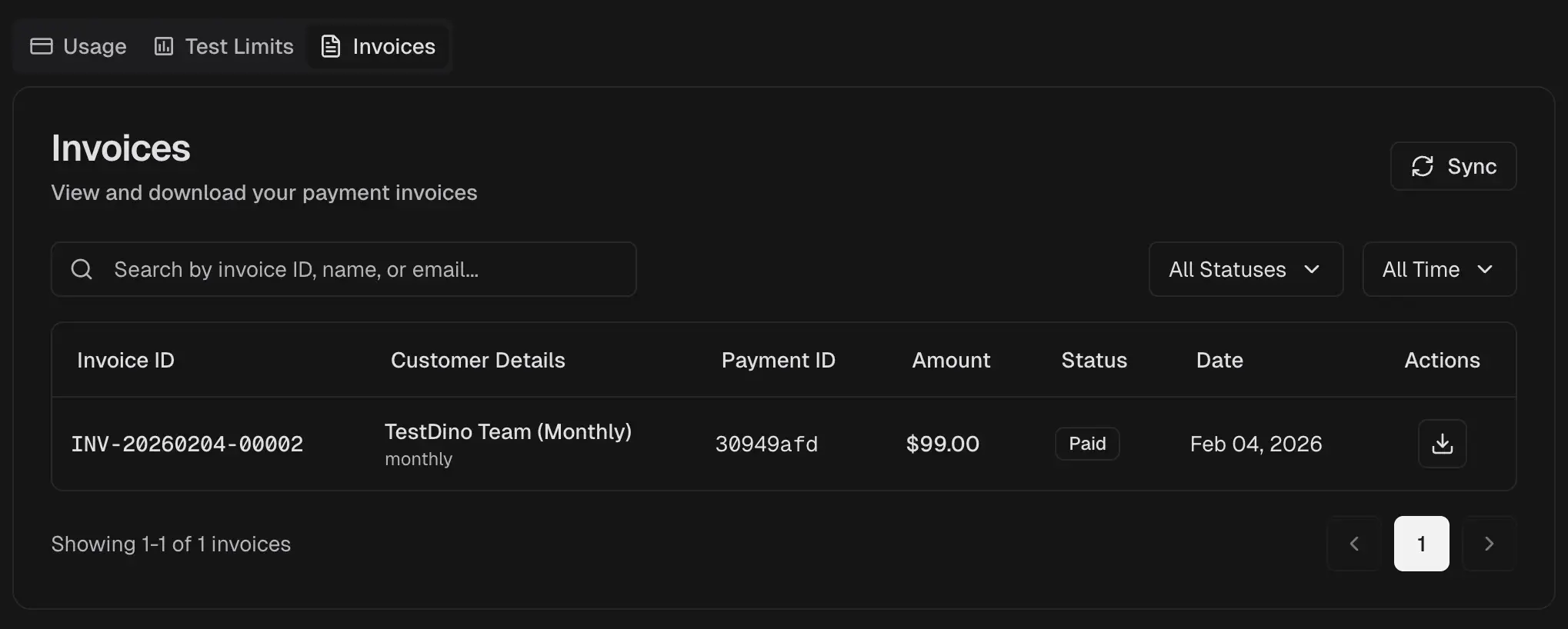
The Invoices tab lists all billing records for your organization. View and download payment invoices for accounting and audits.
 ## Invoice List
Each invoice row displays the following columns.
| Column | Description |
| :--------- | :--------------------------- |
| ID | Unique invoice identifier |
| Customer | Organization or account name |
| Payment ID | Payment processor reference |
| Amount | Total billed amount |
| Status | Paid, Pending, or Failed |
| Date | Invoice issue date |
## Filters and Search
Narrow the invoice list using the available controls.
| Filter | Options |
| :--------- | :------------------------------------------ |
| Status | Filter by Paid, Pending, or Failed |
| Time Range | Restrict results to a specific date range |
| Search | Find by invoice ID, customer name, or email |
## Actions
Each invoice row provides quick actions.
| Action | Description |
| :----------- | :----------------------------------- |
| View | Open the hosted invoice in a new tab |
| Download PDF | Save a PDF copy for records |
| Copy Link | Copy a secure link to the invoice |
Click **Sync** at the top of the invoice list to pull the latest records from the billing provider.
View subscription status and test limit allocation.
Allocate and redistribute test execution limits across projects
## Invoice List
Each invoice row displays the following columns.
| Column | Description |
| :--------- | :--------------------------- |
| ID | Unique invoice identifier |
| Customer | Organization or account name |
| Payment ID | Payment processor reference |
| Amount | Total billed amount |
| Status | Paid, Pending, or Failed |
| Date | Invoice issue date |
## Filters and Search
Narrow the invoice list using the available controls.
| Filter | Options |
| :--------- | :------------------------------------------ |
| Status | Filter by Paid, Pending, or Failed |
| Time Range | Restrict results to a specific date range |
| Search | Find by invoice ID, customer name, or email |
## Actions
Each invoice row provides quick actions.
| Action | Description |
| :----------- | :----------------------------------- |
| View | Open the hosted invoice in a new tab |
| Download PDF | Save a PDF copy for records |
| Copy Link | Copy a secure link to the invoice |
Click **Sync** at the top of the invoice list to pull the latest records from the billing provider.
View subscription status and test limit allocation.
Allocate and redistribute test execution limits across projects