> ## Documentation Index
> Fetch the complete documentation index at: https://docs.testdino.com/llms.txt
> Use this file to discover all available pages before exploring further.
# TestDino Test Execution Limits
> View and redistribute monthly test execution limits across projects.
**What you'll learn**
* How monthly test execution quotas work
* How to redistribute limits across projects
* How Auto-Borrow prevents test interruptions
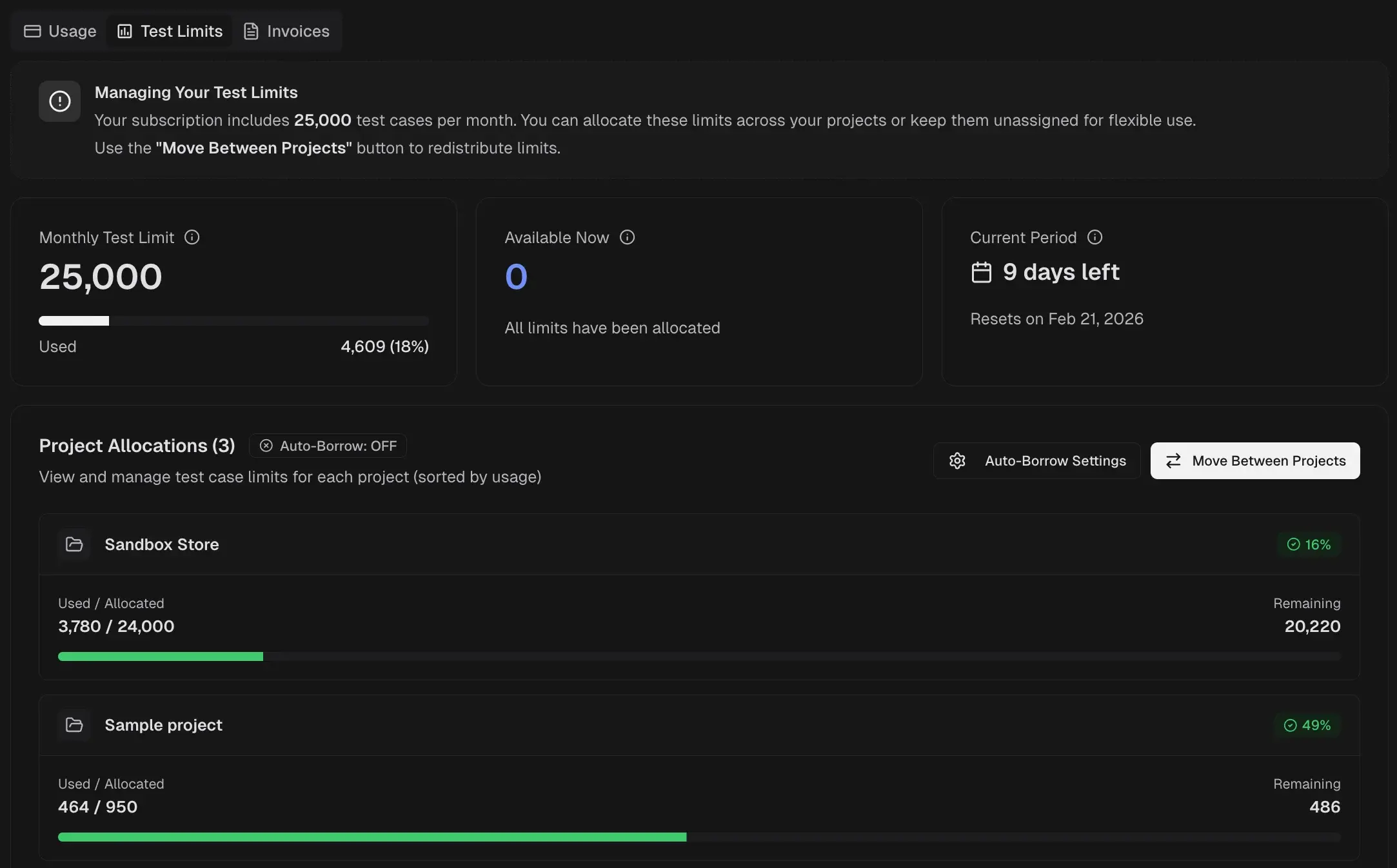
The Test Limits tab displays your monthly test execution quota, how it is distributed across projects, and tools to redistribute limits.
 ## Quota Summary
Three cards summarize your current allocation status.
| Card | Description |
| :----------------- | :------------------------------------------------------------------------------ |
| Monthly Test Limit | Total executions included in your plan, with a usage bar showing consumed count |
| Available Now | Unallocated executions available for assignment to projects |
| Current Period | Days remaining until the quota resets, with the reset date |
## Project Allocations
Each project displays its allocation with three values.
| Field | Description |
| :--------------- | :--------------------------------------------------------- |
| Used / Allocated | Executions consumed vs. total assigned to the project |
| Remaining | Executions still available within the project's allocation |
| Usage % | Percentage of allocated limit consumed |
Projects are sorted by usage.
### Redistribute Limits
1. Select **Move Between Projects**.
2. Choose the source and target projects.
3. Enter the number of executions to transfer.
4. Confirm the transfer.
Transfers take effect immediately.
### Auto-Borrow
When a project exhausts its allocation, it borrows from the unallocated pool. Test runs continue without interruption even when a project exceeds its limit.
* **Auto-Borrow: ON** allows projects to borrow unallocated executions automatically
* **Auto-Borrow: OFF** blocks test streaming when a project reaches its limit
Configure Auto-Borrow using the **Auto-Borrow Settings** button.
**Info**
Borrowed executions reduce the unallocated pool and affect availability for other projects.
## Related
View subscription status and plan features
View, download, and filter billing invoices
## Quota Summary
Three cards summarize your current allocation status.
| Card | Description |
| :----------------- | :------------------------------------------------------------------------------ |
| Monthly Test Limit | Total executions included in your plan, with a usage bar showing consumed count |
| Available Now | Unallocated executions available for assignment to projects |
| Current Period | Days remaining until the quota resets, with the reset date |
## Project Allocations
Each project displays its allocation with three values.
| Field | Description |
| :--------------- | :--------------------------------------------------------- |
| Used / Allocated | Executions consumed vs. total assigned to the project |
| Remaining | Executions still available within the project's allocation |
| Usage % | Percentage of allocated limit consumed |
Projects are sorted by usage.
### Redistribute Limits
1. Select **Move Between Projects**.
2. Choose the source and target projects.
3. Enter the number of executions to transfer.
4. Confirm the transfer.
Transfers take effect immediately.
### Auto-Borrow
When a project exhausts its allocation, it borrows from the unallocated pool. Test runs continue without interruption even when a project exceeds its limit.
* **Auto-Borrow: ON** allows projects to borrow unallocated executions automatically
* **Auto-Borrow: OFF** blocks test streaming when a project reaches its limit
Configure Auto-Borrow using the **Auto-Borrow Settings** button.
**Info**
Borrowed executions reduce the unallocated pool and affect availability for other projects.
## Related
View subscription status and plan features
View, download, and filter billing invoices