> ## Documentation Index
> Fetch the complete documentation index at: https://docs.testdino.com/llms.txt
> Use this file to discover all available pages before exploring further.
# Test Case Bulk Actions
> Select multiple test cases or suites to edit, print, export, deprecate, or delete in one action.
**What you'll learn**
* How to select multiple test cases or whole suites
* Which actions are available for cases vs suites
* How bulk edit, print, export, deprecate, and delete work
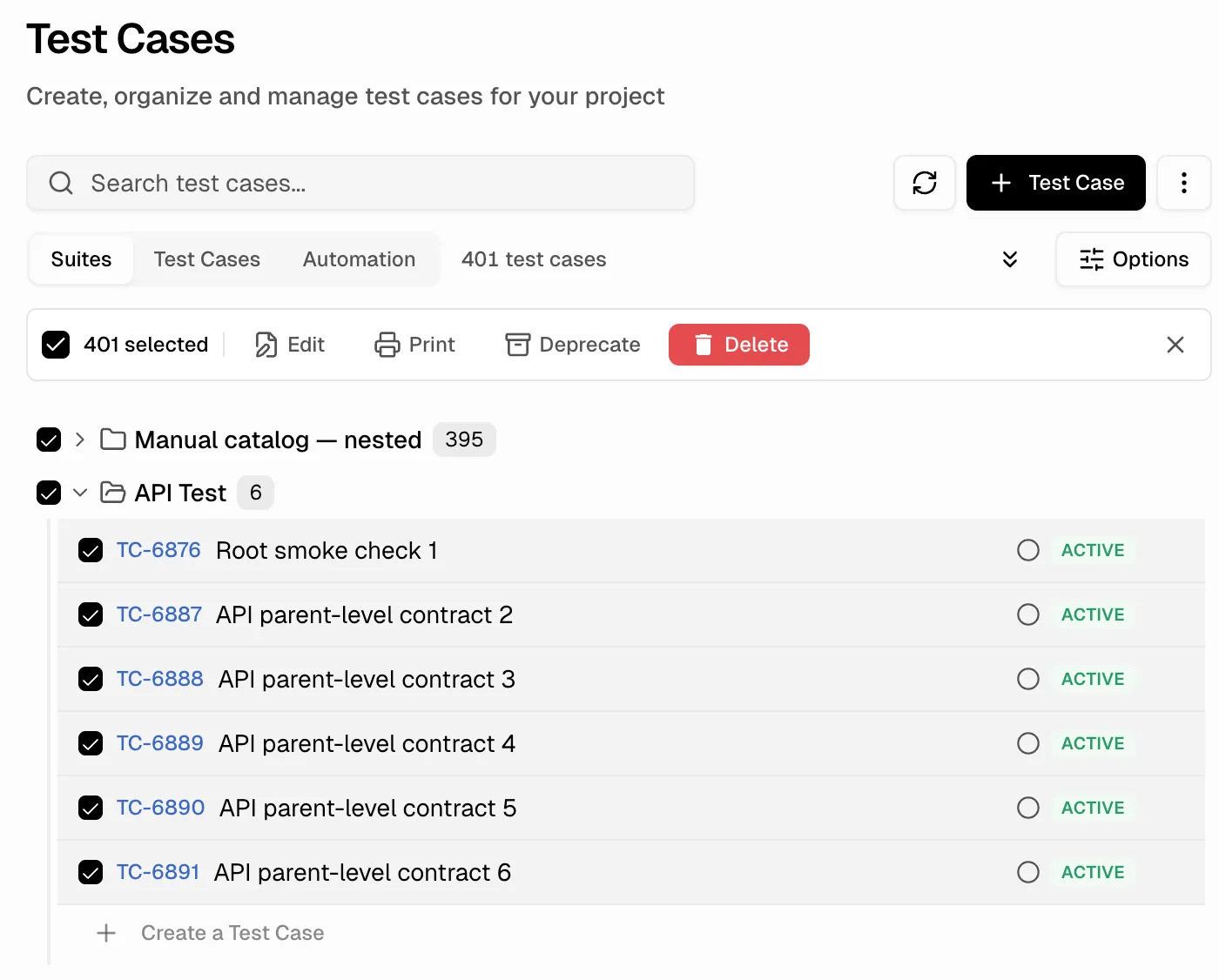
Bulk actions apply changes to multiple test cases or suites at once. Tick the checkboxes for the items you want, and a selection toolbar appears at the bottom of the page with the actions available for what you picked.
## Select Test Cases
| Method | How |
| :-------------- | :---------------------------------------------------------------------------------------------------------------------- |
| Individual | Click the checkbox next to any test case row |
| Select all | Click the checkbox next to **All test cases** at the top of the SUITES sidebar to select every test case in the project |
| Suite selection | In the Suites view, click the suite-level checkbox to select all test cases within that suite |
 ## Bulk Edit
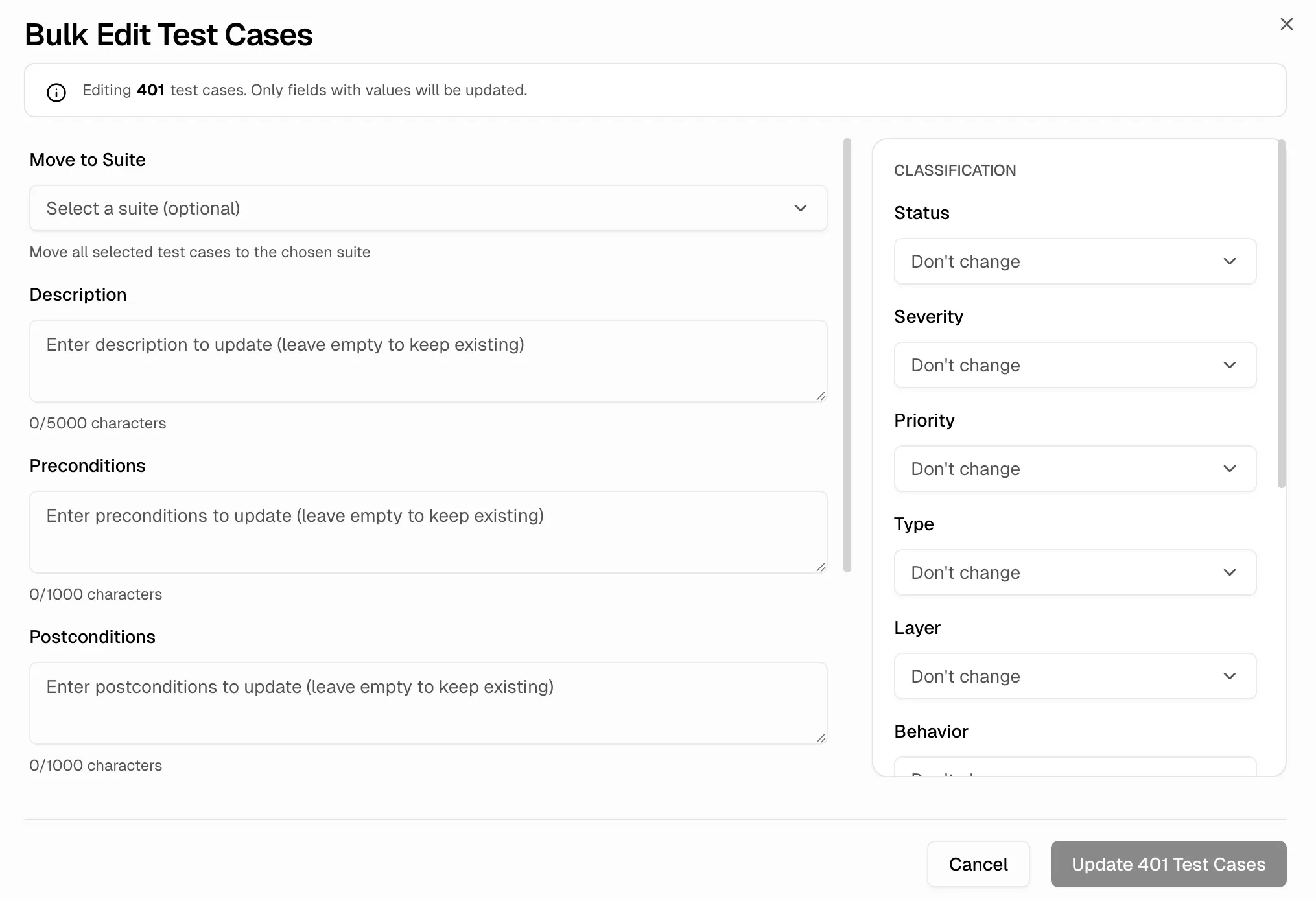
Available when test cases are selected. Click **Edit** in the selection toolbar to open the Bulk Edit dialog. Only fields you set a value for are changed; leave any field as "Don't change" to preserve existing values.
### Editable fields
| Category | Fields |
| :------------- | :-------------------------------------------------------------------------------------------------------- |
| Content | Move to Suite, Description (up to 50,000 chars), Pre-conditions, Post-conditions |
| Classification | Status, Severity, Priority, Type, Layer, Behavior |
| Automation | Automation status (`Manual`, `Automated`, `To Be Automated`) |
| Flags | `To Be Automated`, `Is Flaky`, `Is Muted` |
| Tags | Comma-separated tags with two modes: **Add tags** (keeps existing) or **Remove tags** (removes specified) |
## Bulk Edit
Available when test cases are selected. Click **Edit** in the selection toolbar to open the Bulk Edit dialog. Only fields you set a value for are changed; leave any field as "Don't change" to preserve existing values.
### Editable fields
| Category | Fields |
| :------------- | :-------------------------------------------------------------------------------------------------------- |
| Content | Move to Suite, Description (up to 50,000 chars), Pre-conditions, Post-conditions |
| Classification | Status, Severity, Priority, Type, Layer, Behavior |
| Automation | Automation status (`Manual`, `Automated`, `To Be Automated`) |
| Flags | `To Be Automated`, `Is Flaky`, `Is Muted` |
| Tags | Comma-separated tags with two modes: **Add tags** (keeps existing) or **Remove tags** (removes specified) |
 **Tip**
Use bulk edit to reassign test cases to a different suite by setting the **Move to Suite** field.
## Bulk Print
Click **Print** to generate a printable view of all selected test cases. This is useful for review meetings or offline reference.
## Bulk Export
You can also export test cases and suites in multiple supported formats using the **Export** option in the selection toolbar.
| Format | What It Includes |
| :------------------------------ | :---------------------------------------------------------------------- |
| **Export JSON** | Selected test cases with full metadata, suite structure, and steps |
| **JSON with Attachments (ZIP)** | Same as JSON plus all attached files bundled into a `.zip` archive |
| **Export CSV (Legacy)** | Flat `.csv` of the selected test cases for spreadsheets and other tools |
See [Import & Export](/test-management/import-export#export) for the full format details.
## Bulk Deprecate
Click **Deprecate** in the selection toolbar to mark every selected test case as `Deprecated` status in one action. Faster than opening Bulk Edit and changing the Status field.
## Bulk Delete
Click **Delete** in the selection toolbar to remove every selected test case. The confirmation dialog shows the count of cases that will be removed. Deleted cases cannot be recovered. Run results recorded against them remain in the run but lose the source case link.
## Bulk Suite Delete
In the Suites view, select entire suites using the suite-level checkboxes and click **Delete**. This deletes the suite and all test cases it contains.
**Warning**
Deleting a suite removes all test cases inside it permanently. This cannot be undone.
Search and filter before selecting test cases
Select test cases by suite
Project-level import and export
Field definitions and project settings
**Tip**
Use bulk edit to reassign test cases to a different suite by setting the **Move to Suite** field.
## Bulk Print
Click **Print** to generate a printable view of all selected test cases. This is useful for review meetings or offline reference.
## Bulk Export
You can also export test cases and suites in multiple supported formats using the **Export** option in the selection toolbar.
| Format | What It Includes |
| :------------------------------ | :---------------------------------------------------------------------- |
| **Export JSON** | Selected test cases with full metadata, suite structure, and steps |
| **JSON with Attachments (ZIP)** | Same as JSON plus all attached files bundled into a `.zip` archive |
| **Export CSV (Legacy)** | Flat `.csv` of the selected test cases for spreadsheets and other tools |
See [Import & Export](/test-management/import-export#export) for the full format details.
## Bulk Deprecate
Click **Deprecate** in the selection toolbar to mark every selected test case as `Deprecated` status in one action. Faster than opening Bulk Edit and changing the Status field.
## Bulk Delete
Click **Delete** in the selection toolbar to remove every selected test case. The confirmation dialog shows the count of cases that will be removed. Deleted cases cannot be recovered. Run results recorded against them remain in the run but lose the source case link.
## Bulk Suite Delete
In the Suites view, select entire suites using the suite-level checkboxes and click **Delete**. This deletes the suite and all test cases it contains.
**Warning**
Deleting a suite removes all test cases inside it permanently. This cannot be undone.
Search and filter before selecting test cases
Select test cases by suite
Project-level import and export
Field definitions and project settings