> ## Documentation Index
> Fetch the complete documentation index at: https://docs.testdino.com/llms.txt
> Use this file to discover all available pages before exploring further.
# Import and Export Test Cases
> Import test cases from CSV or JSON, and export to JSON, ZIP, or CSV.
**What you'll learn**
* Where to find Import in the new Test Cases UI
* How to import from CSV (TestDino, TestRail, Other) or JSON (TestDino, Testmo)
* How duplicate handling works during import
* The three Export options and where to find them
Import test cases from external tools, and export them for backup, migration, or offline use.
## Import
Open the **Import Test Cases** dialog from either:
* **+ New → Import CSV / JSON** in the header
* The **Import CSV / JSON** card on the empty `No test cases yet` screen
### Supported formats
| Format | Source | Notes |
| :------------ | :---------------------------- | :-------------------------------------------- |
| TestDino CSV | Previous TestDino CSV export | Auto-mapped |
| TestRail CSV | TestRail export | Auto-mapped |
| Other CSV | Any CSV file | Manual mapping |
| TestDino JSON | Previous TestDino JSON export | Full-fidelity (suites, steps, tags, metadata) |
| Testmo JSON | Testmo JSON export | Auto-mapped |
### Templates
Download a sample JSON or CSV template to properly map test cases and their fields before importing. Templates show the expected field names, hierarchy structure, and data types so your import maps correctly on the first attempt.
### CSV import flow
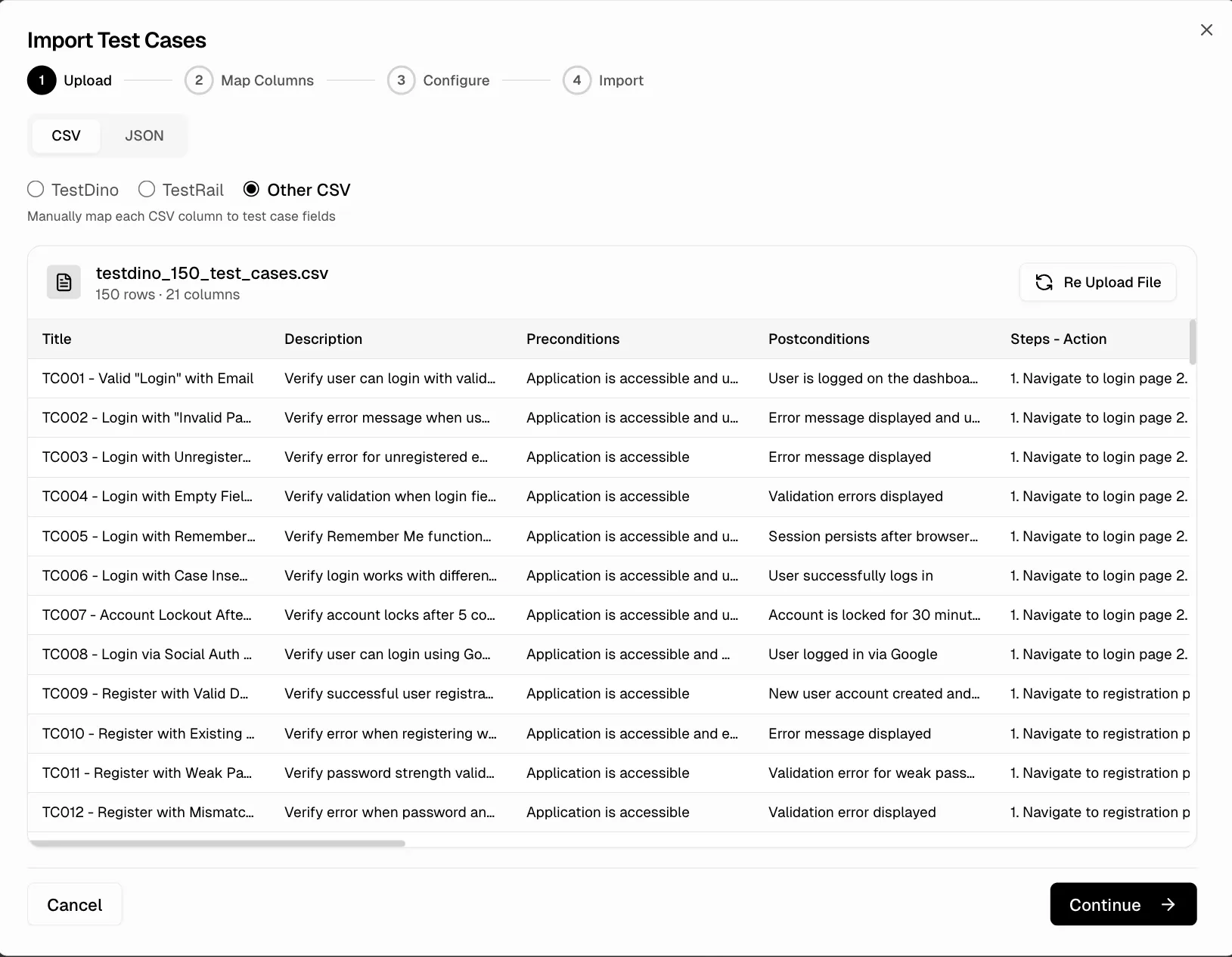
1. **Upload** — Drag-and-drop or browse to select a `.csv` file. Choose the source platform (TestDino, TestRail, or Other CSV).
2. **Map Columns** — Map each CSV column to a TestDino field. For TestDino and TestRail sources, columns are auto-mapped. Switch between the **Column Mapping** and **Preview** tabs to verify.
3. **Configure** — Choose the target suite and set default values for unmapped fields.
4. **Preview & Import** — Review the final data and click **Import** to create the test cases.
 **Recommendation**
Use JSON for flexible import: it preserves the full suite hierarchy, steps, tags, and all metadata with no manual mapping. For faster test creation, use the [TestDino MCP Server](/mcp/overview) to create and manage test cases directly from your IDE.
### JSON import flow
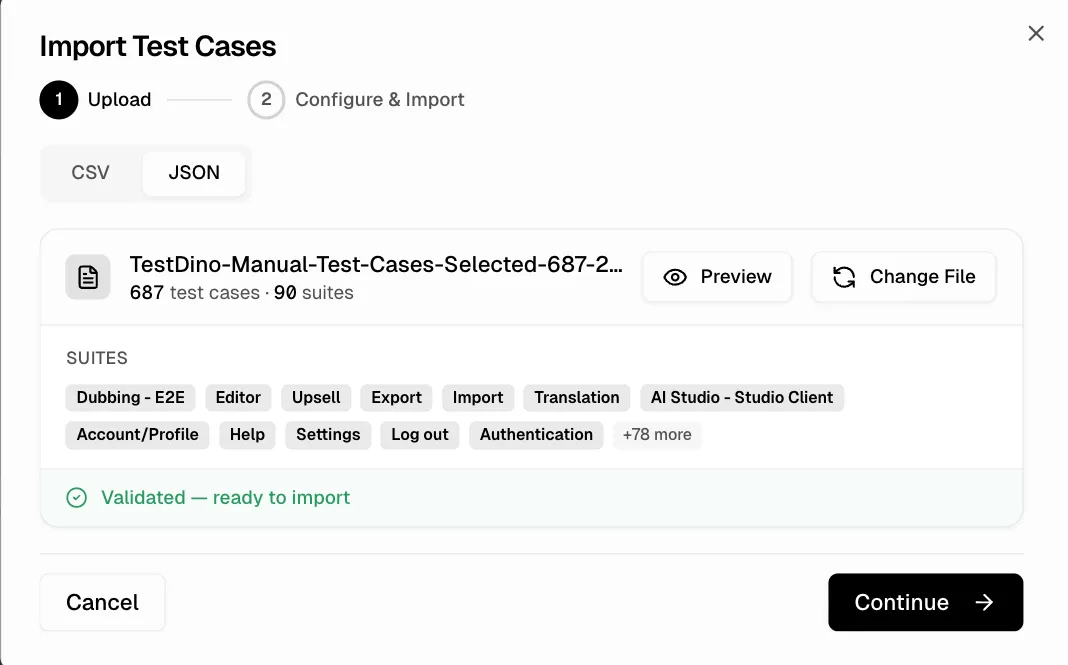
1. **Upload**. Drag and drop or browse to select a `.json` file, then choose the source type such as TestDino or Testmo. Use **Preview** to review the contents before continuing.
2. **Configure & Import**. Review detected suites and test cases, configure duplicate handling options, then start the import.
JSON import preserves suite hierarchy, test steps, tags, classifications, automation fields, custom fields, releases, manual runs, and sessions from the source export.
**Recommendation**
Use JSON for flexible import: it preserves the full suite hierarchy, steps, tags, and all metadata with no manual mapping. For faster test creation, use the [TestDino MCP Server](/mcp/overview) to create and manage test cases directly from your IDE.
### JSON import flow
1. **Upload**. Drag and drop or browse to select a `.json` file, then choose the source type such as TestDino or Testmo. Use **Preview** to review the contents before continuing.
2. **Configure & Import**. Review detected suites and test cases, configure duplicate handling options, then start the import.
JSON import preserves suite hierarchy, test steps, tags, classifications, automation fields, custom fields, releases, manual runs, and sessions from the source export.
 ### Duplicate Handling
The Configure step asks how to handle test cases that already exist in the target suite with the same title.
| Option | Behavior |
| :------------------ | :---------------------------------------- |
| `Skip duplicates` | Keep existing test cases unchanged |
| `Update duplicates` | Overwrite existing with imported data |
| `Create anyway` | Create new cases even if duplicates exist |
`Skip duplicates` is the default and the safest choice for re-importing the same file.
## Export
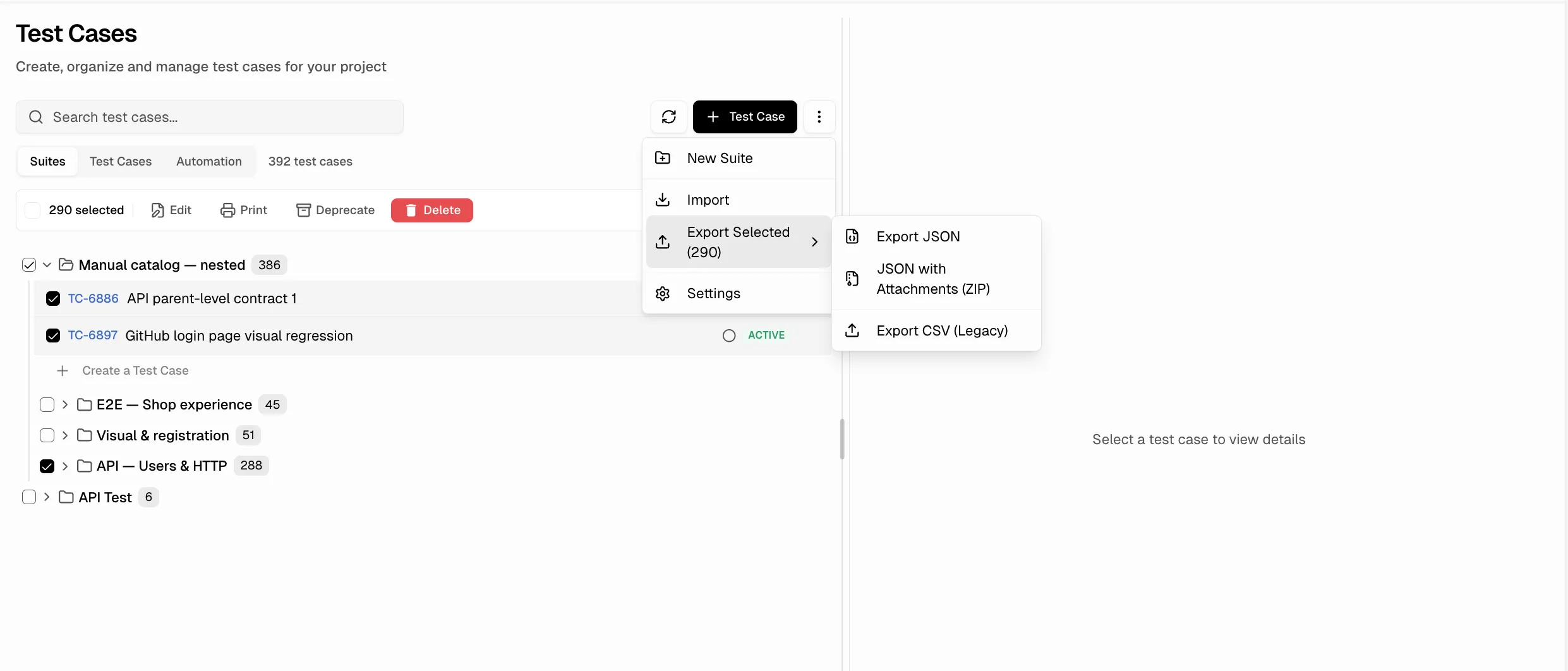
Click the **Export** button in the Test Cases header to open the format dropdown. Three options are available.
| Option | What It Includes |
| :------------------------------ | :--------------------------------------------------------------------------------------------------------------------------------------------------- |
| **Export JSON** | Test cases with full metadata, suite structure, steps, plus releases, manual runs (with per-case and per-step results), and sessions (with findings) |
| **JSON with Attachments (ZIP)** | Same as JSON, plus all attached files (test case, run, session, and finding attachments) bundled into a `.zip` archive |
| **Export CSV (Legacy)** | Flat `.csv` file of test cases for spreadsheets and other tools. Manual testing data is not included in CSV. |
### Export selected test cases
By default, Export includes every test case in the project. To export only a subset, tick checkboxes to select cases first; see [Bulk Export](/test-management/bulk-actions#bulk-export) for the per-selection flow.
A progress banner shows at the top of the page while the export is prepared.
### Duplicate Handling
The Configure step asks how to handle test cases that already exist in the target suite with the same title.
| Option | Behavior |
| :------------------ | :---------------------------------------- |
| `Skip duplicates` | Keep existing test cases unchanged |
| `Update duplicates` | Overwrite existing with imported data |
| `Create anyway` | Create new cases even if duplicates exist |
`Skip duplicates` is the default and the safest choice for re-importing the same file.
## Export
Click the **Export** button in the Test Cases header to open the format dropdown. Three options are available.
| Option | What It Includes |
| :------------------------------ | :--------------------------------------------------------------------------------------------------------------------------------------------------- |
| **Export JSON** | Test cases with full metadata, suite structure, steps, plus releases, manual runs (with per-case and per-step results), and sessions (with findings) |
| **JSON with Attachments (ZIP)** | Same as JSON, plus all attached files (test case, run, session, and finding attachments) bundled into a `.zip` archive |
| **Export CSV (Legacy)** | Flat `.csv` file of test cases for spreadsheets and other tools. Manual testing data is not included in CSV. |
### Export selected test cases
By default, Export includes every test case in the project. To export only a subset, tick checkboxes to select cases first; see [Bulk Export](/test-management/bulk-actions#bulk-export) for the per-selection flow.
A progress banner shows at the top of the page while the export is prepared.
 **Tip**
Use JSON export for full-fidelity backups and migration. Use CSV export when you need to open test cases in a spreadsheet or import into a non-TestDino tool.
Select test cases before exporting
Test case fields, structure, and project settings
Test Management capabilities and navigation
**Tip**
Use JSON export for full-fidelity backups and migration. Use CSV export when you need to open test cases in a spreadsheet or import into a non-TestDino tool.
Select test cases before exporting
Test case fields, structure, and project settings
Test Management capabilities and navigation