> ## Documentation Index
> Fetch the complete documentation index at: https://docs.testdino.com/llms.txt
> Use this file to discover all available pages before exploring further.
# Test Management Concepts
> Core terminology, field definitions, test steps, version history, and project-level customization settings.
**What you'll learn**
* How test suites and test cases are structured
* Core, classification, and automation fields on every test case
* Classic vs Gherkin test step formats
* How version history tracks and restores changes
* How to customize dropdown values, feature toggles, and custom fields per project
This page defines the core building blocks of Test Management and the project-level settings that control them.
## Test Suites
A test suite is a folder that groups related test cases together. Suites can be nested to create a hierarchy (e.g., `API → Users → GET Endpoints`).
* Test cases can live inside a suite or remain unsorted until you assign them
* Suites have a **name**, **description**, and optional **parent suite**
* Drag-and-drop suites to reorder them in the [Suites view](/test-management/suites)
## Test Cases
A test case is a single test scenario with a unique Case ID (e.g., `TC-6838`). Each test case contains core fields, classification fields, automation fields, and metadata.
### Core fields
| Field | Description |
| :-------------- | :------------------------------------------------------------------------ |
| Title | Short name describing the test (required) |
| Description | Detailed explanation of what the test does (up to 5,000 characters) |
| Pre-conditions | What must be true before the test runs |
| Post-conditions | Expected system state after the test completes |
| Test Steps | Ordered list of actions with expected results (Classic or Gherkin format) |
### Classification fields
| Field | Values |
| :------- | :------------------------------------------------------------------------------------------------------ |
| Status | Active, Draft, Deprecated |
| Priority | Critical, High, Medium, Low, Not Set |
| Severity | Blocker, Critical, Major, Normal, Minor, Trivial, Not Set |
| Type | Smoke, Regression, Functional, Integration, E2E, API, Unit, Performance, Security, Accessibility, Other |
| Layer | E2E, API, Unit, Not Set |
| Behavior | Positive, Negative, Destructive, Not Set |
**Note**
All classification dropdown values can be customized per project. See [Test Case Settings](#test-case-settings) below.
### Automation fields
| Field | Description |
| :---------------- | :--------------------------------------------------------------------- |
| Automation Status | `Manual`, `Automated`, or `To Be Automated` (customizable per project) |
| To be automated | Flag the case as a candidate for future automation |
| Is Flaky | Mark the case as producing inconsistent results |
| Is Muted | Hide the case from result rollups without deleting it |
Automation Status and the three flag fields work together: a case can be `Manual` and flagged `To be automated`, or `Automated` and flagged `Is Flaky` if the linked automated test fails intermittently. Flags are independent of status; set them as needed.
### Additional metadata
* **Tags** - Free-form labels (e.g., `api`, `smoke`, `regression`) for categorization and filtering. Tags appear as badges on the test case [Details Sheet](/test-management/test-cases/list-view#details-sheet) and can be used in [Bulk Actions](/test-management/bulk-actions) to add or remove tags across multiple test cases.
* **Custom Fields** - Project-specific fields configured in [Test Case Settings](#custom-fields) (text, number, textarea, dropdown, or checkbox)
* **Attachments** - Files attached to the test case
## Test Steps
Each test case has ordered steps in one of two formats.
| Format | Structure | Best For |
| :---------- | :--------------------------------------------------------------------------------- | :--------------------------- |
| **Classic** | Each step has an **Action**, optional **Test Data**, and an **Expected Result**. | Step-by-step test procedures |
| **Gherkin** | Each step uses a keyword (`Given`, `When`, `Then`, `And`, `But`) followed by text. | BDD-style scenarios |
## Version History
Every change to a test case is tracked as a new version. The Versions tab on the [Details Sheet](/test-management/test-cases/list-view#details-sheet) shows:
* A timeline of all versions with who made each change and when
* A diff of what changed in each version (additions in green, removals in red)
* The ability to **compare** any two versions side-by-side
* The ability to **restore** a previous version
## Test Case Settings
Open from the **⚙ Test Case Settings** in the Test Cases header. The Test Case Settings page is organized into five tabs.
### Test Case Fields
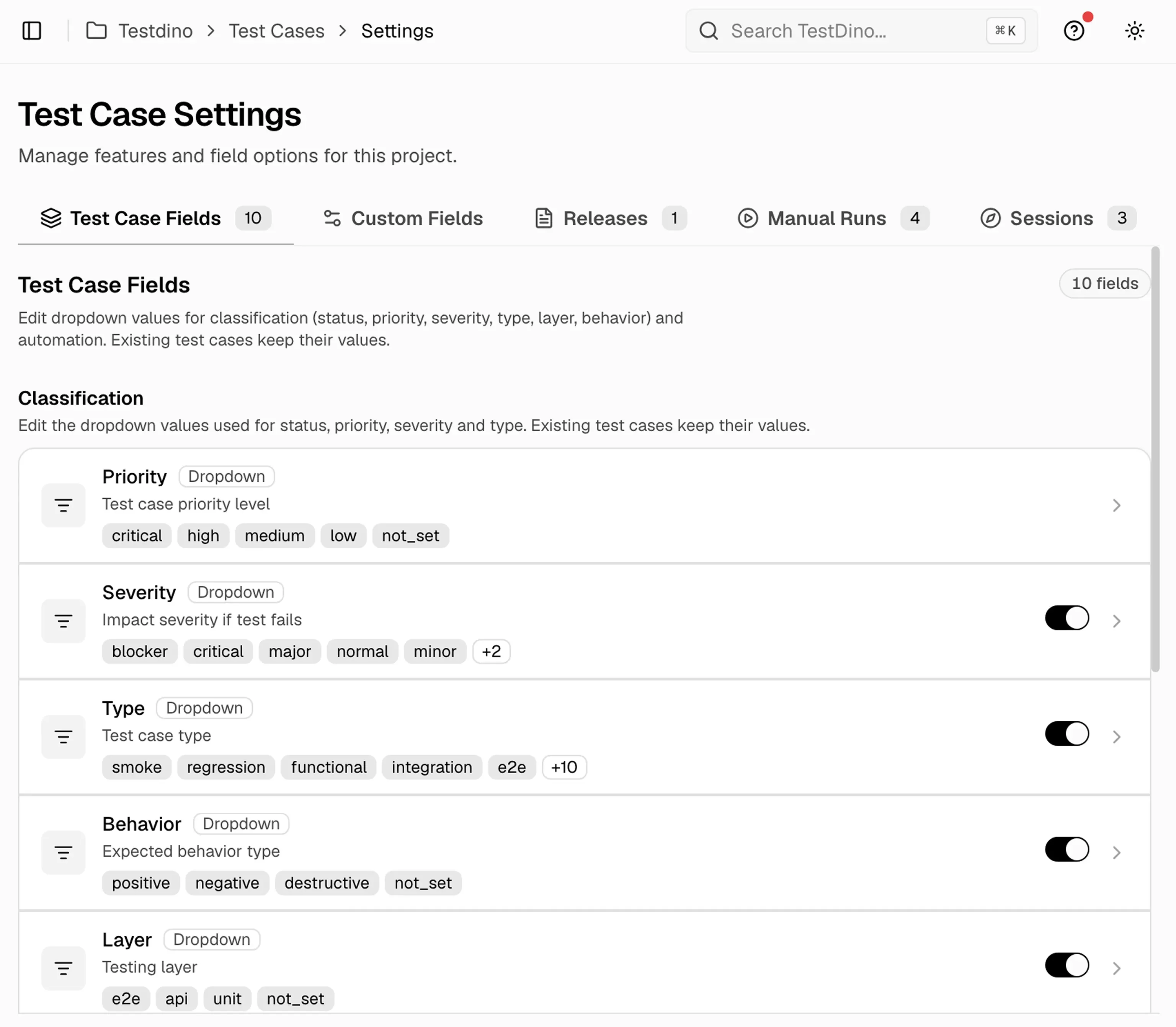
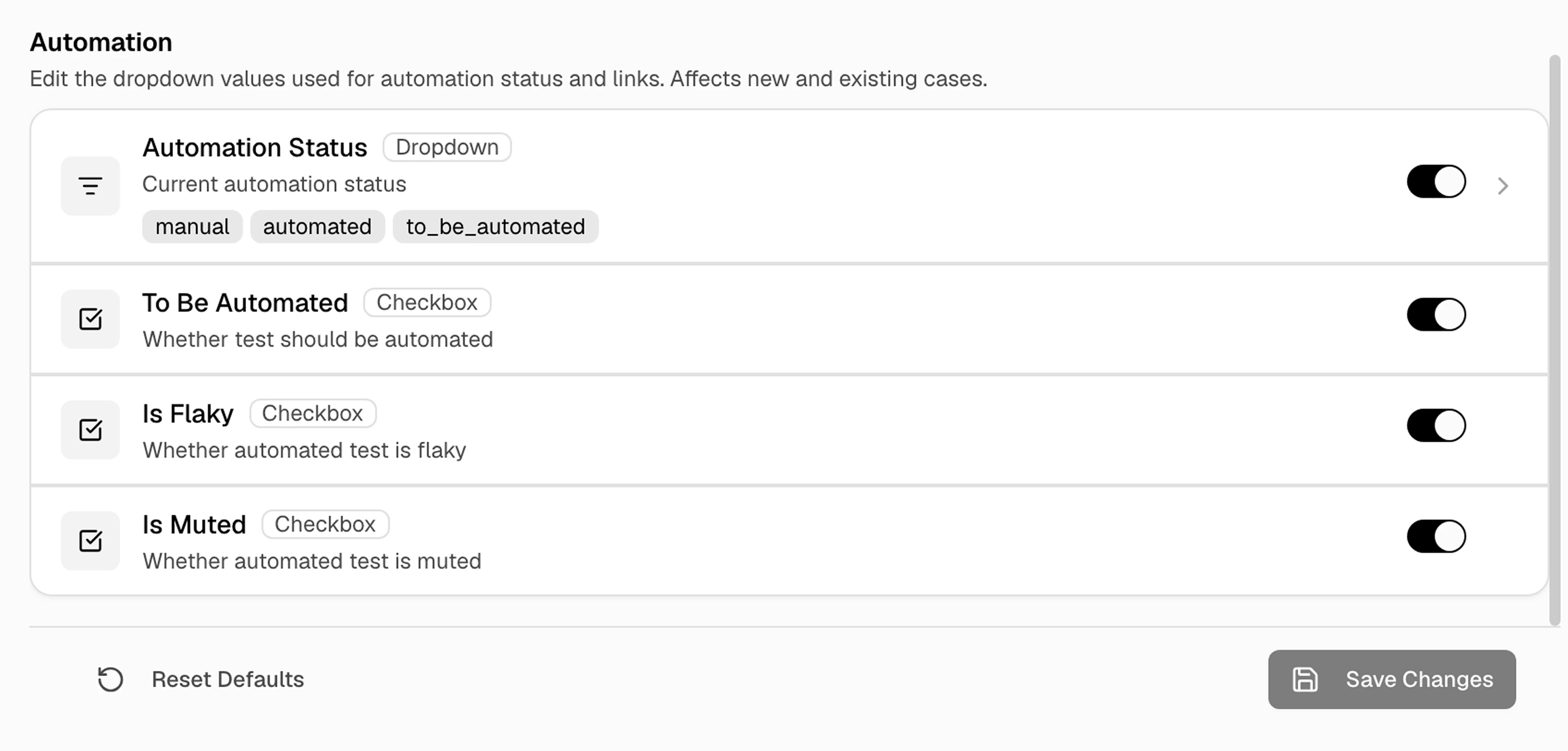
Test Case Fields contains two sections: Classification and Automation. Each field shows its available values along with a visibility toggle. Enabled fields appear in the test case properties panel, while disabled fields remain hidden. You can also add, edit, or customize values based on your team's workflow.
#### Classification
Use classification fields to organize and categorize test cases.
| Field | Type | Example Values |
| :--------- | :------- | :---------------------------------------------------------------------- |
| `Priority` | Dropdown | `critical`, `high`, `medium`, `low`, `not_set` |
| `Severity` | Dropdown | `blocker`, `critical`, `major`, `normal`, `minor`, `trivial`, `not_set` |
| `Type` | Dropdown | `smoke`, `regression`, `functional`, `integration`, `e2e` |
| `Behavior` | Dropdown | `positive`, `negative`, `destructive`, `not_set` |
| `Layer` | Dropdown | `e2e`, `api`, `unit`, `not_set` |
| `Status` | Dropdown | `active`, `draft`, `deprecated` |
 #### Automation
Use automation fields to track the automation state of a test case.
| Field | Type | Description |
| :------------------ | :------- | :---------------------------------------- |
| `Automation Status` | Dropdown | `manual`, `automated`, `to_be_automated` |
| `To Be Automated` | Checkbox | Marks the test case for future automation |
| `Is Flaky` | Checkbox | Indicates the automated test is unstable |
| `Is Muted` | Checkbox | Indicates the automated test is muted |
#### Automation
Use automation fields to track the automation state of a test case.
| Field | Type | Description |
| :------------------ | :------- | :---------------------------------------- |
| `Automation Status` | Dropdown | `manual`, `automated`, `to_be_automated` |
| `To Be Automated` | Checkbox | Marks the test case for future automation |
| `Is Flaky` | Checkbox | Indicates the automated test is unstable |
| `Is Muted` | Checkbox | Indicates the automated test is muted |
 ### Custom Fields
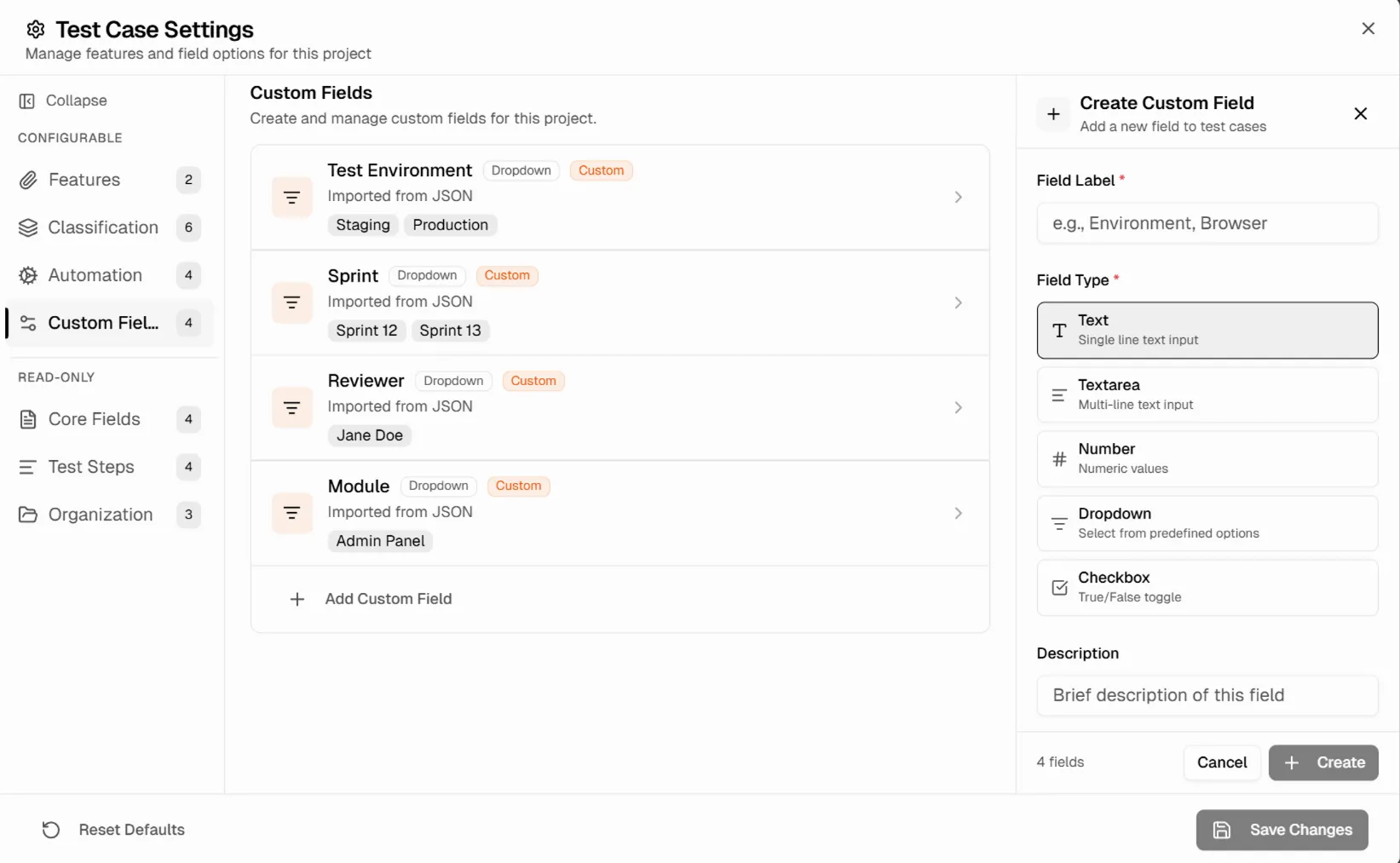
Create project-specific fields that appear on every test case in the [Details Sheet](/test-management/test-cases/list-view#details-sheet) sidebar under **Custom Fields**.
| Type | Description |
| :------- | :------------------------------------------------------ |
| Text | Single-line text input |
| Textarea | Multi-line text input |
| Number | Numeric values |
| Dropdown | Select from predefined options (define the option list) |
| Checkbox | True/False toggle |
Click **+ Add Field** to create a custom field. Set the field name, type, optional description, and whether it is required. For dropdown fields, define the list of selectable options. Drag to reorder custom fields. Deleting a custom field removes it and its values from all test cases.
### Custom Fields
Create project-specific fields that appear on every test case in the [Details Sheet](/test-management/test-cases/list-view#details-sheet) sidebar under **Custom Fields**.
| Type | Description |
| :------- | :------------------------------------------------------ |
| Text | Single-line text input |
| Textarea | Multi-line text input |
| Number | Numeric values |
| Dropdown | Select from predefined options (define the option list) |
| Checkbox | True/False toggle |
Click **+ Add Field** to create a custom field. Set the field name, type, optional description, and whether it is required. For dropdown fields, define the list of selectable options. Drag to reorder custom fields. Deleting a custom field removes it and its values from all test cases.
 ### Releases
You can also customize the release types used by your team, such as `Sprint`, `Hotfix`, and `Patch`. See [Release Type Settings](/test-management/manual-testing/releases#release-type-settings) for details.
### Manual Runs
You can also customize result statuses, run states, environments, and tags. See [Manual Run Settings](/test-management/manual-testing/manual-runs#manual-run-settings) for details.
### Sessions
You can also customize session states, session types, and finding result statuses for exploratory testing. See [Session Settings](/test-management/manual-testing/sessions#session-settings) for details.
Organize tests in a tree structure
Search, sort, filter, and view full test case details
Releases, manual runs, and exploratory sessions
Edit, delete, or print multiple test cases
Definitions of TestDino and Playwright testing terms
### Releases
You can also customize the release types used by your team, such as `Sprint`, `Hotfix`, and `Patch`. See [Release Type Settings](/test-management/manual-testing/releases#release-type-settings) for details.
### Manual Runs
You can also customize result statuses, run states, environments, and tags. See [Manual Run Settings](/test-management/manual-testing/manual-runs#manual-run-settings) for details.
### Sessions
You can also customize session states, session types, and finding result statuses for exploratory testing. See [Session Settings](/test-management/manual-testing/sessions#session-settings) for details.
Organize tests in a tree structure
Search, sort, filter, and view full test case details
Releases, manual runs, and exploratory sessions
Edit, delete, or print multiple test cases
Definitions of TestDino and Playwright testing terms