> ## Documentation Index
> Fetch the complete documentation index at: https://docs.testdino.com/llms.txt
> Use this file to discover all available pages before exploring further.
# Manual Test Runs
> Execute manual test cases inside a release and record test results during execution.
**What you'll learn**
* How to plan and configure a manual run
* How to record detailed results with notes, attachments, and linked issues
* What the run detail page captures
* When and how runs close
A manual run helps teams execute and track manual test cases for a release. It records the status of each test case and step, along with execution time and results. Teams can also attach files, add notes, and link issues directly within the run for complete test tracking.
## Create Or Edit Run
Open the create dialog from the **+ Run** button. To edit an existing run, open it from the list and click **Edit** in the header.
| Field | Description |
| :-------------- | :----------------------------------------------------------- |
| `Name` | Required run name |
| `Release` | **Required.** Run must be linked to a release at creation |
| `State` | Workflow state from project settings; defaults to `New` |
| `Environment` | Target environment from project settings |
| `Tags` | Up to 50 tags from project settings |
| `Forecast` | Estimated total time in minutes |
| `Linked issues` | External issue references |
| `Links` | Up to 20 named URLs with optional notes |
| `Attachments` | Up to 20 files attached to the run |
| `Note` | Run-level note with inline image support |
| `Selection` | `All cases` or `Selected cases`; see [Run Scope](#run-scope) |
**Note**
A release is mandatory on every manual run. Create a release first if one does not exist.
## Run Scope
When creating a run, you can choose which test cases to include.
* **Include all test cases** - includes every active test case in the project.
* **Select specific cases** - lets you choose specific test cases. You can add:
* Individual cases by case ID
* Entire suites
## Run Detail
The Run Detail page is used to manage and track test execution. It includes three tabs for viewing results, activity, and run details. You can also print, download, and share the run directly from the header.
### Overview Tab
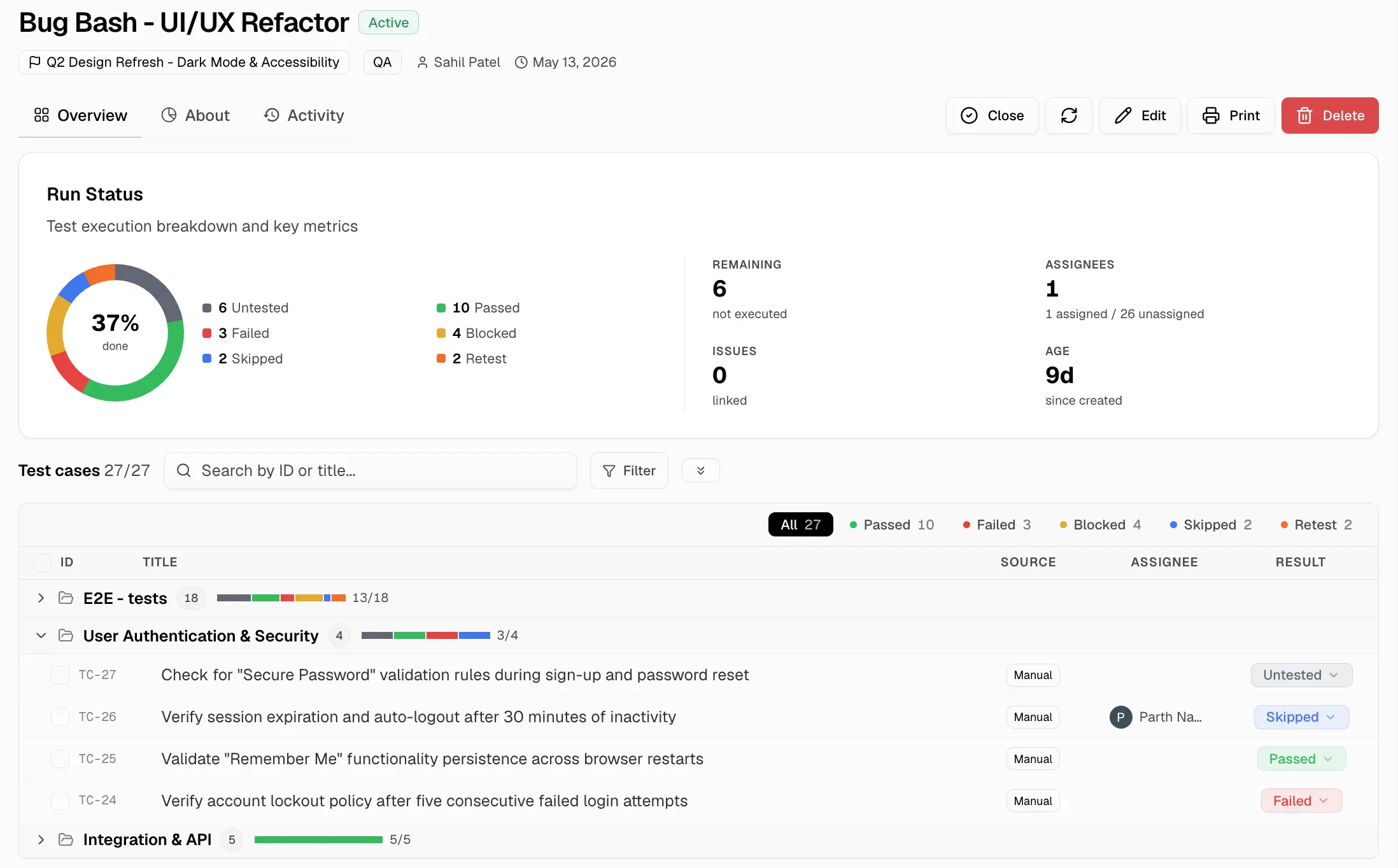
The `Overview` tab displays all test cases in the run, grouped by suite. Each test case shows its ID, title, assignee, current status, and latest result time. Teams can update statuses, assign testers, add comments, and record results directly from this tab.
 ### About Tab
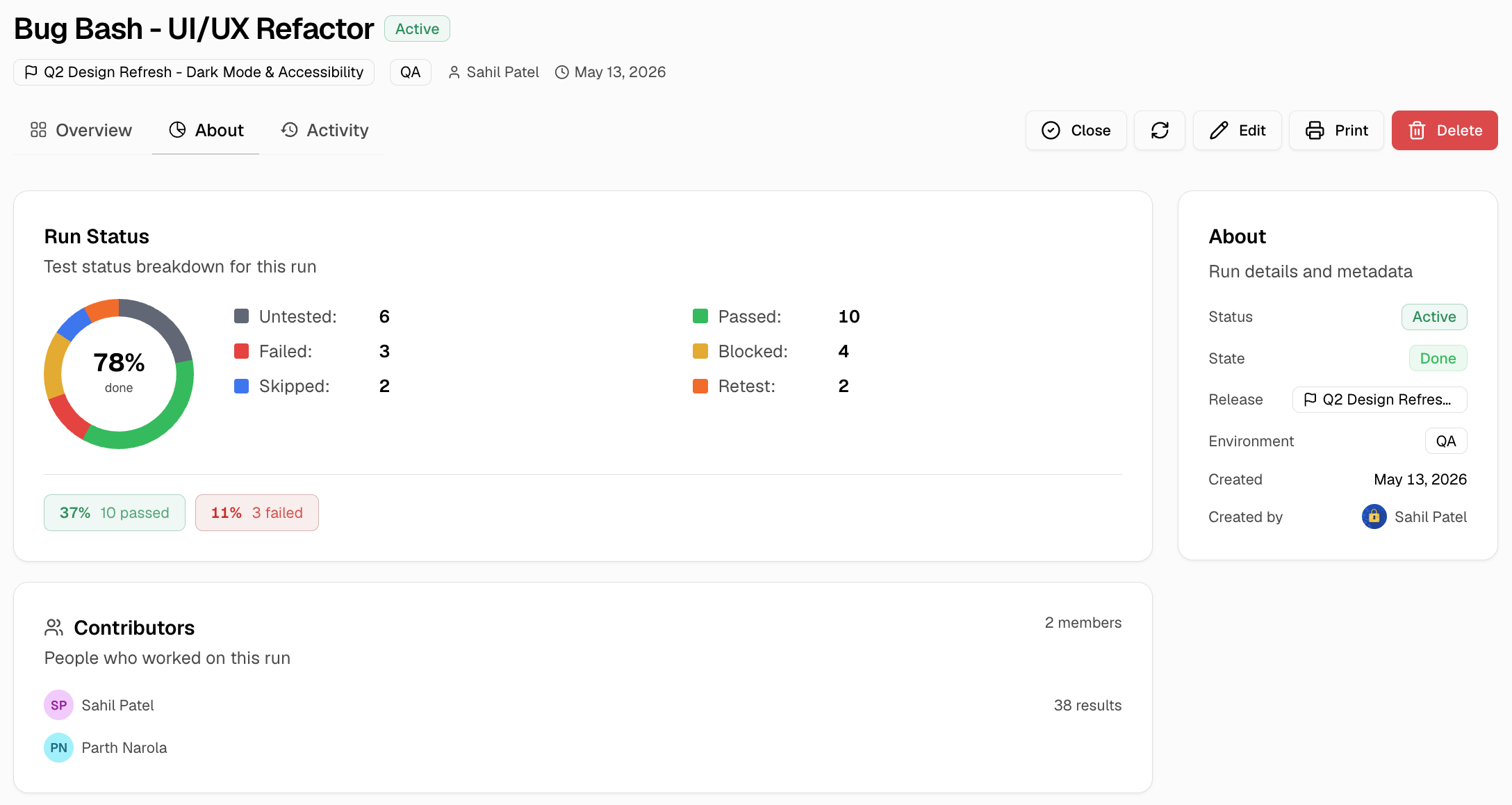
The `About` tab provides a summary of the run, including status breakdown, contributors, estimated and elapsed time, environment details, tags, linked issues, and attachments.
### About Tab
The `About` tab provides a summary of the run, including status breakdown, contributors, estimated and elapsed time, environment details, tags, linked issues, and attachments.
 ### Activity Tab
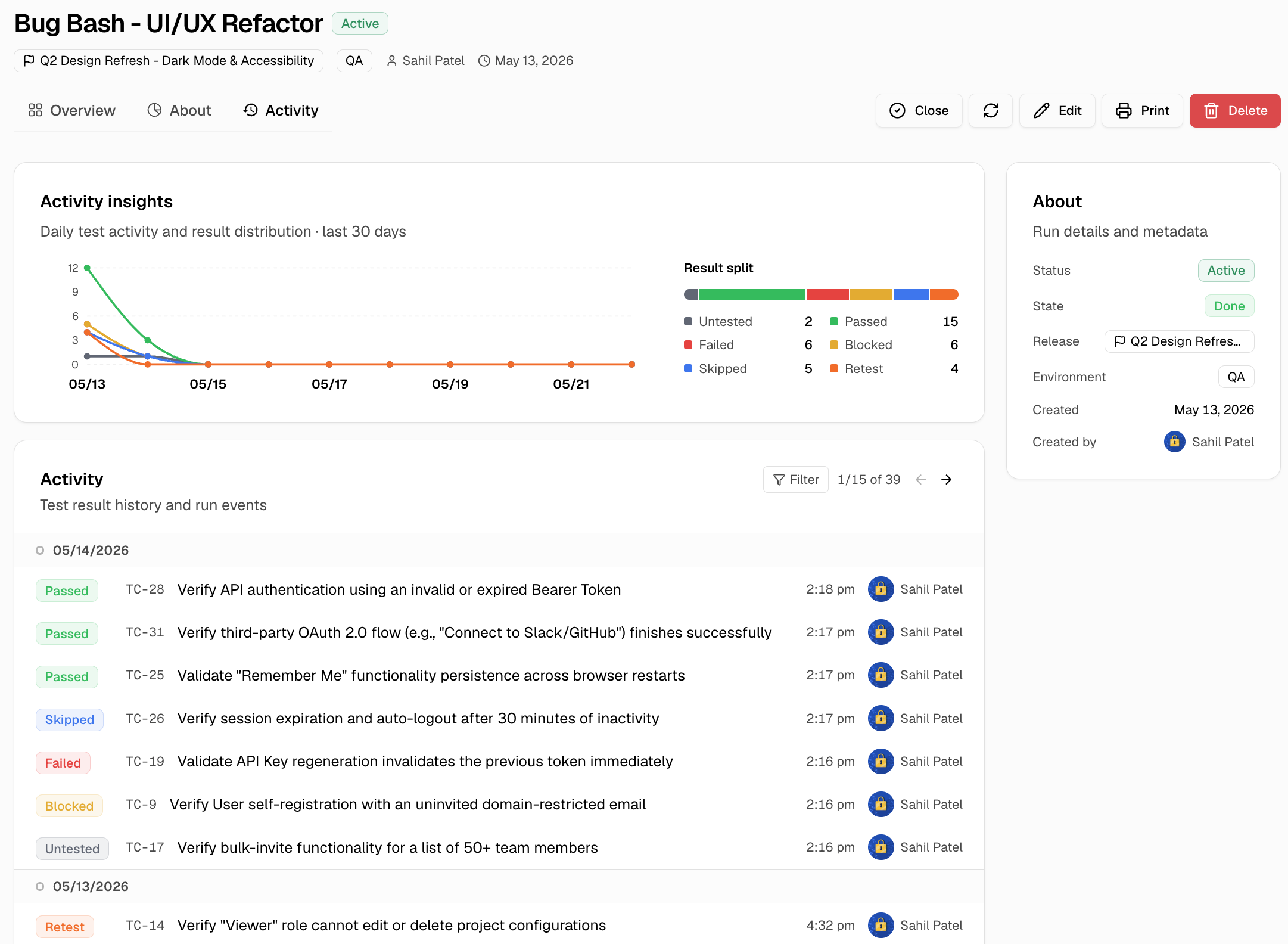
The `Activity` tab displays the complete run history as a timeline. It also shows aggregated test result trends and execution progress over time.
### Activity Tab
The `Activity` tab displays the complete run history as a timeline. It also shows aggregated test result trends and execution progress over time.
 ## Add Detailed Result
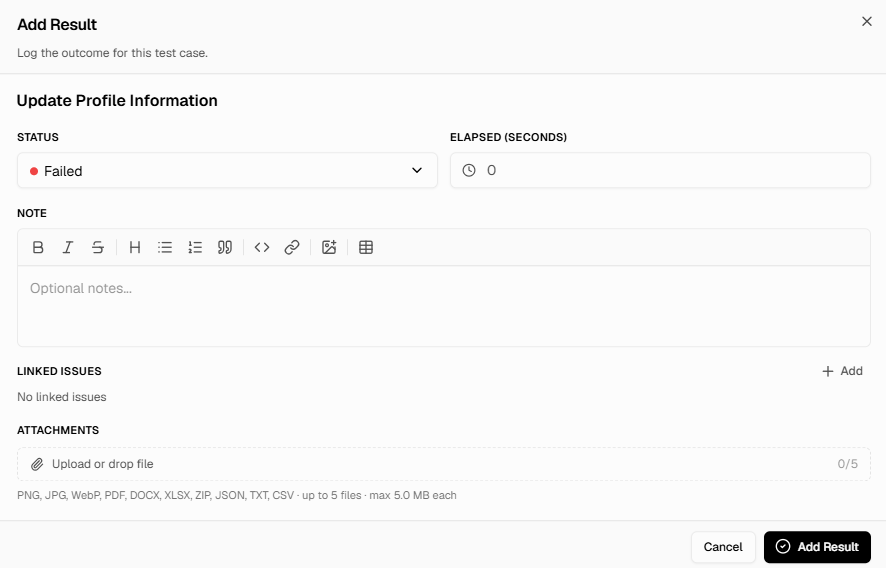
You can quickly update a test case status directly from the status dropdown using Untested, Passed, Failed, Blocked, Skipped, or Retest. For more detailed results, select **Add detailed result** to open the result dialog.
* **Status:** Result status for the test case (same six values as the quick dropdown).
* **Elapsed (seconds):** How long the test took to run.
* **Note:** Rich-text observation (optional).
* **Linked Issues:** External issue references from Jira, Linear, or other trackers (click **+ Add** to link).
* **Attachments:** Up to 5 files, max 5 MB each. Supported: PNG, JPG, WebP, PDF, DOCX, XLSX, ZIP, JSON, TXT, CSV.
## Add Detailed Result
You can quickly update a test case status directly from the status dropdown using Untested, Passed, Failed, Blocked, Skipped, or Retest. For more detailed results, select **Add detailed result** to open the result dialog.
* **Status:** Result status for the test case (same six values as the quick dropdown).
* **Elapsed (seconds):** How long the test took to run.
* **Note:** Rich-text observation (optional).
* **Linked Issues:** External issue references from Jira, Linear, or other trackers (click **+ Add** to link).
* **Attachments:** Up to 5 files, max 5 MB each. Supported: PNG, JPG, WebP, PDF, DOCX, XLSX, ZIP, JSON, TXT, CSV.
 ## Closing A Run
Closing a run is permanent. Use **Close** in the run detail header. After close, the run stays viewable but new results, assignment changes, and field edits are blocked.
## Manual Run Settings
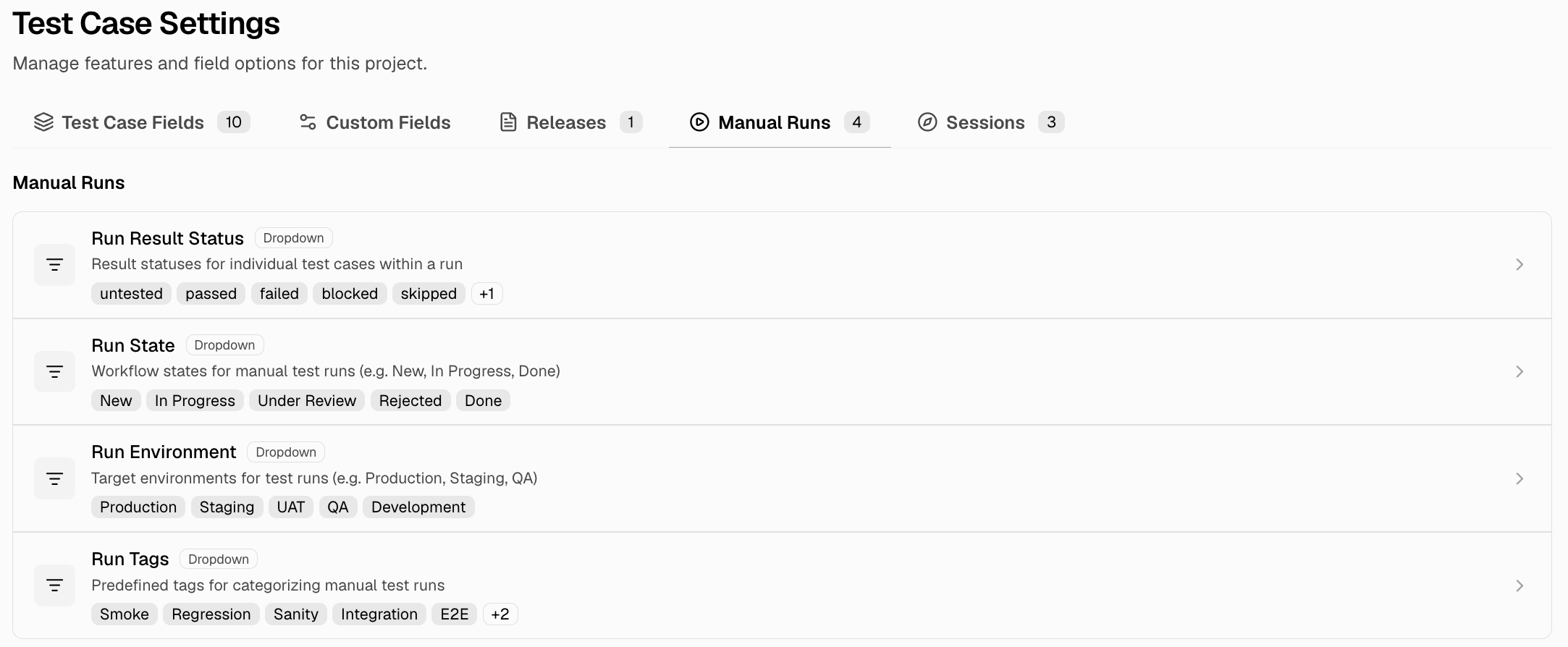
Run-related project settings are managed via ** Test Case Settings → `Manual Runs`** in the header. The defaults below ship with every project and can be edited.
| Setting | Default Values |
| :-------------- | :----------------------------------------------------------------- |
| `Result Status` | `untested`, `passed`, `failed`, `blocked`, `skipped`, `retest` |
| `Run State` | `New`, `In Progress`, `Under Review`, `Rejected`, `Done` |
| `Environment` | `Production`, `Staging`, `UAT`, `QA`, `Development` |
| `Tags` | `Smoke`, `Regression`, `Sanity`, `Integration`, `E2E`, `API`, `UI` |
## Closing A Run
Closing a run is permanent. Use **Close** in the run detail header. After close, the run stays viewable but new results, assignment changes, and field edits are blocked.
## Manual Run Settings
Run-related project settings are managed via ** Test Case Settings → `Manual Runs`** in the header. The defaults below ship with every project and can be edited.
| Setting | Default Values |
| :-------------- | :----------------------------------------------------------------- |
| `Result Status` | `untested`, `passed`, `failed`, `blocked`, `skipped`, `retest` |
| `Run State` | `New`, `In Progress`, `Under Review`, `Rejected`, `Done` |
| `Environment` | `Production`, `Staging`, `UAT`, `QA`, `Development` |
| `Tags` | `Smoke`, `Regression`, `Sanity`, `Integration`, `E2E`, `API`, `UI` |
 Group runs under releases and sub-releases
Use sessions for exploratory testing
Group runs under releases and sub-releases
Use sessions for exploratory testing