> ## Documentation Index
> Fetch the complete documentation index at: https://docs.testdino.com/llms.txt
> Use this file to discover all available pages before exploring further.
# Test Releases
> Group manual runs and sessions under a release, plan scope and timeline, and roll up testing progress.
**What you'll learn**
* What a release captures and configures
* What attaches to a release and how nesting works
* How release states and the detail page work together
A release is the planning container for a sprint, version, or cycle of manual testing. It captures scope, dates, branch, environment, build target, and testers, then rolls up progress across every linked run and session.
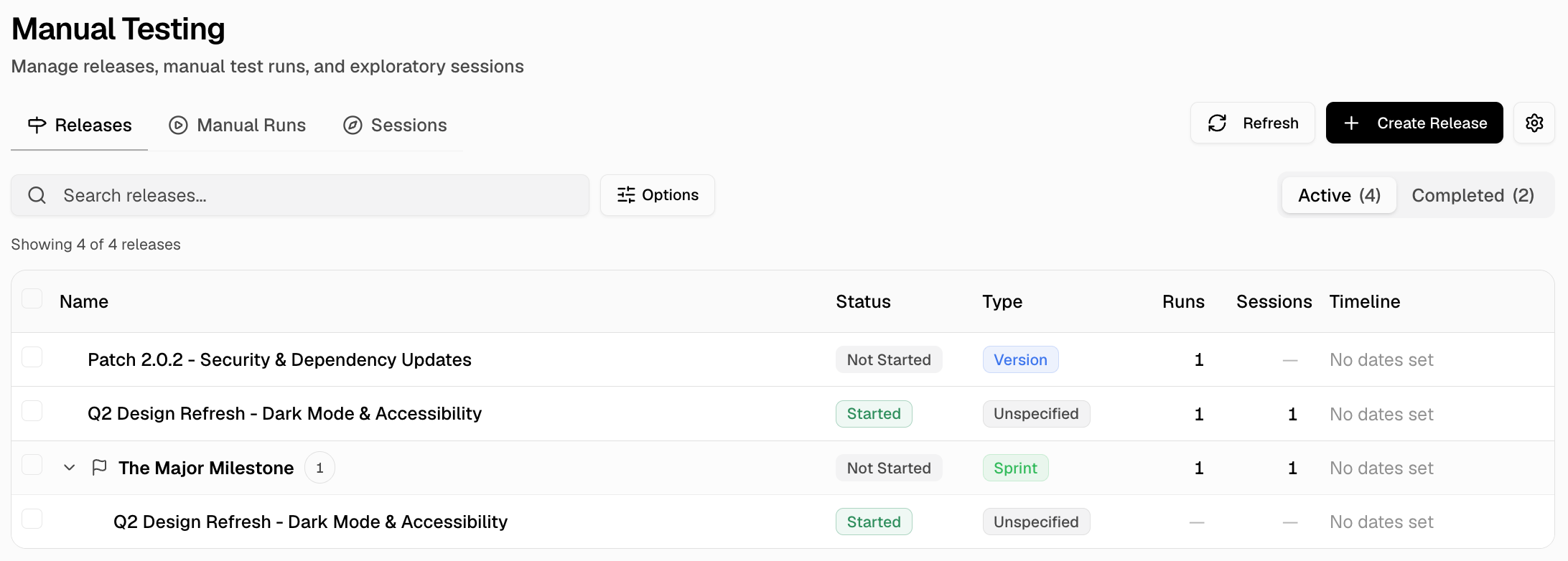 ## Create Or Edit Release
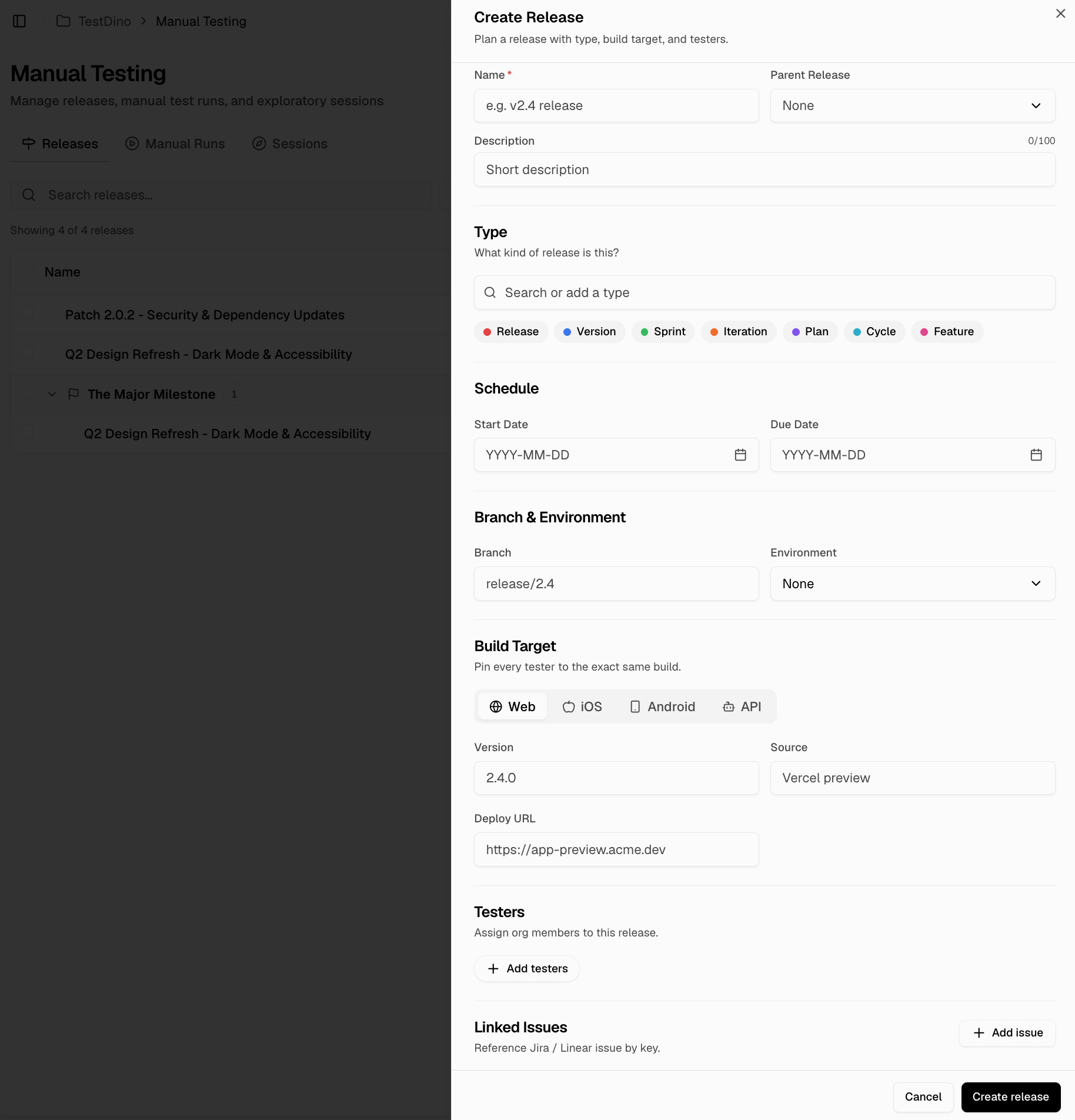
Open the dialog from the **+ Release** button on the Releases page. The same form is reused for editing: open any release from the list and click **Edit** in the header.
| Field | Description |
| :-------------- | :-------------------------------------------------------------------------------------------- |
| `Name` | Release name |
| `Description` | Long-form description |
| `Type` | Value from [Release Type Settings](#release-type-settings), e.g. `release`, `hotfix`, `patch` |
| `Parent` | Optional parent release; see [Release Scope](#release-scope) |
| `Start Date` | Planned start date |
| `Due Date` | Planned due date; drives the `Past Due` status |
| `Branch` | Source-control branch |
| `Environment` | Target environment from project settings |
| `Build target` | Platform, version, build number, source, and deploy URL |
| `Testers` | Assigned testers; must be organization members |
| `Linked issues` | External issue references such as Jira keys |
| `Note` | Internal note with inline image support |
## Create Or Edit Release
Open the dialog from the **+ Release** button on the Releases page. The same form is reused for editing: open any release from the list and click **Edit** in the header.
| Field | Description |
| :-------------- | :-------------------------------------------------------------------------------------------- |
| `Name` | Release name |
| `Description` | Long-form description |
| `Type` | Value from [Release Type Settings](#release-type-settings), e.g. `release`, `hotfix`, `patch` |
| `Parent` | Optional parent release; see [Release Scope](#release-scope) |
| `Start Date` | Planned start date |
| `Due Date` | Planned due date; drives the `Past Due` status |
| `Branch` | Source-control branch |
| `Environment` | Target environment from project settings |
| `Build target` | Platform, version, build number, source, and deploy URL |
| `Testers` | Assigned testers; must be organization members |
| `Linked issues` | External issue references such as Jira keys |
| `Note` | Internal note with inline image support |
 ## Release Scope
From a release's detail page, you can add three items: a test run, an exploratory session, or a sub-release.
## Release Scope
From a release's detail page, you can add three items: a test run, an exploratory session, or a sub-release.
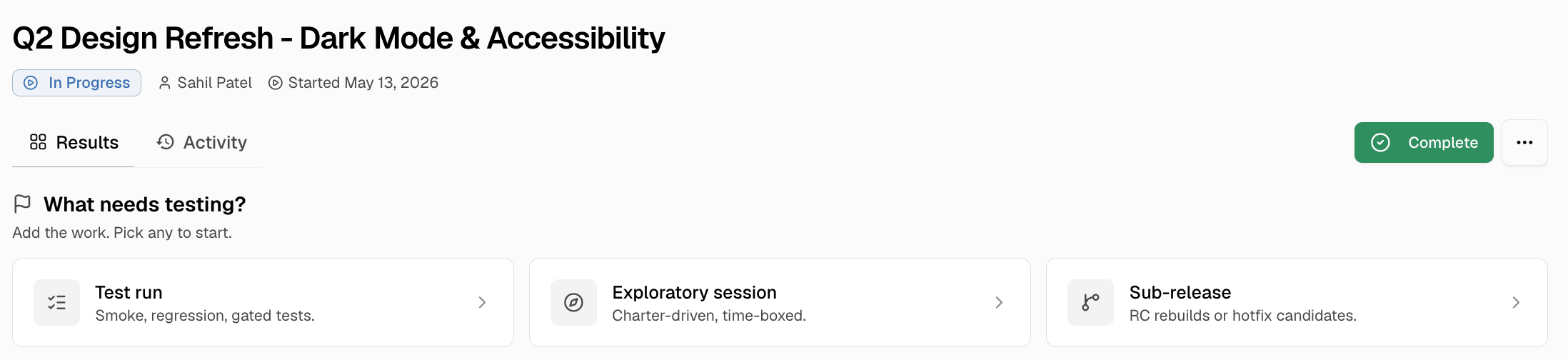 * **Test run** - Creates a [manual run](/test-management/manual-testing/manual-runs) under this release. Good for a fixed list of test cases, like a smoke check before a deploy or a regression pass.
* **Exploratory session** - Creates a [session](/test-management/manual-testing/sessions) under this release. Best for unscripted testing where you set a mission, explore, and log findings as you go.
* **Sub-release** - Creates a child release inside this one. Useful when a long cycle needs to split into phases, like a major version broken into a beta phase and a final phase (`v2.0 → Beta → Final`).
**Note**
* Items added from the detail page link automatically to the release.
* Sub-releases support up to 3 levels.
## Track Progress on Release Detail
The detail page shows the release status, dates, edit options, and action buttons. Use the `Results` tab to track test progress and the `Activity` tab to view the audit timeline.
### Release States
Releases move through `Not Started`, `In Progress`, and `Completed`. `Past Due` appears if the due date passes before completion. Use Start, Complete, or Reopen to update the release state. Linked runs and sessions must be closed separately.
### Results Tab
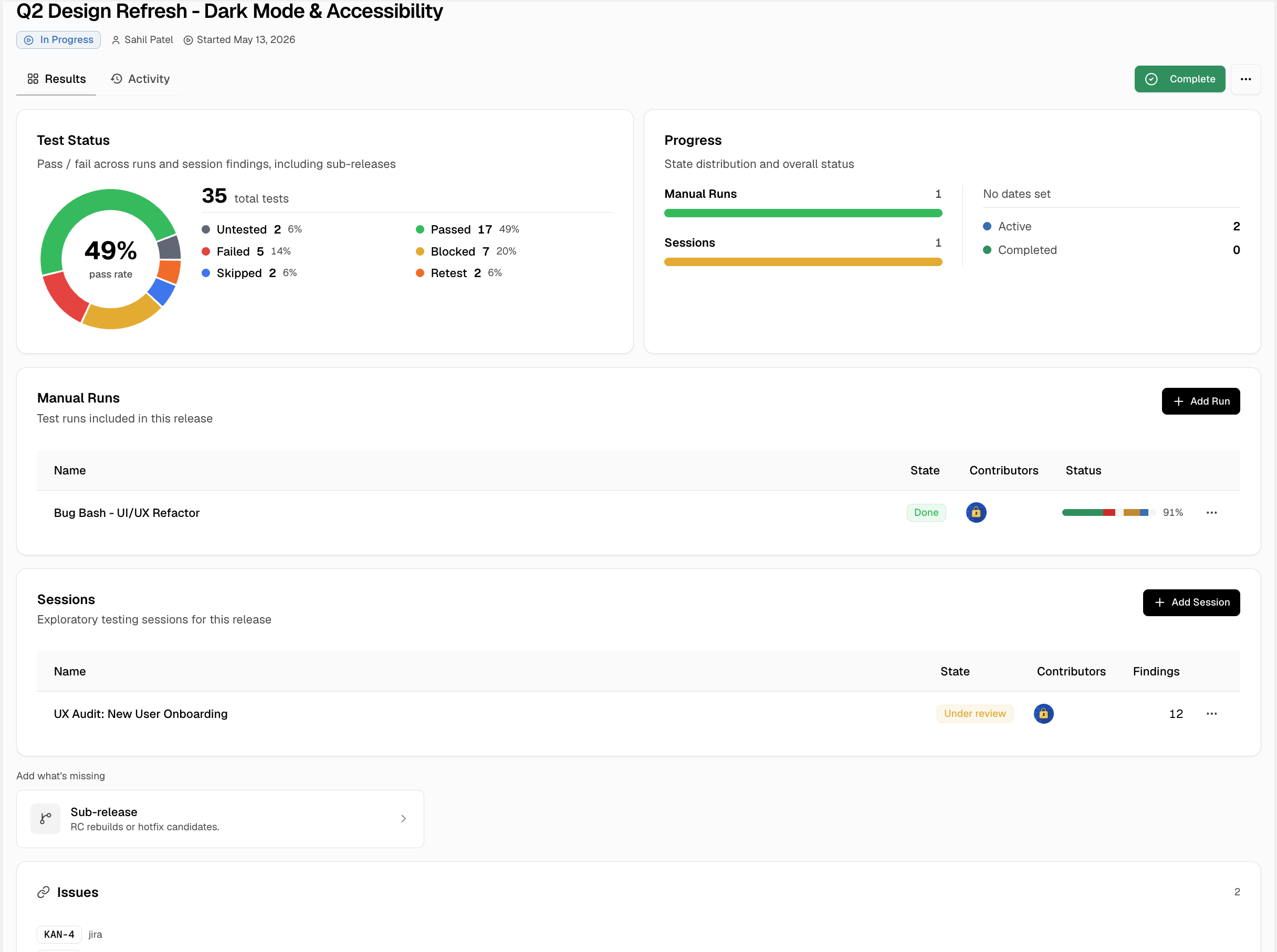
The `Results` tab combines test status from every linked run, session, and sub-release into a single rollup.
* **Test run** - Creates a [manual run](/test-management/manual-testing/manual-runs) under this release. Good for a fixed list of test cases, like a smoke check before a deploy or a regression pass.
* **Exploratory session** - Creates a [session](/test-management/manual-testing/sessions) under this release. Best for unscripted testing where you set a mission, explore, and log findings as you go.
* **Sub-release** - Creates a child release inside this one. Useful when a long cycle needs to split into phases, like a major version broken into a beta phase and a final phase (`v2.0 → Beta → Final`).
**Note**
* Items added from the detail page link automatically to the release.
* Sub-releases support up to 3 levels.
## Track Progress on Release Detail
The detail page shows the release status, dates, edit options, and action buttons. Use the `Results` tab to track test progress and the `Activity` tab to view the audit timeline.
### Release States
Releases move through `Not Started`, `In Progress`, and `Completed`. `Past Due` appears if the due date passes before completion. Use Start, Complete, or Reopen to update the release state. Linked runs and sessions must be closed separately.
### Results Tab
The `Results` tab combines test status from every linked run, session, and sub-release into a single rollup.
 ### Activity Tab
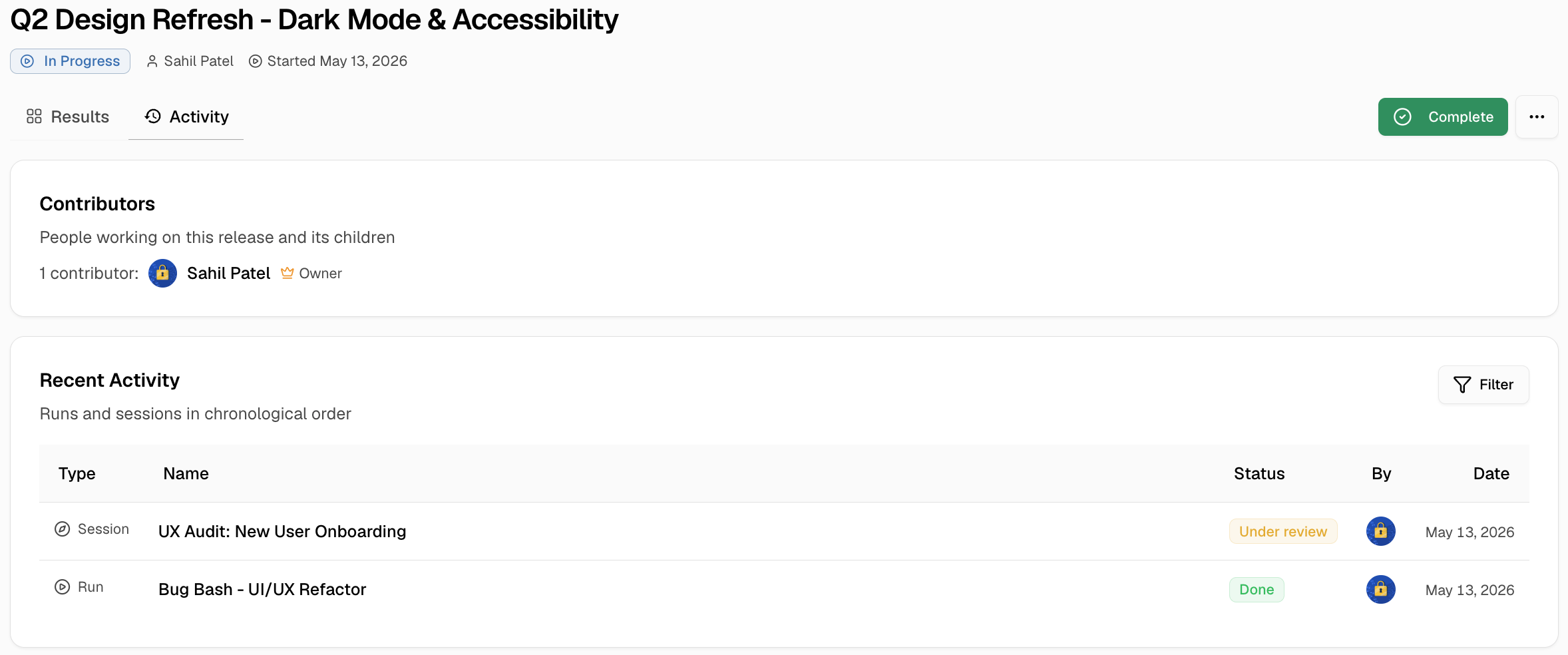
The `Activity` tab lists run results and session findings in chronological order, with the contributor for each entry.
### Activity Tab
The `Activity` tab lists run results and session findings in chronological order, with the contributor for each entry.
 ## Release Type Settings
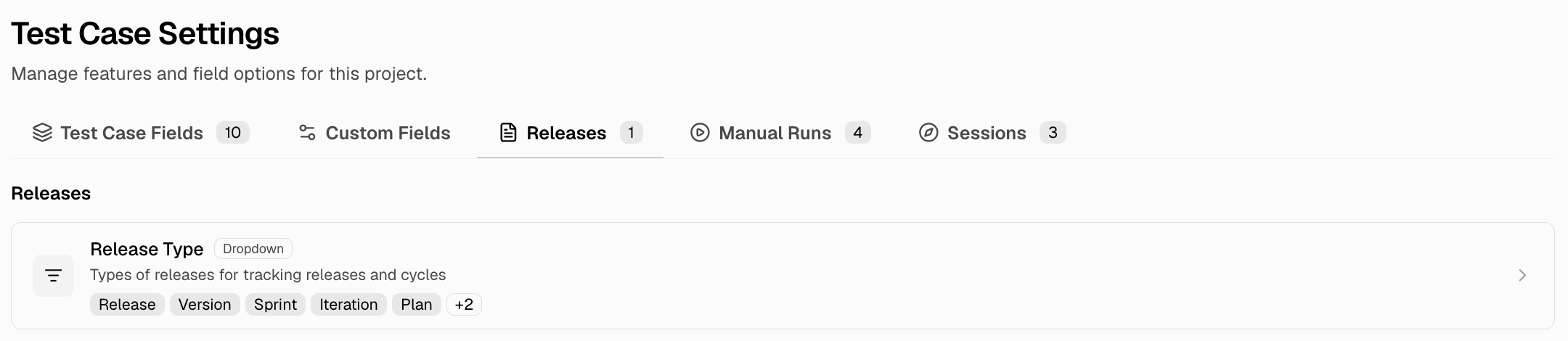
Use `Type` to categorize releases. You can also customize and manage these values via ** Test Case Settings → `Releases`** in the header.
## Release Type Settings
Use `Type` to categorize releases. You can also customize and manage these values via ** Test Case Settings → `Releases`** in the header.
 Execute manual test cases inside a release
Track exploratory work linked to a release
Execute manual test cases inside a release
Track exploratory work linked to a release