> ## Documentation Index
> Fetch the complete documentation index at: https://docs.testdino.com/llms.txt
> Use this file to discover all available pages before exploring further.
# Manual Testing Sessions
> Run exploratory testing sessions, log findings with attachments and linked issues, and roll up activity per release.
**What you'll learn**
* How to create and configure a session
* What a finding records and how its issues link back
* What the session detail page shows: mission, findings, and the summary panel
* When and how sessions close
A session is used for exploratory testing in TestDino. Each session includes a mission, current state, optional release link, and a list of findings discovered during testing. Findings can include comments, attachments, statuses, and linked issues.
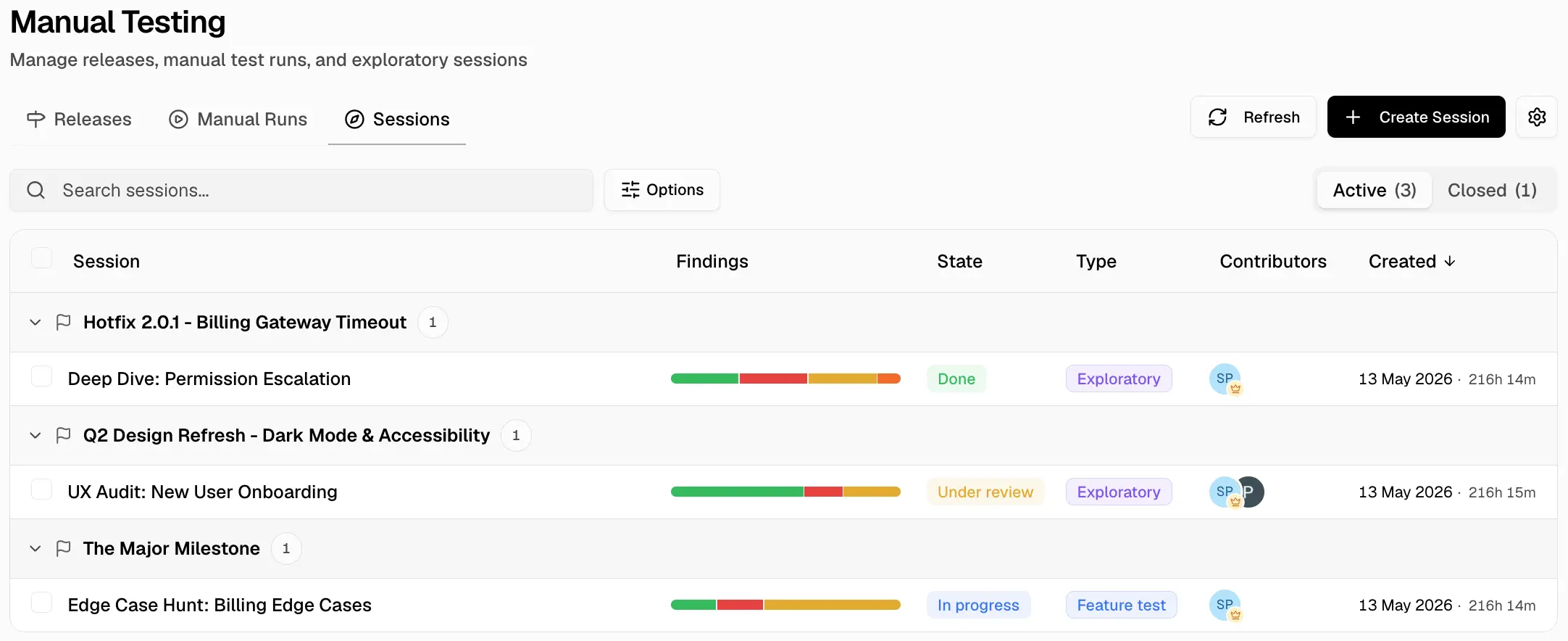 ## Create Or Edit Session
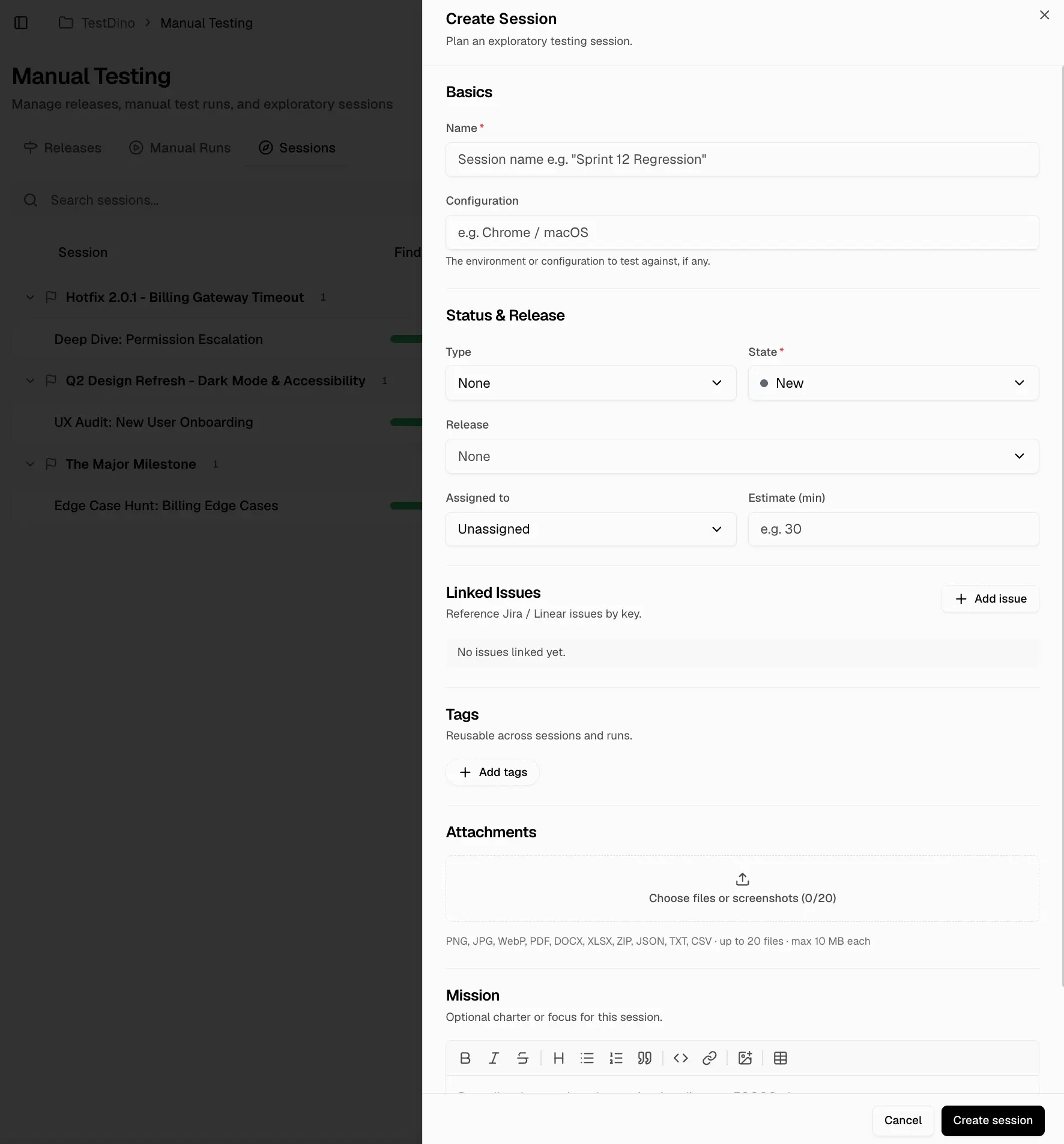
You can create a session from the **+ Session** button. To edit an existing session, open it from the list and click **Edit** in the header.
| Field | Description |
| :--------------- | :------------------------------------------------------------------------ |
| `Name` | Required session name (up to 500 characters) |
| `Mission` | Session charter or goal (up to 50,000 characters, supports inline images) |
| `Type` | Session type from project settings |
| `State` | Workflow state from project settings; defaults to `New` |
| `Configuration` | Setup label (e.g. device, build); free text up to 200 characters |
| `Environment` | Target environment (free text up to 200 characters) |
| `Release` | Optional linked release |
| `Assigned To` | Single session owner |
| `Estimate (min)` | Planned duration in minutes |
| `Tags` | Up to 50 tags |
| `Linked issues` | Session-level external issue references |
| `Attachments` | Session-level files (up to 20) |
## Create Or Edit Session
You can create a session from the **+ Session** button. To edit an existing session, open it from the list and click **Edit** in the header.
| Field | Description |
| :--------------- | :------------------------------------------------------------------------ |
| `Name` | Required session name (up to 500 characters) |
| `Mission` | Session charter or goal (up to 50,000 characters, supports inline images) |
| `Type` | Session type from project settings |
| `State` | Workflow state from project settings; defaults to `New` |
| `Configuration` | Setup label (e.g. device, build); free text up to 200 characters |
| `Environment` | Target environment (free text up to 200 characters) |
| `Release` | Optional linked release |
| `Assigned To` | Single session owner |
| `Estimate (min)` | Planned duration in minutes |
| `Tags` | Up to 50 tags |
| `Linked issues` | Session-level external issue references |
| `Attachments` | Session-level files (up to 20) |
 **Note**
The `Release` field is optional. A session without a release appears in the **No release** group on the list.
## Session Detail
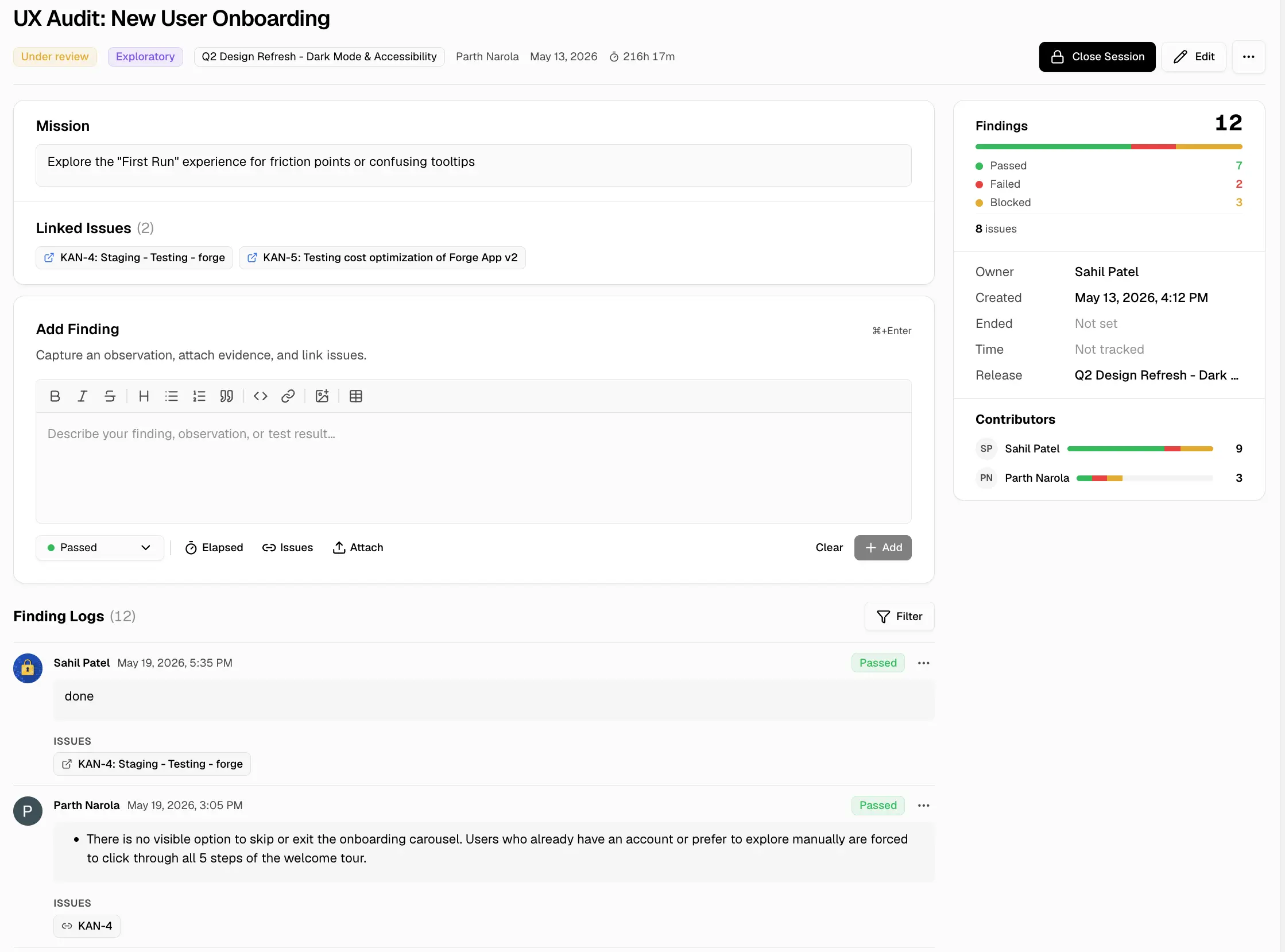
The Session Detail page is where teams record and manage findings during exploratory testing. It includes the mission, finding log, activity details, and a session summary panel.
**Note**
The `Release` field is optional. A session without a release appears in the **No release** group on the list.
## Session Detail
The Session Detail page is where teams record and manage findings during exploratory testing. It includes the mission, finding log, activity details, and a session summary panel.
 ### Mission and Findings
The main panel displays the session mission, `Add Finding` editor, and the finding log. Findings are shown in chronological order and can be filtered by status.
### Summary Panel
The `Summary` panel provides an overview of the session, including current state, created and closed time, creator, estimated and elapsed time, linked release, finding counts by status, and contributors who recorded findings.
## Findings
A finding is an individual observation recorded during a session. Each finding includes its own status, comment, elapsed time, attachments, and linked issues. Comments support rich text and inline images.
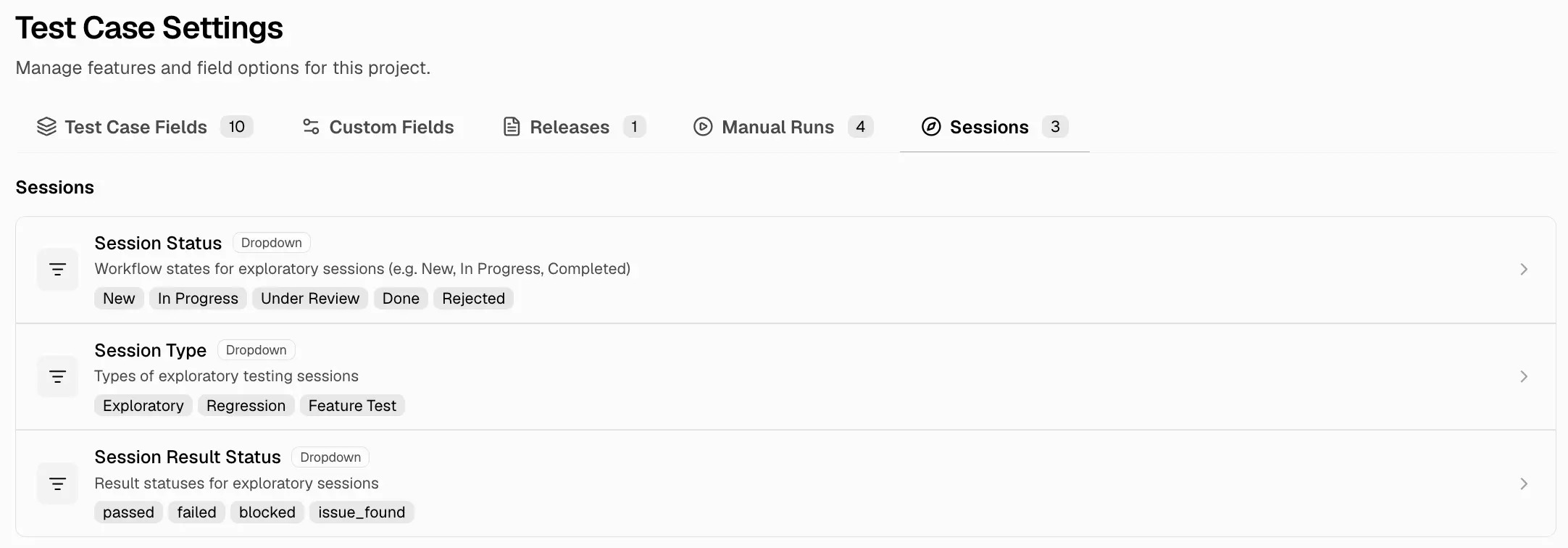
Findings use four default statuses: `passed`, `failed`, `blocked`, and `issue_found`. These statuses can be customized in ** Test Case Settings → `Sessions → Result Status`**.
Issues linked to a finding are separate from session-level linked issues. Use finding-level links for specific observations and session-level links for issues affecting the entire session.
## Closing A Session
Closing a session is permanent. Use **Close** in the session detail header. After close, the session stays viewable but new findings, status changes, and field edits are blocked.
## Session Settings
Session-related project settings are managed via ** Test Case Settings → `Sessions`** in the header.
| Setting | Default Values |
| :--------------- | :------------------------------------------------------- |
| `Session Status` | `New`, `In Progress`, `Under Review`, `Done`, `Rejected` |
| `Session Type` | `Exploratory`, `Regression`, `Feature Test` |
| `Result Status` | `passed`, `failed`, `blocked`, `issue_found` |
### Mission and Findings
The main panel displays the session mission, `Add Finding` editor, and the finding log. Findings are shown in chronological order and can be filtered by status.
### Summary Panel
The `Summary` panel provides an overview of the session, including current state, created and closed time, creator, estimated and elapsed time, linked release, finding counts by status, and contributors who recorded findings.
## Findings
A finding is an individual observation recorded during a session. Each finding includes its own status, comment, elapsed time, attachments, and linked issues. Comments support rich text and inline images.
Findings use four default statuses: `passed`, `failed`, `blocked`, and `issue_found`. These statuses can be customized in ** Test Case Settings → `Sessions → Result Status`**.
Issues linked to a finding are separate from session-level linked issues. Use finding-level links for specific observations and session-level links for issues affecting the entire session.
## Closing A Session
Closing a session is permanent. Use **Close** in the session detail header. After close, the session stays viewable but new findings, status changes, and field edits are blocked.
## Session Settings
Session-related project settings are managed via ** Test Case Settings → `Sessions`** in the header.
| Setting | Default Values |
| :--------------- | :------------------------------------------------------- |
| `Session Status` | `New`, `In Progress`, `Under Review`, `Done`, `Rejected` |
| `Session Type` | `Exploratory`, `Regression`, `Feature Test` |
| `Result Status` | `passed`, `failed`, `blocked`, `issue_found` |
 Use runs for structured manual case execution
Group sessions into releases and sub-releases
Use runs for structured manual case execution
Group sessions into releases and sub-releases