> ## Documentation Index
> Fetch the complete documentation index at: https://docs.testdino.com/llms.txt
> Use this file to discover all available pages before exploring further.
# Test Suites in TestDino
> Organize test cases into nested suites using the tree view.
**What you'll learn**
* How the Suites view organizes test cases in a tree structure
* How to create, reorder, and manage suites
* How to create test cases inside suites
* How inline test case rows work
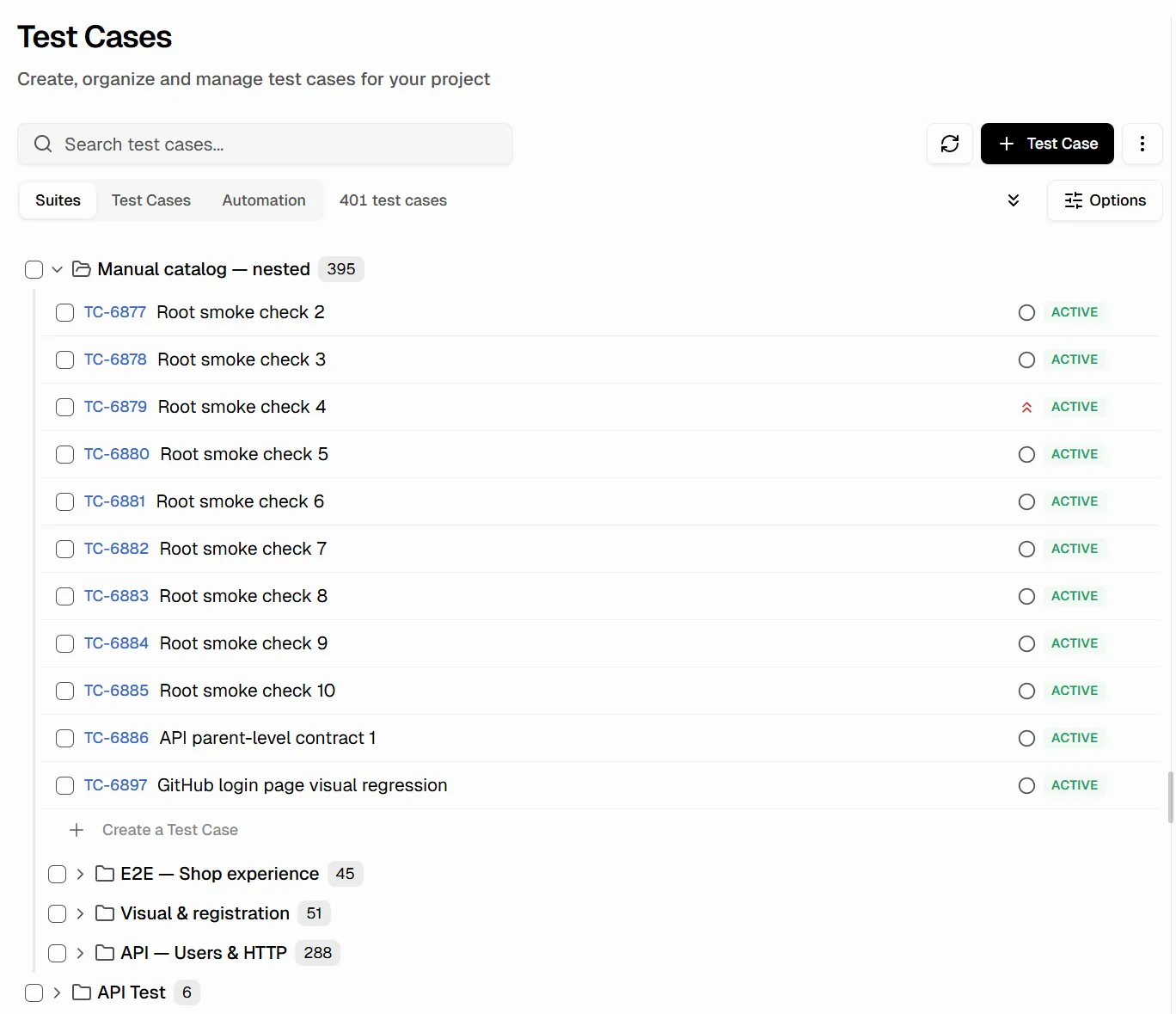
The Suites view displays test suites as a collapsible tree. Each suite shows its name and the count of test cases it contains. Use it to organize tests by feature, module, or area.
 ## Create a Suite
Click the **+** icon next to the **SUITES** header in the sidebar to add a suite. Provide a name, optional description, and optional parent suite to create a nested structure.
Hover any suite row to reveal **+** (add child suite), **pencil** (edit), and **trash** (delete) icons.
## Reorder Suites and Cases
Drag any suite or test case by its handle to reorder within the tree, or drop it onto a different parent. Suites support up to six levels of nesting; case order is persisted per suite.
## Expand and Collapse
Click a suite name to expand it and see its test cases. Use the expand/collapse all button in the toolbar to open or close every suite at once.
## Create Test Cases in a Suite
Two ways to create test cases:
* Click the **+ Create a Test Case** row at the bottom of any expanded suite
* Use the **+ New** button in the header (select the target suite in the form)
## Inline Test Case Rows
Inside each expanded suite, test cases are listed with:
| Element | Description |
| :----------------------- | :------------------------------------------------------------ |
| Checkbox | For [bulk selection](/test-management/bulk-actions) |
| Case ID | Unique identifier (e.g., `TC-6838`) |
| Title | The test case name |
| Status & Priority badges | Shown inline, configurable via **Options** → **List Options** |
Click any test case row to open its [Details Sheet](/test-management/test-cases/list-view#details-sheet) on the right. Tick the **suite-level checkbox** to select every test case inside that suite for [Bulk Actions](/test-management/bulk-actions), and use the selection toolbar to delete whole suites along with their cases.
Flat list with search, filter, and full details sheet
Edit, delete, or print multiple test cases at once
Suites, test cases, steps, and project settings
## Create a Suite
Click the **+** icon next to the **SUITES** header in the sidebar to add a suite. Provide a name, optional description, and optional parent suite to create a nested structure.
Hover any suite row to reveal **+** (add child suite), **pencil** (edit), and **trash** (delete) icons.
## Reorder Suites and Cases
Drag any suite or test case by its handle to reorder within the tree, or drop it onto a different parent. Suites support up to six levels of nesting; case order is persisted per suite.
## Expand and Collapse
Click a suite name to expand it and see its test cases. Use the expand/collapse all button in the toolbar to open or close every suite at once.
## Create Test Cases in a Suite
Two ways to create test cases:
* Click the **+ Create a Test Case** row at the bottom of any expanded suite
* Use the **+ New** button in the header (select the target suite in the form)
## Inline Test Case Rows
Inside each expanded suite, test cases are listed with:
| Element | Description |
| :----------------------- | :------------------------------------------------------------ |
| Checkbox | For [bulk selection](/test-management/bulk-actions) |
| Case ID | Unique identifier (e.g., `TC-6838`) |
| Title | The test case name |
| Status & Priority badges | Shown inline, configurable via **Options** → **List Options** |
Click any test case row to open its [Details Sheet](/test-management/test-cases/list-view#details-sheet) on the right. Tick the **suite-level checkbox** to select every test case inside that suite for [Bulk Actions](/test-management/bulk-actions), and use the selection toolbar to delete whole suites along with their cases.
Flat list with search, filter, and full details sheet
Edit, delete, or print multiple test cases at once
Suites, test cases, steps, and project settings