TestDino MCP Server
Integrate TestDino with AI assistants like Claude and Cursor to get intelligent insights about your Playwright test results, automated debugging, and AI-powered test analysis.
What is MCP?
Model Context Protocol (MCP) is an open standard introduced by Anthropic that enables AI models to interact with external tools and resources in a consistent way. It allows AI assistants to access real-time data and perform actions through standardized interfaces.
What is TestDino MCP Server?
TestDino MCP server is a context provider that connects your AI tools (Claude Desktop, Cursor, and other MCP-compatible clients) with your Playwright test results. It enables AI assistants to:
- Analyze failed tests and identify root causes
- Access test execution history and trends
- Retrieve detailed error logs and debugging information
- Upload local test results for analysis
- Provide insights on test flakiness and performance
Quick start steps
1. Installation
Install the TestDino MCP server globally via npm:
npm install -g testdino-mcpAlternatively, use npx to run without installation (recommended for trying it out):
npx -y testdino-mcp2. Configuration
Configure TestDino MCP server with your preferred AI assistant:
2.1 Cursor IDE
-
Open Cursor Settings → MCP → Enable MCP
-
Locate your
mcp.jsonconfiguration file:- Windows:
%APPDATA%\Cursor\mcp.jsonor.cursor/mcp.jsonin your project root - macOS/Linux:
~/.cursor/mcp.jsonor.cursor/mcp.jsonin your project root
- Windows:
-
Add the TestDino MCP server configuration:
{
  "mcpServers": {
    "TestDino": {
      "command": "npx",
      "args": ["-y", "testdino-mcp"],
      "env": {
        "TESTDINO_API_KEY": "your-api-key"
      }
    }
  }
}
For global installation:
{
  "mcpServers": {
    "TestDino": {
      "command": "testdino-mcp",
      "env": {
        "TESTDINO_API_KEY": "your-api-key"
      }
    }
  }
}- Restart Cursor completely
- Verify the installation by checking Settings → MCP - "TestDino" should appear in the server list
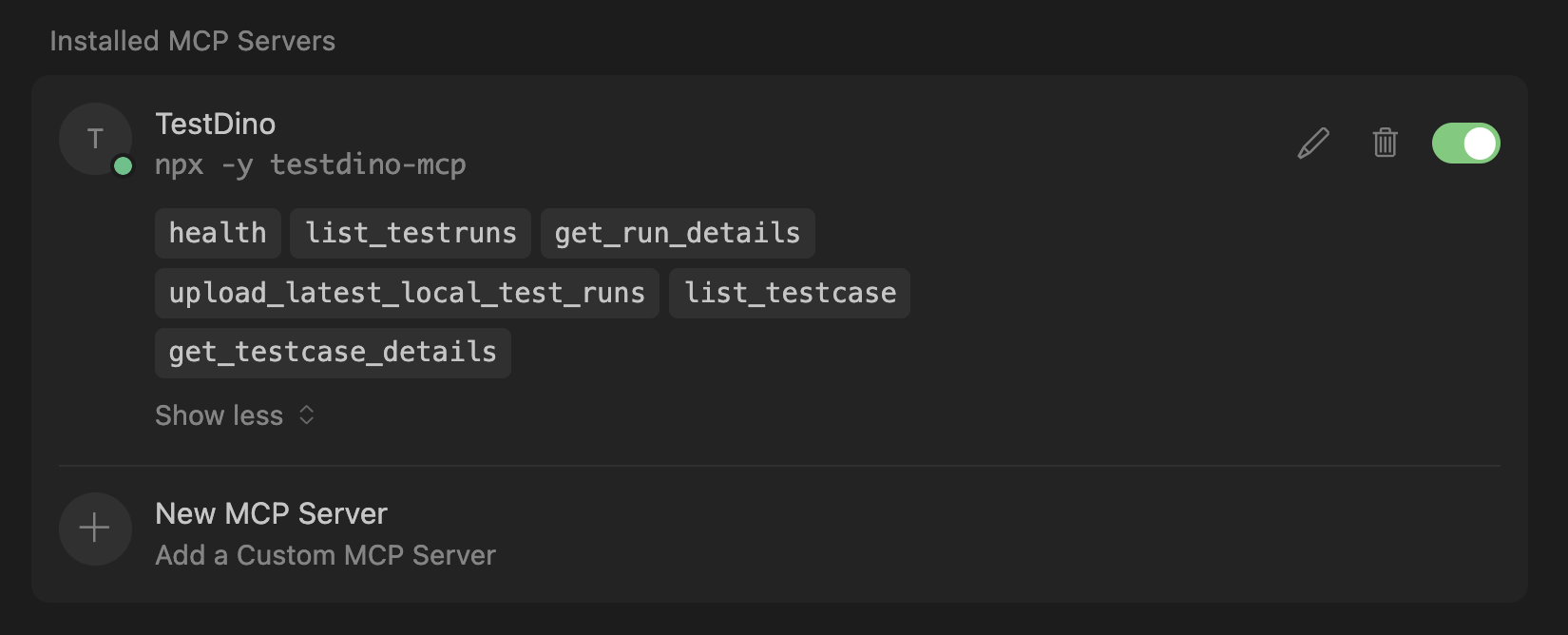
2.2 Claude Desktop
-
Locate your Claude Desktop configuration file:
- Windows:
%APPDATA%\Claude\claude_desktop_config.json - macOS:
~/Library/Application Support/Claude/claude_desktop_config.json - Linux:
~/.config/Claude/claude_desktop_config.json
- Windows:
-
Add the TestDino MCP server configuration:
{
  "mcpServers": {
    "TestDino": {
      "command": "npx",
      "args": ["-y", "testdino-mcp"],
      "env": {
        "TESTDINO_API_KEY": "your-api-key"
      }
    }
  }
}
For global installation:
{
  "mcpServers": {
    "TestDino": {
      "command": "testdino-mcp",
      "env": {
        "TESTDINO_API_KEY": "your-api-key"
      }
    }
  }
}- Restart Claude Desktop to apply the configuration
3. Get Your TestDino API Key
To authenticate the MCP server with TestDino:
- Log in to your TestDino account (opens in a new tab)
- Navigate to Project Settings → API Keys
- Generate a new API key or copy an existing one
- Replace
your-api-keyin the configuration files above with your actual API key
Keep your API key secure and never commit it to version control. Consider using environment variables for production environments.
4. Example AI Prompts
Once configured, you can use natural language prompts with your AI assistant:
Check TestDino health
Show me all failed tests from the last run
Upload my latest Playwright test results
What are the most flaky tests from the last 7 days?
Analyze the failures in test run #12345
Features & Capabilities
The TestDino MCP server provides AI assistants with powerful tools to analyze and debug your Playwright tests:
Available Tools
| Tool | Description |
|---|---|
health | Verifies server availability and validates API key configuration |
list_testruns | Retrieves test runs with advanced filtering by branch, time range, author, commit hash, and environment |
get_run_details | Returns comprehensive details of a specific test run, including pass/fail statistics and failure analysis |
list_testcase | Lists test cases with filtering by status, browser, error category, flakiness, and custom attributes |
get_testcase_details | Retrieves complete information about a specific test case, including error traces, screenshots, videos, and execution logs |
upload_latest_local_test_runs | Uploads Playwright test results directly from your local development environment to TestDino for analysis |
What AI Assistants Can Do
With access to these tools, AI assistants can help you:
- Debug Test Failures: Analyze error messages, stack traces, and execution logs to identify root causes
- Monitor Test Health: Track test stability, flakiness rates, and performance trends over time
- Generate Reports: Summarize test run results and highlight critical issues
- Optimize Tests: Identify slow tests, flaky tests, and tests that need attention
- Upload Results: Push local test results to TestDino for centralized tracking and analysis
- Historical Analysis: Compare test performance across different commits, branches, and environments
Common Use Cases
Ask your AI assistant to help with tasks like:
- "Please fix this flaky test"
- "Summarize my last test run and highlight critical failures"
- "What were the top 5 flaky tests in the last 30 days?"
- "Which test specs took the longest to run in the last week?"
- "Show me all failed tests from the develop branch"
- "Upload my latest Playwright test results to TestDino"
- "Compare test performance between the main and feature branch"
- "What's causing the authentication tests to fail?"
Next Steps
- Tools Reference - Detailed specifications for all available MCP tools
- Troubleshooting - Common issues and solutions
Ready to get started? Install the MCP server and start chatting with your AI assistant about your Playwright tests!