Prerequisites
- A TestDino account with access to at least one project
- A Personal Access Token with access to the modules you want to query (Test Runs, Manual Tests, or both)
- Node.js installed (so
npxworks) - An MCP client (Cursor, Claude Desktop, or another MCP-compatible app)
- Network access to TestDino APIs
Quick Start Steps
1. Install
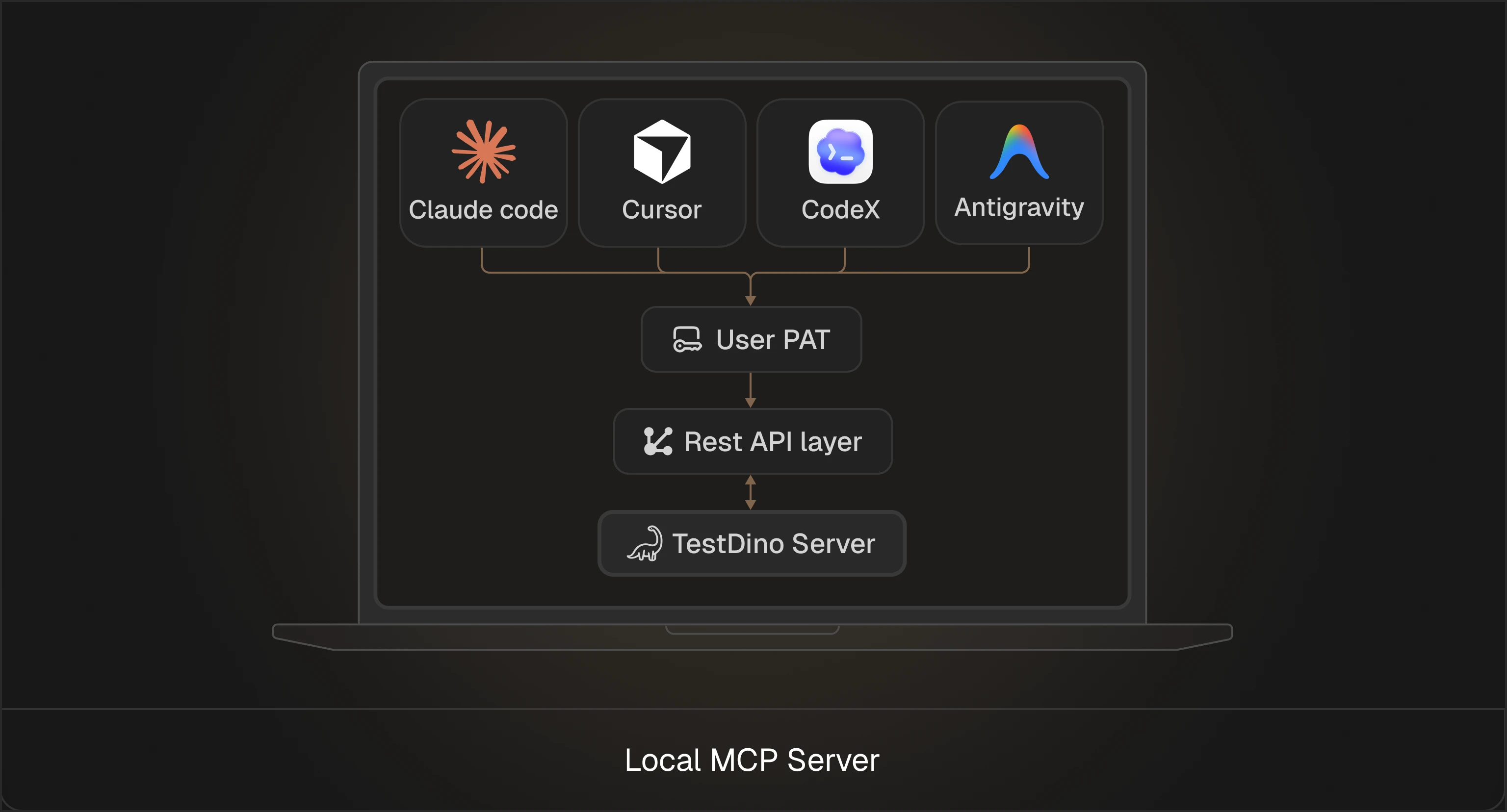
Try it without installing:Your MCP client starts the server as a local process.
npx is easiest for evaluation, and a global install is convenient for daily use.2. Create a Personal Access Token in TestDino
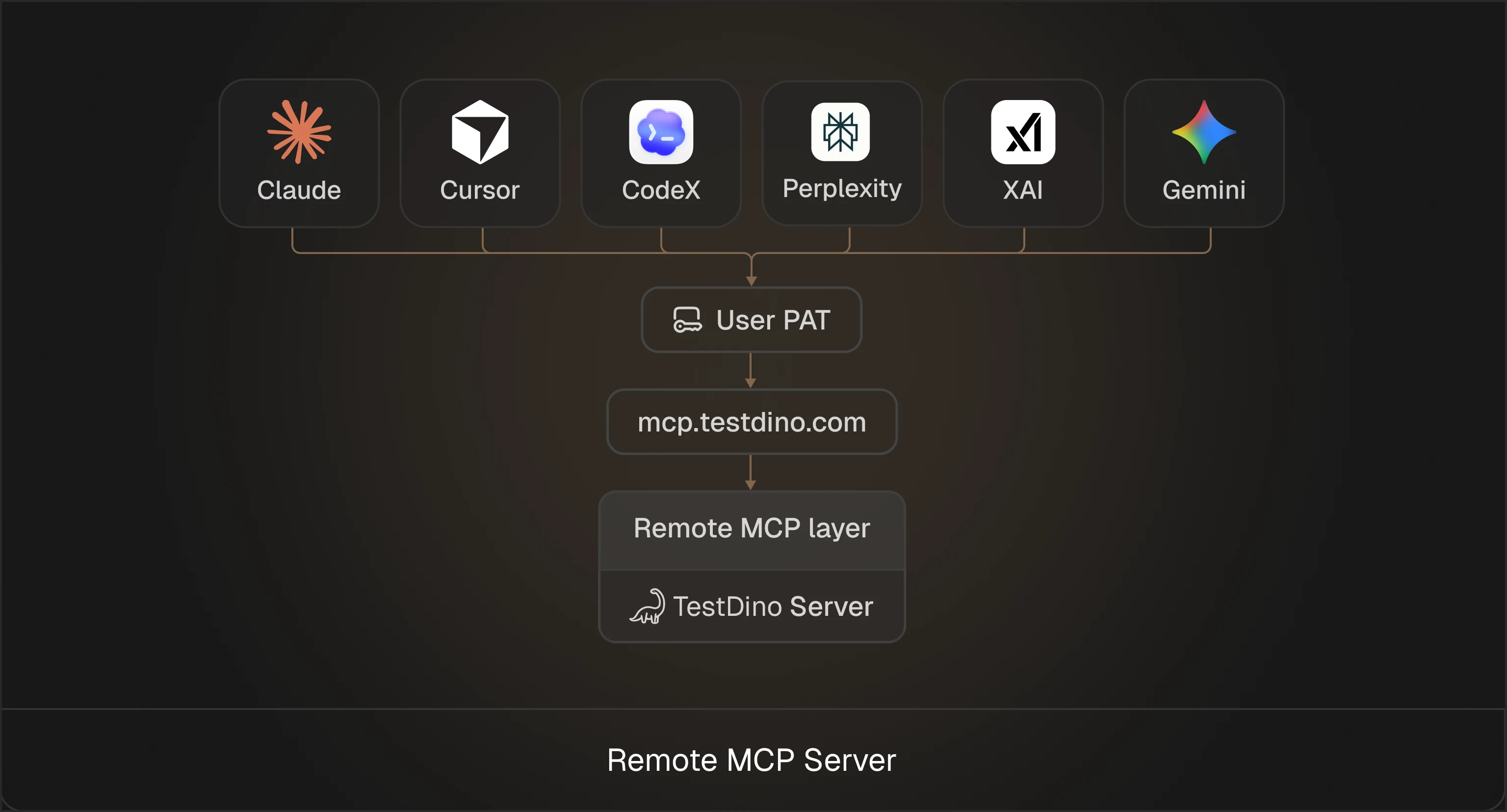
You will paste this token into your MCP client config asTESTDINO_PAT.
Step 1: Open user settings
- Sign in to
https://app.testdino.com - Click your profile in the sidebar
- Open User settings
Step 2: Generate a token
- Find Personal access tokens
- Click Generate new token
- Fill in:
- Token Name - Give it a descriptive name (example:
mcp server) - Expiration - Choose how long the token stays valid: 30 days, 60 days, 90 days, 180 days, or 1 year
- Token Name - Give it a descriptive name (example:
Step 3: Choose access scope
For each project you want the assistant to query, grant access to one or both:- Test runs: runs, failures, artifacts, metadata
- Manual tests: test case management
For MCP to be useful, the token must have access to at least one module in at least one project.
Step 4: Copy and store the token
- Click Generate token
- Copy it immediately (you will not see it again)
- Store it in a password manager
The MCP server cannot read anything from TestDino without a token. Scope controls what the assistant is allowed to access.
3. Configure your MCP client
Pick the client you use and add a server entry.- Cursor
- Claude Desktop
- Open Cursor settings
- Go to Tools & MCP
- Add MCP server
- Create or edit the MCP config file:
- Project level:
.cursor/mcp.json - Windows (app data):
%APPDATA%\Cursor\mcp.json - macOS or Linux (home):
~/.cursor/mcp.json
.cursor/mcp.json
.cursor/mcp.json
- Restart Cursor fully
- Go back to Settings → MCP and confirm TestDino appears
Cursor reads MCP server definitions at startup. A full restart ensures it reloads the config and spawns the server.
4. Validate the connection
After restarting your MCP client, run thehealth tool first.
Example prompt to your assistant:
- “Run
healthwith nametestdinoand confirm it can see my organisations and projects.”
Example prompts
Test run analysis
- Which are the most flaky test cases from the recent 10 test runs in TestDino?
- Which tests have been unstable for the last 3 hours on the main environment in TestDino?
- Show me all failed tests from the last run in TestDino.
- Debug the failing tests from the last run and provide fix suggestions in TestDino.
- List flaky tests on main from the last 7 days in TestDino.
- Show tests tagged @auth, @smoke that failed in production.
- Summarize which test broke in branch “main”.
- Can you explain the likely root cause of the test case “visual.spec.js” on the development branch in TestDino?
- Debug the test case “Verify that User Can Complete the Journey from Login to Order Placement” in project xyz.
Manual test case management
- List all critical priority test cases in the checkout suite.
- Find manual test cases tagged with @auth that are not yet automated.
- Show me the steps for test case TC-456.
- Create a new test case for the password reset flow in the Authentication suite.
- Update TC-789 to change its status to deprecated.
- What test suites exist in project X?
- Create a new test suite called “Payment Processing” under the Checkout folder.
Features and capabilities
TestDino MCP Server exposes tools that enable assistants to:- Inspect runs by branch, environment, time window, author, or commit
- Pull run details, failure stats, and raw run JSON
- List and filter test cases across runs (failed, flaky, slow, tagged)
- Fetch full test case debugging context (logs, traces, screenshots, video)
- Search and maintain manual test cases and suites
- Debug specific test cases, perform root cause analysis, find failure patterns, and recommend fixes
Available tools
| Tool | What it does |
|---|---|
health | Confirms the server is running, and the token has access |
list_testruns | Lists test runs with filters like branch, environment, author, and time window |
get_run_details | Returns a full report for a run (or batch of runs) |
list_testcase | Lists test cases across one or more runs with filters |
get_testcase_details | Retrieves full debug details for a specific test case |
list_manual_test_cases | Searches manual test cases with filters (suite, tags, priority, status) |
get_manual_test_case | Retrieves a manual test case, including steps and custom fields |
create_manual_test_case | Creates a manual test case in a suite |
update_manual_test_case | Updates fields on a manual test case |
list_manual_test_suites | Lists the suite hierarchy and suite IDs |
create_manual_test_suite | Creates a suite (top-level or nested) |
debug_testcase | Debugs a test case, performs root cause analysis, finds failure patterns, and recommends a fix |