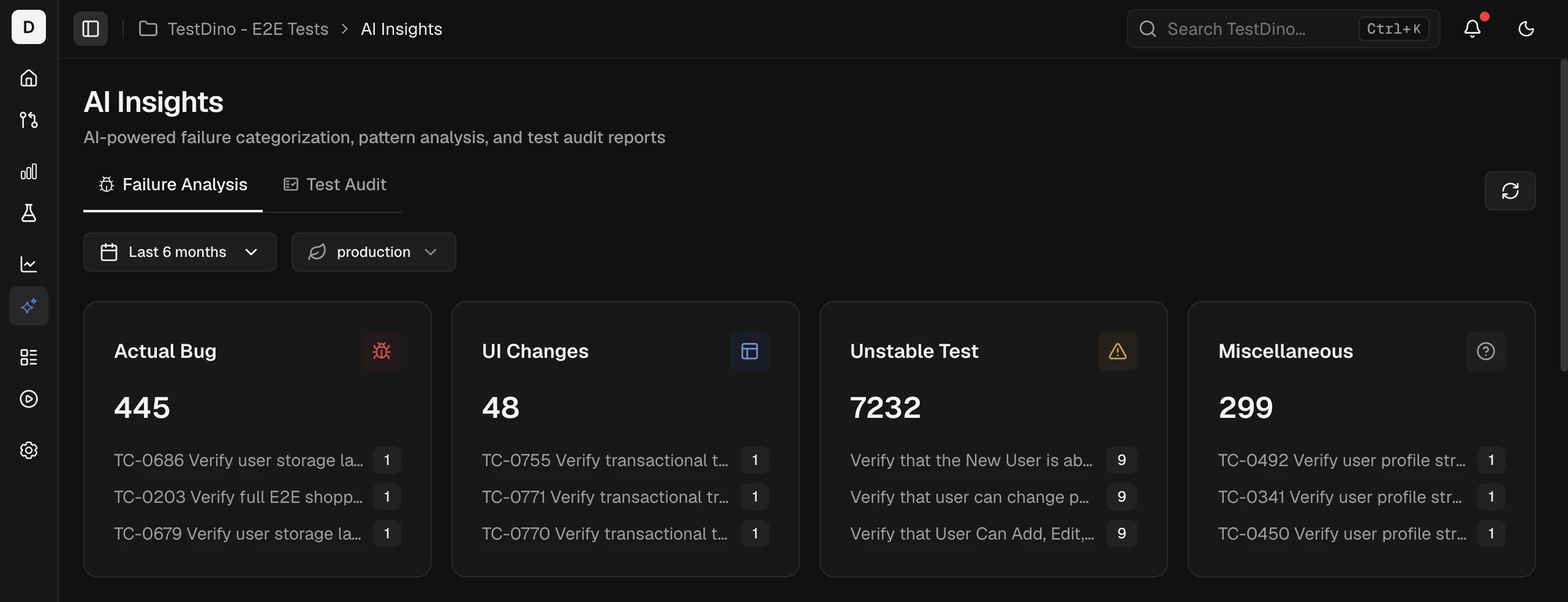
It works across runs for a selected time period and environment. This helps teams pick the first fix, avoid chasing flaky tests, and verify that recent changes improved stability.

Quick Start Steps

  1. Set scope - Select Time range and Environment. Keep both fixed for the entire review.
  2. Read category tiles - Note totals and the top affected tests. Flag categories with the highest counts or visible increases.
  3. Review patterns - Use the Key Metrics and Failure Patterns sections below to prioritize fixes.

Key Metrics

key metrics
  • Actual Bug: consistent failures that indicate a product defect. Fix these first to remove real risk.
  • UI Change: selector or DOM change that breaks a step. Update locators or flows to restore stability.
  • Unstable Test: intermittent behavior that passes on retry. Stabilize, deflake, or quarantine to cut noise.
  • Miscellaneous: setup, data, or CI issues outside the above. Resolve to prevent false signals.
Each card shows the total and a short list of top-impacted tests with per-test counts.

Failure Patterns

A cross-run view that groups failures by cause and shows patterns over time. It helps you find the real problems fast and reduce repeat flakes. You can filter by period and environment, scan category counts, then open the worst offenders. The table includes Test Name, Branch, Run IDs, and Failures (count). Use it to focus effort with these two views:

Persistent Failures

Tests failing across multiple runs in the window. Prioritize these to fix high-impact, recurring problems. Persistent failures

Emerging Failures

Tests that started failing recently and are appearing again. Triage these to catch regressions early. Emerging failures