

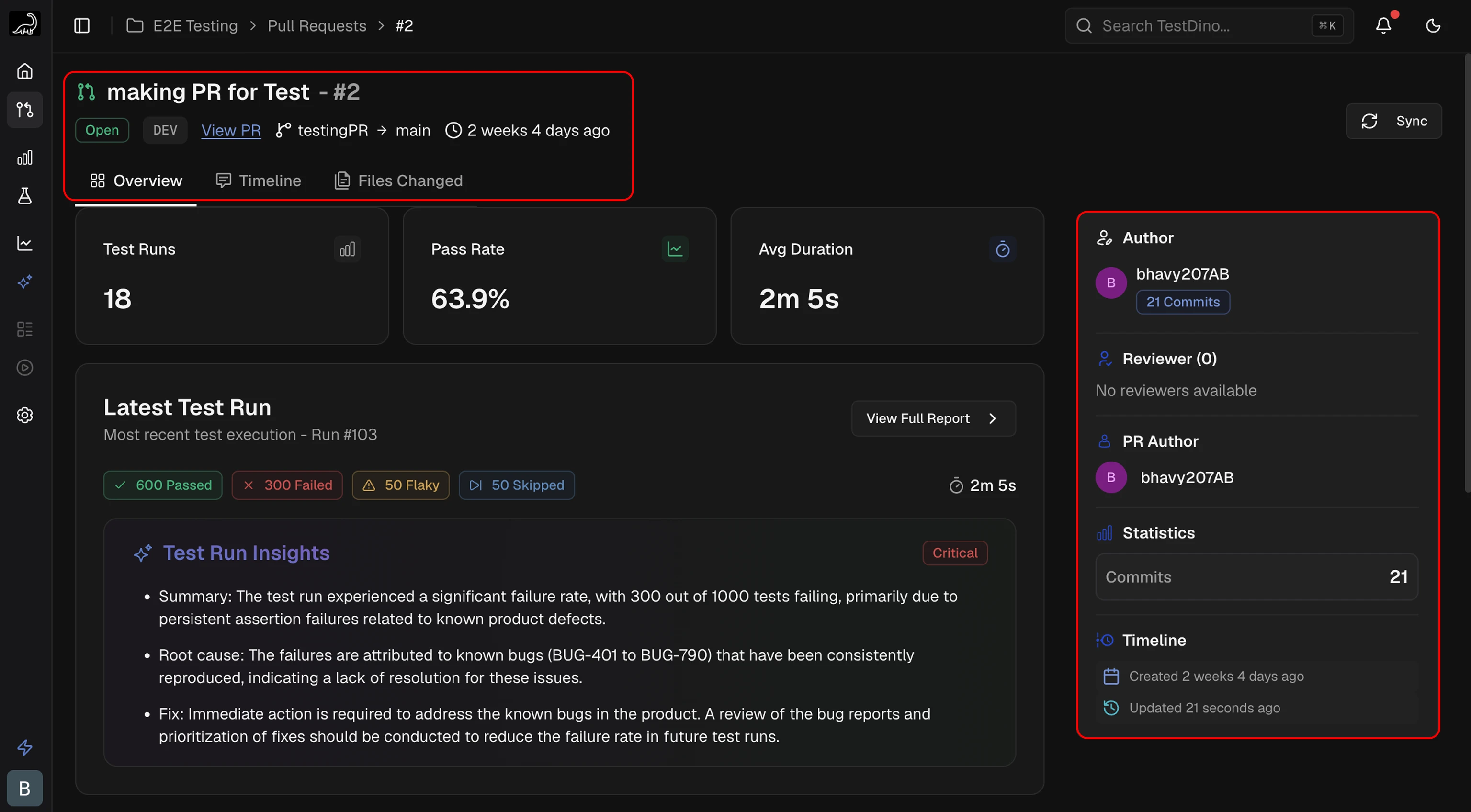
PR Header
The header displays the primary context for the PR:- PR Title and Number: Name and unique identifier
- Status Badge: Current state (Open, Draft, Merged, Closed)
- View PR Link: Direct link to the PR in GitHub or merge request in GitLab
- Branch Information: Source and target branches
- Timestamp: Time of last update or creation
Sidebar
 A panel displaying PR metadata and activity:
- Author, reviewer(s), and assignees
- Total files changed
- Aggregate code changes (additions and deletions)
- Created and last updated timestamps
KPI Tiles
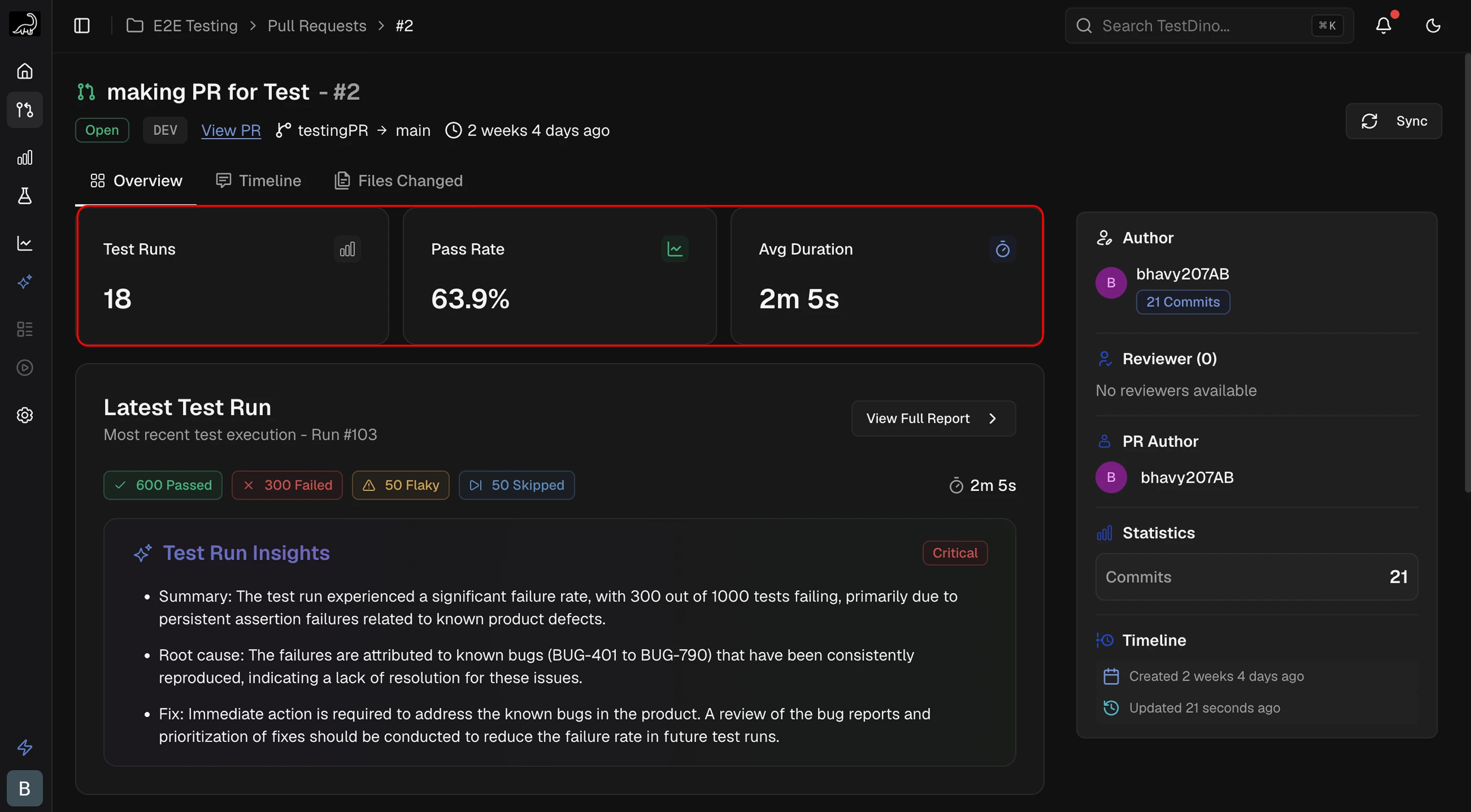 4 metrics summarizing PR activity:
Latest Test Run
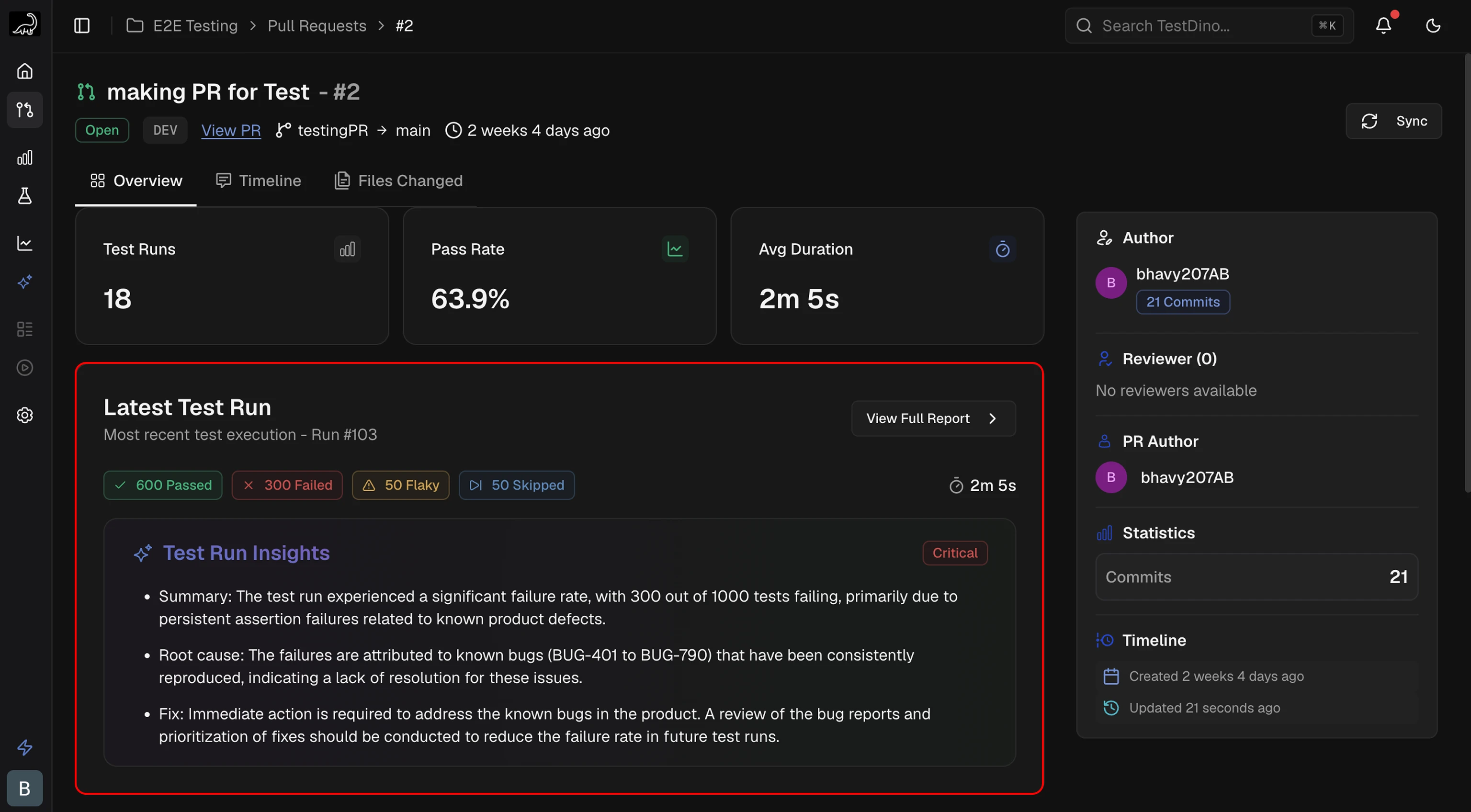 This card shows results from the most recent test execution:
- Status Counts: Passed, failed, flaky, and skipped tests for this run
- Duration: Execution time for this specific run
Test Results Trend
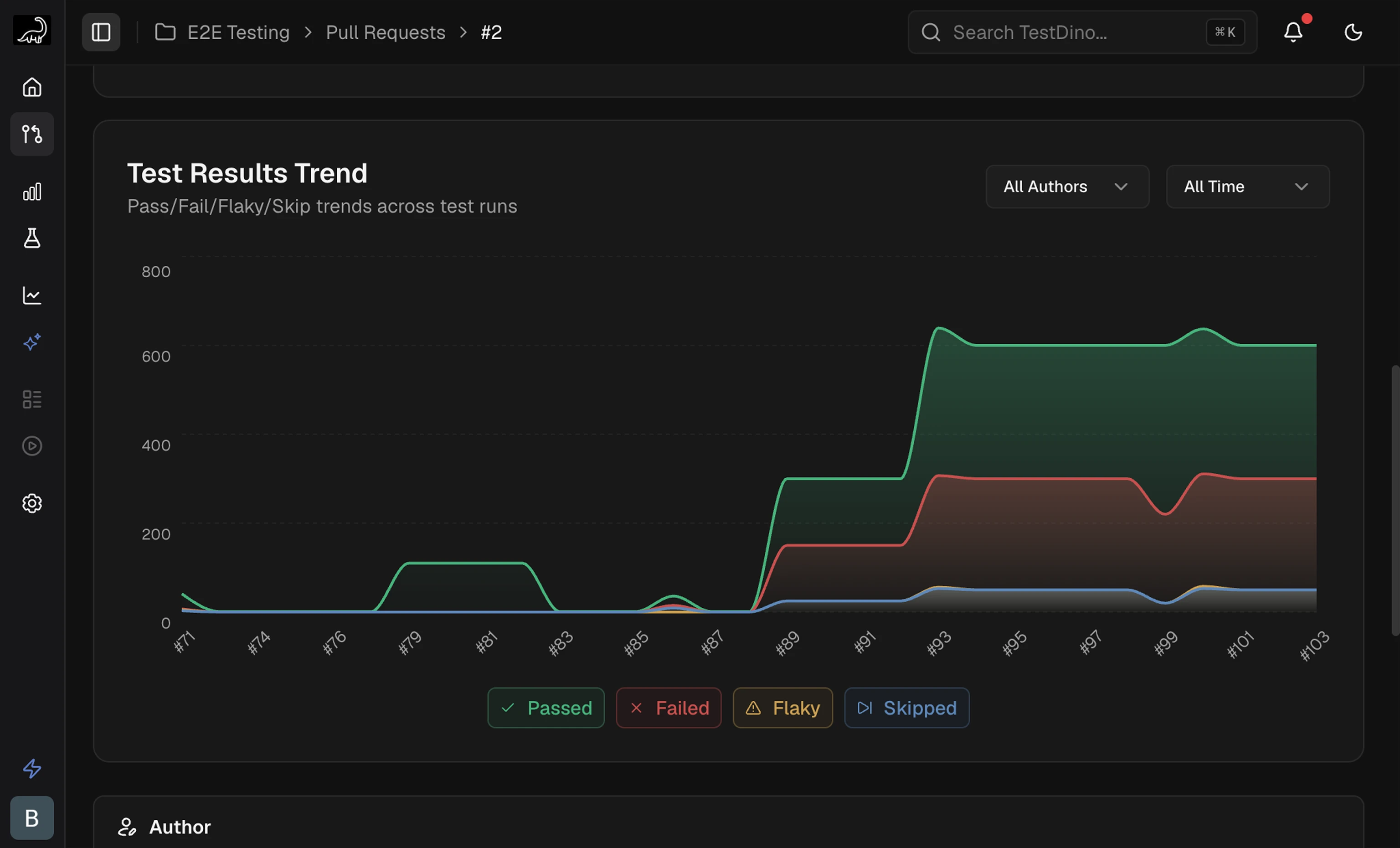 A graph showing test results across all runs for this PR:
- Trend Graph: Plots passed, failed, flaky, and skipped counts over time
- Interactive Tooltip: Hover over any point to see exact counts for that run
Related
Timeline
Chronological log of commits, test runs, and review activity
Files Changed
Review code diffs and modifications inside TestDino
Test Runs
View detailed test run results and analysis