

Prerequisites
- A TestDino project with test runs uploaded (Getting Started)
- A Linear account with permission to create issues
- A Linear team to file issues into
Connect Linear to TestDino
Open the Integrations page
Go to Settings → Integrations in your TestDino project. Open the Linear tile, then click Connect Linear in the panel.
Authorize your Linear account
TestDino redirects you to Linear to authorize access. Sign in and approve the request. TestDino requests permission to read workspaces, teams, and create issues.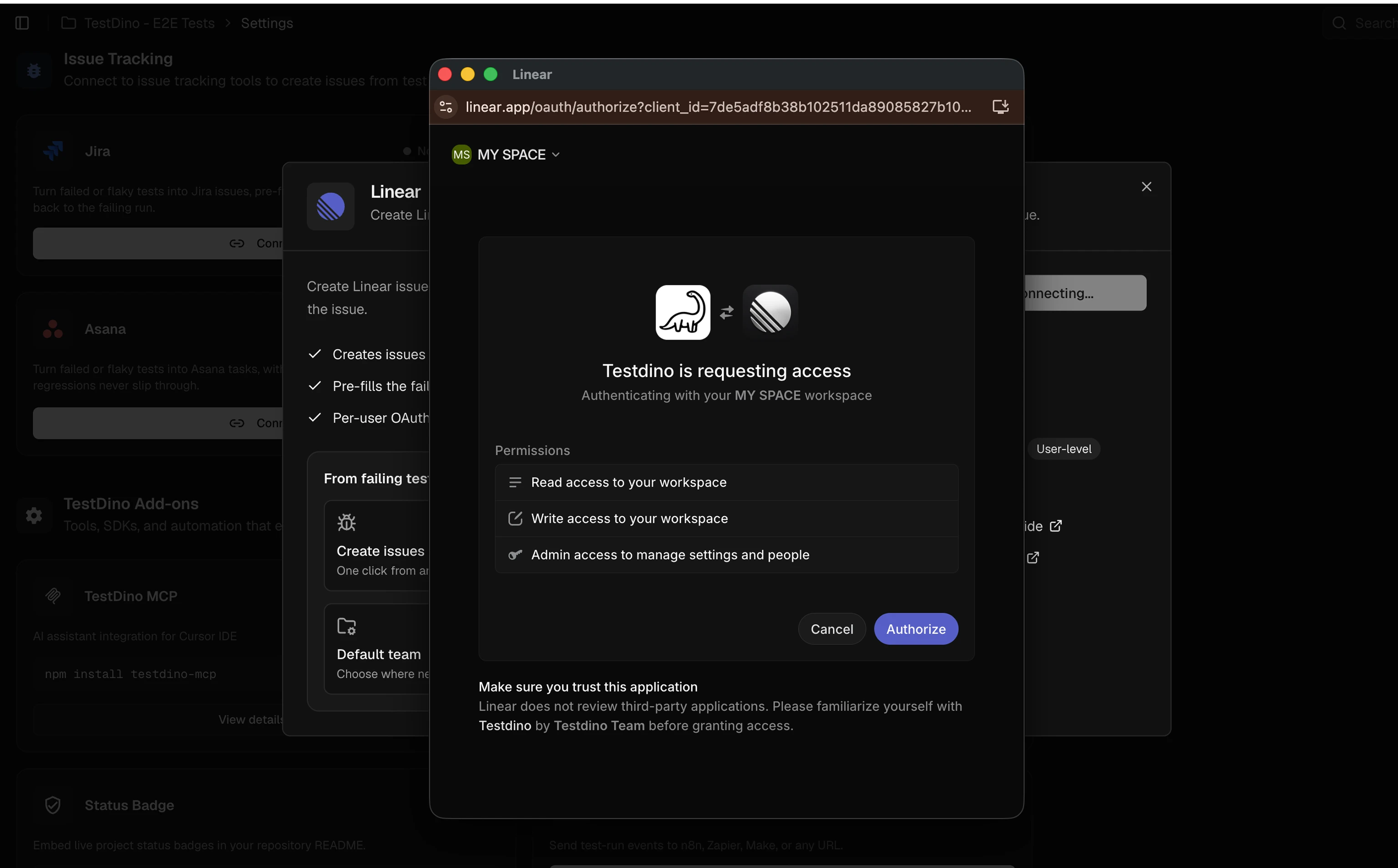
Configure defaults
After authorization, select the default Workspace and Team where issues will be created. You can change these per issue when creating a bug report.
NoteThe default team is a convenience setting. You can select a different team each time you create an issue.
Create a Linear Bug Report
Create Linear issues directly from failed or flaky test cases. Each issue includes test metadata, so your team has full context without opening separate reports.1
Open a Test Run
Navigate to a Test Run in TestDino.
2
Select a test case
Choose a failed or flaky test case from the run.
3
Raise Issue
Click Raise Issue and select Linear.
4
Configure & Create issue
Select the Team and Issue State. Set Priority, Assignee, and Labels as needed. Review the Summary and Description (auto-generated from failure data). Use the Write/Preview toggle to verify formatting. Click Create to file the issue in Linear.
5
Confirm creation
TestDino shows a confirmation with the Linear issue key and internal ID with a copyable URL. Click View in Linear to open the issue and continue triage.
Link Linear Issues to Manual Runs
Manual runs, results, releases, suites, and exploratory sessions have a Linked issues field that accepts Linear issues by key or URL, next to Jira. From the same field, Create new Linear issue opens Linear’s new-issue composer for your default team in a popup; the new issue is linked when you close it. Details and the both-trackers picker: Link Work Items. Linking a Linear issue to a run, or to a result in that run, adds an attachment on the Linear issue titledTestDino run: <run name> that opens the run in TestDino. One attachment per run and issue, however many results reference it. It is removed when the last link between that run and the issue is removed, or when the run is deleted. The attachment is created with the Linear account of the person who made the link, so it appears only when that person has Linear connected.
The bulk Link work item action on the test case list also accepts Linear issues (Bulk Actions). Test-case-level links do not add an attachment on the Linear issue.
What TestDino Pre-fills
Every issue is created with structured context so the developer receiving it has everything needed to investigate.Troubleshooting
Teams or labels not showing in the form
Teams or labels not showing in the form
- Click Sync on the Linear card in Settings → Integrations to refresh teams, labels, and templates from Linear
- Verify your Linear account has access to the workspace and team you expect to see
Issue created but formatting looks wrong
Issue created but formatting looks wrong
- Use the Write/Preview toggle in the bug report form to verify markdown formatting before submitting
- Linear renders markdown in issue descriptions. Complex code blocks may need manual adjustment