

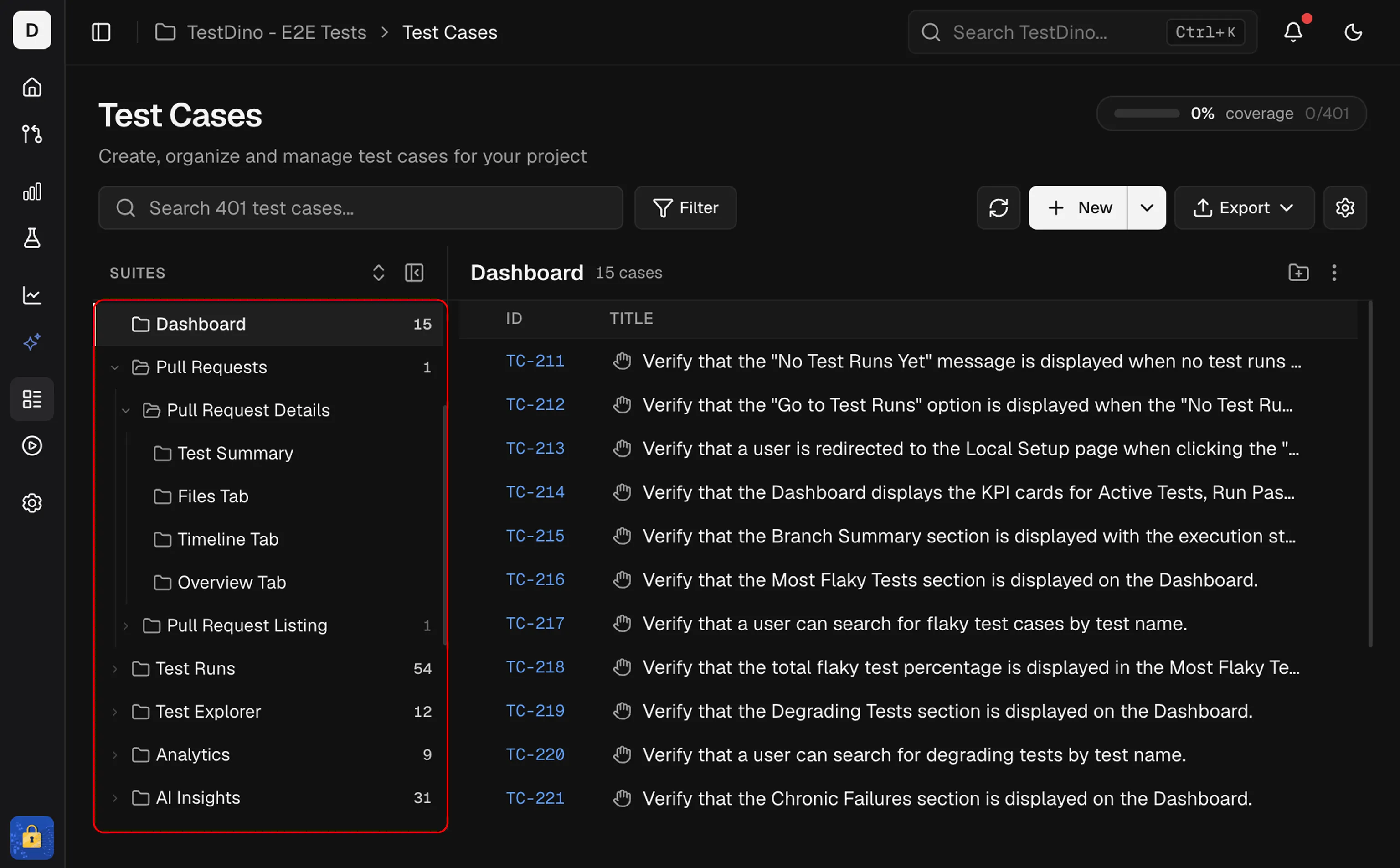
Create a Suite
Click New suite in the Suites sidebar to add a suite. Provide a name, optional description, and optional parent suite to create a nested structure. Hover any suite row and click its … menu for New sub-suite, Edit, and Delete.Reorder Suites and Cases
Drag any suite or test case to reorder it, or drop it onto a different parent. Suites support up to 6 levels of nesting. Test cases can be reordered while a suite is selected; All test cases and Unassigned sort by column instead. The order of cases inside a suite is the order a run shows under Manual Order. Dragging a case in an open run changes the suite’s order too.Expand and Collapse
Click a suite to list its test cases. Click the arrow beside it to show or hide its sub-suites. Use Expand all or Collapse all in the Suites sidebar header to open or close every suite at once.Create Test Cases in a Suite
2 ways to create test cases:- Click the + Create a Test Case row at the bottom of any expanded suite
- Use the + New button in the header (select the target suite in the form)
Inline Test Case Rows
Inside each expanded suite, test cases are listed with:
Click any test case row to open its Details Sheet on the right. To select every test case in a suite for Bulk Actions, tick the checkbox in that suite’s list header. Ticking suites in the sidebar selects the suites themselves; the only action then is Delete, which removes the suites and their cases.
Test Cases
Flat list with search, filter, and full details sheet
Bulk Actions
Edit, delete, or print multiple test cases at once
Concepts & Settings
Suites, test cases, steps, and project settings