

Setup
Test Audit runs through the TestDino MCP Server. Once MCP is configured, every audit is a single prompt to your AI agent.1
Set up the TestDino MCP server
Follow MCP Overview to install the server, generate a PAT, and configure your client.
Skip this step if MCP is already working in your client.
2
Open your repo and run the audit prompt
Open the Playwright repo in your IDE so the agent can read your test files. Then send one of these prompts:
Critical and High issues are always reported, even outside the chosen scope.
3
View the audit in TestDino
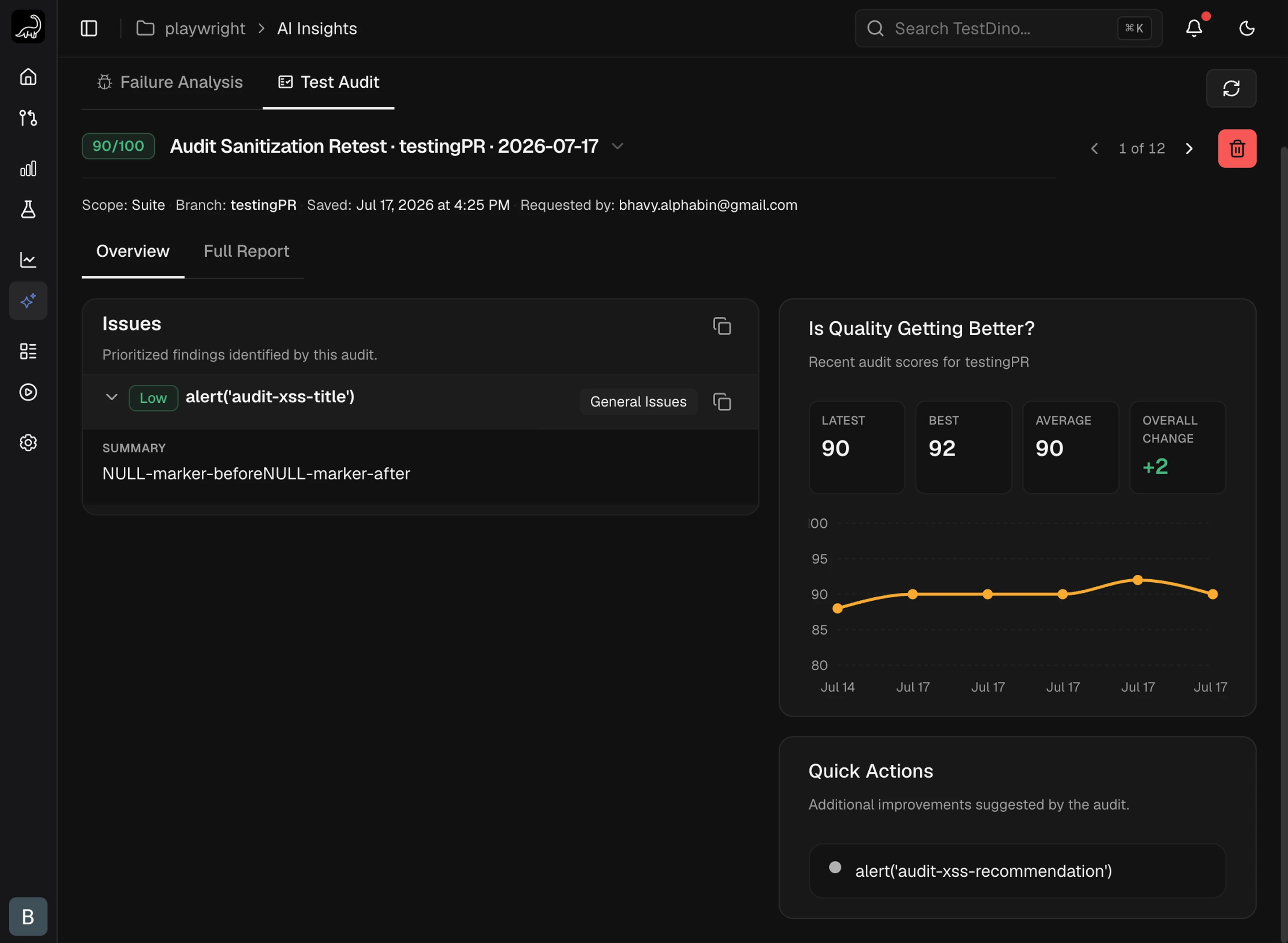
Open AI Insights → Test Audit in TestDino ↗. The new audit appears at the top of the history with the score, issues, and full report.
Reading the Report
Audit Score
Every audit returns a single 0–100 score, shown on the Health Score card with its band. TestDino computes it from the issues the audit found; the AI agent does not choose the number. The same issues always produce the same score.
The score starts at 100, subtracts the points for every issue, and stops at 0. Fixing an issue raises the next audit’s score by exactly its points. The Score Breakdown card under the score lists each category with its issue counts and the points it costs, so you can see what to fix first.
2 Critical issues alone place a suite in the Fair band (70), 3 put it in Needs work (55), and 4 put it in At risk (40).
Each audit also receives the previous audit’s findings and re-checks them before looking for new issues, so back-to-back audits of an unchanged suite report the same issues and the same score.
Overview Tab
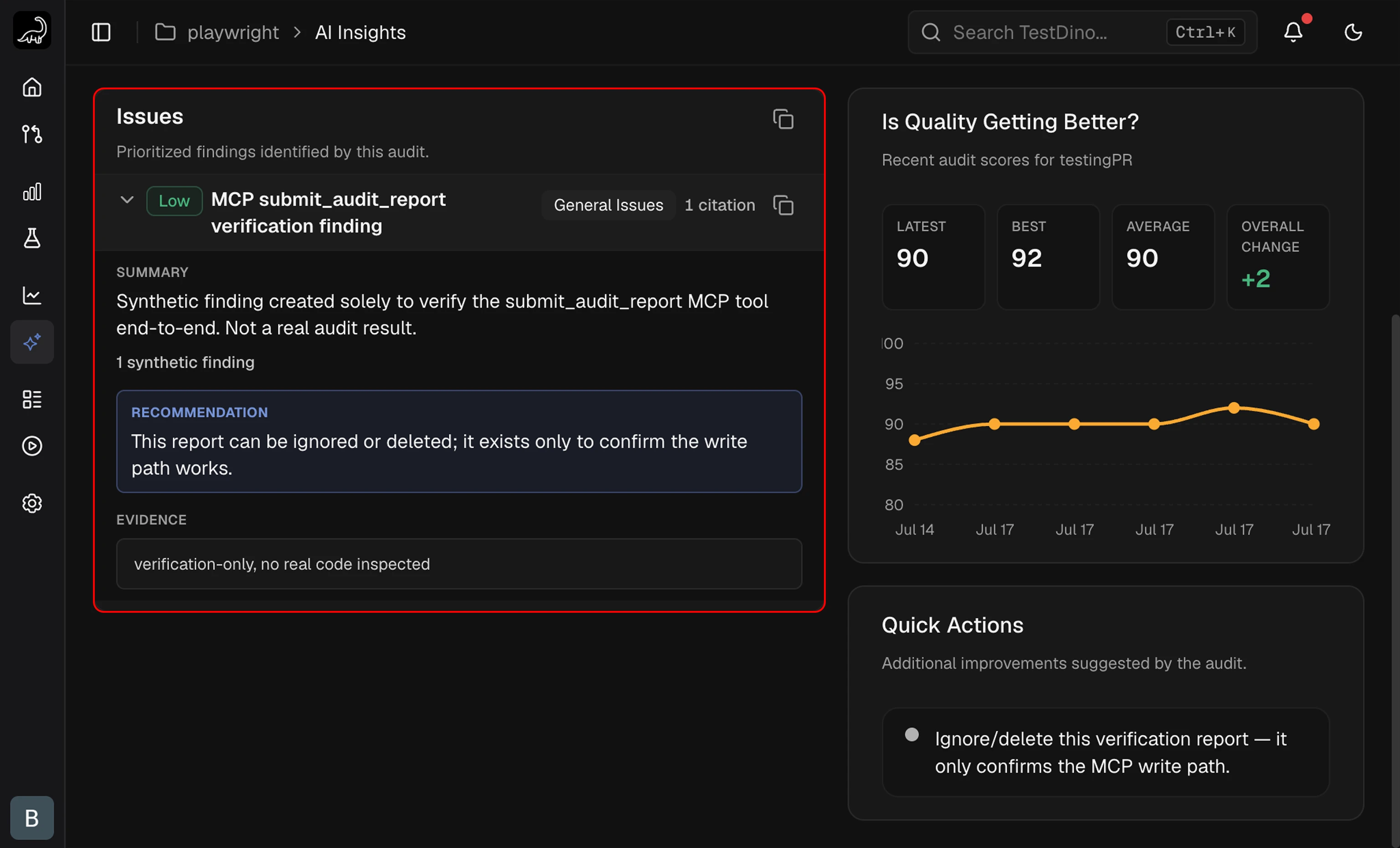
The Overview tab splits the audit into 2 panels side by side: a prioritized Issues list on the left and a Quick Actions sidebar on the right.Issues
Each Issue card collapses to a single row with the severity badge, title, category badge, and citation count. Expanding the card reveals 3 blocks:- Summary: what the issue is and why it matters.
- Recommendation: a concrete fix, often a one-line change at a
file:linereference. - Evidence: one or more
file:linereferences, each with a short observation.
CI Time & Cost
The CI Time & Cost card lists suggestions from your own CI runs to save time and storage, such as a configuration fix you can copy. These suggestions never affect the score.Score Trend
The Score Trend chart plots the Health Score of the most recent audits on the same branch, oldest first, up to 6. It appears once the branch has at least 2 audits.Quick Actions
A sidebar listing fixes that apply to the whole test suite rather than to one issue, with the count shown in the header. Suggestions are free-text and do not carry severity, category, or evidence metadata.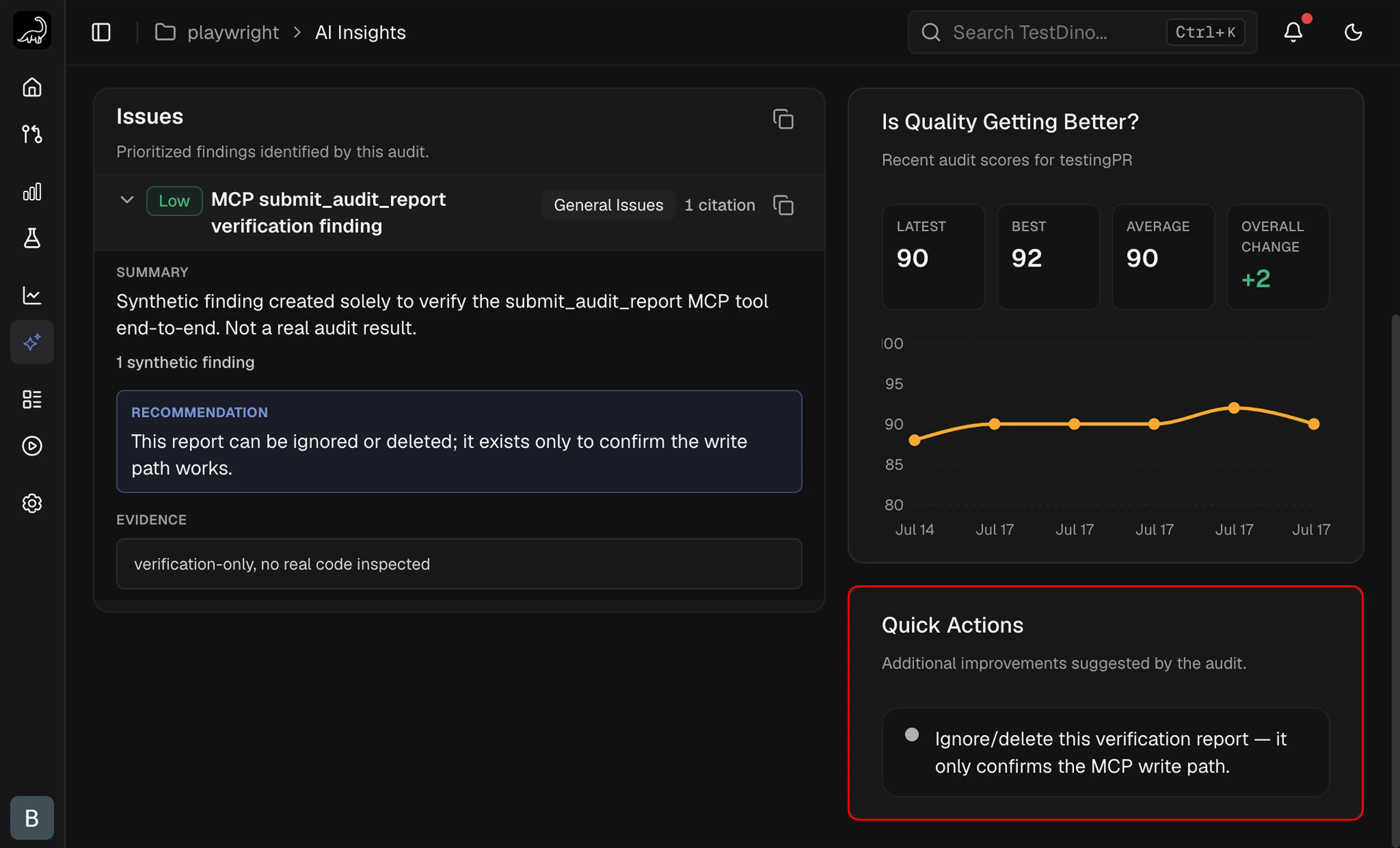
Full Report Tab
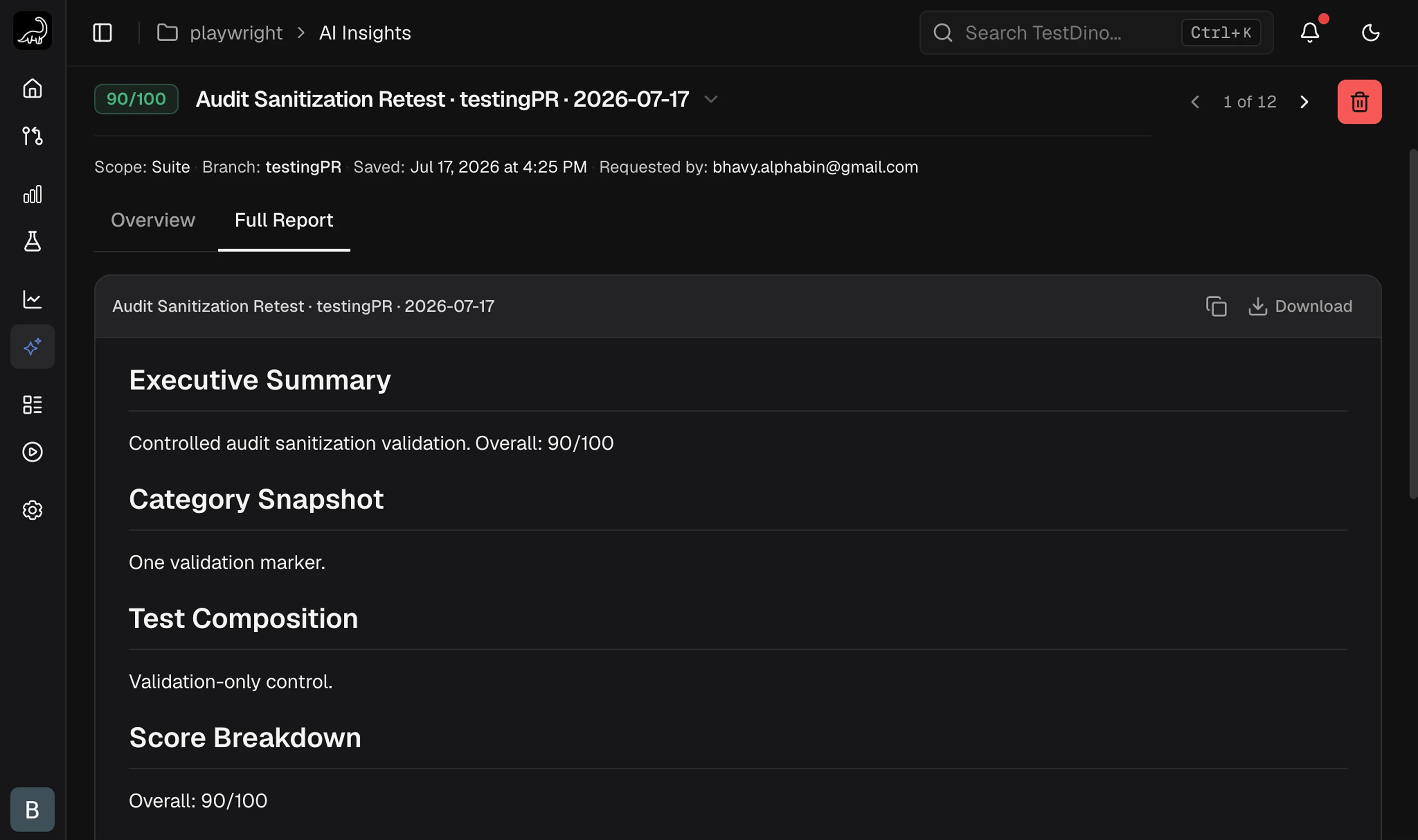
The Full Report tab renders the complete markdown audit document. Use the Download button to save it as a.md file for pull-request reviews or wikis.
Categories and Severity
Issue Categories
Each finding is tagged with one of 9 categories.Severity Levels
A scope with more than 50% surface-level tests is automatically reported as Critical.
Audit History
Past audits are stored per project and shown in the picker at the top of the Test Audit tab.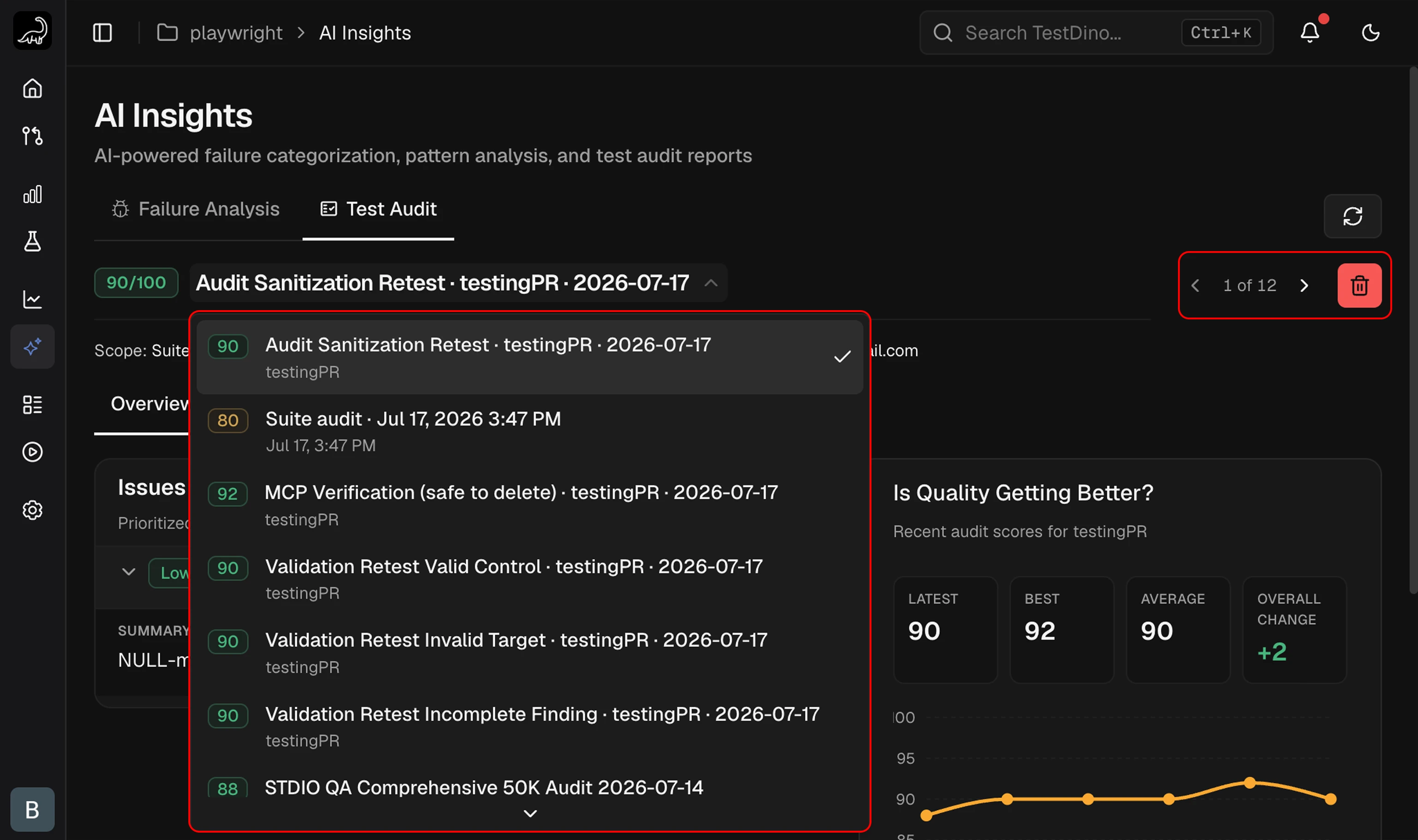
- Navigate: use the
<and>arrows, or open the dropdown to jump to any audit. - Pagination: 10 audits per page.
- Select: click any past audit to load its Overview and Full Report.
- Delete: the trash icon removes the selected audit. This cannot be undone.
- Re-run: ask your AI agent for a new audit at any time. New reports are added to history without overwriting previous ones.
Related
Failure Analysis
Cross-run failure categorization and patterns
MCP Overview
Connect AI agents to TestDino
MCP Tools Reference
All MCP tool specifications
Test Run AI Insights
Per-run failure categorization
Test Case AI Insights
Per-case AI diagnosis
Project Settings
AI controls and access tokens