What you’ll learn
  • How to install testdino-mcp locally via npx or a global install
  • How to generate a Personal Access Token and configure it per AI assistant
  • How to wire up Claude Code, Cursor, and Claude Desktop, then validate
Run the TestDino MCP server as a local process started by your AI assistant. It launches testdino-mcp over stdio.
Using Claude on the web? Skip the install and connect via the hosted MCP at mcp.testdino.com. See Remote MCP Server.

Prerequisites

  • Sign in to TestDino
  • Node.js installed (so npx works)
  • An MCP client: Claude Code, Cursor, or Claude Desktop

Choose an install method

Both methods run the same server and need the same token. Pick the one that fits how you work.
MethodBest forEffort
Install via AI promptYou already use Claude Code, Cursor, or another assistant with terminal accessOne prompt
Manual setupYou prefer to edit the client config yourself, or use Claude DesktopA few steps

Create a Personal Access Token

Both methods need a Personal Access Token. You pass it to the server through the TESTDINO_PAT environment variable, which is what the server reads.
  1. Sign in to app.testdino.com
  2. Click your profile → User settings
User settings navigation showing profile menu and settings link
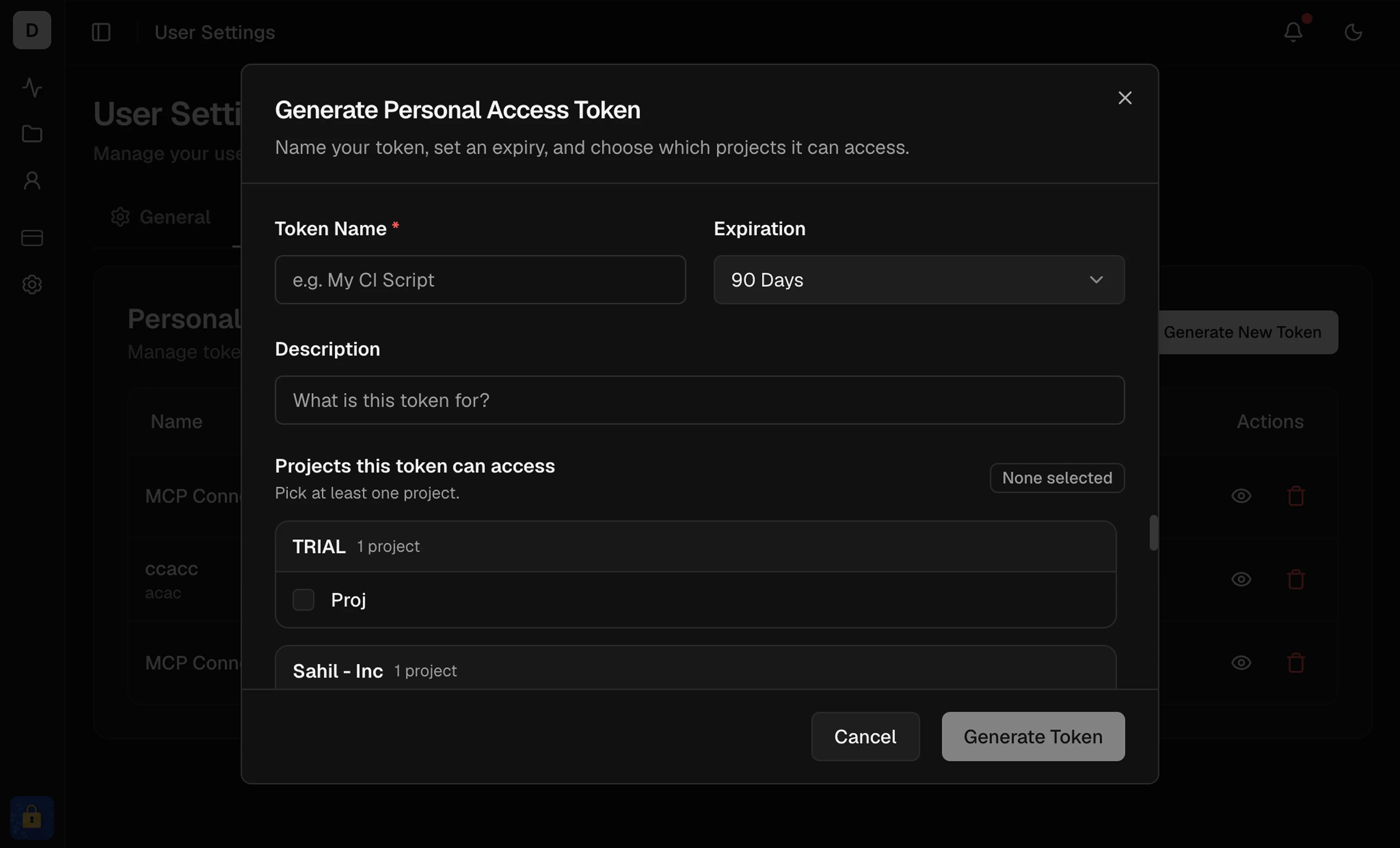
  1. Go to Personal access tokensGenerate new token
  2. Set a Token Name (e.g., mcp server) and Expiration (30 to 365 days)
Generate new token form with name and expiration fields
  1. Grant access to at least one project with Test runs, Manual tests, or both
  2. Click Generate token and copy it immediately
WarningThe token is shown once and cannot be retrieved later. Store it in a password manager. Never commit tokens to Git. Use separate tokens for separate contexts (local MCP, CI, scripts). Revoke tokens you no longer use.

Install via AI prompt

Ask a coding assistant with terminal access to install and wire up the server. Give it the package name, your token, and the TESTDINO_PAT requirement so it sets the variable correctly. Paste a prompt like this into Claude Code, Cursor, or another assistant with terminal access:

Install and validate the TestDino MCP server.

Open in Cursor
The assistant runs claude mcp add testdino --env TESTDINO_PAT=your-token -- npx -y testdino-mcp@latest (or edits the client config for Cursor and Claude Desktop), restarts the connection, then calls health to confirm it reads your organizations and projects.
WarningThe assistant writes your token into the client config file. Use a scoped token, revoke it when done, and never paste a token into a shared or logged session.

Manual setup

Edit the client config yourself. Install the server, add the config entry with your token, then validate.
1

Install the MCP server

Try without installing:
npx -y testdino-mcp@latest
Or install globally:
npm install -g testdino-mcp
NoteYour MCP client starts the server as a local process. npx is easiest for evaluation, and a global install is convenient for daily use.
2

Configure your MCP client

Pick your client and add the server entry.
Run in your terminal. Pass the token through the TESTDINO_PAT environment variable, which is what the server reads:
claude mcp add testdino --env TESTDINO_PAT=your-token -- npx -y testdino-mcp@latest
No restart needed. Verify with:
claude mcp list
You should see testdino with a ✔ Connected status.
3

Validate the connection

Ask your assistant:“Run health and confirm it can see my organizations and projects.”health verifies three things: the server is running, the token is loaded, and TestDino is reachable. A successful response lists your account, your organizations, and each project with its projectId. Copy one. Most query tools take a projectId as a parameter.See Troubleshooting if health fails.

Next Steps

Tools Reference

Full parameters, input schemas, and video demos for every tool

Troubleshooting

Error messages, fixes, and editor-specific solutions

OpenClaw Chat Bot

Wrap the local server as a Slack, Telegram, or Discord bot

Remote MCP Server

Hosted MCP for ChatGPT and Claude on the web