

https://mcp.testdino.com connects to ChatGPT, Claude on the web, and other AI assistants that support remote MCP.
Prefer a local CLI install? See Local MCP Server for Claude Code, Cursor, and Claude Desktop.
Quick Reference
Prerequisites
- Sign in to TestDino
- An AI assistant that supports remote MCP (ChatGPT, Claude on the web, others)
- A Personal Access Token from TestDino (generate one inline, or paste an existing token).
Quick Start
Walkthrough below covers Claude on the web and ChatGPT. The TestDino OAuth flow at the end is the same for any AI assistant that supports remote MCP.1
Add TestDino in your AI assistant
- Claude on the web
- ChatGPT
Go to claude.ai and open Settings → Connectors (or Profile → Connectors, depending on plan).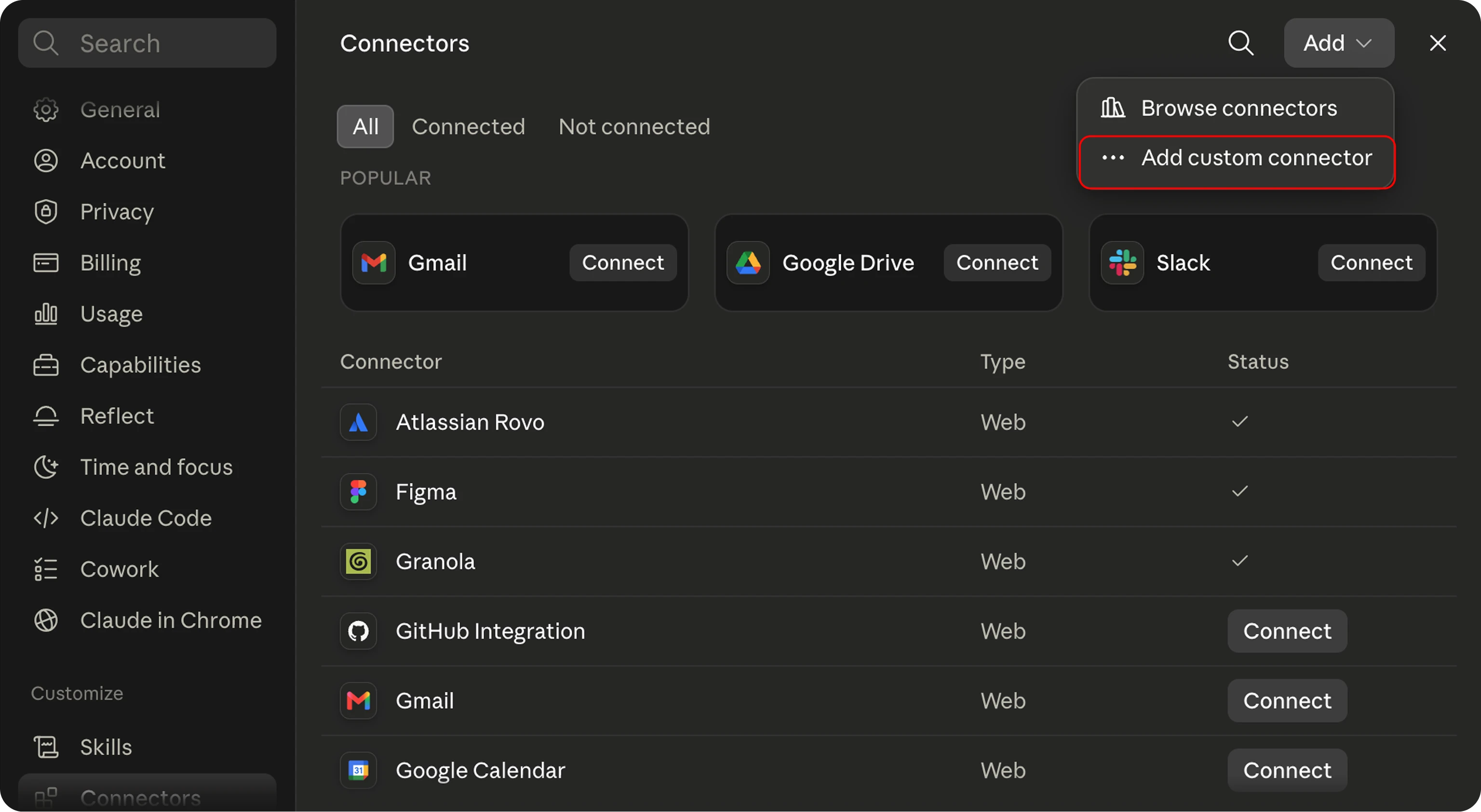 Click Add custom connector and fill in:
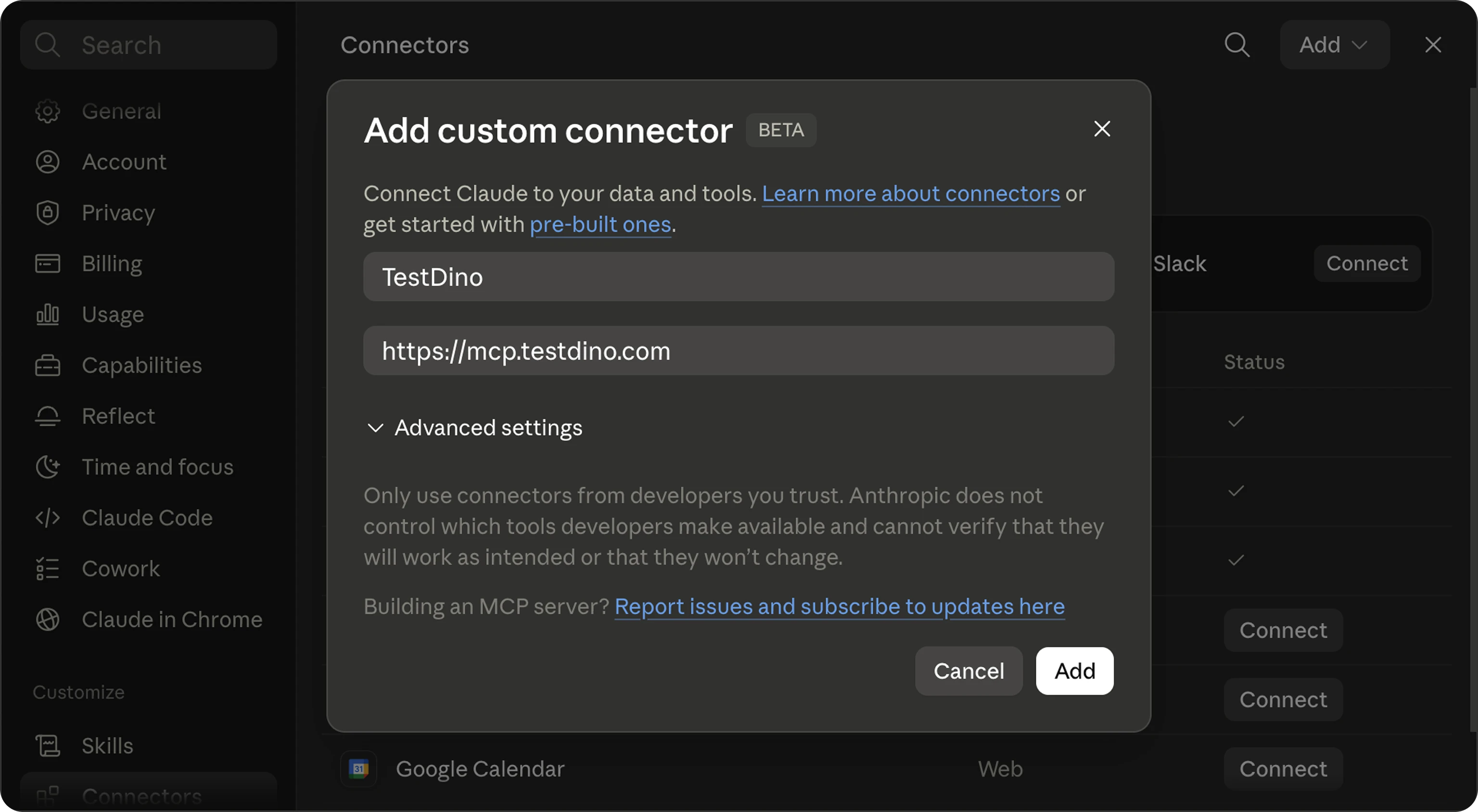 Click Add. Claude redirects you to TestDino’s authorization page.
Click Add custom connector and fill in:- Name:
TestDino - Server URL:
https://mcp.testdino.com
Click Add. Claude redirects you to TestDino’s authorization page.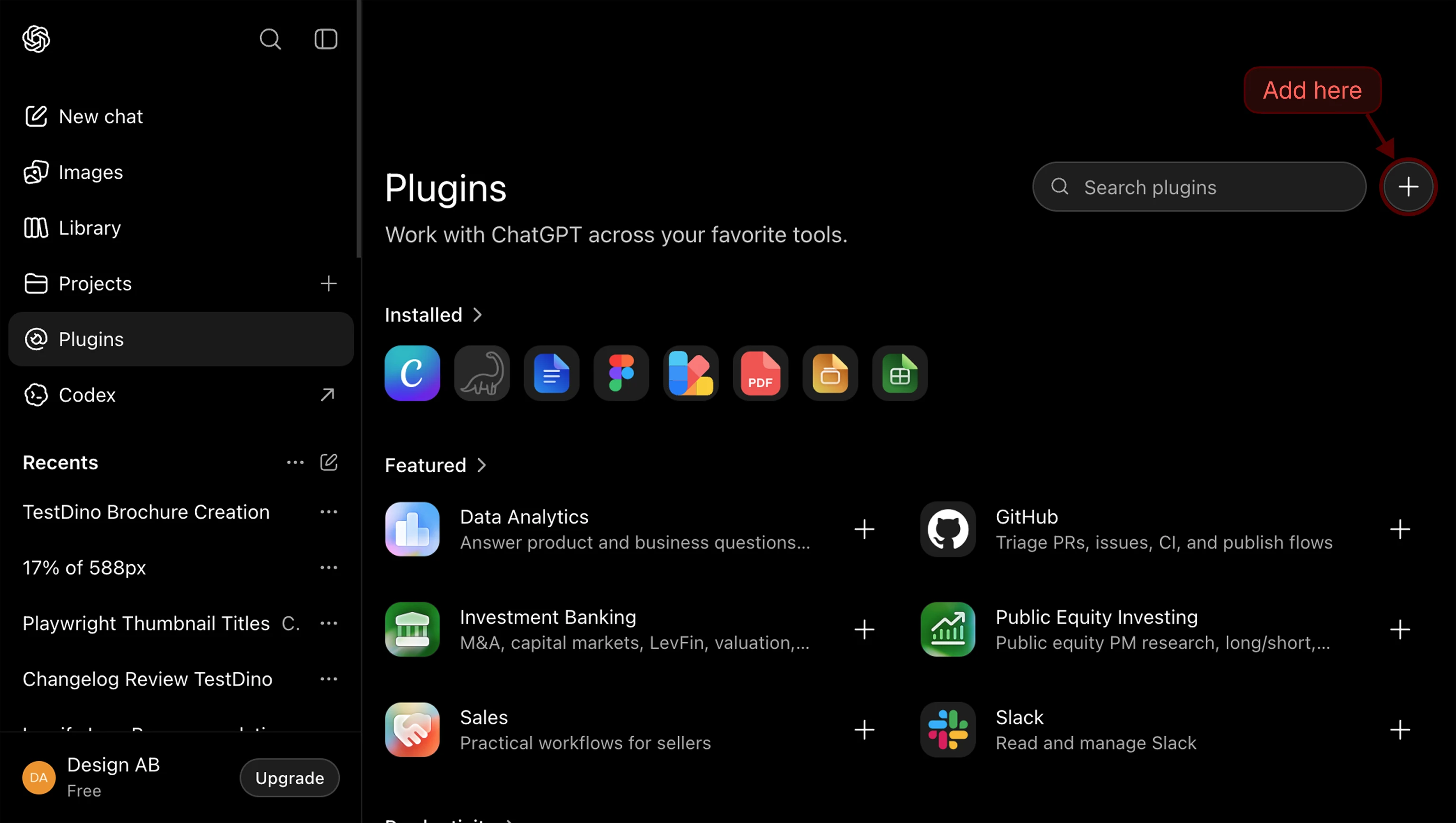
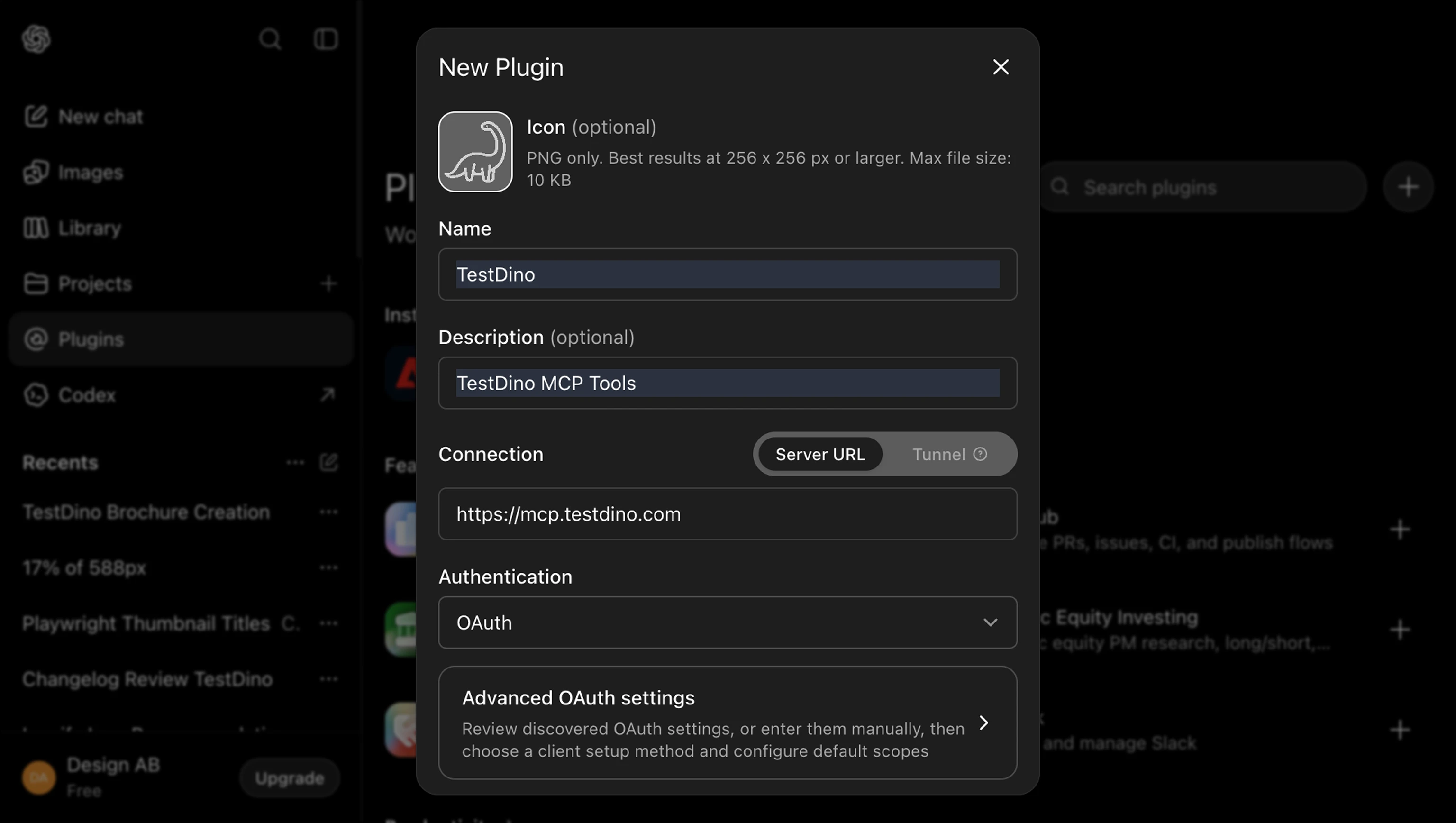
2
Confirm your TestDino account
Sign in to TestDino if you aren’t already. The dialog confirms which account will authorize the connection.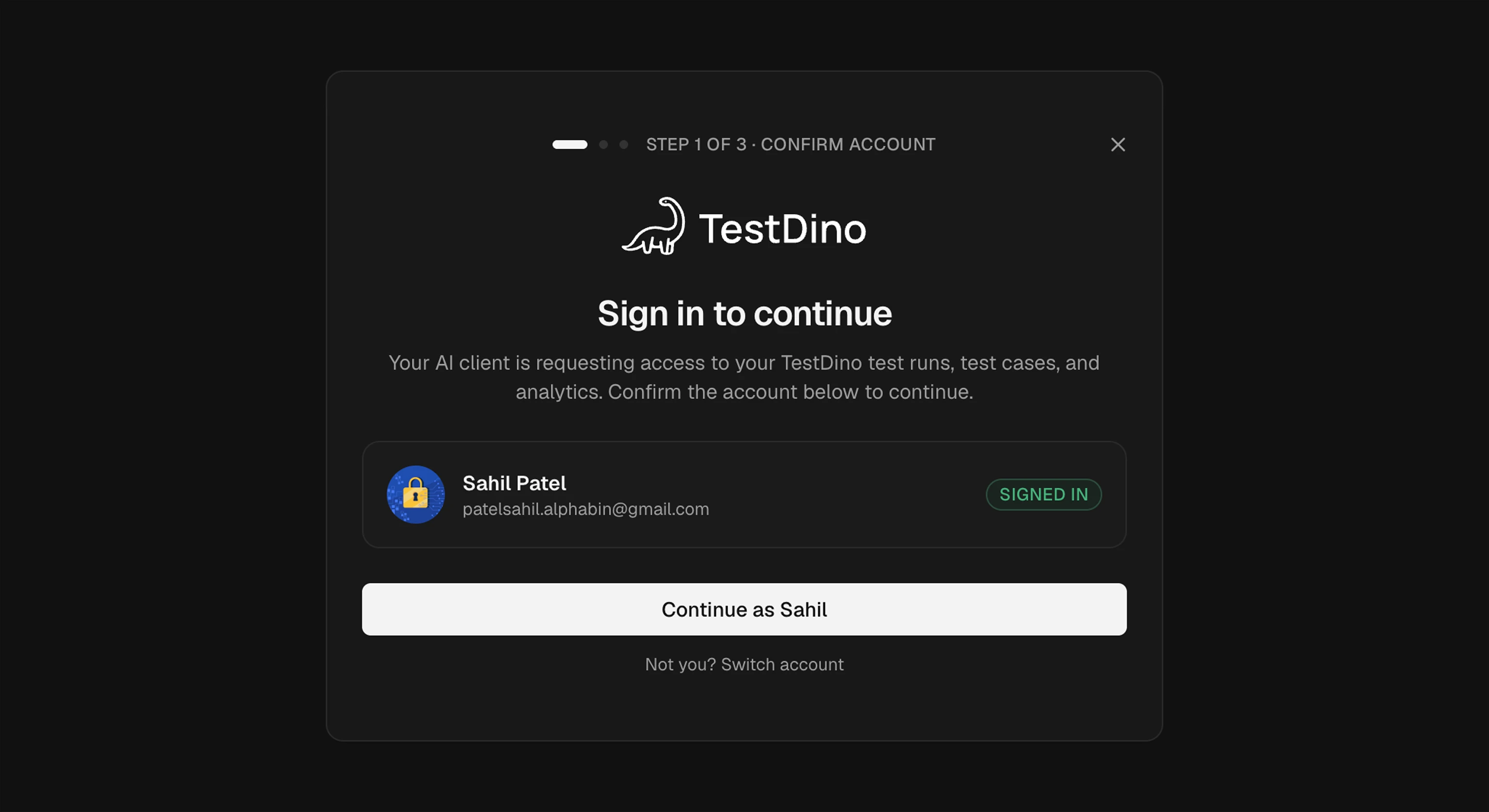
3
Choose how to connect
Pick how your AI assistant gets a PAT.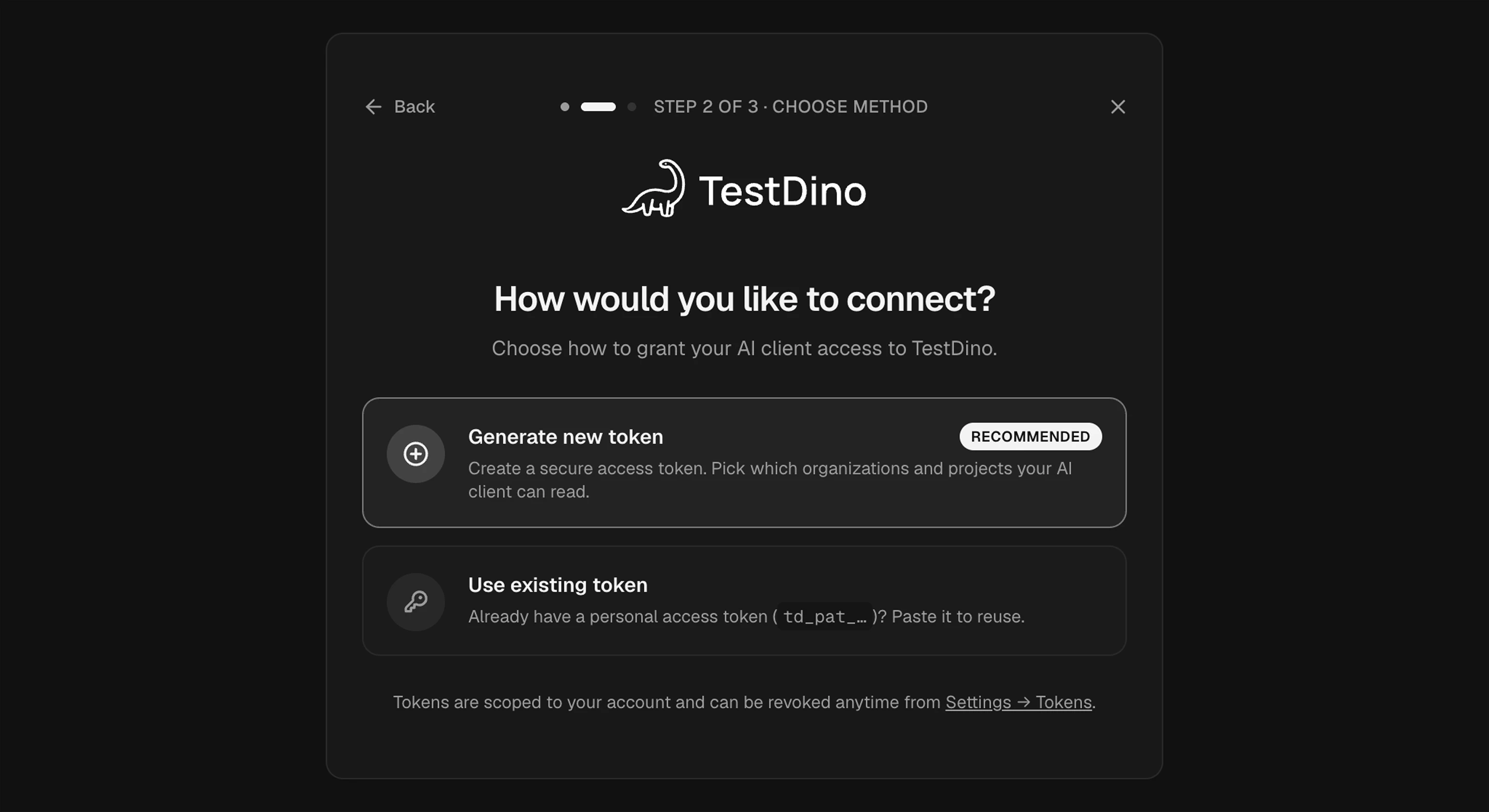
- Generate a new token (recommended): TestDino opens a scope picker where you select exactly which organizations, projects, and modules the AI assistant can read.
- Use an existing token: paste a
td_pat_-prefixed PAT you already created in TestDino settings.
4
Authorize
Complete the path you picked.If you chose Generate a new token: select the access scope. Each project has separate Test Runs and Manual Tests toggles. Click Authorize.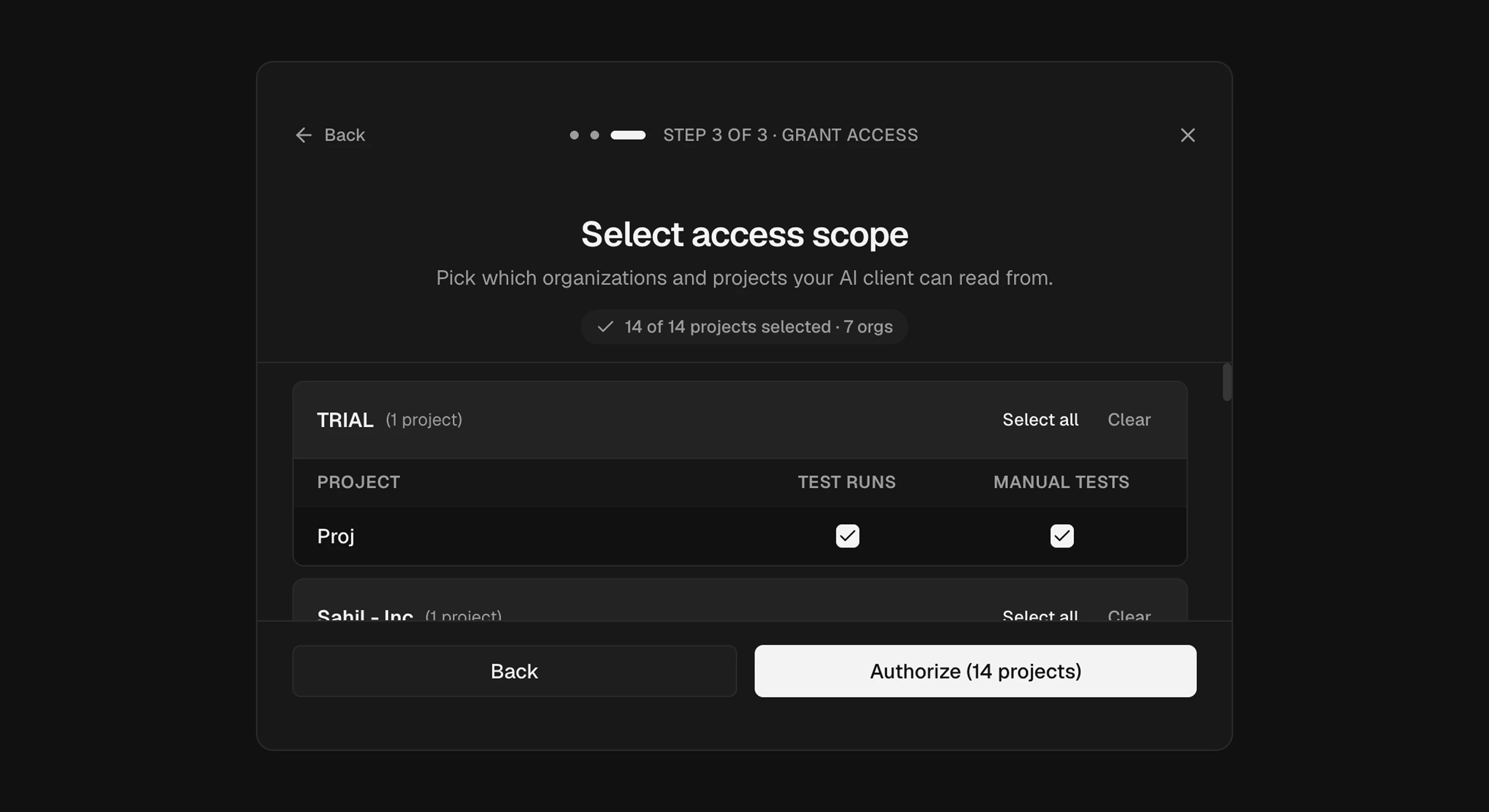 If you chose Use an existing token: paste your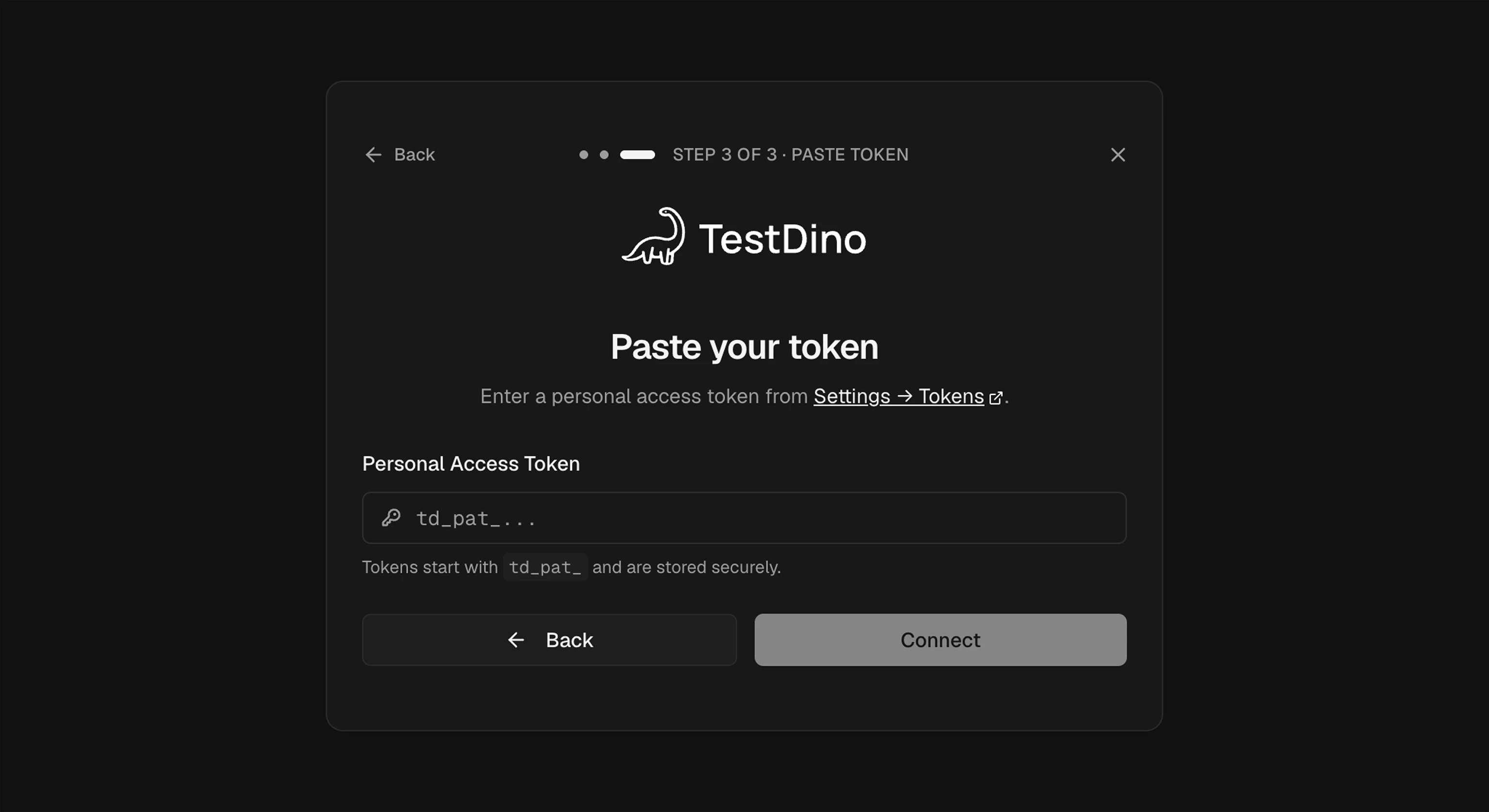
If you chose Use an existing token: paste your td_pat_-prefixed PAT. Click Connect.5
Connector connected
After TestDino redirects back, your AI assistant flips the connector to Connected. The TestDino tools are available in any new chat.
Verify the connection
Open a new chat and ask:
Use the TestDino connector. Call health and tell me which projects I have access to.
Your AI assistant calls health and returns:
- Your user identity
- The connector’s granted scope
- A tree of every organization and project the PAT can reach, each with a
projectId
projectId. Most prompts that follow need it.
If health returns an empty list, the PAT has no project access. Adjust its scope in TestDino, then disconnect and reconnect the connector in your AI assistant to refresh granted access.
Troubleshooting
Project access denied on a specific project
Project access denied on a specific project
The PAT doesn’t include that project in its scope. Either:
- Edit the PAT to add the project and module, or
- Generate a new PAT with broader scope, then disconnect and reconnect the connector in your AI assistant so it picks up the new token.
Connector shows Connected but no tools appear in chat
Connector shows Connected but no tools appear in chat
- Start a new chat. Most clients attach connectors at chat creation, not retroactively.
- Make sure the TestDino toggle is on for that chat (look for the icon next to the message input).
Next Steps
Tools Reference
Full parameters, input schemas, and video demos for every tool
MCP Troubleshooting
Error messages, fixes, and editor-specific solutions
AI Test Audit
Run an AI audit of a Playwright suite via
get_audit_report and submit_audit_reportPlaywright CLI
Stream Playwright runs to TestDino with
@testdino/playwright