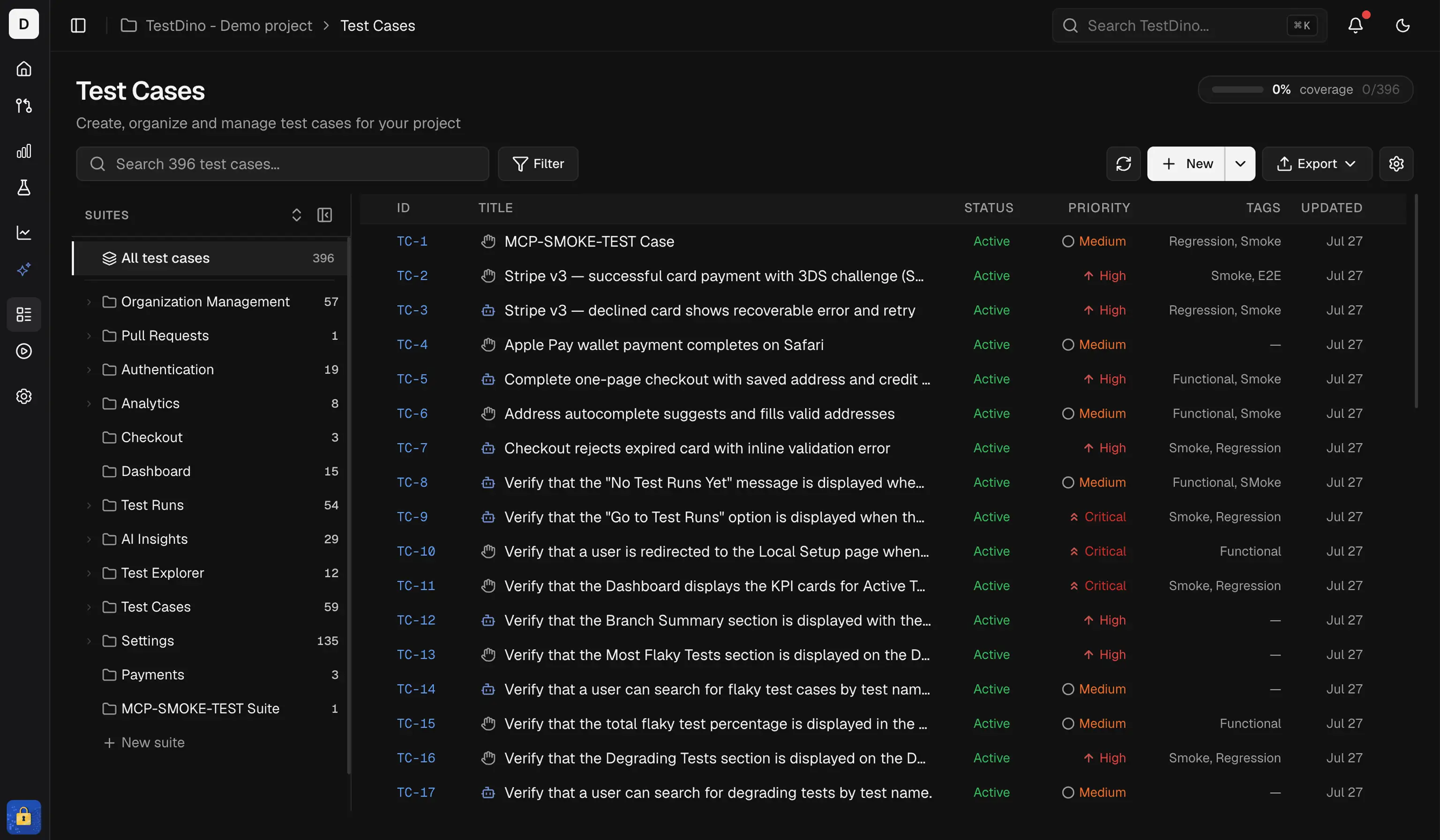
Test Case Management is a standalone workspace for creating, organizing, and maintaining manual and automated test cases within a project. Group test cases under suites and subsuites, manage classification and automation status, and track metadata. The layout includes a sidebar for suite hierarchy, a top bar for key actions, and a main panel for test cases in grid or list form.

Quick Reference

Key Concepts

Workspace Overview

Views

The Test Cases page shows all test suites listed in a collapsible hierarchy. Clicking a suite expands it to show its test cases, and if that suite contains subsuites, those appear as nested sections as well. Test cases display in a List View.

List View (Table Layout)

List View This is a high-density table format, ideal for bulk operations and scanning. It includes the columns for the Key, Title & Priority, Type, Tags, Status, Automation, and Severity.
NoteUse checkboxes for bulk selection or the action menu on each test case row for individual actions.

Search Functionality

You can search by test case name (Title) or by its Key (ID) (e.g., TC-6297). The list filters in real-time as you type.

Available Filters

To the right of the search bar, there are five filter dropdowns to refine the test cases shown:
  1. Status: Filter by Active, Draft, or Deprecated.
  2. Automation: Filter by Manual or Automated.
  3. Priority: Filter by Critical, High, Medium, Low, or Not Set.
  4. Type: Filter by any test type (Functional, Smoke, Regression, E2E, API, and more).
  5. Tags: Filter by one or more user-defined labels.
TipCombine multiple filters for precise queries. For example, filter for: [Status: Active] + [Priority: High] + [Tags: smoke] = See all high-priority, active smoke tests.

Quick Start Steps

1. Open the Test Cases tab

Go to your project and select Test Cases from the navigation bar. This opens the Test Case Management workspace.

2. Create your first suite

In the Suite Sidebar, click the New Suite button to create a new suite or subsuite. Use suites to group related test cases under feature, module, or component names.

3. Add test cases

Use the New Test Case button in the toolbar to open the full creation form. You can also add test cases directly within a suite or from the suite’s context menu.
NoteFill in Title, Priority, Status, and Tags. Add test steps or link to automated spec files. Save and organize into suites.
For bulk operations, see Import and Export.

Permissions

Limits

Test Suites

Create and manage suite hierarchy

Test Case Structure

Fields, steps, custom fields, and attachments

Creating & Editing

Three creation methods and inline editing

Import & Export

Bulk import from CSV or TestRail