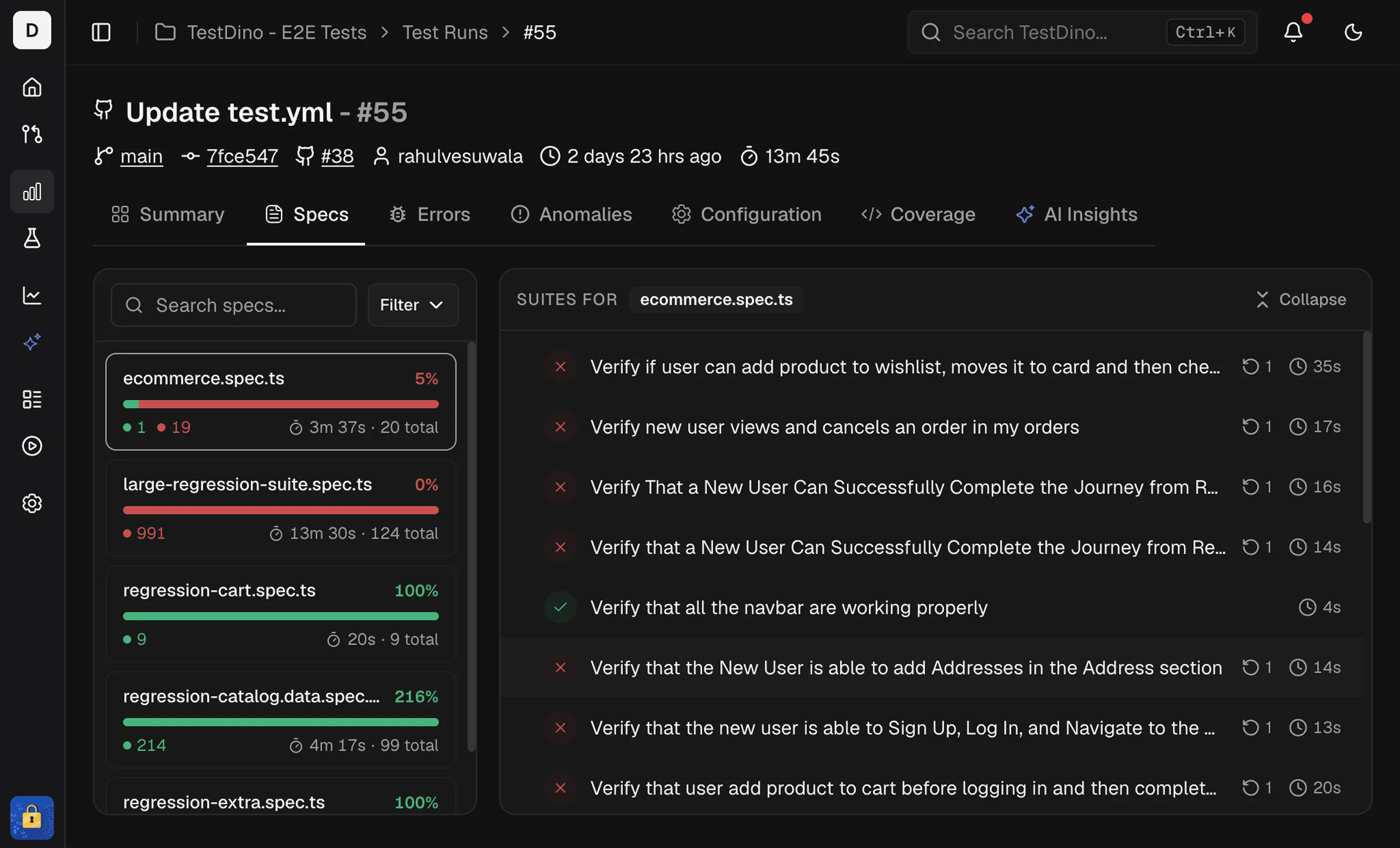
The Specs tab shows results for a single test run grouped by spec file or by tag. Use it to find files that are failing or slow, then open the test cases within a spec or tag. The tab has two sub-views, toggled with the Spec File and Tag buttons at the top of the left panel:
ViewGroups byUse it to
Spec File (default)Spec file pathFind failing or slow files
TagTest-case tagsAssess health of tag subsets like @smoke or @regression
Specs view showing spec file list on left with status bars and test details panel on right

Spec File View

Spec List

The left panel lists every spec file in the run. Each item shows:
  • Spec card: File name, total tests, a status bar (pass/fail/flaky/skipped), and total duration.
  • Sort: by Name, Duration, or Status to surface slow or failing files.
  • Filter: show only Passed, Failed, Flaky, or Skipped specs.
  • Search: type a file name to jump to a spec.

Spec Details

The right panel shows tests for the selected spec. It includes:
  • Suite totals at the top, including total time and test count
  • A test list with status, duration, and retry or attempt badges
From a test row, open the test detail view to review available evidence, including steps, errors, screenshots, and the trace viewer.
Sort by duration to find long-running specs first.

Tag View

Switch to the Tag view to group tests by their tags instead of by spec file. This view surfaces how each tag category performed in the run.

Tag List

The left panel lists every tag found in the run. Each tag card shows:
ElementDescription
Tag nameThe tag label
Test countTotal tests with this tag in the run
Status barColor-coded bar showing pass/fail/flaky/skipped distribution
Status breakdownCounts for failed, passed, and flaky tests
An all card at the top aggregates all tests across every tag.

Search, Sort, and Filter

ControlDescription
Search tagsType to filter tags by name
Sort & FilterOrder by name, test count, or status. Filter to show only tags with specific outcomes.

Tag Details

Click a tag card to show all tests with that tag in the right panel. Tests are grouped by spec file. Each test row displays the test name, status, and duration. Click any test to open the full detail view.
Tags come from Playwright’s tag metadata on tests or describe blocks. See the Annotations guide for how to add tags to your tests.
Summary, errors, and tag analytics.